Homepage vs Homarr for a Homelab Dashboard: YAML Files or Drag and Drop

Nadia Okoye
October 20, 2026
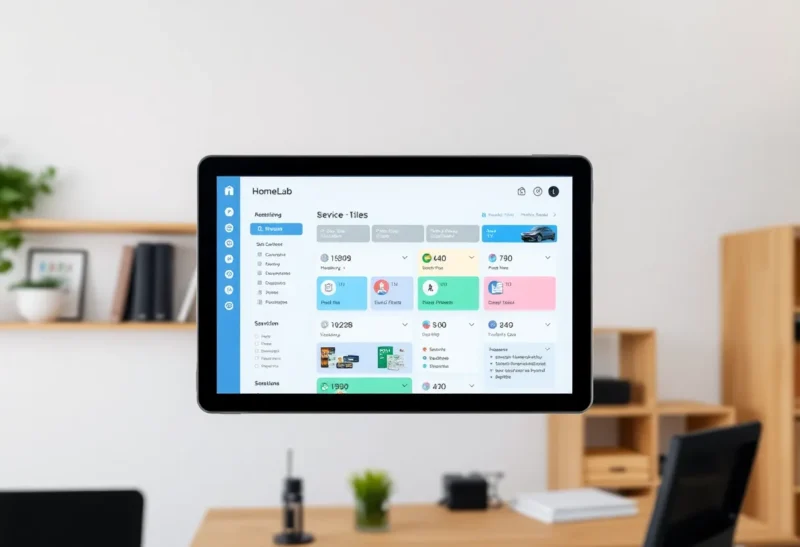
Once a homelab has more than a handful of services, remembering their addresses becomes its own chore. Was Jellyfin on port 8096 or 8097? Which subdomain did the photo app get? A dashboard solves this: one start page with a tile for every service, live status, and small widgets showing useful numbers such as downloads in progress, disk space or blocked DNS queries.
Homepage and Homarr are two of the most popular self-hosted dashboards. They look similar in screenshots and cover many of the same integrations, but they are configured in opposite ways. Homepage is built from YAML files and is extremely fast. Homarr is built in the browser with drag and drop, and adds users, permissions and sign-in. Which one suits you depends on how you like to manage your homelab, and who else will use the page.
Config files or a visual editor
Homepage is a static, fast dashboard configured entirely through YAML files: one for services, one for widgets, one for bookmarks and one for settings. Each service tile can show a live widget pulling data from that service’s API, and there are integrations for well over a hundred applications, from media servers and download tools to Proxmox, Pi-hole, routers and monitoring tools. It can also discover services automatically from Docker container labels. It has no database and no built-in login.
Homarr is a dashboard you build in the browser. You create boards, drag apps and widgets onto a grid, resize them and configure integrations through forms. It stores its configuration in a database and supports multiple users, groups and permissions, with sign-in through its own accounts, LDAP or an external identity provider. Widgets cover media servers, download clients, DNS filters, Home Assistant entities, calendars, weather, media requests and more.
| Homepage | Homarr | |
|---|---|---|
| Configuration | YAML files | Drag and drop in the browser |
| Integrations | Very large number of service widgets | Large and growing set of integrations |
| Docker auto-discovery | Yes, from container labels | Docker integration for container status and actions |
| Users and permissions | None; protect it with a proxy | Built in, with groups and SSO |
| Storage | Files only | Database |
| Speed | Very fast, light | Fast; heavier than Homepage |
| Version control | Natural: commit the YAML | Export and backup of the database |
Building the first page
With Homepage, you start by editing services.yaml: groups of services, each with a name, icon, link and optional widget configuration with the service’s URL and API key. Save the file and the page updates. It takes some reading of the documentation for each widget, but once you have a few examples, adding more is quick copy-and-paste. If your services run in Docker, labels on each container can define its tile, so the dashboard updates when you deploy something new.
With Homarr, you open the board, enter edit mode, add an app, pick an icon from its built-in icon library, set the URL, and drag it into place. Widgets are added the same way, with integrations configured once and reused. It is immediately approachable and fun, and the result can look polished without touching a file.
People who already manage their homelab with Docker Compose files in Git tend to prefer Homepage’s approach, since the dashboard becomes one more file in the repository. People who prefer clicking to editing, or who share the dashboard with others, tend to prefer Homarr.
Widgets and live data
Both show live data from services, which is what makes a dashboard more than a bookmark page. Typical widgets include:
- Media servers: active streams and recently added items.
- Download managers and media automation: queue sizes, speeds and upcoming releases.
- DNS filters such as Pi-hole and AdGuard Home: queries and blocked percentages.
- Hypervisors and NAS systems: CPU, memory and storage use.
- Monitoring tools: services up or down.
- Weather, date and time, search bars and calendars.
Homepage’s catalogue of service widgets is one of the largest of any dashboard, and its resource widgets can show CPU, memory and disk for the host. Homarr’s integrations cover most popular homelab services and add interactive features, such as pausing downloads, controlling media or toggling DNS blocking from the dashboard, and showing Home Assistant entities.
For a monitoring-heavy setup, a dashboard is not a replacement for real monitoring and alerts. Status dots show what is down now, not what was down last night; the difference is covered in Beszel vs Netdata.
Security and who can see it
This is the most important practical difference. Homepage has no login. Anyone who can reach it sees every service, and because widgets use API keys stored in its configuration, the dashboard itself has access to those services’ data. That is fine on a private network or behind a VPN, but if you expose it through a reverse proxy, put an authentication layer in front, such as single sign-on or basic authentication. Homepage also has a setting that restricts which hostnames it answers to, which should be set correctly.
Homarr includes users and permissions. You can make some boards public, keep others private, and give family members access only to the tiles they need, such as the media server and the recipe app, without exposing admin tools. Sign-in can use an external identity provider, so one family login works across the dashboard and other apps.
Either way, the safest homelab dashboards are reached only over a VPN or mesh network. A related question, whether a dashboard still needs to exist when every app is already on a private network, is explored in whether a Glance dashboard replaces Homepage.

Performance and upkeep
Homepage is very light: a small Node.js application that renders quickly and uses little memory. Configuration lives in files, so backups are just copies of the config folder, and moving it to another machine is trivial. Updates rarely change the configuration format, though widget options occasionally evolve.
Homarr is heavier, with a database, users and an editing interface, but still modest by homelab standards. Back up its data volume. Homarr went through a major rewrite to reach its current version, which changed its architecture and added users and permissions; if you are reading older guides, check that they match the version you install.
For the family, not just the admin
A dashboard often becomes the family’s front door to the homelab: the place where they find the photo app, the media server and the recipe manager. That changes the requirements.
- Different views per person. Homarr’s boards and permissions make it easy to give the family a simple board and keep the admin board separate. With Homepage, you would run a second instance or rely on separate pages behind different authentication.
- Clear names and icons. Both support custom icons. Name tiles by what they do (“Photos”, “Movies”, “Recipes”), not by the software.
- A browser start page. Set the dashboard as the home page on family devices so it becomes a habit.
- Mobile layout. Both work on phones; Homarr boards can have layouts for different screen sizes, while Homepage’s responsive layout adjusts automatically.
A starter layout that stays useful
Dashboards tend to grow until they are as confusing as the bookmarks they replaced. A layout that keeps working as the homelab grows, in either tool:
- Top row: what people use daily. Media, photos, documents, recipes, passwords. Big tiles, plain names.
- Second row: status at a glance. A few widgets only: storage free on the NAS, services down, DNS blocking on or off, active downloads. If a widget never changes your behaviour, remove it.
- Admin group, collapsed or on a separate board. Hypervisor, router, firewall, monitoring, reverse proxy. Useful for you, noise for everyone else.
- Bookmarks last. Documentation, the ISP’s status page, your notes on how things are set up.
Two habits keep it honest. First, add a tile at the same time you deploy a service; Homepage’s Docker labels make this automatic. Second, every few months remove tiles for things you no longer run. A dashboard full of dead links trains everyone to ignore it.
Finally, keep API keys used by widgets read-only where services allow it. A dashboard only needs to read numbers, and a leaked read-only key does far less damage than an admin key.
Which to run
Choose Homepage if you like configuration as code, want the widest range of service widgets with the lightest footprint, and either use the dashboard yourself or protect it with a VPN or an authenticating proxy. It fits naturally next to Docker Compose files in a Git repository.
Choose Homarr if you prefer building in the browser, want users and permissions so family members see only what they need, or want interactive widgets that control services from the dashboard. It is the friendlier choice for a shared household page.
If you are unsure, start with whichever matches how you already work. If your homelab lives in Compose files and a Git repository, Homepage will feel like home within an evening. If you manage things through web interfaces such as Portainer or Unraid, Homarr’s editor will feel more natural.
Both take less than an hour to try. Many homelabs end up with one of each: Homepage as the admin’s dense control panel, Homarr as the family’s simple front door.