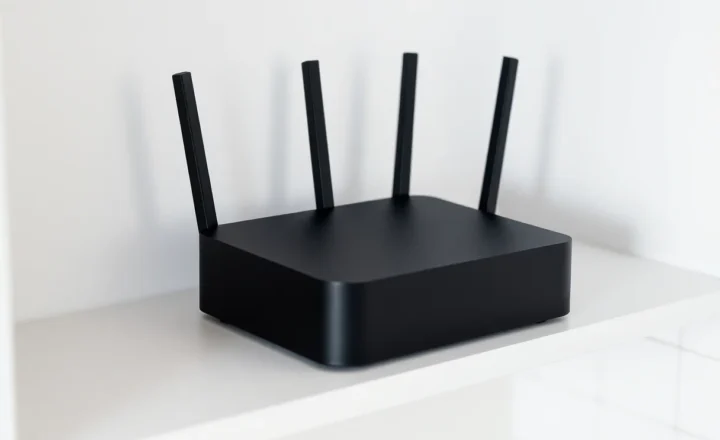
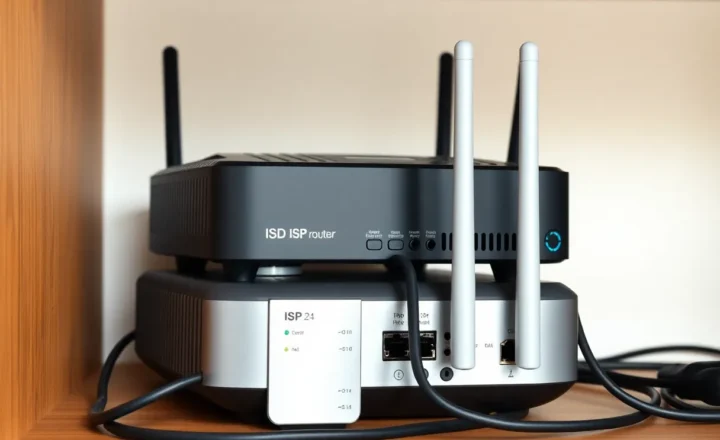
MikroTik vs UniFi for a Home Network: Raw Power for Tinkerers or a Polished Controller

Ruth Calloway
November 22, 2026
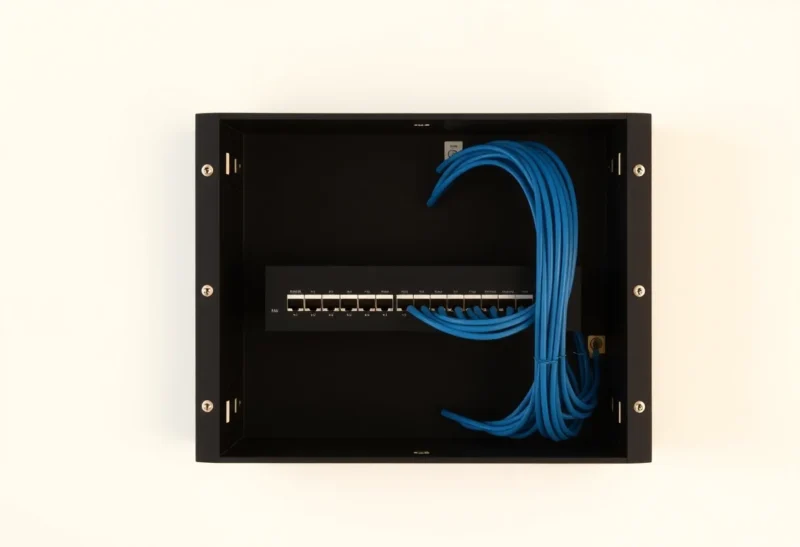
You have outgrown the router your internet provider handed you, and you keep landing on the same two names: MikroTik, the Latvian maker whose boxes cost little and do nearly anything, and Ubiquiti’s UniFi, whose dashboards look like they belong in an office. Both can run a home network well. They ask very different things of you, though. MikroTik gives you a full routing operating system and expects you to drive it. UniFi gives you a controller that manages everything from one screen and expects you to stay inside its lines. The right choice depends less on specs than on who lives in the house, what they need from the network, and who will fix it when it breaks.
Two philosophies: a router OS versus a managed controller
Every MikroTik router and most of its switches run RouterOS, currently version 7. Each device is configured on its own, through one of three interfaces: WinBox, a desktop app; WebFig, the browser interface; or the command line over SSH. RouterOS exposes almost everything a carrier-grade router does, including BGP and OSPF, policy routing, firewall chains, queues, containers on supported hardware, and WireGuard. It does very little to stop you from making mistakes. MikroTik offers a QuickSet screen for basic setups, but most guides quickly drop you into the full menu tree.
UniFi works the other way around. A gateway such as the Cloud Gateway Ultra runs UniFi OS and the UniFi Network application, which acts as the controller for every UniFi switch and access point on the network. You adopt devices into the controller, then configure networks, Wi-Fi and firewall rules centrally; the controller pushes settings to each device. You rarely touch individual boxes. The tradeoff is that you can only do what the Network application exposes, and Ubiquiti decides the pace at which new options appear.
WinBox itself has changed recently. WinBox 4, the native cross-platform rewrite, reached a full release in early 2026 with builds for Windows, Linux and macOS, replacing the old approach of running the Windows-only WinBox 3 under Wine on other systems.
What the hardware costs in late 2026
MikroTik publishes a suggested price on each product page. A few home-relevant examples:
- hAP ax²: $99. Wi-Fi 6 AX1800 router with five gigabit ports, RouterOS license level 4.
- hAP ax³: $139. Wi-Fi 6 AX1800 with a faster quad-core IPQ-6010 CPU at up to 1.8 GHz, 1 GB of RAM, one 2.5 GbE port plus four gigabit ports, license level 6.
- hAP be lite: $79. MikroTik’s entry Wi-Fi 7 router (BE3600, with Multi-Link Operation), one 2.5 GbE and three gigabit ports, powered over USB-C, license level 4.
- hAP be³ Media: $179. Newly listed tri-band Wi-Fi 7 router with five 2.5 GbE ports, 2 GB of RAM, a built-in Thread radio and microSD slot; MikroTik’s page still marked it as coming soon at the time of writing.
- CRS310-8G+2S+IN: $219. Eight 2.5 GbE ports and two SFP+ cages for 10G, running RouterOS or SwitchOS.
Retail prices often run higher than MikroTik’s suggested figures, especially in the US.
Ubiquiti’s US store lists the Cloud Gateway Ultra at $129, the Cloud Gateway Max from $199, and the Cloud Gateway Fiber at $279. Access points start with the U7 Lite at $99 and the Wi-Fi 7 U7 Pro from $189. Small switches range from the Flex Mini at $29 to the USW-Lite-8-PoE at $109. The US store currently shows a separate surcharge on many items, so the final price at checkout is higher than the list price.
A comparable starter setup tends to cost more with UniFi, because UniFi separates the gateway from the Wi-Fi. A UCG Ultra plus one U7 Pro is $318 before surcharge, where a single hAP ax³ is $139. Ubiquiti does sell all-in-one options, including the Dream Router 7 and the UniFi Express 7, but most UniFi homes end up with a gateway, a PoE switch and one or more ceiling-mounted access points.
RouterOS license levels, and why you mostly will not pay for them
RouterOS is licensed by level. Per MikroTik’s licensing documentation, level 4 costs $45 if bought separately, level 5 costs $95, and level 6 costs $250. The differences matter mostly to wireless ISPs: tunnel counts, HotSpot users, User Manager sessions and point-to-multipoint AP mode. Level 4 already allows 200 PPPoE, L2TP and OpenVPN tunnels, far more than a household needs.
The key point for home users is that MikroTik hardware ships with a license preinstalled. The hAP ax² carries level 4, the hAP ax³ level 6, and the CRS310 switches level 5. MikroTik’s product pages say updates are free for the product’s life, or at least five years from purchase. Paid licenses only enter the picture if you run RouterOS on your own x86 machine or as a virtual machine (Cloud Hosted Router). The free CHR tier is limited to 1 Mbps upload per interface; the P1 license at $45 raises that to 1 Gbps.
UniFi has no license fees for the Network application. You buy the hardware, and the software comes with it.
A couple in an apartment who just want it to work
Picture two people, one floor, a gigabit connection, a few laptops, phones, a TV and some smart plugs. Nobody wants to read firewall documentation.
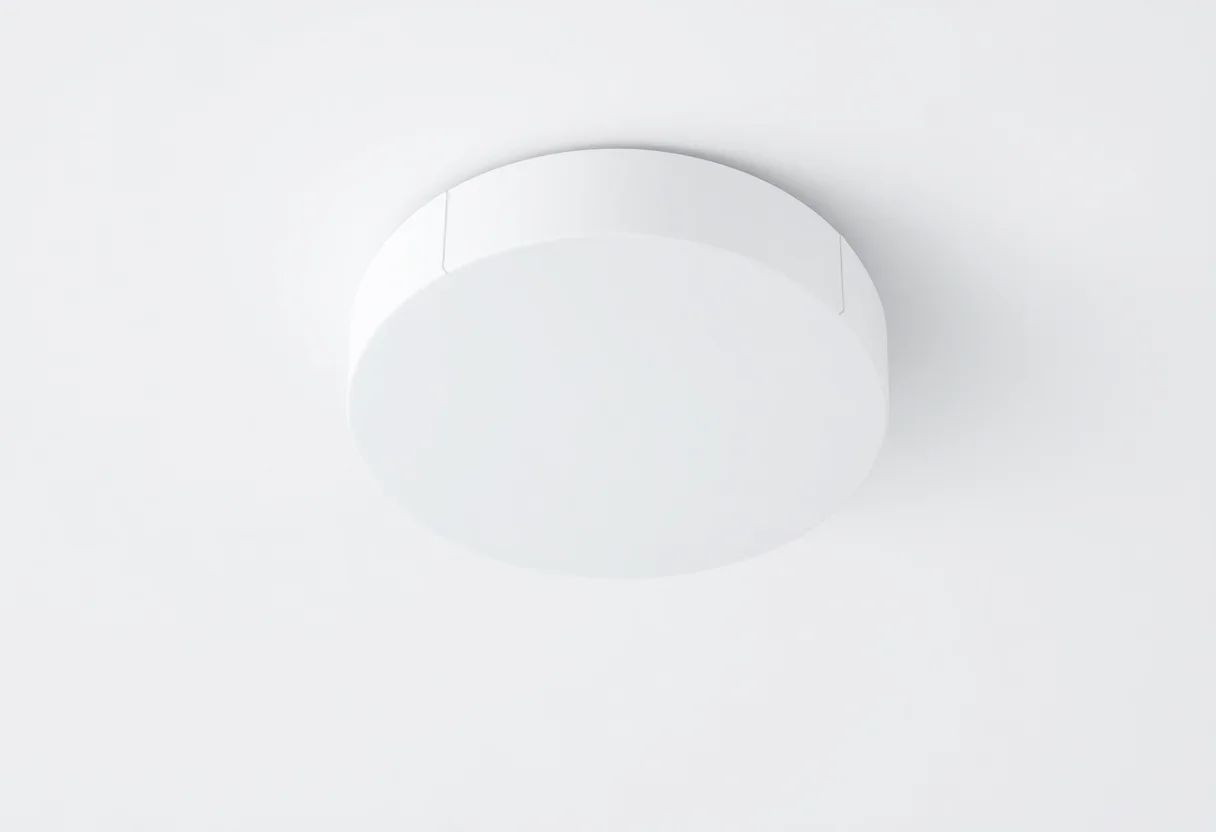
UniFi fits this household better. Setup runs through the UniFi mobile app or a browser, the defaults are sensible, and adding an access point later is a matter of plugging it in and clicking Adopt. The interface shows which client is on which access point, how much traffic each device used, and when something dropped. A UCG Ultra plus a U7 Lite or U7 Pro covers most apartments. The UCG Ultra’s spec sheet lists 1 Gbps of IDS/IPS throughput, enough to keep intrusion prevention on for a gigabit line.
MikroTik can serve this household too. A single hAP ax² or hAP ax³ with QuickSet does routing and Wi-Fi in one box for less money. The risk is what happens after setup. When the Wi-Fi misbehaves or a new device will not connect, the troubleshooting path runs through RouterOS menus that assume networking knowledge. If you are the only person in the home who can read them, every problem waits for you.
A family house with an IoT network, guests and a few cameras
Now picture a two-story house: kids’ devices, a guest network, a dozen smart home gadgets you want kept away from the laptops, and perhaps some cameras.
This is where VLANs come in, and both platforms support them well with different amounts of effort. In UniFi you create a new network with a VLAN ID, attach a Wi-Fi SSID to it, and then use the firewall rules to decide what may talk to what. The controller handles tagging on every switch port and access point it manages. The common trap is that strict isolation breaks discovery for things like Chromecast and AirPlay; the problem is laid out in guest VLAN vs IoT VLAN on one router.
On MikroTik, the same design means creating VLAN interfaces on a bridge with VLAN filtering enabled, assigning tagged and untagged ports, adding DHCP servers per VLAN, and writing firewall rules in the forward chain. Each step is documented, but it is several menus and a lot of opportunities to lock yourself out. Multiple MikroTik access points can be managed centrally with CAPsMAN, though it is not as visual as the UniFi dashboard.
Cameras tilt this scenario further toward UniFi if you want an integrated system. The Cloud Gateway Max has an NVMe slot for up to 2 TB of storage, runs UniFi Protect alongside Network, and its spec sheet lists 2.3 Gbps of IDS/IPS throughput. MikroTik has no comparable camera platform; you would run a separate NVR.
A homelab tinkerer who wants 10G and full routing control
The third household is one person, a rack or a shelf of mini PCs, maybe a NAS, and a strong interest in how packets move. This is MikroTik’s home ground.
For the price of a UniFi access point, a CRS310-8G+2S+IN gives you eight 2.5 GbE ports and two SFP+ ports, running the same RouterOS as the routers. You can run inter-VLAN routing on the switch, set up dynamic routing with a lab, mirror ports for packet capture, script configuration changes, and run containers on supported devices. RouterOS also does things UniFi simply does not expose: per-connection policy routing, detailed queue trees and fine-grained firewall mangle rules. If you enjoy building the network itself, MikroTik gives you far more room per dollar.
UniFi can still serve a homelab, particularly for Wi-Fi, but people who want deep control often pair UniFi access points with a separate firewall such as OPNsense rather than a UniFi gateway. If that is the direction you are leaning, pfSense vs OPNsense for a homelab firewall covers the router side of that split.
Remote access with WireGuard on both sides
Both platforms support WireGuard, and both offer an easier option for people who do not want to manage keys.
RouterOS 7 includes WireGuard as a standard interface type you can configure as a server or a client. MikroTik also offers Back To Home, available on RouterOS 7.12 or newer for ARM, ARM64 and TILE devices. It sets up a WireGuard tunnel you connect to with the MikroTik Back to Home app on Android or iPhone. If your router has no public IP, for instance behind carrier-grade NAT, the connection goes through MikroTik relay servers; MikroTik’s documentation says the traffic stays end-to-end encrypted and the relay cannot access the keys.
UniFi gateways list a WireGuard VPN server and client, OpenVPN and L2TP, plus two Ubiquiti-specific options: Teleport, a zero-configuration VPN aimed at remote access, and Identity Endpoint one-click VPN. Site Magic links multiple UniFi sites together. Ubiquiti’s announcement of UniFi Network 10.4 in May 2026 lists WireGuard VPN over IPv6 and covers Teleport for remote access behind CG-NAT.
If you would rather use a mesh overlay instead of either vendor’s VPN, both platforms coexist fine with tools such as Tailscale. The tradeoffs of a coordination server are covered in Tailscale vs WireGuard-only.
Firmware updates, past incidents and cloud accounts
MikroTik publishes RouterOS in four channels: long-term, which gets only critical fixes; stable, released every few months; testing, released every few weeks and not meant for production; and development. After updating RouterOS, MikroTik’s documentation strongly recommends also upgrading the RouterBOARD bootloader with /system routerboard upgrade and rebooting. A home user should stay on stable or long-term.
The cautionary tale for MikroTik is about owners who never update. A WinBox vulnerability, CVE-2018-14847, was fixed in April 2018, yet unpatched routers were still being exploited years later, including by the Meris botnet identified in 2021. MikroTik’s advisory on Meris said there was no new vulnerability and advised updating, changing passwords and adding a firewall. The lesson: RouterOS is only as safe as your habit of updating it and keeping WinBox and WebFig off the internet-facing interface.
UniFi updates through the controller, which can update devices automatically on a schedule, and Ubiquiti also offers early access releases for people who want new features first. The usual advice is to leave early access off on a family network and to let new releases age a little before applying them.
The bigger UniFi question is cloud dependency. Ubiquiti’s help center says a UI account is optional during setup but recommended, because it enables remote management through unifi.ui.com and the mobile app. You can set up a console locally and add local-only admin accounts. Using a UI account is convenient; it also means your network management depends on Ubiquiti’s cloud for remote access. MikroTik requires no account at all for normal operation.
Matching the platform to the household
Choose UniFi if:
- Someone other than you will need to understand the network, or you want to spend evenings on something other than router menus.
- You plan multiple access points and want roaming, client lists and per-device traffic in one dashboard.
- You want cameras, door access or other UniFi apps on the same console.
- You are comfortable paying more for hardware in exchange for a polished interface, and you accept Ubiquiti’s pace for new features. If you are weighing it against another controller-based system, see UniFi vs TP-Link Omada.
Choose MikroTik if:
- You want to learn networking properly and enjoy configuring it.
- You need features UniFi does not expose: advanced routing, detailed queuing, scripting, or cheap multi-gig and 10G switching.
- Budget matters and you are willing to trade your time for lower hardware costs.
- You want no vendor account and no cloud dependency in the management path.
Mixing the two is also common: a MikroTik router and switch for routing and VLANs, with UniFi access points for Wi-Fi managed by a self-hosted controller. That gives you RouterOS flexibility at the core and a friendlier Wi-Fi dashboard, at the cost of running two management systems.