Double NAT on a Home Network: How to Spot It and When It Actually Breaks Things

Elise Ward
October 25, 2026
“Double NAT detected” is one of those warnings that appears in game consoles, router apps and forum threads, usually with dramatic advice to fix it immediately. Sometimes it is the cause of real problems: a port forward that never works, a console stuck on a strict NAT type, a VPN that will not connect. Very often, though, it causes nothing at all, and people spend an evening reconfiguring equipment for no benefit.
This guide explains what double NAT is, how to confirm whether you have it, which things it actually breaks, and the cleanest ways to remove it when it matters.
What double NAT is
Network address translation (NAT) lets many devices in your home share one public internet address. Your router gives devices private addresses, such as 192.168.1.x, and translates their traffic to its public address on the way out. Replies come back to the router, which forwards them to the right device. Incoming connections that nobody asked for are dropped, unless you create a port forward.
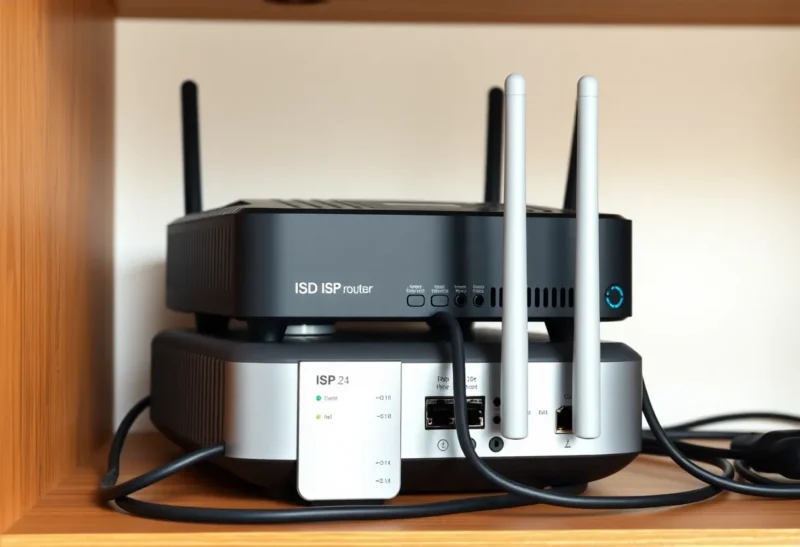
Double NAT happens when two routers in a row both do this. The most common case at home is an internet provider’s router, which already performs NAT, with your own router plugged in behind it, doing NAT again. Your devices are now behind two layers: your router’s private network, inside the provider router’s private network.
A related but different situation is carrier-grade NAT (CGNAT), where the internet provider itself shares one public address among many customers. You cannot fix CGNAT at home; it needs a public address from the provider, a different service, or tunnelling. Many fixed wireless, mobile and satellite connections use CGNAT.
How to tell if you have it
Three quick checks:
- Look at your router’s WAN address. In your own router’s status page, find the internet or WAN IP. If it starts with 192.168., 10., or 172.16. to 172.31., your router is behind another router doing NAT. If it starts with 100.64. to 100.127., you are behind your provider’s carrier-grade NAT.
- Compare with your public address. Visit any “what is my IP” site. If that address differs from your router’s WAN address, there is NAT somewhere between you and the internet.
- Run a traceroute to a public address. Two private addresses in the first hops, such as 192.168.1.1 then 192.168.0.1, show two routers in a row.
| Your router’s WAN address | Matches public IP? | Meaning |
|---|---|---|
| Public address | Yes | No double NAT |
| Private (192.168, 10, 172.16–31) | No | Double NAT behind another router |
| 100.64–100.127 | No | Carrier-grade NAT at your provider |
| Public address | No | Unusual; check for a provider proxy or another layer |

What double NAT does not break
For everyday use, double NAT is usually invisible. These normally work fine:
- Web browsing, streaming video and music, and downloads.
- Most video calls and messaging apps, which are designed to work through NAT.
- Outgoing VPN connections from laptops and phones, especially WireGuard and modern OpenVPN.
- Mesh VPNs such as Tailscale, which use NAT traversal techniques and fall back to relays when direct connections are impossible.
- Smart home devices that connect out to cloud services.
Double NAT adds a tiny amount of processing, which is not noticeable on modern hardware. It does not slow your internet in any meaningful way.
What it does break
Problems appear when something on the internet needs to start a connection to a device in your home:
- Port forwarding. A forward on your router does nothing if the provider’s router in front drops the connection. You need forwards on both, or a fix below.
- Game consoles and peer-to-peer games. Consoles use UPnP to open ports automatically. With double NAT, UPnP opens ports on your router but not on the provider’s, so the console reports a strict or moderate NAT type and some multiplayer features suffer.
- Hosting services at home, such as a game server, a self-hosted app reached directly, or remote desktop without a VPN.
- Some VPN servers at home, which need an incoming port.
- Some VoIP phones and older protocols that are sensitive to multiple layers of NAT.
If none of these apply to you, double NAT can safely be left alone.
Fixing it: from cleanest to quickest
- Bridge mode or modem mode on the provider’s router. The provider’s device stops routing and passes the public address to your router. This is the cleanest fix. Many provider devices offer it; some call it “modem only” or “IP passthrough”. The provider’s Wi-Fi usually turns off in this mode.
- IP passthrough or a DMZ for your router. If bridge mode is not available, many provider routers can pass all incoming traffic to one device. Point it at your router’s WAN address. Double NAT technically remains, but incoming connections reach your router and its port forwards work.
- Make your own router an access point. If you only added your router for better Wi-Fi, switch it to access point mode so the provider’s router does all routing. You lose your router’s routing features but remove the extra layer.
- Remove the provider’s router entirely, where your connection allows using your own modem or connecting your router directly to a fibre terminal.
- Forward ports on both routers. A workable stopgap for one or two services: forward the port on the provider’s router to your router, and again on your router to the device.
For satellite and some other connections, the approach depends on the equipment; the options for Starlink are covered in Starlink bypass mode vs the included router.
Mesh Wi-Fi kits: the most common accidental cause
Many households get double NAT without ever choosing it: they buy a mesh Wi-Fi kit to fix weak signal and plug its main unit into the provider’s router. By default, most mesh systems act as routers, creating their own network behind the provider’s. Everything works, so nobody notices until a console or a port forward complains.
Mesh apps usually offer a “bridge” or “access point” mode, which turns off the mesh system’s routing and lets the provider’s router handle addresses. The trade-off is that some mesh features, such as parental controls, device prioritisation or the mesh system’s own security filters, may stop working in bridge mode. The alternative is to put the provider’s router in bridge mode and let the mesh system route. Choose whichever device you would rather manage.
Checking the result after a fix
After changing modes, repeat the three checks: your router’s WAN address should now match your public address, a traceroute should show only one private hop, and consoles should report an open or moderate NAT type. Test a port forward from outside, for example from a phone on mobile data. Also check that every device received a new address and that nothing still points at the old router’s address for DNS or as a gateway.
IPv6 changes the picture
IPv6 gives every device a globally routable address, so NAT is not needed at all. If your provider supports IPv6 and your router passes it through, many apps, consoles and peer-to-peer services will use it automatically and bypass IPv4 double NAT. That is helpful, but it also means devices can be reachable directly unless the router’s IPv6 firewall blocks unsolicited incoming connections, which good routers do by default. Check that it is on.
When your own firewall is the second router
Many homelab users add their own firewall, such as OPNsense or pfSense on a mini PC, behind the provider’s router. Double NAT is common in these setups, and the first fix to try is bridge mode or passthrough on the provider’s device, so the firewall holds the public address. Other surprises when replacing a provider router are covered in what OPNsense breaks in a two-person apartment, and choosing between the two firewalls is in pfSense vs OPNsense.
Keep the provider’s device and settings documented before changing modes. If something goes wrong, a factory reset of the provider router usually restores the original setup.
When you cannot fix it: CGNAT and workarounds
If you are behind carrier-grade NAT, no home configuration gives you incoming connections on IPv4. Options include asking the provider for a public IPv4 address, which some offer for free or a small fee; using IPv6, which avoids NAT entirely if your provider supports it and the remote side can use it; or using a mesh VPN or tunnel service so that devices or the public reach your home through an outside server. For self-hosted services, a small VPS acting as a relay is a common pattern.
A sensible decision
Before changing anything, write down the current settings of both routers, including Wi-Fi names, passwords and any port forwards, so you can undo the change in minutes if something unexpected stops working.
Check whether you have double NAT, then ask whether anything you use needs incoming connections. If not, leave it; it is harmless. If you host services, use a console that complains, or run a VPN server at home, put the provider’s router in bridge or passthrough mode so your own router or firewall holds the public address. That single change fixes most double NAT problems in a few minutes.