WD Red Plus vs Seagate IronWolf for a 4-Bay Home NAS: Noise, Warranty and What CMR Buys You

Marcus Holt
October 14, 2026
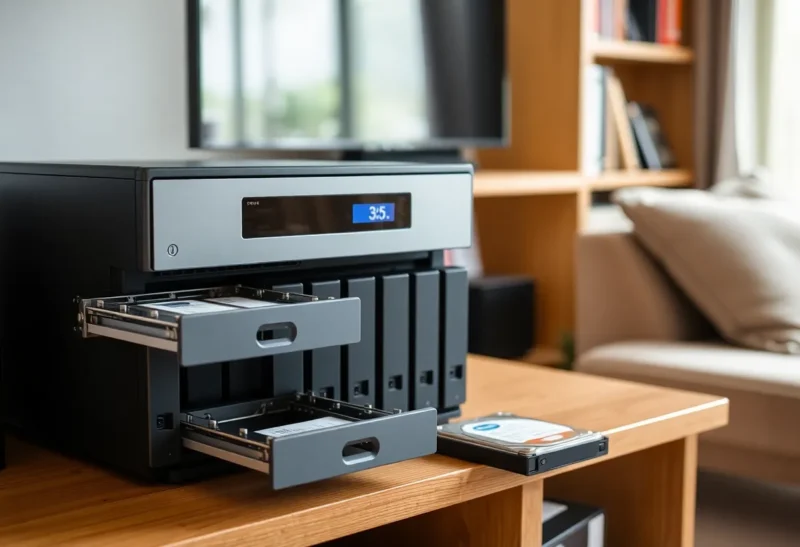
Buying drives for a four-bay NAS should be the easy part. You have chosen the box, worked out how much space you need, and now you just need four disks. Then you find two product lines that look almost identical on paper, WD Red Plus and Seagate IronWolf, both “built for NAS”, both with similar warranties and similar prices that swap places every few weeks.
I spent a decade in data-centre storage, and I have run both brands at home in small NAS boxes for years. The honest answer is that both are good drives, and the brand matters less than three things people often overlook: whether the drive is CMR, how fast it spins, and what you get when it fails. This is what actually separates them.
Quiet drives or faster drives with a safety net
For a four-bay home NAS that lives in a room where people sleep or work, WD Red Plus is often the quieter, cooler choice, because much of the range spins more slowly.
For a NAS where performance matters more than noise, or where you value the included data recovery service, Seagate IronWolf is an excellent choice.
Either way, buy CMR drives, which both of these lines are, and buy whichever is cheaper per terabyte at the capacity you need that week.
What CMR buys you
This is the most important part of the decision, and it is not about brand at all.
Hard drives write data in one of two ways. Conventional magnetic recording (CMR) writes tracks side by side. Shingled magnetic recording (SMR) overlaps tracks like roof shingles to fit more data on each platter, which is cheaper, but means rewriting data can force the drive to rewrite neighbouring tracks too. For ordinary desktop use you rarely notice. For a NAS, it can be a serious problem.
The worst moment for an SMR drive is a RAID rebuild, or a ZFS resilver, when a replacement disk has to absorb a huge amount of sustained writing. SMR drives can slow down dramatically under that load. Rebuilds take far longer, and in some cases a drive is so slow to respond that the system treats it as failed. That is exactly when your array has no redundancy left.
The history matters here. In 2020, it came to light that some drives sold as plain “WD Red” NAS drives used SMR without saying so, which caused real problems for NAS owners. Western Digital then split the line: WD Red Plus and WD Red Pro are CMR, while plain WD Red (without “Plus”) at some capacities uses SMR. The IronWolf and IronWolf Pro lines are CMR. So when people say “buy WD Red Plus, not WD Red”, this is why. Always check the exact model’s recording technology before buying, from any brand.
| WD Red Plus | Seagate IronWolf | |
|---|---|---|
| Recording | CMR | CMR |
| Spindle speed | Many capacities in a slower, quieter class | Slower at smaller capacities, 7,200 RPM at many larger ones |
| Rated for | NAS systems up to 8 bays | NAS systems up to 8 bays |
| Warranty | 3 years | 3 years |
| Data recovery service | Not included | Included for a period on most models |
| Health monitoring | Standard SMART, with NAS vendor tools | SMART, plus IronWolf Health Management in supported NAS systems |
| Step up | WD Red Pro | IronWolf Pro |
Spindle speed, noise and heat
Speed is the most noticeable difference in daily life. A drive spinning at 7,200 RPM reads and writes faster, especially for small random accesses, but it is louder, both in its constant hum and in the clicking of the heads, and it runs warmer.
Much of the WD Red Plus range sits in a slower class, which Western Digital describes as “5,400 RPM class” for many models. In a four-bay NAS on a bookshelf, four slower drives are noticeably quieter than four 7,200 RPM drives. IronWolf drives at smaller capacities also spin more slowly, but many of the larger sizes, the ones most people now buy, run at 7,200 RPM.
Does the speed matter for a home NAS? Usually less than you would expect. Over a gigabit network, a single slower drive can already deliver most of what the network can carry, and four drives together easily exceed it. The faster drives help with heavy random workloads, such as many simultaneous users, VMs or databases, and with operations inside the NAS, such as rebuilds and scrubs, that are not limited by the network. For streaming media, file storage and backups at home, slower drives give up very little.
Specifications vary by capacity and change between generations, so check the exact model’s speed and noise ratings for the size you plan to buy rather than assuming one figure applies to the whole line.
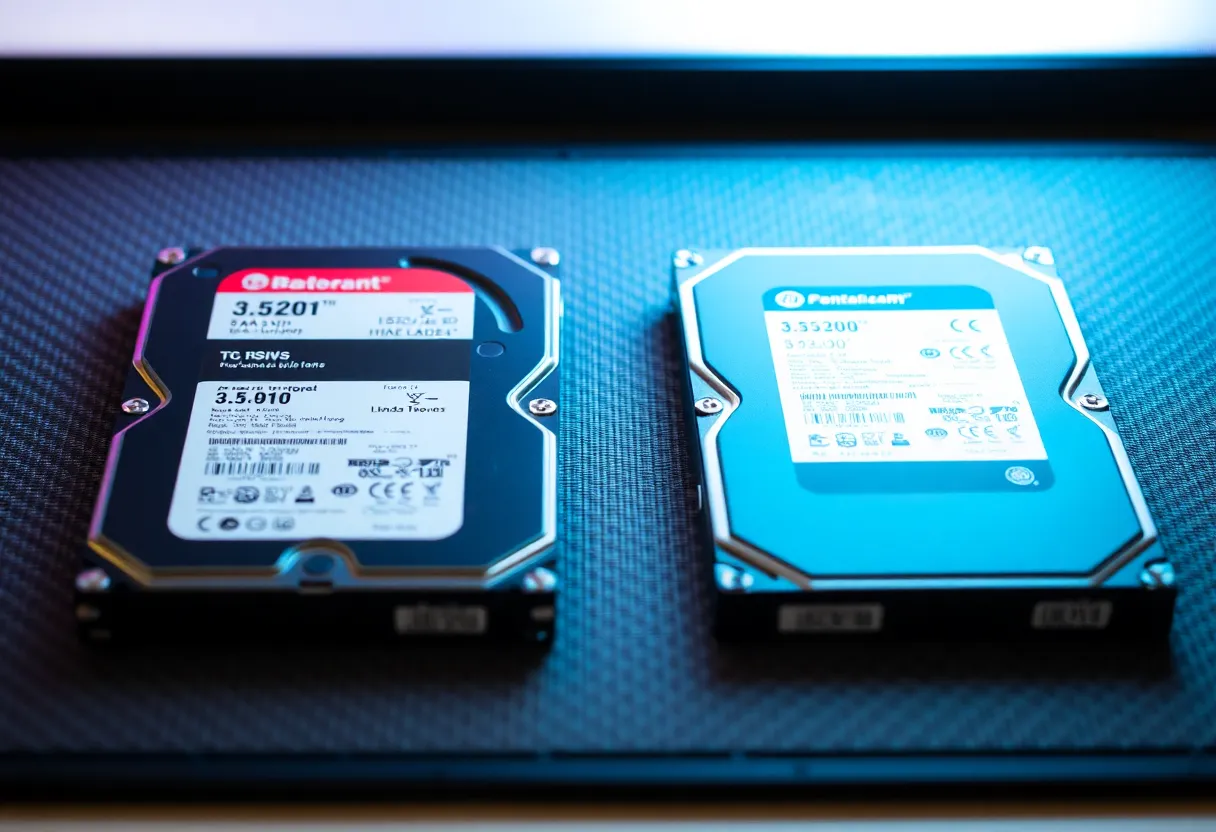
Warranty and the recovery service
Both lines carry a three-year warranty, and both companies handle replacements reasonably well. Seagate adds something WD does not: most IronWolf drives include its Rescue data recovery service for a set period. If a drive fails and you lose data, Seagate will attempt professional recovery at no charge.
In a properly run NAS with redundancy and a backup, you should never need it. A failed drive is replaced and rebuilt, and your data is never at risk. But home setups are not always run properly, and the recovery service is real value for anyone who runs a single drive, or who does not yet have a backup. Consider it insurance you hope not to claim.
Both brands also offer Pro versions, WD Red Pro and IronWolf Pro, with five-year warranties, ratings for larger arrays and higher workloads, and faster drives. For a four-bay home NAS they are usually unnecessary. They make sense for larger arrays, heavier workloads, or if the longer warranty is worth the price difference to you.
Reliability
Everyone wants to know which brand fails less. The honest answer is that, among current NAS drives, failure rates vary more between specific models and capacities than between brands. Publicly available large-scale drive statistics show both manufacturers with good and less good models over the years. Neither line has a clear, consistent reliability advantage you can count on.
What does reduce your risk is how you buy and run them. Buy from a reputable seller to avoid used or grey-market drives. Consider mixing purchase batches, or even brands, so that a bad batch does not take out several drives at once. Test new drives before trusting them with data, either with your NAS’s extended SMART test or a full surface scan, and watch SMART warnings. And keep a backup, because parity protects you from a failed disk, not from deleting the wrong folder.

Testing new drives before you trust them
Hard drives tend to fail either very early or after many years. A few days of testing before you put data on new drives catches most early failures while you can still return them easily.
- Run an extended SMART test on each drive. Most NAS systems can start one from their storage settings; on Linux,
smartctl -t longdoes the same. It takes hours on a large drive. - For extra confidence, run a full write-and-read test on drives that hold no data yet, for example with
badblocksin write mode. It destroys everything on the drive, and on large disks it can take days, but it exercises every sector. - Check the SMART attributes afterwards. Reallocated sectors, pending sectors and uncorrectable errors should all be zero on a new drive. Any non-zero value is a reason to return it.
- Keep watching. Set your NAS to run regular SMART tests and to alert you on warnings, so a drive that starts to fail is replaced before a second one joins it.
Price per terabyte
Prices for both lines move constantly, and the cheaper brand often changes from one week, and one capacity, to the next. The useful comparison is price per terabyte at the size you are buying. Larger drives usually cost less per terabyte, but mean more data at risk during a rebuild and a bigger bill when you replace one.
For a four-bay NAS, a sensible rule is to buy the capacity that covers your needs for the next three to four years with one drive’s worth of parity, then pick whichever of these two lines is cheaper per terabyte at that size. If you are deciding whether you need spinning disks at all, for example for backups, HDD vs SSD for homelab backups covers where hard drives still win.
Matching drives to your setup
Traditional RAID and ZFS work best with identical drives, so buy four of the same model for a fresh array. If you plan to grow one disk at a time with mixed sizes, a parity scheme such as SnapRAID or Unraid’s array lets you mix brands and capacities freely, which changes the buying calculation: you can simply add whichever drive is cheapest per terabyte when you need space. SnapRAID and mergerfs vs ZFS covers how that works.
CMR first, then noise or speed
WD Red Plus is the pick when:
- The NAS sits in a bedroom, living room or office, and noise matters.
- You want cooler-running drives in a small, poorly ventilated box.
- Your workload is streaming, file storage and backups over a home network.
IronWolf is the pick when:
- You want faster drives for heavier or more random workloads.
- The included data recovery service is worth something to you.
- Your NAS supports IronWolf Health Management and you want its extra monitoring.
- It is cheaper per terabyte at your capacity that week.
Above all, check that every drive you buy is CMR, test it before you trust it, and keep a backup. Do those three things, and either brand will serve a four-bay home NAS well for years.