Dasung Paperlike vs Boox Mira Pro: E-Ink Monitors for Writing and Coding Without Eye Strain

Mira Sandoval
October 14, 2026
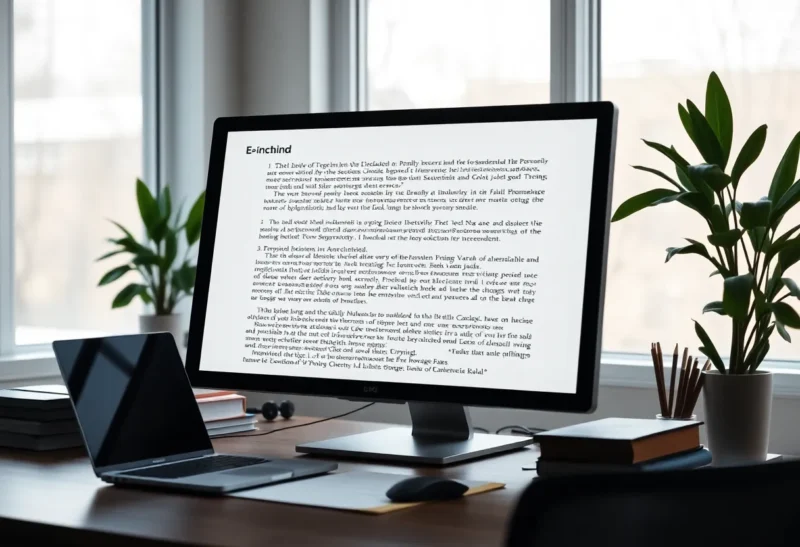
An e-ink monitor is one of the strangest purchases in computing. You pay more than you would for a very good LCD, and in return you get a screen that cannot show video properly, has no colour, and smears faintly when you scroll. People who own one tend to love it anyway, because for the hours they spend reading and writing text, nothing else is as calm to look at.
The two names that come up whenever someone searches for an e-ink alternative to an LCD are Dasung, whose Paperlike line pioneered the category, and Boox, whose Mira and Mira Pro monitors brought the company’s e-reader experience to the desktop. I have covered display technology for years and have spent long writing days on both. The panels are more alike than the marketing suggests. The differences that matter are in how each one handles refresh, connections, and the moments you need to see something that is not text.
What an e-ink monitor is good for, and what it is not
Before comparing brands, it is worth being honest about the category. An e-ink monitor is reflective, like paper: it shows an image by arranging particles, and it does not shine light at your eyes the way an LCD’s backlight does. Both the Paperlike and the Mira Pro add an adjustable front light for dim rooms, but in daylight you can turn it off entirely. Many people who get tired eyes or headaches from long screen sessions find e-ink noticeably easier, though experiences vary, and it is not a medical treatment.
The trade-offs are just as real. Refresh is slow compared with an LCD, so scrolling, moving windows and typing all show some lag or ghosting, depending on the mode. There is no colour on the large models in this class. Video is unusable for anything beyond a glance, and design work, photo editing and anything that depends on colour or smooth motion belong on a normal screen.
The sweet spot is text: writing, editing long documents, reading PDFs and papers, terminal work, email, and, with the right theme, a lot of coding. If that describes most of your day, an e-ink monitor can change how it feels. If you switch constantly between text and video calls, design tools and browsing, it will frustrate you. The trade-offs of using one as a second screen next to an LCD are covered in e-ink monitor vs a second LCD for writing.
The panels themselves are close
The current large models from both companies, the Dasung Paperlike 253 and the Boox Mira Pro, are 25.3-inch monitors with high-resolution panels of 3200 × 1800 pixels. That density makes text very sharp, close to print. Both have adjustable front lights with warm and cool tones, and both connect over HDMI and DisplayPort, with USB-C display input on many configurations. Both also make smaller, portable 13.3-inch models.
Prices for both are high, well over $1,000 for the 25-inch versions, and vary by region and version. Check the current models and inputs carefully before buying, because both companies revise their line-ups and specific features change between generations.
| Dasung Paperlike 253 | Boox Mira Pro | |
|---|---|---|
| Size and resolution | 25.3-inch, 3200 × 1800 | 25.3-inch, 3200 × 1800 |
| Front light | Yes, adjustable | Yes, warm and cool |
| Inputs | HDMI, DisplayPort, USB-C on many versions | HDMI, DisplayPort, USB-C on many versions |
| Refresh control | Physical controls and modes tuned for speed | Several modes, from sharp text to fast motion |
| Software | Desktop utility for modes and settings | On-screen controls and a desktop app |
| Smaller sibling | Portable 13.3-inch models | Mira, 13.3-inch |
Refresh modes: where they feel different
Every e-ink monitor balances two things: image quality and speed. High-quality modes show crisp text and clean greys but update slowly and flash during full refreshes. Fast modes keep up with typing and scrolling, but leave faint ghosts of what was on screen before and reduce the number of grey levels.
Dasung has built its reputation on speed. Its fast modes are tuned for responsiveness, and on the Paperlike, typing, cursor movement and scrolling feel quicker than you might expect from e-ink. A physical control on the monitor lets you trigger a full refresh to clear ghosting instantly, and you quickly learn to tap it whenever the screen gets cluttered.
Boox gives the Mira Pro a range of modes, from a sharp text mode to faster modes for scrolling and even rough video, and lets you switch between them with on-screen controls or its desktop software. Its strength is the clean, high-quality look of its text mode, which is closer to Boox’s e-readers. The faster modes are usable, but some users find the Dasung’s speed modes more responsive in heavy scrolling.
Both reward the same habits. Use a light theme, black text on white, because e-ink handles that best. Avoid animated interfaces and smooth-scrolling effects, which force constant redraws. Prefer page-by-page navigation over continuous scrolling where you can. The same logic that applies to A2 refresh versus HD mode on e-ink tablets applies on a monitor: speed costs clarity, and the trick is switching modes for the task.
Coding on e-ink
Programmers are a big part of the e-ink monitor audience, and it works better than you might expect, with some adjustments. Syntax highlighting in colour becomes shades of grey, so choose a high-contrast monochrome theme, or one that uses bold and italic rather than colour to distinguish code elements. Turn off cursor blinking and smooth scrolling in your editor, and use larger fonts than you would on an LCD. Terminal work is excellent, because terminals are mostly static text that changes a line at a time.
Where it struggles is anything visual: browser developer tools with lots of panels, front-end work where you need to see colours and layouts, and video calls for pair programming. Many developers who use e-ink monitors keep a normal laptop screen beside them for exactly these moments.
Reading papers and long PDFs
This is where a 25-inch e-ink monitor really earns its price. A full A4 or US Letter page fits on screen at a comfortable size, with room for a second page beside it, so you read research papers, reports and contracts the way they were laid out, without the zooming and panning that small e-ink tablets demand. Because reading means turning pages rather than scrolling smoothly, refresh speed hardly matters, and you can leave the monitor in its sharpest mode.
Both monitors are excellent at this, and it is the use case where the gap between them almost disappears. Set your PDF reader to page-by-page view, turn off smooth scrolling, and an afternoon of reading feels much closer to working with printed paper than with a screen.
Connections and setup
Both connect to a computer like any other monitor, and both work with Windows, macOS and Linux. A USB-C connection, where available, can carry the display signal and sometimes power, which keeps the desk tidy with a laptop. Check that your computer’s USB-C port supports display output before relying on it.
Both companies provide desktop software for changing modes, adjusting contrast and triggering refreshes, but you can use either monitor without it. Some users find the software helpful; others prefer to use the monitor’s own controls and keep their computer clean of vendor utilities.
Resolution scaling matters on macOS and Windows. At 3200 × 1800 on 25.3 inches, text looks best with scaling turned up, so that the operating system renders larger, crisper fonts. Running at native scale makes everything tiny and costs the sharpness you paid for.
The 13-inch alternatives
If you mainly want an e-ink screen for focused writing, or to travel with, the smaller 13.3-inch models from both companies are worth considering. They cost much less, fit in a laptop bag, and work well as a second screen next to a laptop. The trade-off is space: a 13-inch e-ink screen fits one document comfortably, not two windows side by side.
There is also a cheaper route to try the experience: an e-ink tablet such as a large Boox can act as a secondary display for some computers, using screen-sharing software. It is slower and less convenient than a real monitor, but it is a way to test whether e-ink suits your work before spending well over $1,000.
Choosing between them
If the panel and price are close, the choice comes down to how you work. The Paperlike suits people who type and scroll heavily and value responsiveness above all: writers drafting fast, programmers moving through files, anyone who wants the quickest possible e-ink experience and is happy to tap a refresh control often. The Mira Pro suits people who read and review more than they type: editors, researchers and anyone spending hours with long documents, who want the cleanest-looking text and the e-reader feel Boox is known for.
Whichever you lean towards, try to see one in person, or buy from a seller with a generous return policy. E-ink monitors are a personal choice, more than any other screen. Some people sit down in front of one and feel instantly calmer; others cannot get past the ghosting. The only way to know which you are is to spend a full working day with one. If you are in the first group, either monitor will be the screen you look forward to sitting in front of. If you are in the second, a good LCD with a warm, low-brightness setup will serve you better, at a fraction of the price.