How Much RAM Does a Home Server Really Need for Proxmox, Docker and ZFS?

Sasha Pell
October 25, 2026
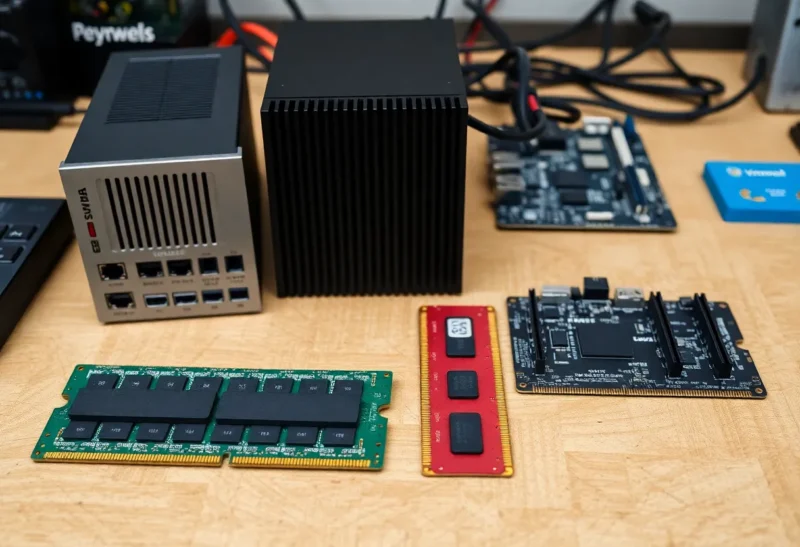
Memory is the resource home servers run out of first. CPUs in modern mini PCs sit mostly idle, and disks can be added later, but RAM is often soldered or limited to two slots, and too little of it causes slowdowns, crashed containers and virtual machines that refuse to start. Too much, on the other hand, is money spent on chips that mostly hold cache.
So how much does a home server really need? It depends on three things: whether you run virtual machines, which containers you run, and whether you use ZFS. This guide gives realistic numbers for each and turns them into simple sizing profiles.
Why “used” memory is misleading
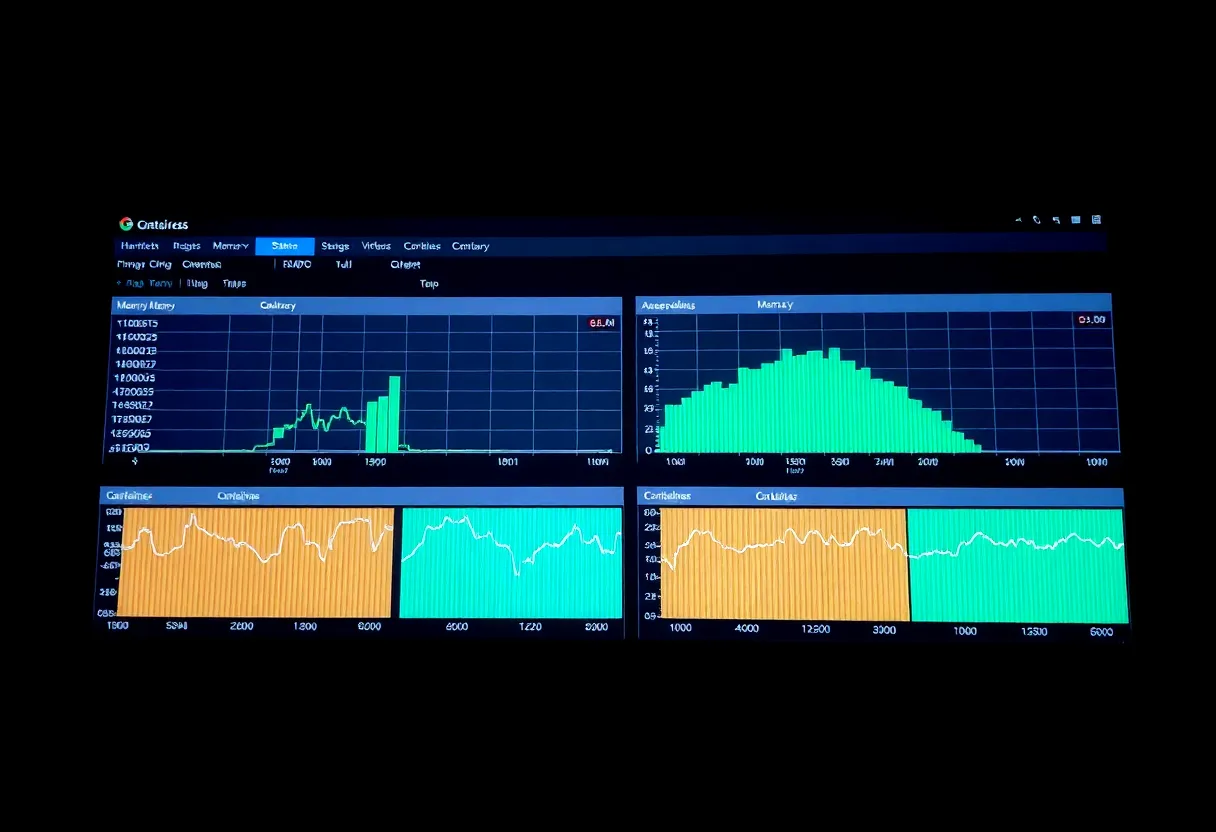
Linux uses free memory as a file cache, which makes dashboards show memory as almost full even on a lightly loaded server. That cache is released instantly when applications need it. The number that matters is “available” memory, not “used”. ZFS adds its own cache, the ARC, which behaves similarly: it grows to use spare memory and shrinks under pressure.
Real memory pressure shows up as swapping, processes killed by the out-of-memory killer, containers restarting, or the ZFS cache shrinking to a minimum. If none of those happen, a “full” memory graph is a good thing: the server is using spare RAM to speed up disk access.
What each piece needs
| Component | Typical memory | Notes |
|---|---|---|
| Proxmox host itself | 1–2 GB | Plus overhead per running VM |
| Small Linux VM (Docker host, Home Assistant OS) | 2–4 GB | Home Assistant OS runs well in about 2–4 GB |
| Windows VM | 4–8 GB | More for desktop use |
| Light containers (Pi-hole, Vaultwarden, Uptime Kuma) | 50–300 MB each | Dozens fit in a few GB |
| Medium containers (Nextcloud, Paperless-ngx, Mealie) | 0.5–1.5 GB each | Including their databases |
| Heavy containers (Immich with machine learning) | 2–6 GB | Peaks during the initial import |
| Jellyfin or Plex | 0.5–2 GB | More during transcoding and library scans |
| ZFS cache (ARC) | Flexible | Uses spare RAM; can be capped |
These are working ranges, not limits. Apps vary with library size, users and configuration, so measure your own after a week of normal use.
Virtual machines: where memory goes fastest
A virtual machine reserves the memory you assign to it, in most configurations, whether it uses it or not. Five VMs with 4 GB each claim 20 GB before any container starts. That is why Proxmox setups often need more RAM than Docker-only servers running the same apps.
Ways to keep VM memory in check:
- Use containers instead of VMs where possible. Proxmox’s LXC containers and Docker share the host’s kernel and use only the memory their processes need.
- Size VMs to their real use. Check usage after a week and reduce oversized VMs.
- Memory ballooning lets Proxmox reclaim unused memory from VMs that support it, though it is not a substitute for sensible sizing.
- Group Docker apps in one VM instead of a VM per app.
Whether a VM-first platform suits you at all is covered in Proxmox vs Unraid for a first home server.
ZFS and the “1 GB per terabyte” rule
An old rule of thumb says ZFS needs 1 GB of RAM per terabyte of storage. For home use, that rule is outdated. It came from enterprise systems and from deduplication, a ZFS feature that does need lots of memory but that almost nobody at home should enable. Without deduplication, ZFS runs comfortably with modest memory; it simply caches less.
The ARC uses spare memory to speed up reads, and more cache helps when the same data is read repeatedly, such as app databases and frequently opened files. On Linux, OpenZFS limits the ARC to a share of RAM by default, and recent Proxmox installers set a smaller default limit for new systems. On a server that also runs VMs, cap the ARC explicitly, for example to 4–8 GB on a 32 GB machine, so it never competes with guests.
The related myth that ZFS requires ECC memory is examined in does ZFS really need ECC RAM.
Sizing profiles
| RAM | Fits comfortably |
|---|---|
| 8 GB | A Docker-only server with 10–20 light and medium apps, or a NAS with a few containers. Tight for Immich or any VMs. |
| 16 GB | A Docker server running the popular household stack, including Immich, Jellyfin, Paperless-ngx and Nextcloud; or Proxmox with two small VMs and some containers. |
| 32 GB | Proxmox with several VMs, Home Assistant, a Docker VM with a full app stack, and a capped ZFS cache. The sweet spot for most homelabs. |
| 64 GB and up | Many VMs, Windows VMs, a larger ZFS cache for a busy NAS, local AI models on the CPU, or lab experiments. |
Mini PCs and their memory limits
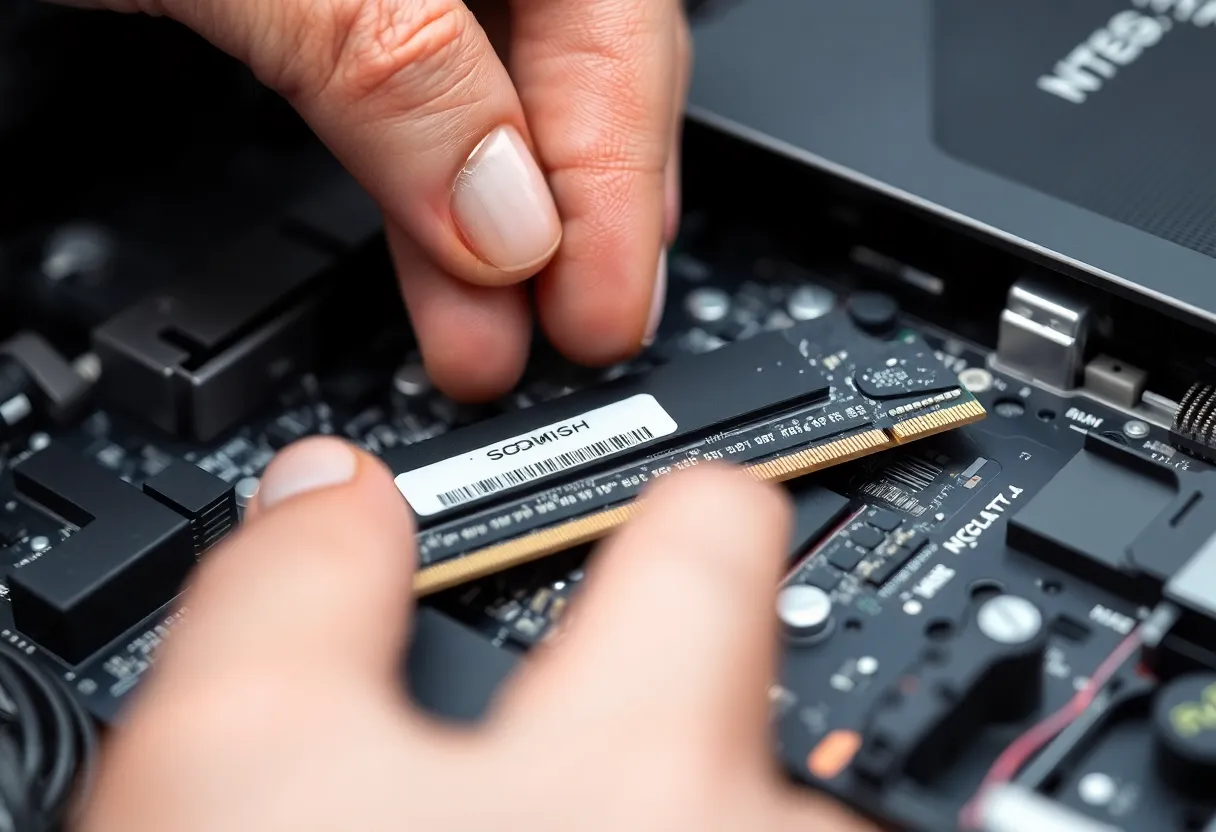
Mini PCs are the most popular home servers, and their memory limits deserve attention before buying. Some low-power models have a single memory slot, and some have soldered memory that cannot be upgraded. Manufacturers’ stated maximums are sometimes conservative, and community reports often show more working, but buy with the official limit in mind. Two slots running in dual channel also improve performance, especially for integrated graphics used in transcoding.
If you plan to grow into VMs, a model with two slots supporting 64 GB or more avoids replacing the whole machine later. Mini PC options are compared in Beelink vs Minisforum.
Measuring your own usage
Estimates are a starting point; your own numbers are better. A few commands and screens show where memory goes:
free -hon any Linux host shows total, used and, most importantly, available memory.docker statslists live memory use per container, which quickly reveals the heavy ones.- The Proxmox summary pages show memory per VM and container, and the host’s total including the ZFS cache.
arc_summaryon systems with ZFS shows the current cache size, its limits and how often reads hit the cache.- A monitoring tool with history, such as Beszel or Netdata, shows peaks over days, which matter more than a single snapshot.
Measure after a week of normal use, including backups, scans and imports, since those create the peaks.
Limiting containers so one app cannot starve the rest
A single misbehaving container can consume all available memory and push the host into swapping or out-of-memory kills that hit other apps. Docker Compose supports memory limits per service; setting a sensible limit on heavy or unpredictable apps contains the damage. When a limited container exceeds its limit, it restarts on its own instead of taking the whole server down. Leave headroom above normal use so limits only trigger on real problems.
Swap: a safety net, not extra RAM
A modest amount of swap, a few gigabytes on an SSD, lets the system move rarely used memory out of the way and avoids abrupt out-of-memory kills during short peaks. It is not a substitute for RAM: a server that swaps constantly becomes slow. On Proxmox hosts with ZFS, avoid placing swap on a ZFS volume; use a separate partition if you need it.
Local AI changes the maths
Running language models on a home server’s CPU and RAM, without a graphics card, needs memory roughly equal to the model’s size plus room for the conversation. Small models fit in a few gigabytes; larger ones need 16–40 GB or more on their own. If local AI is in your plans, size memory for the largest model you want to run, on top of everything else the server does.
Signs you need more
- The server uses swap regularly, not just a little at boot.
- Containers restart unexpectedly, and logs mention being killed for memory.
- VMs fail to start because memory cannot be allocated.
- The ZFS cache stays at its minimum and disk activity is constantly high.
- Apps such as photo servers become slow during imports or scans.
If you see these, first check for a misbehaving app or an oversized VM. Then add memory.
Buying for the next two years
Homelabs grow. The first month might be a handful of containers; a year later there is a photo server, a Home Assistant VM, a test VM and a dozen more apps. Memory is cheap relative to the cost of replacing a machine that cannot be upgraded, so it usually pays to buy one step above today’s needs: 32 GB if 16 GB looks just enough, two modules rather than one so dual channel works, and a board with free slots if possible. If the machine has soldered memory, choose the largest configuration you can afford at purchase, because there will be no second chance.
The answer
For a Docker-only home server running the usual household apps, 16 GB is comfortable, and 8 GB works if you skip heavy apps such as Immich. For Proxmox with a few VMs and ZFS, 32 GB is the practical sweet spot. Go to 64 GB or more for many VMs, Windows guests or a large, busy NAS. Measure available memory after a week of real use, cap the ZFS cache if you run VMs, and ignore the 1 GB per terabyte rule unless you turn on deduplication.