PDF Highlights Off an E-Ink Tablet: Exports That Keep Page Numbers, Colours and Notes

Kenji Arai
October 20, 2026
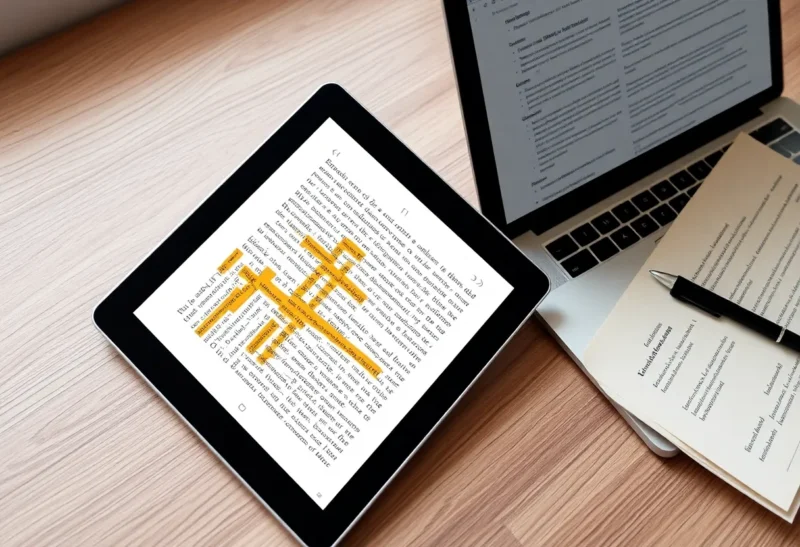
E-ink tablets are wonderful for reading PDFs: research papers, manuals, reports and textbooks become comfortable to read for hours, and highlighting with a stylus feels like using a real pen. The trouble starts afterwards. You want those highlights in your notes, with the page number so you can cite them, the colour so you know which ones were key points and which were questions, and your margin comments attached. Then you export, and get either a flattened image, a text file with no page numbers, or nothing at all.
This guide explains why highlight exports go wrong and which export paths keep page numbers, colours and notes intact, across the common e-ink tablets and the apps people use to collect their notes.
Three kinds of export, and why only one is really useful
When a tablet “exports annotations”, it can mean three very different things:
| Export type | What you get | Keeps page numbers | Text is searchable | Works in Zotero and note apps |
|---|---|---|---|---|
| Flattened PDF | Highlights and ink burned into the page image | Visually only | Highlighted text no longer identifiable | Poorly |
| PDF with annotation objects | Standard PDF highlight and note objects on the original pages | Yes | Yes | Well |
| Text or Markdown export | A list of highlighted passages and notes | Depends on the app | Yes | Well, if page numbers are included |
A flattened PDF looks right but is a dead end: the highlights are pixels, not data, so no app can extract the highlighted text. The two useful formats are a PDF with real annotation objects, which reference managers and PDF tools can read, and a text export that includes page numbers and colours.
Typed highlights versus handwritten marks
There is a second distinction that causes confusion. A highlight made with the reader’s highlight tool, by selecting text, knows exactly which words it covers. A stroke drawn with the pen over text, even if it looks like a highlight, is just ink. The tablet has no idea which words lie underneath.
That difference decides what can be exported. Text-selection highlights can become text exports and proper PDF highlight annotations. Pen strokes can only be exported as ink, as part of a flattened page, or as ink annotations in the PDF. If you want highlights you can search and cite later, use the reader’s highlight tool, not the pen, even when the pen feels more natural.
The same applies to margin notes. Typed notes attached to a highlight export as text. Handwritten notes in the margin export as ink, unless the device converts handwriting to text, which some do as a separate step.
What common devices export
Behaviour changes with firmware versions, so check your current version, but the general pattern for popular devices is:
- Android-based tablets such as Boox. The built-in reader can export a PDF with annotations, either merged or as annotation objects depending on settings, and can export highlights and notes as text. Because they run Android, you can also use third-party readers with better export options.
- reMarkable. Exports PDFs with annotations, generally as ink drawn on the pages. Text-based highlighting on PDFs exists, but exports tend to favour the visual result. Getting reMarkable annotations into structured notes is covered in reMarkable Connect export vs a Git vault.
- Supernote. Exports annotated PDFs and has a “digest” feature that collects highlights and excerpts; its export paths are compared with Kindle’s in Supernote Digest vs Kindle notebook export.
- Kindle Scribe. Annotations on PDFs sent to the device can be exported by sharing the document, typically as a PDF with marks applied. Highlight lists for Kindle books follow a different path from PDFs.
- Kobo and other e-readers. Strong for EPUB highlights; PDF annotation support is more limited.
Test with a short PDF before a big project: highlight in two colours, add a typed note and a handwritten one, export, and open the result in your note app.
KOReader: the most export-friendly reader
On Android tablets, and on many e-readers where it can be installed, KOReader has some of the best highlight export options of any reader. It can export highlights and notes to Markdown, plain text, HTML and JSON, with page numbers, chapter titles, dates and highlight colours or styles, and send them to services such as Readwise or Joplin. For PDF reading it is also excellent, with reflow and column modes for small screens.
The caveat is that KOReader’s highlights for PDFs are stored in its own sidecar files by default, not inside the PDF. Use its export feature to get them out, or its option to write highlights into the PDF where supported.

Getting highlights into Zotero and Obsidian
For research, the most robust workflow uses a PDF with standard annotation objects as the bridge:
- Keep the master PDF in Zotero or your reference manager, synced to the tablet through a folder or a WebDAV share.
- Highlight with the reader’s text highlight tool on the tablet, using a small fixed set of colours with fixed meanings, for example yellow for key points, red for disagreements and blue for methods.
- Export or sync back a PDF with annotation objects, not a flattened copy.
- Import annotations in Zotero, which reads PDF highlights and notes, keeps the page numbers and colours, and can turn them into notes with citations.
- Send to Obsidian using one of the Zotero integration plugins, which create a note per paper with each highlight, its page, its colour and a link back to the exact location in the PDF.
If you prefer to work directly in Obsidian, plugins that read PDF annotations can extract highlights from annotated PDFs placed in the vault. The broader sync options between e-ink devices and Obsidian are covered in E-ink notes to Obsidian and beyond.
A simpler workflow without a reference manager
Not everyone needs Zotero. For manuals, reports and work documents, a lighter setup works well:
- Keep PDFs in one synced folder, such as a Syncthing, Nextcloud or cloud drive folder that the tablet can read.
- Read and highlight on the tablet.
- Export highlights as Markdown or text, with page numbers, into a second folder named after the document.
- Paste or link that file into your notes, with a link to the PDF itself.
This loses the clickable jump back to the exact spot in the PDF, but keeps the essentials: the quoted text, the page and your comment. For many readers that is enough, and it involves no plugins.
Turning handwritten margin notes into text
Handwritten notes are where e-ink tablets shine, and where exports struggle most. Some devices can convert handwriting to text on the tablet, either for a whole page or for a selected area, and include the result in exports. Accuracy depends on handwriting and language, so review the text before relying on it.
Another approach is to write longer thoughts as typed notes attached to highlights, using the on-screen keyboard or a small Bluetooth keyboard, and keep handwriting for quick marks such as ticks, arrows and question marks. Those marks are still visible in an annotated PDF, while the important thinking exports as searchable text.
Keeping colours meaningful
Colour is useful only if it survives the trip. Some devices map their colour names to standard PDF colours on export; others export grey on monochrome screens, or use colours that look different in other apps. Check with a test document, and in Zotero or your note app, map each exported colour to a label such as “key point” or “question”.
On monochrome e-ink, devices often still record a colour choice even though it displays as grey, and export it correctly. On colour e-ink, highlights can look washed out on screen but export at full colour.
Common failures and fixes
- Exported highlights have no text. They were drawn with the pen, or the PDF is a scan with no text layer. Use the highlight tool, and run OCR on scanned PDFs before reading them on the tablet.
- Page numbers do not match the printed page. Apps usually record the PDF’s page index, which differs from the printed page numbers in journals and books. Zotero can be told the page offset for citations.
- Two copies of the PDF drift apart. The tablet saves annotations to its copy while you annotate the original on the computer. Pick one master copy and sync it, or keep annotations only on the tablet until export.
- Flattened exports by default. Look for an export setting such as “editable annotations” or “keep annotations”, rather than “merge” or “print”.
A workflow that lasts
Before committing to a device or app for a long project, spend ten minutes on a test PDF and follow it all the way into your notes. Problems are much easier to fix with one document than with a semester’s reading.
Read on the tablet, highlight with the text tool in a few consistent colours, export a PDF with real annotation objects or a Markdown file with page numbers, and let a reference manager or note app do the rest. Treat flattened PDFs as archive copies only. With that setup, a year of highlights becomes a searchable, citable collection instead of a folder of pretty but useless images.