SnapRAID and mergerfs vs ZFS for a Mixed-Drive Media Server: The Rebuild You Can Live With

Ellis Crowe
October 14, 2026
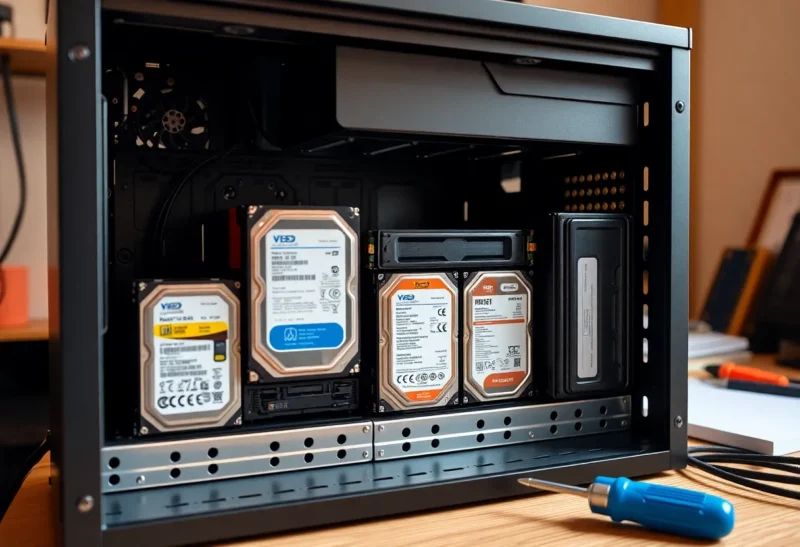
Most home media servers grow the same way: one drive, then a second when the first fills, then a bigger third one bought on sale. Five years in, you have four disks of three different sizes, a growing collection of films and music, and a nagging awareness that any one of those drives could die tomorrow.
ZFS is the answer you hear most often, and for good reason. But ZFS likes matched disks and wants to protect everything, all the time. For a pile of mismatched drives full of media that rarely changes, there is an older, simpler combination: SnapRAID for protection and mergerfs to make the drives look like one. I treat every storage setup as a restore I have not rehearsed yet, and I have rebuilt failed disks under both. This piece is about what living with SnapRAID actually looks like: the nightly sync, the gaps between syncs, and the day a disk dies.
Parity at night for media, ZFS for everything that changes
For a media library on mixed drive sizes, where files are added but rarely changed, SnapRAID plus mergerfs is a great fit: free, flexible, light on power, and easy to grow one disk at a time.
For data that changes constantly, such as databases, VM disks, photo libraries being edited and documents, or for anyone who wants protection that is always current, use ZFS. Many home servers end up with both: ZFS on a pair of SSDs or matched disks for live data, and SnapRAID over the big mixed drives for media.
Pooling, parity and a filesystem that does both
mergerfs pools several drives into a single folder. Each drive keeps its own ordinary filesystem, such as ext4 or XFS, and mergerfs presents their contents as one combined tree. New files go to whichever drive its policy picks, for example the one with the most free space. It provides no protection at all; it only makes many disks look like one.
SnapRAID adds protection. It calculates parity from your data disks and stores it on one or more dedicated parity drives. If a data disk fails, SnapRAID can rebuild its contents from the parity and the surviving disks. The key word is snapshot: parity is calculated when you run snapraid sync, usually once a night, not continuously as files change.
ZFS is a filesystem and volume manager in one. Data is spread across disks in mirrors or RAID-Z groups, parity is updated with every write, every block is checksummed, and damaged data is repaired automatically from redundancy when it is read. It also offers snapshots, compression and replication.
| SnapRAID + mergerfs | ZFS (RAID-Z or mirrors) | |
|---|---|---|
| Protection timing | At each sync, usually nightly | Continuous, every write |
| Mixed drive sizes | Yes; parity must be at least the largest data disk | Wastes capacity on larger disks |
| Adding one disk | Trivial | Limited, depends on layout |
| Disk spin-down | Yes, only active disks spin | All disks in the pool spin |
| Silent corruption | Detected by scrub, fixed by snapraid fix |
Detected and repaired automatically |
| Losing more disks than parity covers | Surviving disks still readable | Pool lost |
| Good for | Large, mostly static files | Everything, especially changing data |
Setting up SnapRAID
The setup is refreshingly plain. Format each data drive on its own, mount them, and point mergerfs at the mount points to create the pool. Then write a short SnapRAID configuration file listing the data disks, the parity disk or disks, and where to keep its “content” files, the index of every file and its checksum. Keep copies of the content file on several disks, so losing one disk never loses the index.
The parity drive must be at least as large as your largest data drive, so buy the biggest disk first and make it parity. One parity disk protects against any single disk failure; a second parity disk protects against two at once, which starts to make sense around six to eight data disks, or when you would hate to rebuild from scratch.
The first snapraid sync reads every byte on every data disk to build parity, and on many terabytes it takes hours. Later syncs only process what changed since the last one, so they are usually quick.
Living with nightly sync
The nightly sync is both SnapRAID’s strength and its weakness. Between syncs, anything new is unprotected. If you copy a season of a show to the server at 8 p.m. and a disk dies at 10 p.m., those files are gone. For media you can re-download or re-rip, that is a reasonable trade. For anything irreplaceable, it is not, and those files belong somewhere with continuous protection and a real backup.
Most people automate the routine with a helper script, such as the community’s snapraid-runner, that runs on a timer and does three things:
- Diff first. It checks what has changed since the last sync.
- Refuse to sync on suspicious changes. If an unusually large number of files were deleted, the script stops and alerts you rather than syncing. This is the most important safety feature. Syncing after an accidental mass delete, or after ransomware has encrypted files, would update parity to match the damage and throw away your ability to recover.
- Scrub a slice. It verifies a small percentage of the array against stored checksums each night, so over a few weeks every file is checked for silent corruption.
Set up an alert for the result, whether success, failure or skipped, through email or a push service. A SnapRAID array that has not synced for three weeks because a script quietly failed offers very little protection, and the only way to know is to be told.
The day a disk dies
Here SnapRAID’s simplicity is reassuring. When a data disk fails, replace it with a new disk of at least the same size, mount it where the old one was, and run snapraid fix for that disk. SnapRAID rebuilds the files from parity and the other disks. Then run snapraid check on it to verify, and sync again. The rest of the pool stays readable throughout, and mergerfs keeps serving files from the healthy disks.
Two more recovery tricks are worth knowing. SnapRAID can restore individual files you deleted by mistake, as long as no sync has run since the deletion. And if you lose more disks than you have parity for, you lose only the data on the failed disks. The others are ordinary drives with ordinary filesystems you can plug into any Linux machine and read. With ZFS, losing more disks than the redundancy covers usually means losing the whole pool.
Practise this before you need it. Copy a test folder onto the array, sync, delete it, and restore it with SnapRAID. Ten minutes of rehearsal turns a panicked evening into a routine one.
Where ZFS is simply better
ZFS protects every write the moment it happens, so there is no window of unprotected new files. Its checksums are verified on every read, and damaged blocks are repaired automatically from redundancy, without waiting for a scrub. Snapshots let you roll back a folder to how it was an hour or a month ago, which is invaluable for documents and photo libraries that change. And performance is better for random reads and writes, which matters for databases and virtual machines.
Its trade-offs are the ones that SnapRAID avoids: matched disks work best, all disks spin together, and growing a pool takes planning. If you want the deeper comparison on the ZFS side, ZFS RAID-Z2 vs Btrfs RAID on a single box covers it. And if you are choosing a whole operating system around this decision, the storage section of Proxmox vs Unraid explains how Unraid’s own parity array compares, since it shares SnapRAID’s mixed-drive philosophy but updates parity in real time.
Neither is a backup
SnapRAID and ZFS both protect against a disk failing. Neither protects against deleting the wrong folder and syncing, a house fire, theft, or ransomware on the machine. For media you can recover from elsewhere, parity alone may be enough. For family photos, documents and anything irreplaceable, keep a real backup on a different machine, ideally one copy off-site.
Static media or live data
SnapRAID and mergerfs fit when:
- Your drives are different sizes and you want to use all their capacity.
- Your data is mostly large, static media files.
- You want to add one disk at a time, and have idle disks spin down.
- You accept that files added since the last nightly sync are unprotected.
ZFS is worth matched disks when:
- Your data changes often, including databases, VMs, documents and active photo libraries.
- You want protection that is always current and automatic repair of corruption.
- You want snapshots to roll back changes.
- You can buy matched disks and plan the pool’s growth.
For a typical home media server, the combination is common and sensible: a small ZFS mirror for the data that changes, and SnapRAID over the big mismatched drives for the media that does not. Each handles the job it was designed for, and both leave you with a recovery you have practised.