Do You Actually Need a Static IP for a Home Server?

Lars Beckmann
September 27, 2026
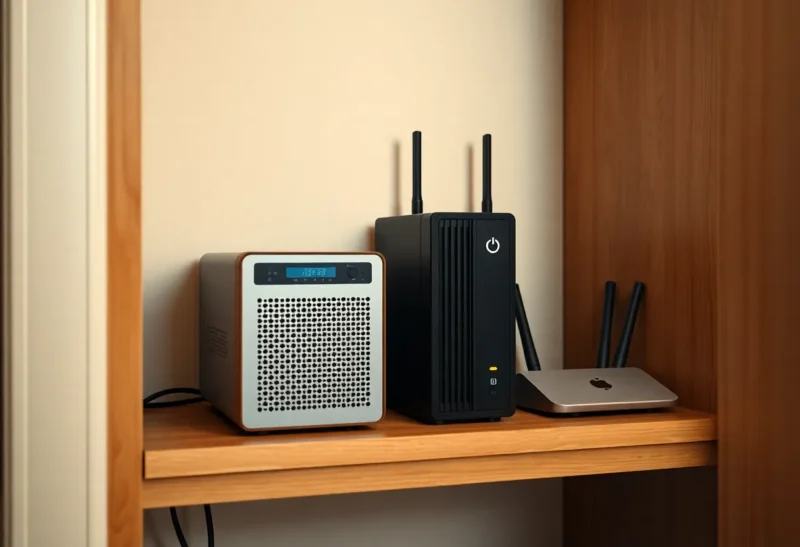
Two winters ago I had the order form for a static IPv4 address open in another tab. My ISP wanted €9.90 a month for it, plus a one-off “activation” fee that I suspect pays for someone to tick a box. I was about to pay it because a friend’s Nextcloud had gone unreachable for most of a Saturday and he was convinced the cause was his changing IP. I wanted to avoid the same Saturday.
I closed the tab. Not because static IPs are a scam, but because when I sat down and wrote out what I actually needed, the static address solved exactly one problem I didn’t have and none of the problems I did. His outage, it turned out, had nothing to do with his IP changing. His DNS update script had been dead for three months and the IP had finally changed underneath it.
That’s the pattern I see over and over. People ask “do I need a static IP?” when they mean one of three different things, and only one of them costs money.
First, which static IP are we talking about?
There are two addresses in play for any home server, and the word “static” gets used for both.
The LAN address is the one your server has inside your house: 192.168.1.50 or similar. Your router hands it out over DHCP. If that address changes, your port forward points at nothing, your Pi-hole clients lose their DNS server, and the bookmark on your partner’s laptop stops working. You want this one fixed. It’s free, and you already own the tool that does it.
The public address is the one the internet sees: the single IPv4 address your ISP assigns to your router’s WAN port. Everyone in your house shares it. This is the one ISPs sell as “static IP,” and this is the one most people don’t need.
Half the forum threads I’ve read where someone says “I set a static IP and it broke everything” are about the first kind done badly. So let’s get that out of the way.
The LAN side: reserve it on the router, not on the box
You can give a server a fixed LAN address two ways. You can edit its network config and hard-code 192.168.1.50, or you can tell the router’s DHCP server “whenever you see this MAC address, give it .50.” The second one is called a DHCP reservation or static lease, and it’s almost always the better choice.
Here’s why I learned to prefer it. Years ago I hard-coded an address on a Debian box, then later changed my router’s subnet from 192.168.0.x to 10.0.10.x when I split the network into VLANs. Every device picked up its new address automatically except that one server, which sat on its old subnet, unreachable, with no screen attached. I had to carry a monitor down to the basement to fix a problem I’d created by being clever.
With a reservation, the router stays the single source of truth. Change the subnet, update the reservation, reboot the server, done. The one exception is the router’s own DNS or DHCP depending on the server, say, if the server is your DHCP server. Then it has to be hard-coded, because it can’t ask itself for an address.
Two practical notes. Pick an address outside your router’s dynamic pool if the router lets you set one, so nothing else can ever be handed .50 by accident. And if your server has two network interfaces or runs a bunch of macvlan containers, each MAC gets its own lease, so check the router’s client list after a reboot rather than assuming.
That’s the part everyone needs. Now the part people pay for.
How often does a “dynamic” public IP actually change?
Less often than the word suggests, and it depends heavily on how your line is delivered.
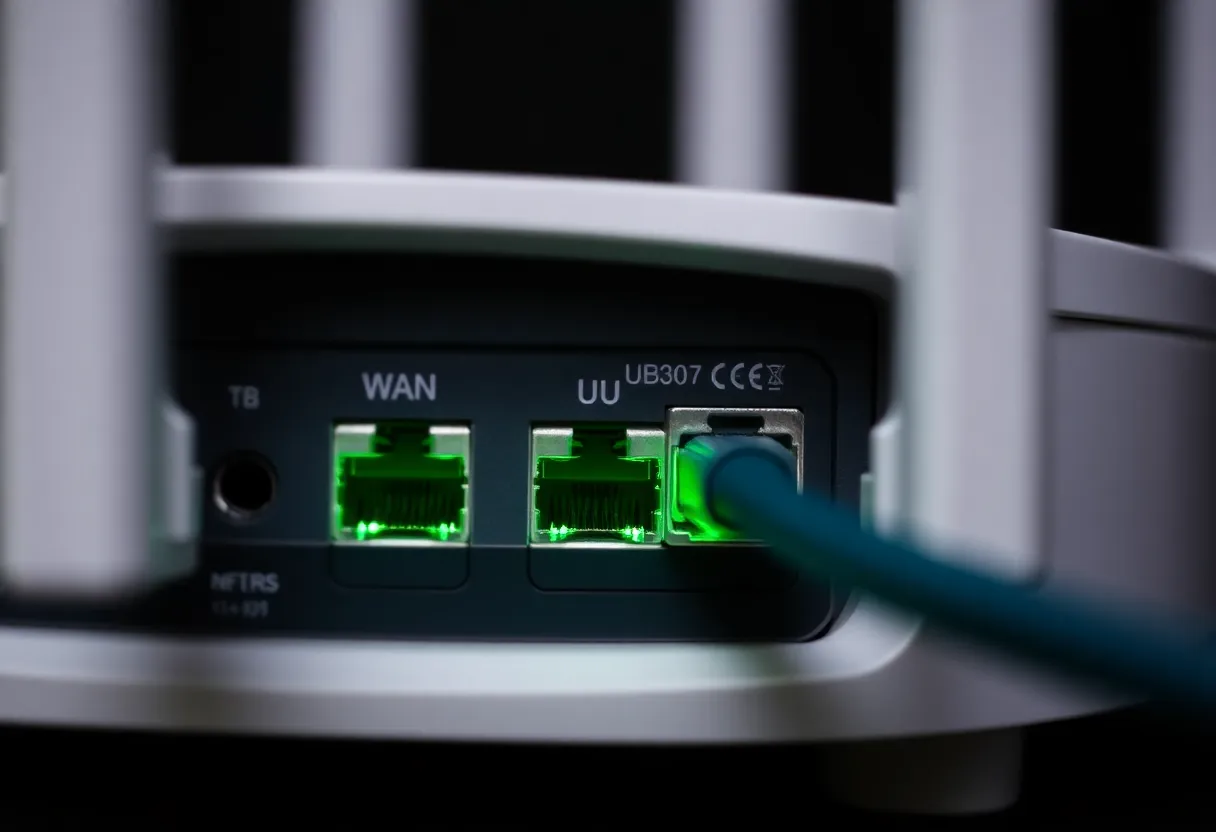
On most cable and fiber connections that use DHCP on the WAN side, your router renews its lease periodically and usually gets the same address back. I’ve seen home cable IPs survive for eight or nine months. They change when the modem is off long enough for the lease to expire, when the ISP re-numbers a neighbourhood, or when you swap the router and the new MAC address looks like a new customer.
DSL and some fiber setups using PPPoE are different. Every time the PPP session reconnects, you may get a new address. Here in Germany, some providers used to force a disconnect every 24 hours, usually in the middle of the night. A few still do on older contracts. If you’re on one of those lines, your IP changes daily and you’ll notice.
Mobile and 5G home internet is its own world. Many of those connections don’t give you a public IPv4 address at all, and that’s a different problem from “dynamic.” I’ll come back to it.
The honest answer to “how often” is: log it. Put a one-line cron job on the server that curls an IP echo service once an hour and appends the result with a timestamp to a file. After a month you’ll know whether you’re fighting a daily reconnect or an address that basically never moves. That file is more useful than any forum post about your ISP.
Dynamic DNS does 95% of the job
If your public IP changes occasionally, the standard fix is dynamic DNS. Something on your network notices the address changed and updates a DNS record so that home.example.com always points at wherever your house currently is.
You have three reasonable ways to do it:
- The router’s built-in client. Most consumer routers and every OpenWrt install can update DuckDNS, No-IP, Dynu, or similar. It’s the simplest, and the router is the device that knows first when the WAN address changes.
- A small container or script on the server. ddclient, or a twenty-line script that calls your DNS provider’s API. If your domain is on Cloudflare, this is what most people end up with.
- A provider’s own agent. Some DNS hosts ship a tiny updater. Fine, just one more thing to keep running.
The trade-off with dynamic DNS is a short window of unreachability after each change. If your updater checks every five minutes and your record’s TTL is five minutes, the worst case is roughly ten minutes where remote clients still have the old address cached. For a photo library or a media server, that’s nothing. For a daily PPPoE reconnect at 3 a.m., you’ll never see it.
The real failure mode is the one my friend hit: the updater silently dies. The container got removed during a compose cleanup, or the API token expired, or the free DDNS service wanted a monthly “confirm you’re still using this” click that went to spam. Nothing breaks until the IP changes, and then everything breaks at once, weeks after the actual cause.
So if you run dynamic DNS, monitor it. Have something outside your house resolve the hostname and compare it to your real IP, or at minimum have the updater log a line every time it runs so you can see it’s alive. That check is worth more than a static IP, because it catches the thing that actually fails.

When a static public IP is genuinely worth paying for
I don’t want to pretend the static option is never right. There are real cases, and they share one feature: something outside your control needs to recognise your address without doing a DNS lookup.
Allowlists on someone else’s firewall. If a client’s server only accepts SSH from specific IPs, or a hosted database lets you connect only from an allowlisted address, a changing IP means emailing their admin every time your router reboots. A static address turns that into a one-time conversation. This was the case that almost made me pay, until I realised I could route that traffic through a cheap VPS with a fixed address instead.
Site-to-site VPNs with equipment that won’t resolve hostnames. Plenty of business firewalls want an IP for the remote peer, full stop. If you’re linking a home lab to an office box like that, static is easier than fighting it.
Self-hosted email. A mail server wants a stable address with a matching reverse DNS record. But be honest with yourself here: residential ranges sit on blocklists regardless, and most ISPs won’t set reverse DNS on consumer lines. A static IP is necessary for mail, not sufficient.
Getting a public IPv4 address at all. This is the sneaky one. On a growing number of connections, especially cheaper fiber, mobile, and 5G plans, your router doesn’t have a public address. It’s behind carrier-grade NAT, sharing an address with dozens of other customers. Dynamic DNS can’t help, because there’s no address that’s yours to point at. For many people, the static IP add-on is really a “give me a real public address” add-on, and the “static” part is a bonus. If you’ve set up port forwarding perfectly and nothing gets in, check whether the WAN address on your router matches what an IP echo site reports. If they differ, you’re behind CGNAT, and that’s a separate decision from static versus dynamic.
When you don’t need either one
Here’s the part that changed my own setup more than anything above. A lot of home servers don’t need to be reachable from the public internet at all. They need to be reachable by you, and maybe three family members, from their phones.
If that’s your situation, a public address is the wrong thing to optimise. An overlay network like Tailscale or a plain WireGuard tunnel lets your phone reach the server from anywhere, with nothing forwarded on the router. The public IP can change hourly and you won’t notice, because the connection is brokered by the overlay, not by a DNS record pointing at your front door.
That’s where I ended up for everything except one service. My Home Assistant, Jellyfin, and file shares are overlay-only. If you’re weighing that same split for a single app, the question you’ll hit next is whether Tailscale Serve can replace the port forward for one homelab service, and for most personal use it can.
The one exception on my network is a small shared calendar that a relative’s school committee uses from locked-down laptops where installing a VPN client isn’t an option. That one sits behind a reverse proxy on a forwarded 443, with dynamic DNS pointing at it. It’s been fine for two years.
IPv6 changes the picture a little
If your ISP gives you native IPv6, you might assume the address problem goes away. Partly. Each device gets a globally routable address, so there’s no NAT to forward through. But many ISPs hand out a delegated prefix that can change too, especially on reconnect. When it does, every IPv6 address inside your house changes with it.
The practical advice is the same as for IPv4: don’t hard-code global IPv6 addresses anywhere. Use DNS names, let your DDNS client update AAAA records as well as A records, and if you need stable internal addresses, use a unique local prefix (the fd00::/8 range) for LAN-only traffic. Also remember that plenty of mobile networks and hotel Wi-Fi still don’t do IPv6 well, so an IPv6-only home server will be invisible from exactly the places you’re most likely to need it.
The checklist I actually use
When someone asks me whether to pay for a static IP, I walk through this in order:
- Does the server have a fixed LAN address? If not, set a DHCP reservation on the router. Everyone does this step. It costs nothing.
- Does anyone outside your house actually need to reach it? If it’s just you and family, use an overlay and stop. No public IP question remains.
- Does your router’s WAN address match your public IP? If not, you’re behind CGNAT, and the question becomes how to get inbound access at all, not whether it’s static.
- How often does the address change? Log it for a month. If it’s rare, dynamic DNS is enough.
- Is there a system that needs your IP, not your hostname? Allowlists, rigid site-to-site VPN peers, mail. If yes, a static IP or a small VPS with a fixed address is justified.
Most people drop out at step two or step four. That’s where I dropped out too, and that €9.90 a month now pays for a VPS that does the one allowlisted job better than my home line ever would.
The static IP isn’t a bad product. It’s just an answer to a narrower question than the one people are usually asking. Figure out which address you’re worried about, whether anyone really needs to reach it from outside, and whether the thing that fails is the address or the updater. Usually it’s the updater.