A USB-C dock that sleeps vs a dumb HDMI cable: the Monday display that stays black

Nate Osborn
September 23, 2026
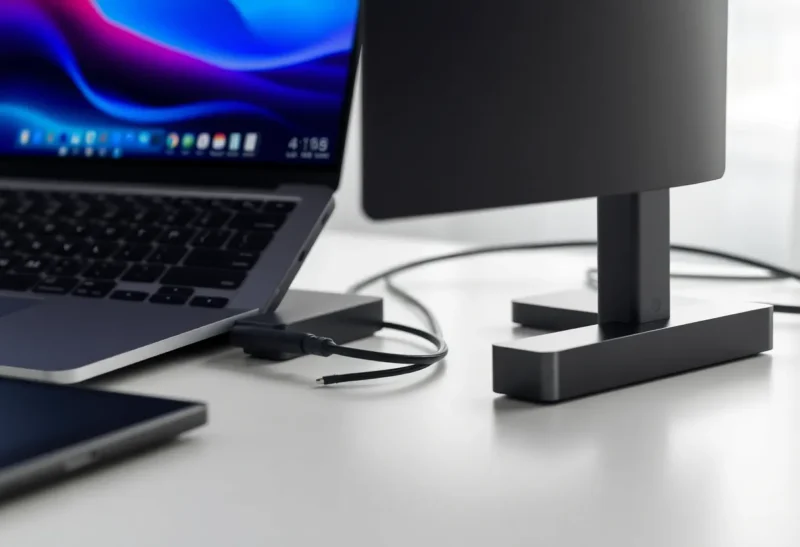
Monday morning. Laptop open. Dock LED… maybe. External monitor black. HDMI cable still snaked where you left it Friday. You reseat the USB-C brick, toggle the display input, close the lid, open the lid, and bargain with Windows or macOS like it owes you rent.
The “dumb” HDMI cable — laptop HDMI-out straight into the monitor — feels primitive next to a dock that also charges, runs Ethernet, and hosts your hub. Primitive is underrated when the smart path falls asleep and forgets how to wake.
This is not anti-dock. It is about why docks invent black-screen Mondays that a single cable rarely does, and when the dumb path is the reliable office.
What a sleeping dock is actually doing
USB-C docks negotiate power delivery, DisplayPort Alt Mode (or DisplayLink), USB data, and sometimes Thunderbolt. That negotiation is a stack of chips, firmware, and OS drivers. When you unplug Friday or the laptop sleeps over the weekend, pieces of that stack go idle. Monday, the link must retrain: PD contract, lane training, EDID read from the monitor, OS mode set.
Any step can stall. The dock’s MCU is half-awake. The monitor is on the wrong input. The laptop decided the external panel was disconnected and never replays the mode set until you “change something.” Thunderbolt docks add authorization and tunnel complexity. DisplayLink docks add a software framebuffer driver that may not restart cleanly after sleep.
Symptoms rhyme: backlight on, image black; image stuck at native timing but wrong; laptop thinks two displays exist but one is blank; cursor leaks onto a phantom screen.

What the dumb HDMI cable does instead
A direct HDMI (or DisplayPort) cable is still a digital link with EDID and hot-plug detect — it is not magic. But the path is shorter. Fewer chips sit between GPU and panel. Fewer firmware versions. Fewer “dock sleep” states. Hot-plug on a simple cable tends to re-enumerate when you reconnect or power-cycle the monitor.
You lose one-cable docking: no single-cable charge+data+video unless your laptop happens to make HDMI and you still need power separately. Many modern ultrabooks barely ship HDMI at all, which is why docks won. Reliability and convenience traded places.
If your laptop still has HDMI or USB-C that can drive a display without a full dock (a simple USB-C to DisplayPort cable), that middle path often beats a multiport dock for “just give me a picture.”
Why Monday is special
Weekend sleep is longer than lunch sleep. Capacitors discharge, monitors enter deep standby, docks cut rails to save power, laptops apply aggressive connected-standby policies. Corporate images add docking policies and VPN clients that race at login. Home setups add a cheap powered hub daisy-chained off the dock — another sleep domain.
Friday’s working desktop layout is not a saved covenant. It is a temporary agreement among devices that all took a nap.

Dock failure modes worth recognizing
- PD brownout — underpowered dock supply; laptop charges slowly and throttles GPU lanes oddly under load.
- Firmware bitrot — docks need updates; ignored firmware is a classic “worked for a year, then Mondays.”
- Cable quality — the USB-C lead between laptop and dock matters as much as the HDMI beyond it. Not all cables do Alt Mode + PD.
- MST / daisy-chain drama — multi-monitor over one link fails more often than one monitor on a direct cable.
- OS update — graphics stack changes over a weekend; dock drivers lag.
A dumb cable fails more honestly: bad cable, bad port, bad monitor input. Less mysterious, less “restart everything.”
When the dock is still worth it
Daily single-cable sit-down with charge, wired Ethernet, and a known-good dock from a vendor that updates firmware. You understand the wake ritual: power monitor first, then dock, then open laptop — or whatever order your stack prefers. You keep a spare USB-C cable that is certified for your link type.
Clamshell Mac users who need ports often have no practical HDMI alternative without dongles anyway. Then the job is dock hygiene, not cable nostalgia.
When to prefer dumb video
You only need one external display. Your laptop has a native HDMI/DP port or a reliable USB-C-to-DP cable. You are tired of Monday black screens more than you are tired of plugging two cables. You share a desk and other people “fix” the dock into weird states.
Hybrid that works: charge with USB-C power brick, video with a direct DP/HDMI cable, USB peripherals on a separate powered hub. Three cables, fewer mysteries. Ugly. Stable.
A Monday recovery ladder
- Confirm monitor input matches the cable you think you are using.
- Unplug dock USB-C from laptop for ten seconds; reconnect.
- Power-cycle the monitor, then the dock supply.
- Try a direct cable if you have one — isolates dock vs GPU vs panel.
- Forget the display in OS settings and redetect; on Windows, Win+Ctrl+Shift+B as a Hail Mary for the graphics stack.
- Update dock firmware on a calm evening, not during a standup.
If direct cable works and dock does not, stop blaming the monitor. The negotiation stack is the suspect.
Laptop sleep policies make docks look haunted
Modern laptops do not simply “turn off.” They enter connected standby, modern standby, or deep sleep with different rules about which USB devices may wake the system. A dock that expects to stay enumerated may find itself power-gated. A dock that expects a clean disconnect may find phantom devices. Corporate MDM profiles make this worse by forbidding certain wake sources or forcing lid-closed policies that fight your clamshell ritual.
If Mondays are uniquely broken but midday reconnects work, suspect long-idle power policy — not a cursed monitor. Test by disabling selective suspend on the dock’s USB root (Windows) or comparing clamshell closed versus open wake. Document the sequence that works once; future you will not remember which LED had to be amber first.
macOS users hit a parallel genre: the external display that returns only after a SMC/NVRAM folklore dance, or after unplugging power from a Thunderbolt dock for thirty seconds. Folklore persists because intermittent link training failures are hard to package into a clean error dialog. The dumb cable still wins as a bisect tool: if HDMI-direct works, your GPU and panel are fine.
Peripherals ride along — and fail along
Docks sell the dream that keyboard, mouse, Ethernet, and headset wake with the display. When video fails, people notice first. When Ethernet fails silently, VPN breaks and the meeting starts on flaky Wi-Fi while you still fight the black panel. Prefer docks that expose a clear power LED and a separate status for host link. Prefer not daisy-chaining a second unpowered hub off a marginal dock port.
Audio devices on docks deserve special suspicion after sleep. The OS may keep a ghost output selected while the real sink is dead. Your display can be fine while the standup cannot hear you — a different Monday failure with the same root cause: complex USB trees after idle.
Buying with wake behavior in mind
Prefer docks with clear PD wattage headroom for your laptop model. Prefer Thunderbolt docks for Thunderbolt hosts if you need reliability over bargain DisplayLink. Read recent wake-from-sleep complaints for your exact laptop+dock pair — chipsets matter more than marketing photos.
Keep one dumb video path in the drawer as a known-good. It is a diagnostic tool, not a lifestyle regression.
If you travel between home and office docks, label cables and keep one “known good” USB-C lead in the laptop sleeve. Many “dock is broken” tickets are cables that charge but do not carry video, or video cables that do not carry enough power. Mixing them is how you get a charged laptop and a black Monday panel.
Also budget five minutes after any OS feature update to reconnect and confirm the external display before you need it live. Updates love weekend nights. Your first meeting loves assuming Friday’s layout still exists. If you support family machines, teach the direct-cable bisect first — it turns a vague “internet is broken” morning into a two-minute dock-versus-panel decision.
None of this means docks are bad products. It means their value is density and cable reduction, not mystical reliability. Buy them for the ports. Keep a dumb path for the truth. When both paths work, pick the dock for weekday convenience and still leave the HDMI in the drawer for the morning the LED lies to you.
Bottom line
A USB-C dock that sleeps invents failure modes a dumb HDMI (or DP) cable barely knows: renegotiation after long idle, firmware, PD, and driver stacks that disagree on Monday. Docks win on one-cable convenience. Direct video wins on “the panel lights up.”
If your job is shipping pixels to a screen every morning, keep a simple link as backup — or as the main path — and treat the dock as optional complexity you only pay for when the port density is worth the wake ritual.