Ollama vs vLLM for Serving Local Models: One User at a Desk or Many Requests at Once

Sora Nguyen
November 18, 2026
You have Ollama running on a desktop with a decent GPU, it answers your chat window and your editor plugin without complaint, and now you are thinking about pointing more at it: a small team, a home automation agent firing off requests on its own, a batch job summarizing a few thousand documents. Somewhere in that search you hit vLLM, usually described as “the production option,” and the question becomes whether it is worth replacing something that already works.
The useful way to frame it is not features but workload. Ollama is designed around one person, or a few, using whichever model they feel like right now. vLLM is designed around many requests hitting one model at the same time, and it makes different trade-offs everywhere because of that: how it uses VRAM, what model formats it prefers, which hardware and operating systems it supports, and how long it takes to start.
Two different jobs: a model at your desk or an endpoint under load
Picture the two extremes. In the first, you type a prompt, wait for the answer, read it, think, and type another. The GPU is busy for a few seconds and idle for a minute. You might switch from a coding model to a general chat model and back again in the same hour. What matters is that model switching is painless, the install is trivial, and the machine is still usable for other things when you are not chatting.
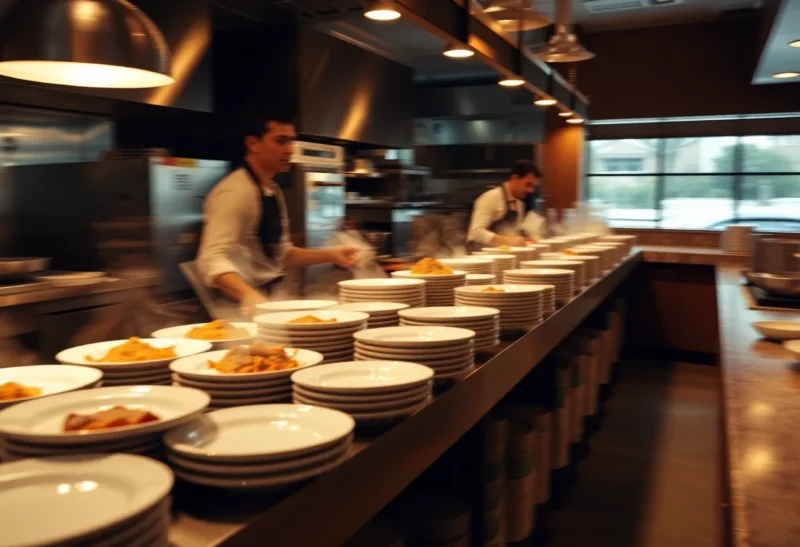
In the second, requests arrive whether or not anyone is watching: several users, an agent framework that issues parallel calls, or a script feeding a queue. The GPU should never sit idle while work is waiting, and the same model stays loaded all day. What matters is total tokens per second across all requests and how latency holds up as more requests pile on.
Ollama is built for the first picture and can stretch into light versions of the second. vLLM is built for the second and is awkward in the first. Most of the decision follows from that.
How Ollama loads and serves a model
Ollama is a model runner built on the ggml/llama.cpp lineage. Its native format is GGUF, typically quantized to 4 to 8 bits so a model fits in consumer VRAM or even system RAM. You fetch models with ollama pull from its library, run them with ollama run, and everything is exposed through a local HTTP API on port 11434, including an OpenAI-compatible endpoint under /v1 that most tools can use by changing a base URL.
Its memory behavior suits a desktop. Models load when first requested and, according to Ollama’s FAQ, stay in memory for 5 minutes by default before unloading (OLLAMA_KEEP_ALIVE changes that). Several models can be resident at once, up to OLLAMA_MAX_LOADED_MODELS, which defaults to three per GPU, and if a model does not fit fully in VRAM Ollama splits layers between GPU and CPU rather than refusing to run. That partial offload is slow, but it works, which is exactly what you want when trying a model that is slightly too big for your card.
Concurrency is controlled by OLLAMA_NUM_PARALLEL, which Ollama’s FAQ lists as the maximum number of parallel requests each model will process at the same time, with a default of 1. Requests beyond that wait in a queue (up to OLLAMA_MAX_QUEUE, default 512). Raising the parallel count is allowed, but the FAQ is clear about the cost: required memory scales with OLLAMA_NUM_PARALLEL multiplied by the context length, because each parallel slot gets its own share of context.
How vLLM is built for many requests at once
vLLM is an open-source serving engine that started at UC Berkeley’s Sky Computing Lab. Its README leads with two techniques. PagedAttention manages the attention key-value (KV) cache in fixed-size blocks, much like virtual memory pages, so memory for each request’s context is allocated as it grows instead of being reserved up front for the maximum length. Continuous batching means new requests join the running batch as soon as there is room, rather than waiting for the current batch to finish. Add prefix caching (shared prompt prefixes, such as a long system prompt, are computed once and reused) and chunked prefill, and the engine is designed to keep the GPU busy as request count rises.
Its model world is Hugging Face. vllm serve Qwen/Qwen2.5-1.5B-Instruct downloads the model’s safetensors from the Hub and serves it. Quantization is supported through formats common in that ecosystem: AWQ, GPTQ, FP8, INT8 and INT4 variants, compressed-tensors, bitsandbytes and others. vLLM can also load GGUF files on supported GPUs, but GGUF is not where its tooling and optimization are centered, so you will usually pick an AWQ, GPTQ or FP8 build of a model instead of the Q4_K_M file you used in Ollama.
The server exposes an OpenAI-compatible API on port 8000 by default, with /v1/models, /v1/chat/completions and /v1/completions. If your clients already talk to Ollama’s /v1 endpoint, moving them is mostly a base URL and model name change.
Why vLLM claims most of your VRAM the moment it starts
The first surprise for Ollama users is nvidia-smi right after starting vLLM: nearly the whole card is in use, even with a small model and no requests. That is by design. vLLM reserves a fraction of GPU memory up front, set by --gpu-memory-utilization, which its docs describe as the fraction of GPU memory to be used for the model executor, from 0 to 1. After loading the weights, the rest of that reservation becomes a pool of KV cache blocks. More pool means more concurrent requests and longer contexts before anything has to wait.
On a dedicated inference box this is exactly right. On a desktop it has consequences:
- The GPU is not shared nicely. If you game, run Stable Diffusion, or keep Ollama loaded on the same card, set
--gpu-memory-utilizationlower so vLLM leaves room. - Context length must fit. vLLM checks at startup that the KV cache can hold at least one request at the model’s maximum context. Many current models advertise very long context windows, and on a 12 GB or 16 GB card that check can fail. The fix is
--max-model-lento cap context at what you actually need. - No graceful fallback to CPU. vLLM does have a
--cpu-offload-gboption for weights, but there is no equivalent of Ollama’s casual “put the layers that don’t fit on the CPU” behavior. Plan on the model and its KV cache fitting in VRAM.
Startup is also slower. vLLM profiles memory, compiles kernels and captures CUDA graphs before serving its first request; --enforce-eager skips torch.compile and CUDA graphs for a quicker start at some cost in speed. For a server that runs all day, a long startup is irrelevant. For a desktop where you want to try three models before lunch, it is friction.
What happens when five requests arrive together
This is the scenario where the two diverge most. With Ollama’s default parallel setting of 1, five simultaneous requests to the same model are answered one after another. The first user gets a normal response; the fifth waits for four generations to finish first. Raising OLLAMA_NUM_PARALLEL lets several run at once, at the price of memory per slot, and that works well enough for a household or a small team.
vLLM handles the same burst by batching. All five requests share each forward pass through the model, and because generation on a GPU is usually limited by memory bandwidth rather than raw compute, processing several sequences per pass costs much less than processing them separately. As the request count climbs into the dozens, continuous batching and paged KV memory are what keep throughput growing instead of flattening out. Red Hat Developer’s August 2025 benchmark of the two on a data-center GPU found vLLM’s aggregate throughput pulling far ahead as concurrency rose, even after Ollama’s parallel setting was raised, while the gap at a single user was small. Treat any specific multiplier you see with caution; it depends on the model, quantization, GPU and prompt lengths.
Model swapping runs the other way. A vLLM server serves the model it was started with. To serve two different models you run two vLLM instances, each with its own slice of GPU memory, or restart with a different model. Ollama simply loads whatever the next request names.
Hardware and operating systems each one runs on
Ollama covers almost any machine a homelab has lying around. Its GPU docs list NVIDIA cards from compute capability 5.0 upward, AMD cards via ROCm on Linux (with a narrower list on Windows), Apple Silicon through Metal, and a Vulkan backend that adds broader GPU support on Windows and Linux. It runs natively on Windows, macOS and Linux, and falls back to CPU when there is no GPU.
vLLM is narrower in practice:
- NVIDIA is the main path, and the docs require compute capability 7.5 or newer (RTX 20-series and later, T4, A100 and so on). That rules out GTX 10-series cards that Ollama will still use. An RTX 3060 12 GB qualifies, though with only 12 GB you will be running small or quantized models with a capped context.
- AMD ROCm and Intel GPUs are supported, with fewer prebuilt options and more setup than CUDA.
- CPU backends exist for x86, ARM and others, but they are aimed at servers and development, not at making a GPU-less desktop fast.
- Apple Silicon is handled through a separate vllm-metal plugin rather than the main package.
- Windows is not supported natively. The docs point you to WSL with a supported Linux distribution, or to community-maintained forks. If your inference box is a Windows gaming PC, that means running vLLM inside WSL or Docker Desktop’s WSL backend.

Getting vLLM running next to an existing Ollama setup
On Linux with an NVIDIA GPU, the vLLM docs recommend installing into a virtual environment with uv:
uv venv --python 3.12 --seed --managed-python
source .venv/bin/activate
uv pip install vllm --torch-backend=auto
vllm download-kernels
vllm serve Qwen/Qwen2.5-1.5B-Instruct --max-model-len 8192 --gpu-memory-utilization 0.6
The vllm download-kernels step fetches precompiled kernels so the first start does not spend minutes compiling them. Gated models on Hugging Face need an HF_TOKEN environment variable.
For a homelab, the official Docker image is usually tidier. The docs give this form:
docker run --runtime nvidia --gpus all
    -v ~/.cache/huggingface:/root/.cache/huggingface
    --env "HF_TOKEN=$HF_TOKEN"
    -p 8000:8000
    --ipc=host
    vllm/vllm-openai:latest
    --model Qwen/Qwen3-0.6B
The cache mount keeps downloaded weights between container restarts, and --ipc=host (or a larger --shm-size) gives PyTorch the shared memory it needs. Pin a specific image tag rather than latest once you have a working setup.
Both can live on one machine. A common arrangement keeps Ollama for interactive use and runs vLLM with a reduced memory fraction for the batch job or shared endpoint, but do not expect both to be fast on the same 12 GB card at once.
Signs you have outgrown Ollama, and where llama.cpp and LM Studio sit
Stay on Ollama if requests mostly come from you, you switch models often, your GPU is older than RTX 20-series, you are on Windows or a Mac, or the machine doubles as a desktop. Raise OLLAMA_NUM_PARALLEL to 2 or 4 for light sharing and watch memory use.
Consider vLLM when several of these are true:
- Requests regularly overlap and people are noticeably waiting in Ollama’s queue.
- You run batch work, such as summarizing or classifying thousands of items, where total throughput matters more than the first token.
- One model is used all day, so long startup and fixed model choice are not a burden.
- The GPU can be dedicated to inference on a Linux host.
- You want Hugging Face-native quantized models such as AWQ or FP8 builds.
Two other tools fill the middle. llama-server from llama.cpp, which Ollama builds on, exposes GGUF models over an OpenAI-compatible API with explicit control over parallel slots and context per slot, so it can handle moderate concurrency without leaving the GGUF world; our comparison of llama.cpp and Ollama on a home PC covers when that extra control pays off. LM Studio sits at the friendly end: a desktop app for browsing, downloading and chatting with models, with a local server mode for tools. It overlaps with Ollama more than with vLLM, as the Ollama vs LM Studio comparison explains.
A practical path is to keep Ollama as the default, measure how often requests actually overlap, and introduce vLLM only for the workload that is genuinely concurrent. Because both speak the OpenAI API, moving one client at a time is a configuration change, not a rewrite.