Ollama vs LM Studio for Running Local LLMs on a Home PC

Casey Holt
October 15, 2026
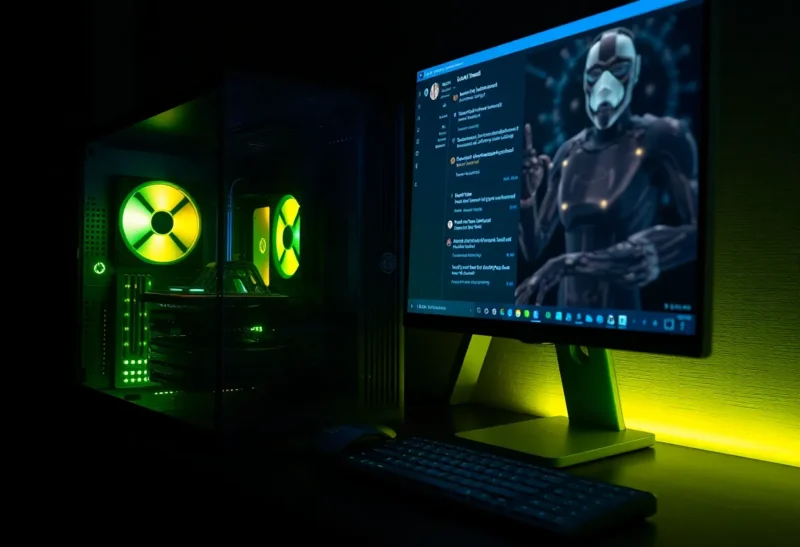
Running a large language model on your own computer has gone from a weekend project to something you can do in ten minutes. Two tools account for most of that change on home PCs. Ollama is a lightweight program that downloads and runs models with a single command and serves them to other apps through an API. LM Studio is a polished desktop application where you browse models, download them and chat with them in a window. Both are free to use, both run the same open models, and both will happily turn a decent gaming PC into a private AI assistant.
I have built AI systems for a living and run both at home, on a desktop with a mid-range graphics card and on an Apple Silicon laptop. They overlap heavily, but they are designed for different people: one for those who want to build on a local model, the other for those who want to use one.
Same models, different front doors
Underneath, both tools run open models such as Llama, Mistral, Qwen, Gemma and many others, mostly using the same proven inference engine, llama.cpp, and the same quantised model files that shrink models to fit consumer hardware. On the same machine with the same model and settings, their speed is broadly similar. LM Studio can also use Apple’s MLX framework on Apple Silicon Macs, which is often faster on those machines.
So the difference is not which models they run or how fast. It is how you find models, how you use them, and what else they can connect to.
| Ollama | LM Studio | |
|---|---|---|
| Main interface | Command line and local API | Desktop app with built-in chat |
| Finding models | Ollama’s model library; Hugging Face imports | Browse and download from Hugging Face inside the app |
| API for other apps | Yes, including an OpenAI-compatible endpoint | Yes, local server with OpenAI-compatible endpoint |
| Headless servers | Excellent; runs as a background service | Possible, but built around the desktop app |
| Apple Silicon | Good | Good, with MLX support |
| Source code | Open source | Closed source, free to use |
| Best for | Building and connecting things | Exploring and chatting |
Getting started
With Ollama, you install it and type ollama run followed by a model name. It downloads the model, loads it, and gives you a chat prompt in the terminal. Behind the scenes it also starts a local server, so any app that knows how to talk to Ollama can use the model immediately. Recent versions add a simple desktop chat window on some platforms, but the heart of Ollama is the background service.
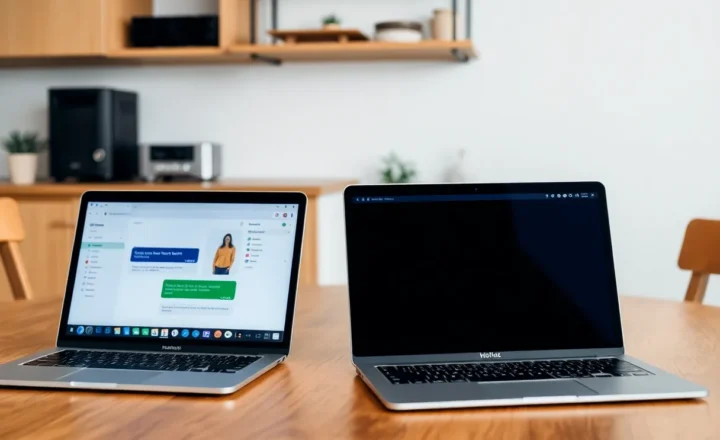
With LM Studio, you install the app and open a model browser that searches Hugging Face directly. It shows which versions of a model will fit your hardware, downloads the one you pick, and opens a chat window with controls for temperature, context length and system prompts. For someone who has never run a local model, it is the friendliest introduction there is.
If you have never done this before, LM Studio’s model browser alone saves a lot of confusion, because choosing the right file is the hardest part for newcomers.

Choosing a model that fits your hardware
Whichever tool you use, the limit is memory: your graphics card’s VRAM on a PC, or unified memory on a Mac. The model has to fit, with room left for the conversation’s context. Models are usually run quantised, stored at reduced precision, which shrinks them dramatically with only a modest loss in quality. As rough guides at a common 4-bit quantisation:
- 7–8 billion parameter models need roughly 5–6 GB, fine on most modern graphics cards and on Macs with 16 GB of memory.
- 12–14 billion parameter models need roughly 9–10 GB, comfortable on a 12–16 GB card.
- 30-billion-class models need roughly 18–22 GB, which means a 24 GB card or a well-equipped Mac.
- 70-billion-class models need roughly 40 GB or more, beyond a single consumer card, but possible on high-memory Macs or with multiple cards.
Longer context windows use extra memory on top. If a model does not fit in GPU memory, both tools can split it between GPU and system RAM, but speed drops sharply. Apple Silicon Macs are popular for local models precisely because their unified memory lets larger models fit, a trade-off explored in Ollama vs MLX on Apple Silicon.
LM Studio helps here by flagging which downloads will fit. With Ollama you choose a model tag yourself, so it is worth checking sizes before pulling.
Connecting other apps
This is where Ollama pulls ahead for anyone building things. It runs as a service, starts with your computer or server, loads models on demand and unloads them when idle, and serves an API that a huge number of tools support directly: chat front ends such as Open WebUI, coding assistants in editors, note-taking plugins, home automation, and your own scripts. Many projects list “Ollama” as a supported backend by name. It also offers an OpenAI-compatible endpoint, so tools built for OpenAI’s API can often be pointed at it by changing a URL.
LM Studio has a local server too, also OpenAI-compatible, which works well for connecting an editor plugin or a script on the same machine. It is just less natural as an always-on service. It is built around the app being open, though it has been adding command-line and headless options.
On a home server
If your plan is a shared AI service for the household, running on a home server or a spare PC with a graphics card, Ollama is the clear choice. It runs headless on Linux, works well in Docker with GPU access, and pairs with a web interface such as Open WebUI so everyone in the house can chat with the models from a browser or phone. Models stay loaded only while in use, which keeps memory free for other services.
Running local AI on the same box as your other self-hosted services is possible, but GPUs, memory and power draw all become real constraints, as covered in whether a home server and local AI can share one mini PC.
LM Studio is not designed for this role. It shines on the machine in front of you.
Privacy, licences and openness
Both run models entirely on your own hardware, so your prompts and documents stay on your machine. That is the main reason many people run local models at all.
Ollama is open source, which matters to people who want to inspect what runs on their machine, or rely on it in their own projects long term. LM Studio is free to use but closed source, and its terms have changed over time, including around use at work, so check the current licence if you plan to use it in a business. Neither difference affects the models themselves, which have their own licences worth reading if you build something public.
Tuning and day-to-day use
LM Studio puts settings in front of you: context length, GPU offload, temperature, sampling options and system prompts, with presets you can save per model. It is excellent for experimenting with how a model behaves, comparing models side by side, and learning what the settings actually do.
Ollama keeps settings in Modelfiles, small text files that define a model’s parameters and system prompt, which you can share and keep under version control. It is less discoverable but more reproducible. For daily chatting, most Ollama users add a front end such as Open WebUI, which brings conversation history, document uploads and model switching to the browser.
When things are slow or break
Most first-week problems are the same in both tools, and they are rarely the tool’s fault.
- Replies crawl at a few words per second. The model almost always spilled out of GPU memory into system RAM. Pick a smaller model or a more aggressive quantisation, or shorten the context length. In LM Studio, check how many layers are offloaded to the GPU. In Ollama, the
ollama pscommand shows how much of a loaded model sits on the GPU versus the CPU. - The graphics card is not used at all. On Windows and Linux with NVIDIA cards, outdated drivers are the usual cause. AMD support depends on the card and platform, so check each tool’s current list before assuming it will work. In Docker, Ollama needs the GPU passed through explicitly, or it quietly falls back to the CPU.
- The model forgets earlier parts of a long chat. The conversation exceeded the context window. Both tools let you raise it, at the cost of memory. Ollama has historically used a fairly conservative default context, so long documents can be cut off unless you raise it.
- Another app cannot connect. Ollama listens on port 11434 and only on the local machine by default; to reach it from other devices on your network you have to configure it to listen on your network interface. LM Studio’s server has to be started from the app and also defaults to local-only access. Never expose either directly to the internet without authentication in front.
- The disk fills up. Models are several gigabytes each and both tools keep everything you download. Remove old ones with
ollama rmor from LM Studio’s model list.
A useful habit with either tool: when a new model is released, try the smallest version first. If the quality is close enough for your use, the speed and memory savings are worth far more than the last few points on a benchmark.
Where to start
If you want to try local AI on your own computer, learn which models suit your hardware, and chat with them in a friendly app, start with LM Studio. Its model browser and controls make the first week far easier, and on a Mac its MLX support is a real speed advantage.
If you want local models to power other things, such as a household chat service on a home server, an editor’s coding assistant, home automation or your own scripts, use Ollama. It is open source, runs quietly in the background, and almost every tool in the ecosystem speaks its API.
Many people end up with both, LM Studio on the laptop for exploring new models and Ollama on the server for everything that needs to be always on. Since they run the same models, nothing you learn in one is wasted in the other.