



Home Office Ergonomics: The Unsexy Upgrades That Save Your Spine

Teresa Nguyen
April 8, 2026
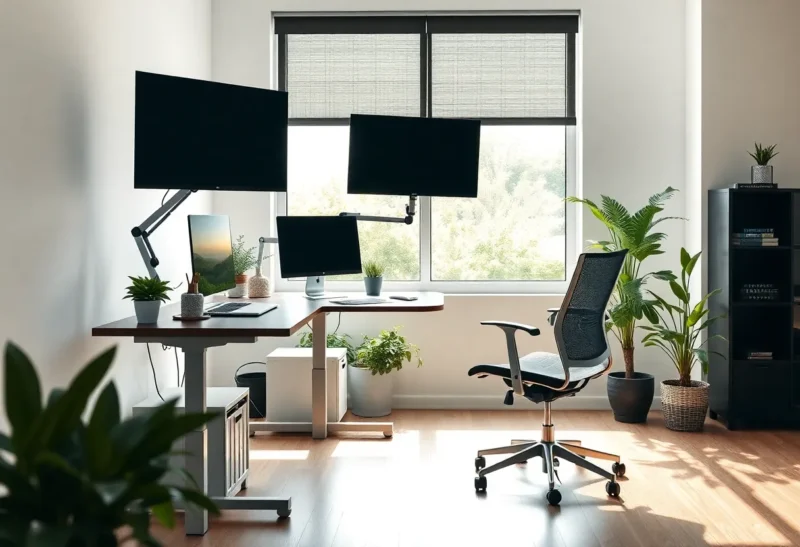
The home office upgrade industry loves spectacle: curved ultrawide monitors, RGB everything, and standing desks that remember your height down to the millimeter. Those can be wonderful. But the injuries that send knowledge workers to physical therapy are usually boring—chairs that fail after eighteen months, laptop screens below eye level, wrists bent backward all day, and lighting that makes pupils fight the screen. The fixes are often unglamorous: a footrest, a monitor arm, a timer that reminds you to stand, and the discipline to actually use them.
This article focuses on the unsexy upgrades that protect your spine, shoulders, and eyes when your job is mostly pixels and meetings.
None of this replaces individualized medical advice. Bodies are different—height, limb length, prior injuries, and daily demands all change what “neutral” feels like. Use the guidelines below as a starting checklist, then adjust until your end-of-day soreness trends down instead of up.
Start with the chair—not because it is fun, but because it is load-bearing
Your chair is the piece of furniture that holds your weight for hours. Budget chairs with thin foam compress until your sit bones press metal. Look for adjustable seat depth if you can find it, lumbar support that hits your curve rather than a generic bump, and armrests that go low enough not to hike your shoulders. If upgrading the whole chair is not possible yet, a firm cushion can buy time, but treat it as a bridge, not a destination.

When you sit, aim for feet flat on the floor or on a footrest—not dangling. Knees near ninety degrees, hips slightly above knees if that feels natural for your body. If your chair forces you forward onto your thighs, the front edge may be hitting circulation; a small gap or softer edge helps.
Desk height: sitting and standing both need rules
Standing desks are not magic; standing still is also static loading. The win is change: alternate positions before fatigue sets in. If you stand, put a fatigue mat underfoot and avoid locking your knees. If you sit, keep forearms roughly parallel to the floor when shoulders are relaxed—not shrugged toward your ears.
Keyboard trays that tilt slightly negative (front edge down) can reduce wrist extension, but extreme angles introduce new strain. The goal is neutral wrists, not aesthetic tilt.
Monitors: height beats diagonal inches
The top third of the screen should sit near eye level so you are not flexing your neck down all day. Laptop-only setups almost always fail this test unless you raise the machine and use an external keyboard. External monitors should sit on arms or risers; stacking books works in a pinch but wobbles and collects guilt.
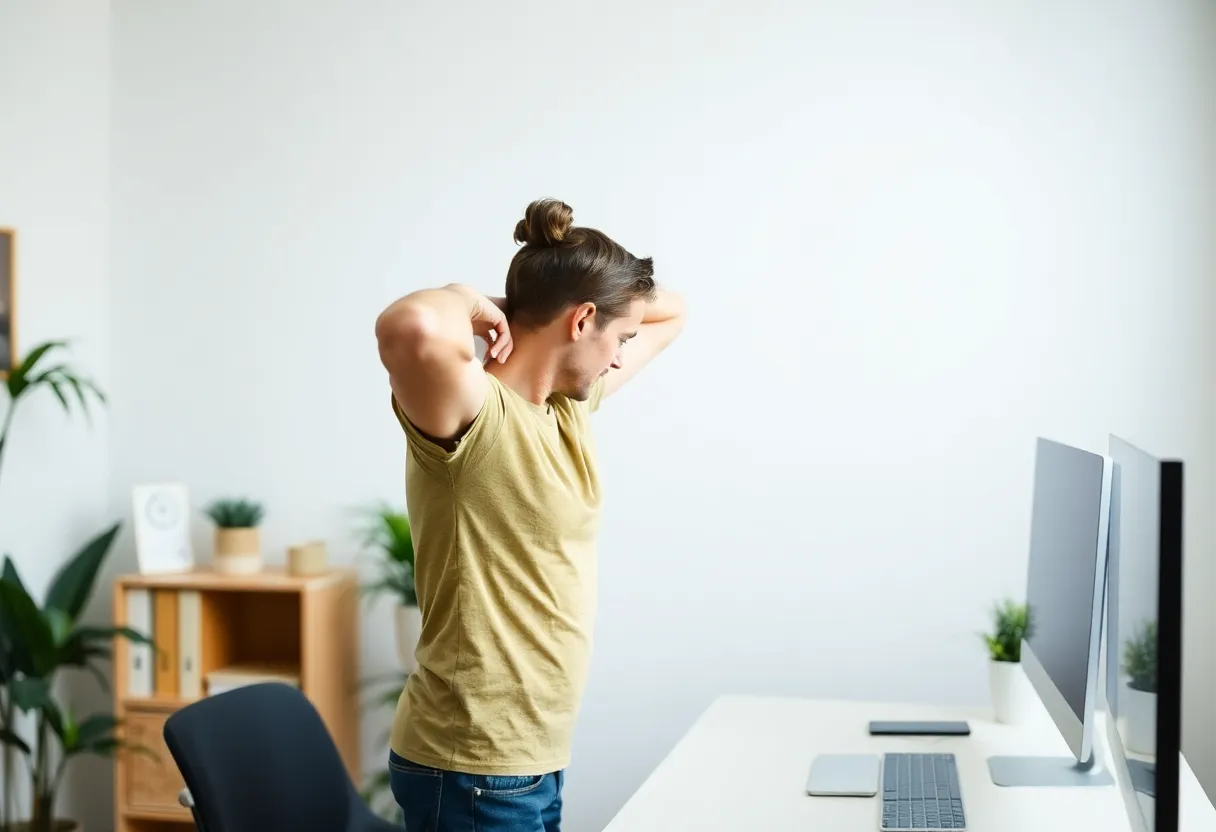
Distance matters too: roughly an arm’s length for a standard display, adjusted if text looks small—fix scaling in the OS rather than leaning forward. Dual-monitor users should center the primary screen; twisting for hours trains asymmetry into your neck.
Lighting: the overlooked cause of headaches
Glare happens when window light fights your monitor. Diffuse daylight with blinds; bounce desk lamps off walls instead of aiming bare bulbs at the screen. Bias lighting behind the monitor can reduce perceived flicker for some people. Dark mode is not automatically ergonomic—it depends on ambient light and text contrast—so tune for readability, not aesthetics alone.
Input devices: small changes, big differences
Low-profile laptop keyboards encourage wrist extension on flat desks. External keyboards with a gentle profile, paired with a mouse that fits your hand, reduce micro-strain. Vertical mice help some people with forearm rotation; trackballs suit others. The “best” device is the one you can use without gripping hard or reaching awkwardly.
Sound, focus, and the neck you do not notice
Headsets with poor clamp force can compress temples; earbuds for eight hours can irritate canals. Speakerphones reduce head-tilt during calls. Noise-canceling headphones help concentration, which indirectly reduces stress-driven shoulder hiking—another quiet ergonomic factor.
Micro-breaks beat heroic posture marathons
Twenty minutes of perfect posture followed by six hours of slouching loses to hourly resets: stand, roll shoulders, walk for water, look at something twenty feet away. Pomodoro timers are not just productivity theater; they are spine insurance. Stretching programs like gentle thoracic extension and hip flexor openers counter the folded shape of desk work.
The twenty-twenty-twenty rule for eyes—every twenty minutes, look twenty feet away for twenty seconds—is easy to forget. Pair it with something you already do: refilling a bottle, opening a window, or stepping onto a balcony. Movement snacks beat rare gym sessions when your job is sedentary.
Children, pets, and the ergonomics of interruptions
A cat on your lap warms your soul and ruins your wrist angle. A toddler at your knee shifts keyboard position unpredictably. Build buffer zones: a secondary chair for kids during calls, a pet bed beside the desk so animals do not fight your rolling chair, and realistic expectations that some days are “survival ergonomics” only.
Hybrid work: the bag, the kitchen table, and the hotel desk
Not everyone has a dedicated room. If you rotate between a kitchen table and a corporate office, carry a lightweight laptop stand, a compact external keyboard, and a travel mouse that does not cramp your hand. Fifteen minutes of setup beats eight hours of hunching. At hotels, steal pillows to raise the screen and accept that perfection is rare—aim for “less bad” and stack walking breaks accordingly.
Parents juggling childcare may not control quiet or schedule. In those seasons, ergonomic perfection is a luxury; small wins—swapping baby-holding sides, voice dictation for long emails, or alternating between sitting and pacing calls—still matter.
Desk clutter is a posture problem in disguise
Reaching across stacks of paper twists your trunk. Push non-essential items off the primary arc where mouse and keyboard live. Cable management is not vanity: snagging a foot on cords yanks posture unpredictably. Velcro ties, under-desk trays, or simple clips keep trip hazards away from your feet and your mind less frazzled.
Text scaling, glasses, and the lean-in habit
If you lean toward the screen to read small fonts, you are training your neck forward. Increase OS scaling, bump browser zoom, and verify your prescription—especially if headaches cluster at day’s end. Progressive lenses can distort peripheral vision at monitor distance for some wearers; discuss computer-specific glasses with an optometrist if you live at mid-range focal length.
Heat, noise, and stress posture
Cold rooms make shoulders creep toward ears. Overheated laptops spin fans that distract and tempt you to hover awkwardly. A quiet external GPU enclosure or simply undervolting/raising the laptop for airflow can reduce the anxious “hover” posture over the keyboard. Stress itself tightens traps; breath work is not separate from ergonomics—it is part of how hard your muscles grip.
When to call a professional
Numb fingers, sharp nerve pain, or pain that wakes you at night deserve a clinician—not another Amazon cart. Ergonomics can prevent problems, but it does not replace medical evaluation when symptoms escalate.
RSI, tendons, and why “pushing through” backfires
Repetitive strain injuries creep in quietly: a little thumb ache after Slack, a forearm tightness after spreadsheets. Early intervention—rest, reduced click intensity, softer activation force on keys—prevents chronic compensation patterns. Voice input for long drafts, macro tools for repeated phrases, and browser extensions that trim unnecessary scrolling all reduce micro-repetitions.
If you play games after work, consider lighter switches or shorter sessions; your tendons do not reset between work and play just because the software changed.
Employers, stipends, and the ethics of home risk
Some companies offer ergonomic stipends or HR assessments. If yours does, use them—documentation of a proper setup can matter if injuries become work-related claims. If you are self-employed, treat ergonomics as a capital expense against revenue, not a luxury. The cost of a chair is often cheaper than weeks of lost focus or medical bills.
Budget reality: prioritize in order
If you can only buy one thing after a decent chair, invest in getting your screen to the right height and your keyboard to a neutral plane. Monitor arms and laptop stands punch above their price for neck health. Standing desk converters help if you cannot replace the whole desk yet.
Secondhand marketplaces move quality chairs at steep discounts; learn how to inspect gas cylinders, casters, and fabric wear. A used Steelcase or Herman Miller with a service history often beats a new budget chair with thin foam.
Bottom line
The unsexy upgrades—footrests, arms, lighting, timers—are the ones that keep you comfortable after the novelty of a new gadget fades. Treat ergonomics like infrastructure: maintain it, adjust it when your body complains, and remember that movement beats any single “perfect” pose.
Buy the boring stuff first. Let the RGB keyboard be a reward after your monitor stops making you crane your neck. Your future self, signing receipts without wincing, will thank you for choosing function over flex.
Revisit your setup every season—chair tension loosens, carpets compress, and your workload changes. Ergonomics is not a one-time purchase; it is a maintenance habit.



