Calibre-Web Automated vs Calibre-Web for an E-Reader Library: Auto-Import or Manual Upkeep

Mira Chen
October 25, 2026
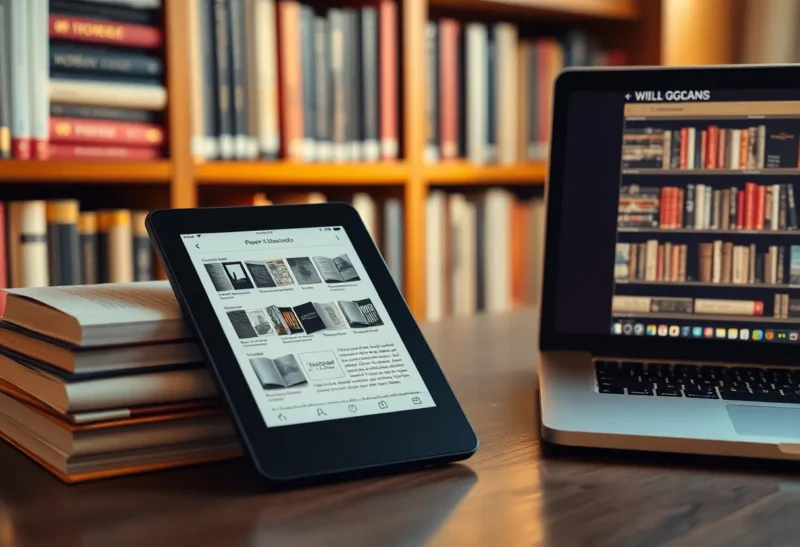
For years, the standard self-hosted ebook setup has been Calibre on a desktop to manage the library, plus Calibre-Web on a server to browse it, read in a browser and send books to e-readers. It works well, but the two halves have to be kept in step, and adding a new book usually means opening the desktop app, importing, fixing metadata, converting and syncing the library folder to the server.
Calibre-Web Automated (CWA) grew out of that friction. It builds on Calibre-Web and adds the missing automation: drop a book in a folder and it is imported, converted, tagged with metadata and made available, with no desktop Calibre involved. This comparison looks at what the automation adds, what it changes about how your library is managed, and when plain Calibre-Web is still the better fit.
A web front end and an automated library
Calibre-Web is a web application that reads an existing Calibre library, the folder of books plus Calibre’s metadata.db database. It gives you a clean web interface with search, shelves and series, user accounts, a browser reader, an OPDS catalogue for e-reader apps, sending books to Kindle by email, and Kobo sync for supported Kobo devices. It can edit metadata and accept uploads, with conversion available when Calibre’s tools are installed alongside it. In most setups, desktop Calibre remains the main library manager.
Calibre-Web Automated includes Calibre-Web’s interface and features and adds an automated pipeline around the library. An ingest folder watches for new files; books placed there are imported, converted to your preferred format if needed, given metadata and covers, and added to the library automatically. It bundles the Calibre tools it needs, can create a new library from scratch, applies fixes to EPUB files that some e-readers and Send-to-Kindle reject, keeps automatic backups of originals, and adds statistics and other extras. Check the project’s current feature list, as it changes quickly.
| Calibre-Web Automated | Calibre-Web | |
|---|---|---|
| Adding books | Drop files in an ingest folder | Desktop Calibre import, or upload in the web UI |
| Conversion | Automatic to a chosen format | Manual, requires Calibre tools installed |
| Metadata and covers | Fetched automatically on import | Manual fetch, or done in desktop Calibre |
| Needs desktop Calibre | No | Usually, for library management |
| EPUB fixes for e-readers | Built in | No |
| Maturity | Younger, fast-moving fork | Long-established |
Adding a new book, start to finish
With Calibre-Web and desktop Calibre, the typical path is: download a DRM-free book, open Calibre on the desktop, import it, check the metadata and cover, convert if your reader needs another format, then let the library folder sync to the server, or copy it there. Calibre-Web then shows the book. It is reliable but manual, and it depends on the desktop library being the master copy.
With CWA, the path is: save the file into the ingest folder, from a browser download, a file share, a sync tool or an automation. Within moments, CWA imports it, converts it if needed, fetches metadata and a cover, and the book appears in the library, ready to send to an e-reader. For households that add books often, or several people who add books, this removes most of the routine work.
The trade-off is control. Automatic metadata matching sometimes picks the wrong edition or cover, so check new books occasionally and fix mismatches in the web interface.
Getting books onto e-readers
Both share the same delivery options inherited from Calibre-Web: OPDS for reader apps such as KOReader and many Android readers, email delivery to Kindle, Kobo sync on supported Kobo devices, and direct downloads in a device’s browser. The broader choice between desktop Calibre and a server is covered in Calibre vs Calibre-Web.
CWA’s EPUB fixing helps with a common irritation: Amazon’s Send to Kindle service rejects some EPUB files with formatting problems, and some e-readers display badly made files poorly. CWA can repair common issues automatically on import, so delivery to Kindle fails less often.
Library ownership: who is the master copy?
This is the most important design question. In the classic setup, desktop Calibre owns the library, and Calibre-Web reads it. Running both against the same library at the same time is risky, because two programs writing to metadata.db can corrupt it. Most people keep the master on the desktop and sync it one way to the server, or stop editing on the desktop entirely.
CWA is designed to own the library on the server. You can still open the library in desktop Calibre occasionally for bulk edits, but treat the server as the master and avoid editing with both at once. If you want to stop running desktop Calibre altogether, CWA makes that realistic; plain Calibre-Web can too, but without automation you will do more by hand in the web interface.
Running it at home
Both run well in Docker on a small server or NAS. Calibre-Web on its own is light; adding Calibre’s conversion tools makes the image larger. CWA bundles those tools and runs background services for ingest and conversion, so it uses more memory and CPU, especially while converting a batch of books, but is still modest for a home server.
Point both at a library folder on reliable storage, and include it in backups along with the app’s configuration folder. CWA keeps backups of original files it modifies, which is reassuring, but it is not a substitute for proper backups of the whole library.
Comics, manga and other formats
Both can store comics and manga, but neither is a specialised comic server. For large comic libraries with reading progress per page and better metadata, dedicated tools such as Kavita or Komga are a better fit, compared in Kavita vs Komga. Many households run one for books and one for comics, both serving OPDS to the same e-readers.
Feeding the ingest folder
CWA’s ingest folder becomes much more useful when books reach it without you copying files by hand. Common ways households feed it:
- A shared network folder. Map the ingest folder as a network share, so anyone in the house can drag a book onto it from a laptop.
- A sync tool. A Syncthing or cloud-synced folder on each laptop that points at the ingest folder, so saving a purchase to “Books to add” is enough.
- Browser downloads. Set the browser’s download location for ebook files to the synced folder.
- Automation. A small script or automation tool that saves email attachments from bookstores that send DRM-free files.
Only use books you are entitled to keep, such as DRM-free purchases and public-domain titles. CWA does not remove DRM, and files with DRM will not import usefully.
Keeping metadata clean
Automatic metadata is convenient but imperfect, and a messy library is harder to browse on an e-reader. A few habits help with either tool:
- Prefer files that already contain good metadata, such as publisher EPUBs, over random copies.
- Fix the author name format once, and consistently, so one author does not appear under three spellings.
- Fill in series names and numbers; e-readers and OPDS apps display series well when they are set.
- Review the newest additions once a week rather than trying to fix the whole library at once.
Families and multiple users
Both support multiple users with separate shelves, reading status and permissions, including which users can download, upload or edit. Each person can have their own Kindle email address or Kobo sync settings. In CWA, uploads from any user flow through the same automated import, which keeps the library consistent even when several people add books.
Moving from Calibre-Web to CWA
CWA is built to work with existing Calibre libraries. The usual move is:
- Back up the library folder and Calibre-Web’s configuration.
- Stop Calibre-Web, and point CWA at the same library folder and a copy of the configuration if you want to keep users and settings.
- Check that books, users and shelves appear correctly.
- Test the ingest folder with one book before relying on it.
- Decide whether desktop Calibre still has a role, and if so, avoid editing in both at the same time.
Moving back is also possible, since the library remains a standard Calibre library.
Which to run
Choose plain Calibre-Web if you are happy managing the library in desktop Calibre and only need a reliable web front end for reading, OPDS, Kindle email and Kobo sync. It is mature, stable and changes slowly.
Choose Calibre-Web Automated if you want the server to be the library: drop books in a folder and have them imported, converted and tagged without a desktop app, with fewer Send to Kindle failures. Accept that it is a younger project that changes faster, check new books’ metadata occasionally, and keep good backups.
A sensible way to decide is to count how many books you add in a typical month. A handful, added by one person, fits comfortably in a desktop Calibre routine. Dozens, or books added by several people in the house, is where automation starts paying for itself every week.
Either way, the goal is the same: books you own, in one place, delivered to whatever device you read on.