Calibre vs Calibre-Web for an E-Reader Library: Desktop Manager or Self-Hosted Book Server

Mira Chen
October 14, 2026
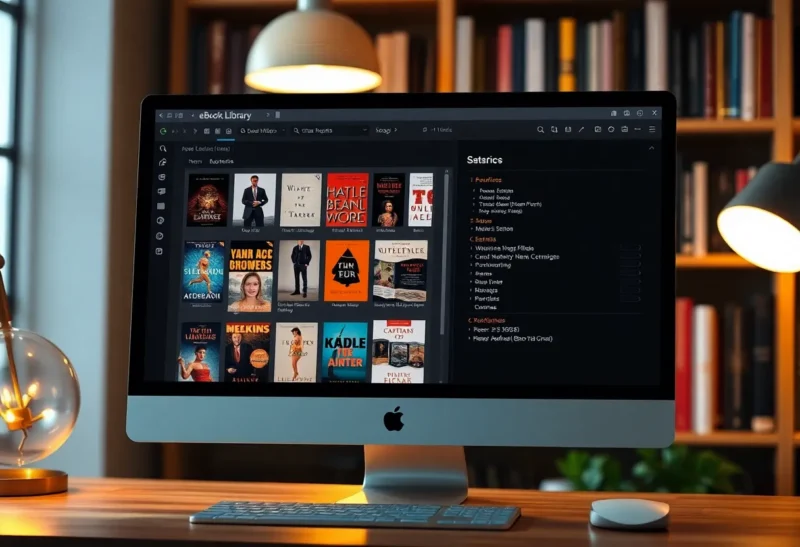
Every serious ebook collection eventually ends up in Calibre. It is the free desktop program that imports books from anywhere, fixes their metadata, converts between formats, and sends them to almost any e-reader. It is also, unmistakably, a desktop program: your library lives on one computer, and you reach it by sitting in front of that computer.
Calibre-Web exists to fix that. It is a separate, self-hosted web app that sits on top of a Calibre library and makes it available from any browser, phone or e-reader in the house. The names make them sound like the same product in two flavours. They are not, and choosing between them, or more often deciding how to use both, depends on where you read and who else needs your books.
I manage a library of a little over two thousand titles and have run it every way: desktop only, server only, and the combination I settled on. Here is what each one is good at.
If you read alone and load books onto your e-reader with a cable, Calibre on its own is all you need.
If you want to download books to an e-reader over Wi-Fi, read in a browser, or share the library with family, add Calibre-Web on a home server. Keep using Calibre on your computer for the heavy work: metadata cleanup and format conversion.
A desktop library and a web front desk
Calibre is a desktop application for Windows, macOS and Linux. Your library is a folder of book files plus a database file, metadata.db, which holds titles, authors, series, tags and covers. Calibre can download metadata and covers from online sources, convert between EPUB, AZW3, PDF and other formats, edit EPUB files directly, and send books to e-readers over USB, recognising most Kindle, Kobo and PocketBook devices automatically.
Calibre also has a built-in content server. Turn it on, and the desktop app shares your library over the network, including an OPDS catalogue that many e-readers can browse. It works well, but it runs only while Calibre itself is open on that computer.
Calibre-Web is a separate open-source project, a web application usually run in Docker on a NAS or home server. It reads an existing Calibre library, the same folder and metadata.db, and presents it as a website with user accounts, shelves, a browser reader, an OPDS catalogue, and features aimed at e-readers. It does not replace Calibre’s conversion engine, though it can call Calibre’s conversion tools if they are installed alongside it.
| Calibre (desktop) | Calibre-Web | |
|---|---|---|
| Runs on | Your computer | A home server, usually in Docker |
| Library | Owns and manages it | Reads an existing Calibre library |
| Metadata and covers | Excellent, with bulk tools | Basic editing and fetching |
| Format conversion | Built in, very capable | Only by calling Calibre’s tools |
| Access from other devices | Content server while the app is open | Always on, from any browser |
| Multiple users | Basic | Accounts, permissions, per-user shelves |
| E-reader delivery | USB, email, content server | OPDS, email to Kindle, Kobo sync |
| Reading in a browser | Through the content server | Built in |
Library management: Calibre does the real work
Metadata is where an ebook library lives or dies. Books arrive with misspelled authors, no series information, low-resolution covers and three different ways of writing the same name. Calibre’s tools for fixing this are excellent: bulk metadata download, merging duplicate authors, series numbering, custom columns, saved searches and a polished editor for individual books.
Calibre-Web can edit metadata and fetch covers, but it is built for occasional fixes, not for cleaning up a thousand books. In practice, you curate in Calibre and enjoy the results in Calibre-Web.
Conversion follows the same pattern. Calibre’s converter is the reason it is used everywhere: EPUB to AZW3 for Kindles, PDF to EPUB when you are lucky, and many other combinations with fine-grained control. Calibre-Web can trigger conversions if Calibre’s command-line tools are available in its environment, which many Docker images include, but the configuration and control live on the desktop.
Access: where Calibre-Web earns its place
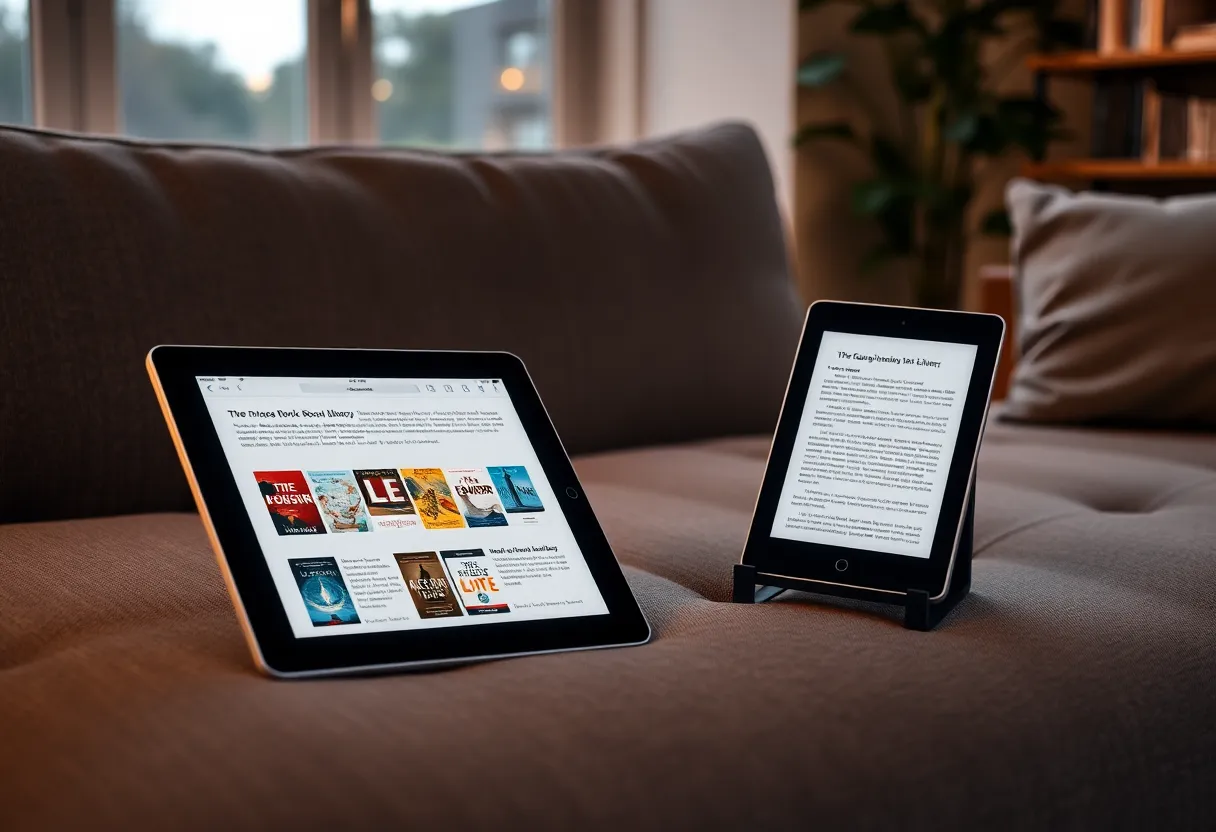
Calibre-Web’s value is that the library is always there. The server is on, the library is at a web address, and anyone you give an account can browse, search and download.
- OPDS catalogue. E-readers and reading apps that support OPDS can browse the library and download books directly. PocketBook devices support it out of the box; on a Kobo or Boox, KOReader does. It turns any compatible device into a window onto your whole collection, which is one reason PocketBook’s OPDS support matters so much to people who self-host their books.
- Send to Kindle. Calibre-Web can email a book to a Kindle’s Send to Kindle address with one click, converting it if needed.
- Kobo sync. Calibre-Web can act as a sync source for Kobo e-readers, so books on chosen shelves appear on the device over Wi-Fi, alongside the Kobo store. Setting it up means changing a configuration file on the Kobo, and it is worth testing carefully, especially if you also run KOReader, because store sync and KOReader do not always coexist cleanly.
- Browser reading. EPUB, PDF and comics can be read in the browser, which is handy on a laptop or tablet.
- Family accounts. Each person gets their own login, their own shelves and their own read status, with permissions controlling who can download, upload or edit.
Calibre’s own content server covers some of this, OPDS and browser reading in particular. The difference is that it depends on your computer being on with Calibre open, and its multi-user features are basic. If your desktop sleeps at night, so does your library.
The one rule: do not let both write at once
Both programs read and write the same metadata.db file. Calibre was designed to be the only program writing to that database. If you edit metadata in Calibre on your desktop while Calibre-Web is also writing to the same library over a network share, you risk database lock errors at best and a damaged database at worst.
The safe patterns are:
- One writer at a time. Do your bulk editing in Calibre, close it, then let Calibre-Web serve the library. Do not keep both open and editing.
- Keep the library local to the server. Let Calibre-Web own the library on the server, and run Calibre against it only for maintenance sessions, ideally not over a slow or flaky network share.
- Back up
metadata.db. It is a single file, and copying it before a big editing session costs nothing. Calibre also has a library integrity check worth running occasionally.
This is the most common way people get hurt combining the two, and it is entirely avoidable.
Adding new books
With Calibre alone, adding a book means dropping the file into Calibre on your computer. It imports it, fetches metadata if you ask, and the book is ready to send.
With Calibre-Web, you can upload books through the web interface, but the experience is more limited than Calibre’s import. Many people keep adding books through Calibre on the desktop. A popular community fork, Calibre-Web Automated, adds an “ingest” folder: drop a file there and it is imported, converted to your preferred format and added to the library automatically. If you find yourself adding books often from several devices, that workflow is worth a look.
What your e-reader actually sees
The work you put into metadata in Calibre is what shows up on the device. Clean series names and numbers mean a Kobo or Kindle can group and order a series properly. Good covers make the library screen usable at a glance. Consistent author names mean one entry per author instead of three.
Calibre-Web passes all of that through: the OPDS catalogue, Kobo sync and Send to Kindle all carry the title, author, series and cover from the Calibre database. So the order matters. Fix a book’s metadata in Calibre first, then send it from either program, and it arrives looking right. Send it first and fix it later, and you often end up with a mismatched copy on the device that has to be deleted and sent again.
Hardware and setup
Calibre runs on any ordinary computer. Calibre-Web is light: a Raspberry Pi, a NAS that runs Docker, or any small home server is plenty for a family library. The usual setup is a Docker container with the library folder mounted into it. Point it at your Calibre library on first start, create accounts, and enable the features you want, such as uploads, Kobo sync and email delivery.
If you want access from outside your home network, put it behind a reverse proxy with HTTPS, or reach it over a VPN, rather than exposing it directly. A personal library with family accounts and passwords is exactly the kind of service that should not sit on an open port.
Workshop alone, or workshop plus front desk
Calibre only, if:
- You are the only reader, and a USB cable to your e-reader is fine.
- You mainly need metadata cleanup and conversion.
- You do not run a home server, and do not want to.
Calibre plus Calibre-Web, if:
- You want books on your e-reader over Wi-Fi, through OPDS, Kobo sync or Send to Kindle.
- Other people in the house read from the same library.
- You want to read or download from any device, any time, without your desktop being on.
- You already run a NAS or home server for other things.
Think of them as two halves of one system. Calibre is the workshop where the library gets built and repaired. Calibre-Web is the front desk where everyone, including your e-readers, picks up their books. For a library of any size shared by more than one reader, you want both, with the simple rule that only one of them writes at a time.