Paperless-ngx vs Nextcloud for Scanned Household Documents: OCR, Tags and Backups

Colin Dyer
October 14, 2026
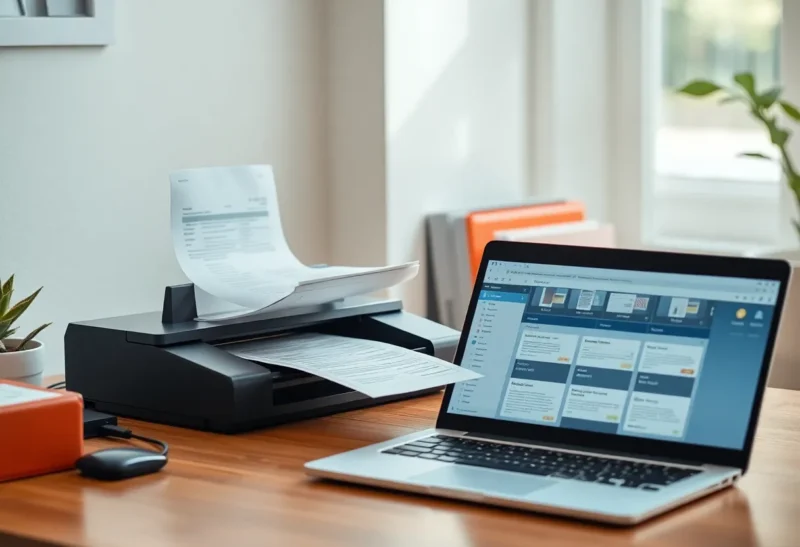
Every household has a paper problem. Utility bills, tax letters, insurance policies, warranties, medical forms, the car’s service history. Most of it you will never look at again, and the one document you need is always the one you cannot find. Going digital fixes this only if you can search what you scan, and if the archive outlives the next laptop.
For self-hosters, two tools come up again and again. Paperless-ngx is built specifically for this job: it takes scans, reads them with OCR, tags them, and makes everything searchable. Nextcloud is a general-purpose private cloud: files, sync, sharing, calendars, and much more, including ways to store and search documents. Many people already run Nextcloud and wonder whether they need anything else.
I keep off-site copies of backups I hope I never need, and I have run a household archive in both. The short version is that they overlap less than it seems, and the best setups often use both.
An archive, a file cloud, or both
If the goal is a searchable archive of scanned paperwork, where you can type “boiler warranty” and get the right PDF in seconds, use Paperless-ngx. It is built for exactly that, and it does it far better.
If the goal is syncing and sharing files across the family’s devices, with documents as one part of that, use Nextcloud. It is a file platform, not a document archive.
If you want both, a common and effective setup is to scan into a Nextcloud folder from your phone and let Paperless-ngx pick the files up from there.
A document archive and a private cloud
Paperless-ngx is an open-source document management system, the community successor to the original Paperless project. You feed it documents: by dropping files into a “consume” folder, uploading in the web interface, emailing them to a mailbox it watches, or sending them from a mobile app. It runs OCR on each one, so even a photographed letter becomes searchable text, and stores an archived PDF alongside the original. Documents get tags, correspondents (who sent it), document types and dates, and Paperless learns to assign these automatically from your past choices.
Nextcloud is an open-source, self-hosted alternative to Google Drive or Dropbox, with a large ecosystem of add-on apps. Its core is file sync and sharing across computers and phones, with collaborative editing, calendars, contacts and much more available as apps. Documents are files in folders. Search, OCR and tagging are possible through add-on apps, but they are not the centre of the product.
| Paperless-ngx | Nextcloud | |
|---|---|---|
| Built for | Archiving and finding documents | Syncing and sharing files |
| OCR | Automatic on every document | Possible through add-on apps |
| Full-text search | Built in | Needs extra apps and often a search engine |
| Organisation | Tags, correspondents, types, dates, auto-assigned | Folders, plus manual tags |
| Getting documents in | Consume folder, upload, email, mobile apps | Desktop sync, mobile auto-upload, built-in scanner |
| Sync to devices | No | Yes, its main job |
| Sharing | Users and permissions | Links, groups, collaborative editing |
Finding things: Paperless-ngx’s whole point
The test of a document archive is a simple one: can you find a specific document in under a minute, years after you scanned it, without remembering where you put it?
Paperless-ngx passes that test because every document is OCR’d and indexed. Search for “boiler” and you get the warranty, the service invoice and the installer’s letter, even if none of them has “boiler” in the file name. Filter by correspondent, document type, tag or date range, and narrow it down further. Because Paperless learns from your tagging, after a few dozen documents most new scans arrive already labelled with the right sender and type. You check, correct occasionally, and move on.
Nextcloud can get partway there. Add-on apps can run OCR on uploaded PDFs and images, and full-text search apps can index file contents, usually backed by a separate search engine such as Elasticsearch. It works, but it is several moving parts, heavier to run, and less dependable than Paperless’s built-in pipeline. And without the metadata, correspondents, document types and dates, search results are a list of files, not an organised archive.
Getting paper in: where Nextcloud helps
A document archive is only as good as the habit of feeding it. The easier it is to scan, the more of your paper actually ends up in it.
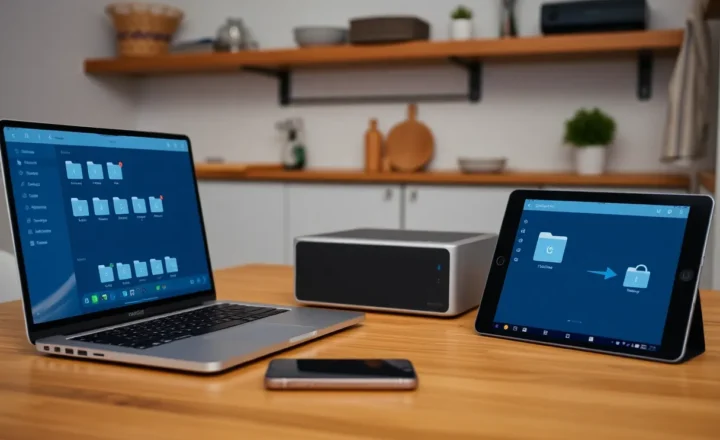
Nextcloud’s mobile app includes a document scanner and automatic upload, so you can photograph a letter at the kitchen table and it lands in a folder on your server a moment later. The desktop client syncs a folder on your computer, so anything your scanner saves there is uploaded automatically.
Paperless-ngx has several ways in as well: its web upload, an email inbox it checks, and community-made mobile apps that scan and upload directly. But its most flexible input is the consume folder, any folder on the server it watches. That is why the combination works so well: point Paperless’s consume folder at a Nextcloud folder, and every scan you upload from your phone or desktop flows into Paperless, gets OCR’d and tagged, and becomes searchable. Nextcloud handles getting paper in from anywhere; Paperless handles making sense of it.
If you are not ready for either and just want PDFs on a disk, that is a valid choice too, and the trade-offs of Paperless-ngx versus a plain folder of PDFs are worth reading before you commit to running a server.
Sharing with the household
Both support multiple users. In Paperless-ngx, each family member can have an account, and permissions control who sees which documents, useful when some paperwork is shared and some is private. It is built for finding and viewing, not for collaborating on documents.
Nextcloud is much stronger at sharing in the everyday sense: share a folder with your partner, send a public link to an accountant, sync a “Household” folder to everyone’s laptop, or edit a spreadsheet together. If those are your needs, Nextcloud does them and Paperless does not try. And if all you really want is files kept in step across two laptops, a lighter tool may be enough, which is the question in Syncthing vs Nextcloud for two laptops.
What each one asks of your server
Paperless-ngx usually runs in Docker with a few companion services: Redis for its task queue, a database (PostgreSQL is recommended), and optionally Tika and Gotenberg if you want it to handle Office documents and emails. It is moderately light at rest, but OCR is CPU-heavy, so importing a large backlog takes time on small hardware. A Raspberry Pi will cope with a trickle of new documents; for a first import of years of paper, a faster machine helps.
Nextcloud is a bigger application: a PHP web app with a database, ideally Redis for caching, background jobs, and whatever apps you enable. It runs well on modest hardware for a family, but it has a reputation for needing care during upgrades, and every add-on app is another thing to keep compatible. Running it just for document search would be a lot of software for one job.
Backups: the part that matters most
A paperless household is only safe if the archive is backed up. Once the paper goes in the recycling, the server is the only copy.
Paperless-ngx keeps the original files, so even without the application your documents are recoverable. It also has an exporter that writes all documents together with their metadata, tags, correspondents and notes, into a folder you can back up and later re-import. Run it on a schedule, and back up the export, the original files and the database off the machine.
Nextcloud stores files as normal files on disk, which keeps them easy to back up, but the database holds shares, tags and app data. Back up both, and test a restore once, because Nextcloud’s restore process has more steps than people expect.
Whichever you use, keep at least one copy somewhere other than your house. A fire or a burglary that takes the server also takes the paper you shredded. That off-site copy is what turns a digital archive into an improvement on a filing cabinet rather than a new single point of failure.
What to scan, and what to keep on paper
Going paperless does not mean shredding everything. A scan is a perfect copy for finding information, but some documents only count as the original.
- Scan, then shred: utility bills, bank statements, routine receipts, appliance manuals, payslips once filed, most letters.
- Scan, and keep the paper: birth and marriage certificates, passports, property deeds, wills, vehicle titles, and anything signed that you may need to present as an original.
- Check before you shred: tax records and anything a government office or insurer might ask for. How long and in what form you must keep them depends on where you live.
A tag such as “original kept” in Paperless-ngx, or a dedicated folder in Nextcloud, tells you which scans have a paper twin in the filing box, so you know where to look when a scan is not enough.
Archive, sync, or both
Paperless-ngx is the answer when:
- Your goal is a searchable archive of bills, letters, contracts and receipts.
- You want OCR and automatic tagging without building it yourself.
- You want to find any document in seconds, years later.
Nextcloud is the answer when:
- Your goal is syncing and sharing files across the family’s devices.
- Documents are one part of a wider “private cloud” you want to run.
- You need collaborative editing, calendars or public share links.
Use both if: you want the easiest possible scanning from phones and computers, through Nextcloud, feeding the best possible archive, through Paperless-ngx. That pairing is common for a reason. Each does what it was built for, and the household ends up with paperwork that is both easy to capture and easy to find.