Why Your Smart Home’s Zigbee Mesh Is Failing (And How to Fix It)

Drew Morrison
March 7, 2026

Zigbee mesh networks are supposed to be self-healing and reliable. Add enough devices, and they form a mesh that routes around failed nodes. In theory, more devices make the network stronger. In practice, Zigbee meshes fail in subtle ways: lights that stop responding, sensors that drop offline, hubs that lose connection. Here’s why—and how to fix it.
The Mesh Promise vs Reality
Zigbee uses a mesh topology. Each device can relay messages for others. A light bulb halfway across the house doesn’t talk directly to the hub; it routes through other bulbs and sensors. Add devices, and the mesh gets denser. Paths multiply. Reliability should improve.
Reality is messier. Zigbee routers (lights, plugs, repeaters) have limited routing tables. Too many devices, and the coordinator can’t keep track. Devices on the edge of the mesh—battery-powered sensors—can’t route. They only talk to nearby routers. If the nearest router goes offline or gets overloaded, the sensor drops. The mesh doesn’t “heal” instantly. It can take minutes or hours for devices to find new paths—if they do at all.
Common Failure Modes
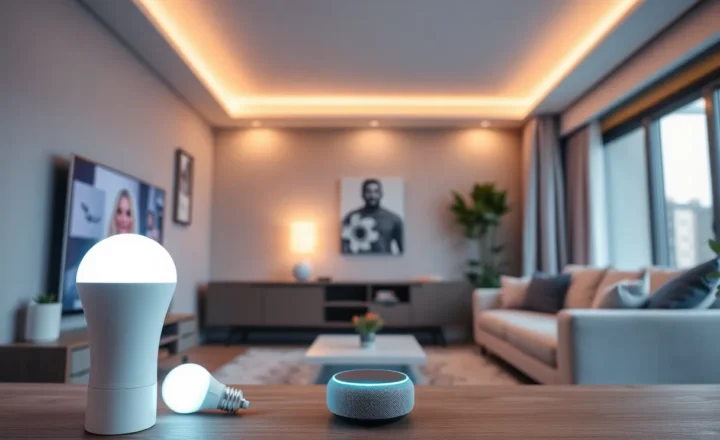
Too many end devices, not enough routers. Zigbee distinguishes between routers (always-on, mains-powered) and end devices (battery-powered or minimal). Routers form the mesh backbone. End devices attach to one router. If you have 30 motion sensors and 5 bulbs, the bulbs are overloaded. Each bulb might have 6 sensors hanging off it. One bulb fails or gets unplugged, and 6 sensors go dark. Fix: add more routers—plugs, bulbs, or dedicated repeaters—so no single router has too many children.
Interference. Zigbee uses 2.4 GHz, same as Wi-Fi and Bluetooth. A router or access point nearby can drown Zigbee channels. Zigbee uses channels 11–26; Wi-Fi uses 1, 6, 11. Pick a Zigbee channel that doesn’t overlap your Wi-Fi. In Zigbee2MQTT or your hub’s settings, choose channel 15, 20, or 25 if your Wi-Fi is on 6 or 11. Reduce overlap, reduce dropouts.
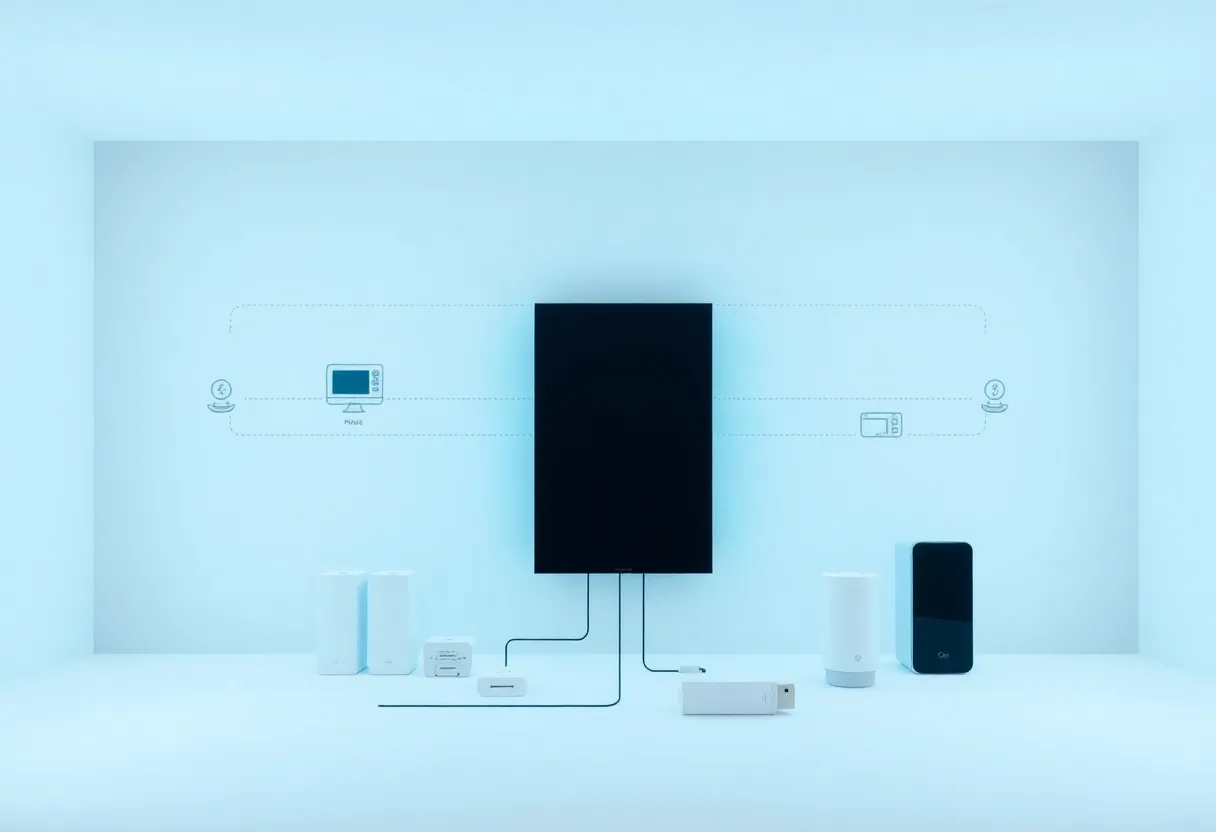
Coordinator placement. The coordinator (your hub or stick) is the root of the mesh. Put it in a closet or far corner, and the rest of the mesh struggles to reach it. Place it centrally, near mains-powered routers. Avoid metal enclosures and thick walls between the coordinator and the first hop.

How to Fix a Failing Mesh
First, map the network. Zigbee2MQTT, Home Assistant’s Zigbee integration, and some hubs can show topology. See which devices talk to which. Identify routers with too many children or devices at the edge with weak links.
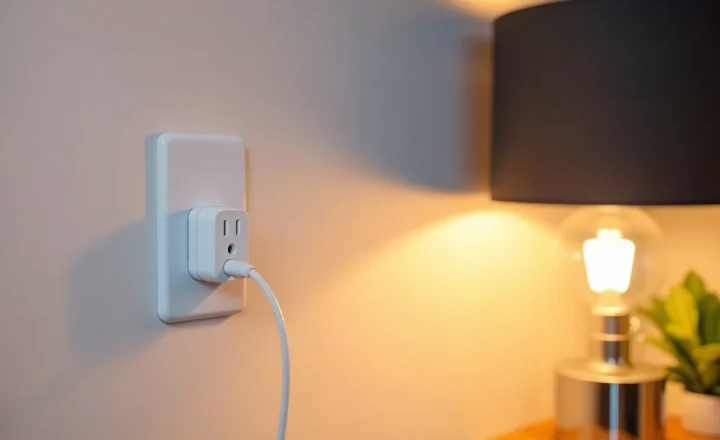
Second, add routers. Smart plugs are cheap and effective. Place them between the coordinator and distant devices. One plug can turn a weak link into a strong one. Don’t add dozens—balance. Aim for 5–10 devices per router.
Third, check the channel. Move Zigbee to a clear channel. Re-pair devices if needed; some hubs require a full reset to change channels. Painful but worth it.
Fourth, power cycle. Zigbee meshes can get into bad states. Power off the coordinator and all routers for 30 seconds. Power back on in order: coordinator first, then routers. Give it 5–10 minutes to rebuild the mesh. Many issues resolve after a clean restart.
The Bottom Line
Zigbee mesh failure usually comes from too few routers, interference, or bad placement. Add plugs and bulbs where the mesh is thin. Move the coordinator. Pick a clear channel. Power cycle when things get weird. A little topology awareness goes a long way.