Which E-Ink Tablets Work Completely Offline?

Clare Voss
September 27, 2026

If “completely offline” means you can take the tablet out of the box, set it up, and use it for years without ever creating an account or touching a cloud, the short list is Supernote, PocketBook, and an Android tablet like a Boox if you skip the sign-ins. reMarkable is close behind: it runs fine without an account, but a couple of features quietly go through its servers. Kobo and Kindle will work offline once they’re set up, but the setup itself is built around an account, and that’s where people get stuck.
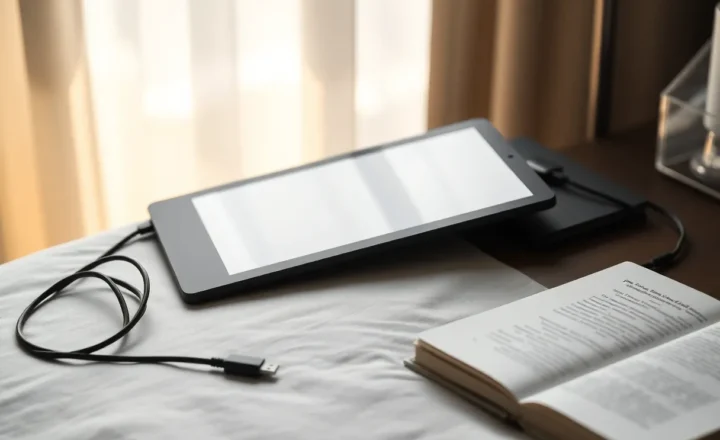
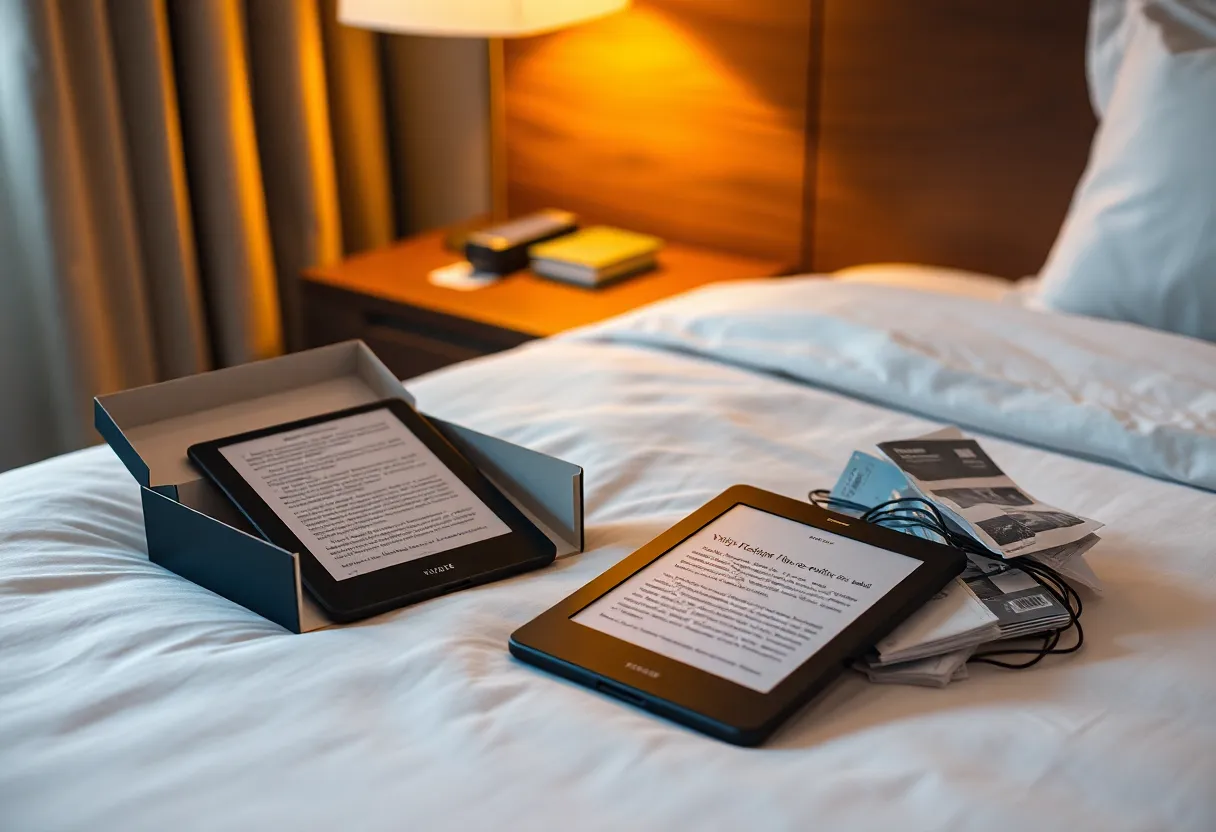
I found that line the hard way, in a hotel room. I’d bought a new e-reader at the airport for a two-week trip, planning to load it from my laptop over a cable that evening. The hotel Wi-Fi had a login page, the reader couldn’t get past it, and the setup screen wouldn’t go any further without a connection and an account. I read on my phone that night. The reader stayed in its box until I found a café with an open network three days later.
Since then, I’ve split “works offline” into three separate tests. Most devices pass one or two. Very few pass all three.
Three different meanings of “offline”
The cold start. Can you go from a sealed box to writing or reading with no network and no account? This is the test the hotel failed, and it’s the one spec sheets and reviews almost never mention, because reviewers set devices up on good office Wi-Fi with their accounts already signed in.
The flight. Once it’s set up, can you use everything you normally use for ten hours with every radio off? Notes, reading, handwriting conversion, search, dictionary lookups, and getting a new file onto the device from a laptop over a cable.
The long haul. Can you keep using it for years without an account? Firmware updates, new dictionaries, moving files on and off, and recovering after a factory reset.
A device that passes only the flight test works offline right up until you need to reset it, and then it doesn’t.
Supernote: offline by design
Supernote passes all three tests without asterisks. Setup doesn’t ask for an account. You can turn it on, pick a language, and start writing in a notebook with the Wi-Fi never switched on. Handwriting recognition and search run on the device, so they work at 35,000 feet exactly as they work at home. Files go on and off over USB as ordinary files, and there’s a local transfer mode that works over your home network without any cloud.
The account and cloud sync exist, and they’re optional. I’ve used a Supernote for months at a time without signing in to anything. The one thing it doesn’t do is read store-bought ebooks with DRM, but that’s a different question.
Verdict: completely offline, from the box onward.
PocketBook: offline and unfussy
PocketBook readers are the quiet winners for reading. They set up without an account, read a wide range of formats straight from USB, and don’t need a connection for anything central to reading. The cloud is optional, and so is the store.
The one caveat is DRM-protected ebooks from third-party stores. Those usually need the device authorized with the DRM provider’s account once, which means a connection. If your library is DRM-free EPUBs and PDFs, it never comes up.
Verdict: completely offline for your own files.
Boox and other Android e-ink tablets: offline if you decline everything
An Android e-ink tablet can be one of the most offline devices you can buy, or one of the most connected. It depends entirely on what you tap during setup.
On the Boox tablets I’ve used, you can skip Wi-Fi during setup and skip the vendor account entirely. The Notes app, the built-in reader, and handwriting recognition all worked for me without a connection. Files go on over USB. Google Play isn’t switched on by default, and you don’t have to switch it on.
Where Android bites is in the apps you add. The Kindle app, library apps, cloud-drive apps, and anything with a login needs a connection to set up and will periodically want to check in. Newer AI assistant features need a connection too. The tablet itself is happy offline. The ecosystem you might build on it isn’t.
For a completely offline Boox, install nothing that needs a login, sideload your reading app of choice as an APK file if the built-in reader isn’t enough, and leave Wi-Fi off. It works. I’ve done a ten-day trip that way.
Verdict: completely offline if you keep it that way. Every app you add is a new dependency.
reMarkable: offline, with two server-side exceptions
reMarkable tablets don’t need an account to be used. You can set one up without pairing it to the cloud, write in notebooks, mark up PDFs, and get files on and off through the USB web interface: connect a cable, open a page in your laptop’s browser, and upload or download files with no internet involved. For a standalone notebook, that’s all you need.
Two things aren’t offline, and both catch people on planes:
- Handwriting-to-text conversion is done on reMarkable’s servers, so it needs a connection and a paired account. On a flight, your handwriting stays handwriting until you land.
- Software updates come over Wi-Fi from reMarkable. There’s no official way I know of to install one from a file over USB.
Neither stops you from writing. But if converting notes to text is part of how you work, a reMarkable isn’t completely offline for you.
Verdict: offline for writing and reading, online for conversion and updates.
Kobo: offline after an account
This is the one that caught me in the hotel. Kobo readers are excellent offline once they’re running. Sideloaded EPUBs and PDFs over USB, library loans that stay on the device until they expire, reading and highlighting with the radio off.
But the standard setup wants a Kobo account. You can create one for free without buying anything, and after that you never have to connect again for sideloaded books. There are community workarounds that skip the account, but they involve editing the reader’s files over USB, and I wouldn’t count on one while standing in a hotel room.
The practical fix is simple: set it up at home, on a normal network, before you travel. A factory reset puts you back at that setup screen, though, so the account follows you for the life of the device.
Verdict: offline to use, online to set up and reset.
Kindle, including the Scribe: offline to use, built around registration
Kindles read offline beautifully, and the Scribe’s notebooks work with the radio off. The complication is that the whole product is designed around an Amazon account. Setup pushes hard for registration, store books are licenses tied to that account, and whether you can skip registration and still use the device fully has varied by model and firmware over the years. Check with the exact model before you rely on it.
If you never want an Amazon account, a Kindle is the wrong device, even if it technically works offline. If you already have one, the Kindle passes the flight test easily once it’s registered and your books are downloaded to the device.
One point in Kindle’s favor on the long-haul test: Amazon has historically published software updates as files you can copy over USB, so a registered Kindle can be updated without Wi-Fi.
Verdict: offline to read, but the account is the product.
The things that fail mid-flight on any brand
Even on a device that passes every test, a few things break with the radios off, and they’re the same across brands:
- Books that aren’t actually downloaded. A title in your library list isn’t necessarily on the device. Open every book you’ll want before you leave, and make sure it opens with Wi-Fi off.
- Dictionaries and language packs. Many readers download dictionaries on first use. If you’ve never looked up a word, the dictionary may not be there.
- DRM authorization. Store books protected by third-party DRM need the device authorized once. Do it at home.
- Library loans. They expire on schedule whether you’re online or not. Borrowing a new one needs a connection.
- AI and cloud features. Summaries, assistants, cloud handwriting conversion, and email-to-device all need a connection. Assume anything described as “smart” is online-only unless the vendor says otherwise.
- Captive-portal Wi-Fi. Hotels, trains, and planes with login pages often don’t work with e-readers at all, because the device’s browser can’t show the login page. Don’t plan to “just connect at the hotel.”
My pre-trip drill
After the hotel, I started doing this the night before any trip longer than a weekend. It takes fifteen minutes.
- Turn Wi-Fi off first, then test. Open every book and document I’ll want. Write a page of notes. Search for a word in an old notebook. Look up a word in the dictionary. If anything complains, fix it while I’m still at home.
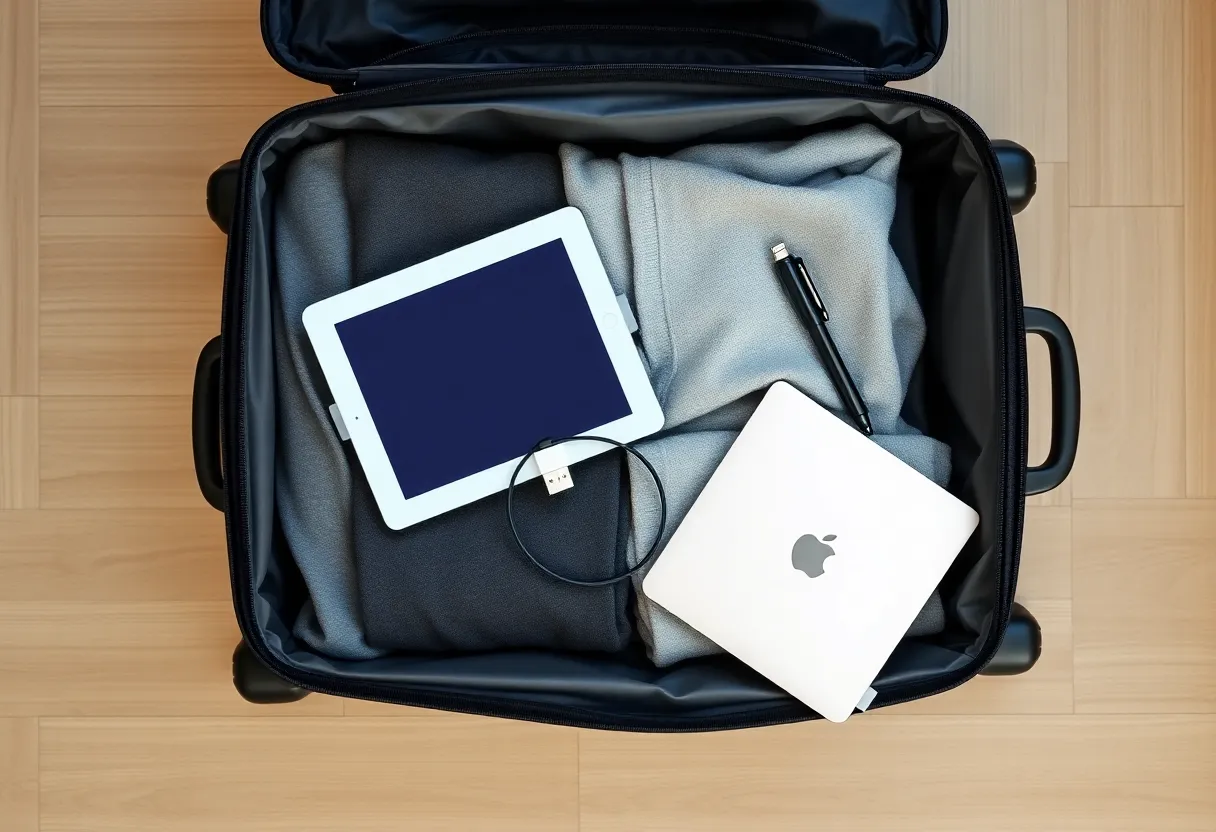
- Move a file over the cable. Plug the tablet into the laptop I’m taking and copy a PDF onto it without any sync app. If that doesn’t work cleanly, I’ll need a fix on the road, so I find it now.
- Charge the tablet and pack the cable. The USB cable is my file transfer, my charger, and my backup plan. It goes in the bag even if the tablet claims a month of battery.
- Never unbox a new device on the road. Any device that might want an account gets set up at home first. That’s the whole lesson of the hotel room.
The short list
If you want a tablet that never needs an account or a cloud, from sealed box to the end of its life, buy a Supernote for notes or a PocketBook for reading. If you want an Android tablet, a Boox works fully offline as long as you decline every sign-in and install nothing that needs one. A reMarkable is a good offline notebook as long as you don’t need handwriting conversion or updates in the air. A Kobo or Kindle works offline after an account-based setup, and the account comes back after every reset.
None of that is on the box. The test that matters is the one I failed in the hotel: can you set it up with no network and nobody’s login? Ask that before you buy, and set it up at home anyway.