NAS vs Mini PC: Which Should Run Your Docker Containers?

Duncan Hale
September 27, 2026
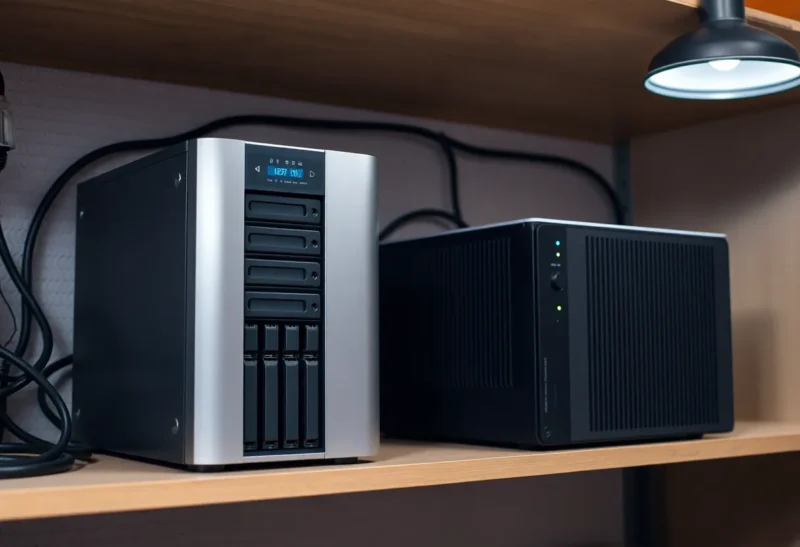
For about two years, every container I ran lived on a Synology DS918+ in my garage. It had four drive bays, a Celeron J3455, and 8 GB of RAM after I added a stick. Plex, the arr stack, Home Assistant, a couple of databases, a wiki, some little Go services I’d written. The NAS was already on 24/7 and already had all my data, so putting the apps next to it felt obvious. Why buy a second box?
Then one weekend a DSM update came down, the Docker package got replaced by Container Manager, and three of my containers wouldn’t start because the bundled Docker version had moved and my Compose files hadn’t. I spent Saturday on a NAS that I’d bought specifically so I wouldn’t have to spend Saturdays on a NAS.
That was the start of a slow migration. Today my containers run on a used mini PC, and the NAS does the thing it’s good at. But I didn’t move everything, and I don’t think “always use a mini PC” is the right lesson. Here’s how I’d make the call now.
What each box is actually built for
A NAS is designed around disks. The chassis, the power supply, the fans, the software: all of it is about keeping several hard drives healthy, spinning down when idle, and serving files reliably over the network. The CPU and RAM are sized for that job, usually a low-power chip and 2 to 8 GB of memory, often partly soldered.
A mini PC is designed around compute. It has a much faster CPU for the money, takes normal laptop RAM up to 32 or 64 GB, boots off a fast NVMe drive, and runs whatever Linux you want. What it doesn’t have is room for more than one or two drives.
Containers are mostly a compute job. Some of them need a lot of storage, but the thing that makes them fast or slow, stable or flaky, is usually CPU, RAM, and how quickly the app’s own data can be read and written. That mismatch is the whole story.
The case for running containers on the NAS
I want to be fair to my old setup, because it wasn’t dumb. There are real reasons to keep containers on the NAS:
- One box, one power draw, one thing to back up. A mini PC adds 10 to 20 watts at idle and another machine to update and monitor.
- Local disk access for storage-heavy apps. A media server or a photo library reading directly from local disks avoids the network entirely. No mount to go stale, no permissions to map.
- Modern NAS operating systems are good at it. Unraid’s Docker support is one of the reasons people buy it. TrueNAS SCALE runs apps on its own Docker-based system now. Even Synology’s Container Manager is fine for a handful of well-behaved containers.
- If you have only a few apps, the argument for a second machine is weak.
If you run Jellyfin, Syncthing, and a backup tool, and your NAS has a CPU with hardware video decoding, keep them on the NAS. Seriously. You don’t need to read the rest of this.
Where running containers on the NAS starts to hurt
Here’s what pushed me off it, roughly in the order I noticed.
The disks never slept
My NAS had its drives set to spin down after 20 minutes of inactivity. They never did. Every container was writing something to the volume: logs, SQLite databases, health checks, metadata refreshes. Four 8 TB drives spinning around the clock is noise, heat, around 25 to 30 extra watts, and wear I didn’t need. Moving container app data to an NVMe drive on the mini PC let the NAS disks sleep for most of the day.
Some newer NAS models let you create a separate SSD volume for exactly this reason. If yours does, that fixes a lot of this. Mine didn’t.
The CPU ran out before the disks did
The J3455 was fine for serving files. It was not fine for Home Assistant’s history database, a Postgres instance, Plex scanning a new library, and a wiki’s search indexer all waking up at the same time. The web interfaces for everything got sluggish every evening. A used mini PC with an eighth-generation Core i5 cost me less than a new pair of hard drives and was several times faster.
There’s a trap on the other side too. Several recent NAS models use AMD Ryzen embedded chips that are faster at general work but have no integrated graphics, so they can’t do hardware video transcoding at all. If you run Plex or Jellyfin and anyone watches on a device that needs transcoding, check before you buy.
The NAS vendor owned my Docker version
On an appliance NAS, Docker comes from the vendor’s package, on the vendor’s schedule. Updates can lag upstream for months and then jump several versions at once. Features like newer Compose syntax, specific networking modes, or GPU passthrough show up when the vendor decides. On a mini PC running Debian or Ubuntu, I install Docker from Docker’s own repository and update it when I choose.
This is much less of an issue on Unraid or TrueNAS SCALE than on Synology or QNAP, but it never fully goes away. The NAS OS will always prioritise storage stability over your container runtime, which is the right call for a NAS and the wrong one for an app server.
RAM was capped
Many NAS units have a small amount of soldered memory plus one slot, with an official maximum that’s lower than a mini PC’s. My 8 GB was full most of the time once I added a couple of databases. The mini PC took 32 GB for the price of two used laptop sticks.
What moving to a mini PC actually costs you
Here’s what nobody told me before I split things up. Moving containers off the NAS creates a new set of problems, all related to the fact that your apps and your data now live on different machines.
Network mounts become a dependency. Your media server on the mini PC reads files from the NAS over NFS or SMB. If the NAS reboots, or the mount goes stale, the container sees an empty folder. Plex, in my case, decided my entire library had been deleted and started cleaning up metadata. Set the library to not empty trash automatically, and make sure containers don’t start before their mounts exist. On a systemd-based distro, a mount unit with the right dependencies, or Docker’s built-in NFS volume type, handles this.
Don’t put databases on network storage. This is the big one. SQLite and network file systems don’t get along, because SQLite relies on file locking that NFS and SMB don’t always implement reliably. Home Assistant, Plex, the arr apps, Vaultwarden, and plenty of others use SQLite. Put their app data on the mini PC’s local NVMe. Only bulk files, like media, photos, and documents, should live on the NAS share.
Permissions need thought. The user ID inside a container on the mini PC has to match something the NAS share allows. Getting PUID and PGID right, and matching them to a user on the NAS, took me an evening I’d rather have back.
Your backups now span two machines. App data lives on the mini PC, bulk data on the NAS. The simplest fix is to have the mini PC back up its container data to the NAS on a schedule, then have the NAS back itself up offsite as it already did.
Two machines can fail independently. If the mini PC dies, your apps are down but your data is fine. If the NAS dies, your apps are up but can’t see their files. Oddly, I find this easier to reason about than one box where everything goes down together, but it is more to monitor.
The split I ended up with
After two years of moving things back and forth, here’s where each container lives in my garage:
On the NAS: anything whose whole job is storage. Syncthing, which is just syncing folders on the NAS. The backup target that other machines push to. An SMB and NFS server, obviously. Scrutiny for watching the NAS’s own drive health, because it needs direct access to the disks.
On the mini PC: everything that’s really an application. Home Assistant, the media server, databases, the wiki, Immich, my own small services, the reverse proxy. App data on local NVMe, bulk files mounted from the NAS.
The rule I use now is simple: if a container mostly serves files that already live on the NAS, it can live on the NAS. If it mostly computes, indexes, or keeps a database, it goes on the mini PC.
How I’d decide in your position
Keep containers on the NAS if:
- You run five or fewer, and they’re mostly storage-adjacent.
- Your NAS has a decent CPU, at least 8 GB of RAM, and ideally an SSD volume for app data.
- You use Unraid or TrueNAS SCALE, where containers are a first-class feature.
- Power and simplicity matter more to you than speed.
Move them to a mini PC if:
- You’re running databases, photo libraries with machine learning, or anything that needs real CPU.
- Your NAS disks never spin down and you’d like them to.
- You want control over your Docker version and host OS.
- You’ve hit the NAS’s RAM ceiling.
If you land on the mini PC side, the machine itself matters less than a few specifics: socketed RAM, an Intel chip with Quick Sync if you transcode, and a BIOS that powers back on after an outage. Picking between a used office box, an N100, and a Ryzen mini PC is the next decision, and a used office box is usually the right one.
What I wouldn’t do again is treat the NAS as the default home for every container just because it’s already on. It’s a very good file server. When I stopped asking it to also be an app server, both jobs got better, and I got my Saturdays back.