How Android’s Background Process Limits Shape App Battery Life in Ways Most Users Don’t Notice

Reed Kim
July 7, 2026
Android’s battery life story is mostly told through hardware: milliamp-hour ratings, charging speeds, screen brightness. But hardware only partly explains why two phones with identical batteries can have dramatically different real-world battery life — or why the same app drains your battery on one Android device and barely touches it on another. The other half of the story is software: specifically, how Android’s background execution model works, how manufacturers have extended and distorted it, and how apps navigate around restrictions in ways that benefit some use cases and quietly break others.
Most users experience these systems only as outcomes — the app that doesn’t deliver notifications reliably, the alarm that fires late, the fitness tracker that loses data when the screen is off. Understanding the mechanisms makes it possible to diagnose and fix those problems, and to make smarter decisions about battery optimization settings that many Android users never touch.
The Core Problem Android Has Been Solving Since Lollipop
Android is a multitasking operating system running on battery-powered hardware. That combination creates an inherent tension: apps want to run in the background to do useful things (sync data, receive messages, track location, process sensor data), and background processes are the primary driver of battery drain. The history of Android’s background execution model is a history of the platform trying to impose constraints that preserve battery life while not breaking legitimate app functionality.
Before Android 6.0 Marshmallow, background processes ran with relatively few system-level restrictions. Apps could execute work, use wakelocks to keep the CPU awake, and poll network services on their own timers. The result was terrible battery life on Android compared to iOS, largely because iOS had always been more aggressive about backgrounding policies. Google’s response was Doze mode in Marshmallow — a system that detects when the phone is stationary and not in use, then progressively defers network access, alarms, jobs, and syncs to maintenance windows. Doze on the go, added in Nougat, extended lighter restrictions to moving devices.
App Standby in Marshmallow added per-app buckets based on usage frequency: active, working set, frequent, rare, and restricted. Apps used less frequently get less background execution opportunity. Background Service Limits in Oreo prevented apps from starting services from the background at all unless foreground conditions were met. And JobScheduler — introduced earlier but refined continuously — became the primary mechanism for deferred, batched background work: the app says “I need to run some background task,” and the system decides when to actually run it based on charging status, network availability, idle state, and other conditions.
What Push Notifications Actually Are (and Why They’re Special)
A common misconception about Android is that apps receive push notifications by maintaining a constant background connection to their servers. They don’t, and they haven’t for years. Firebase Cloud Messaging (FCM), Google’s push notification infrastructure, maintains a single persistent connection to Google’s servers on behalf of all apps. When a notification needs to be delivered, Google’s servers wake the device through this single connection and hand off the payload to the appropriate app. The app doesn’t need any background process running to receive a notification — it’s woken up specifically for that delivery.
This is why notification delivery on stock Android (Pixel, Android One devices) is generally reliable and battery-efficient. The system is designed around this one-connection model, and it works. The problem arises when manufacturer battery optimization systems interfere with either the FCM connection itself (extremely aggressive OEMs used to kill the system-level Google Play Services process that maintains this connection, though this has improved) or with the app’s ability to process and display the notification after being woken.
The Restricted app bucket, introduced more aggressively in Android 12 and later, limits even notification-triggered background work. An app in the Restricted bucket may have its FCM notification delivered but find that the work it schedules in response to that notification gets deferred. The notification appears, but the data fetch it triggers runs late — so the notification content is stale, or features that should update when a notification is tapped are slow to respond.
The Manufacturer Problem
Google provides Android’s framework, but Samsung, Xiaomi, OnePlus, OPPO, Huawei (pre-GMS sanctions), and every other major Android OEM ships their own modifications. Battery optimization has historically been one of the areas where manufacturers most aggressively diverge from stock Android behavior, often in ways that improve battery life metrics while degrading app reliability.
The site dontkillmyapp.com has documented for years the specific background process killing behaviors of major OEMs — behaviors that break app functionality users expect. Samsung’s “Sleeping apps” feature, which automatically restricts background activity for unused apps, breaks push notifications, alarms, and sync for apps users don’t open daily. Xiaomi’s MIUI has historically had aggressive background process management that killed apps in ways that FCM-based notifications couldn’t recover from. OnePlus and OPPO systems have similar issues.
The manufacturers’ incentive is real: aggressive background killing makes devices appear to have better battery life in the battery life benchmarks that get cited in reviews. That those same policies make the devices less reliable for tasks users actually depend on (reliable alarm delivery, timely message notifications) is a trade-off that benefits the manufacturer’s marketing more than it benefits the user’s experience.
The right response — and what Google has pushed manufacturers toward through Play Store certification requirements — is well-behaved battery optimization that respects the FCM model and the foreground service exception, rather than killing processes indiscriminately. Progress has been made. Samsung’s more recent OneUI behavior is meaningfully better than it was three years ago. But manufacturer battery management remains the primary source of Android’s reputation for unreliable notifications on non-Pixel devices.
WorkManager: The Developer’s Interface to Background Execution
From a developer’s perspective, WorkManager is the current recommended solution for deferrable background work: data syncs, uploads, processing tasks that can tolerate delay. WorkManager is a wrapper around Android’s battery-aware job scheduling APIs (JobScheduler, AlarmManager, and the older Google Play Services background sync API) that provides a consistent interface across API levels and handles system constraints automatically.
WorkManager is designed explicitly around the premise that background work should be deferred to battery-friendly windows. An app that schedules a data sync with WorkManager might not get it run immediately — it will be batched with other jobs and run when the device is charging, connected to Wi-Fi, or in a low-activity state. For tasks like uploading photos, processing analytics, or syncing large data sets, this is appropriate and battery-friendly. For tasks that need to run on a user-defined schedule (an alarm, a reminder) or in direct response to user actions, WorkManager’s deferral model is wrong, and developers who use it for time-sensitive work create exactly the “my alarm fired late” experience users complain about.
What Users Can Actually Do
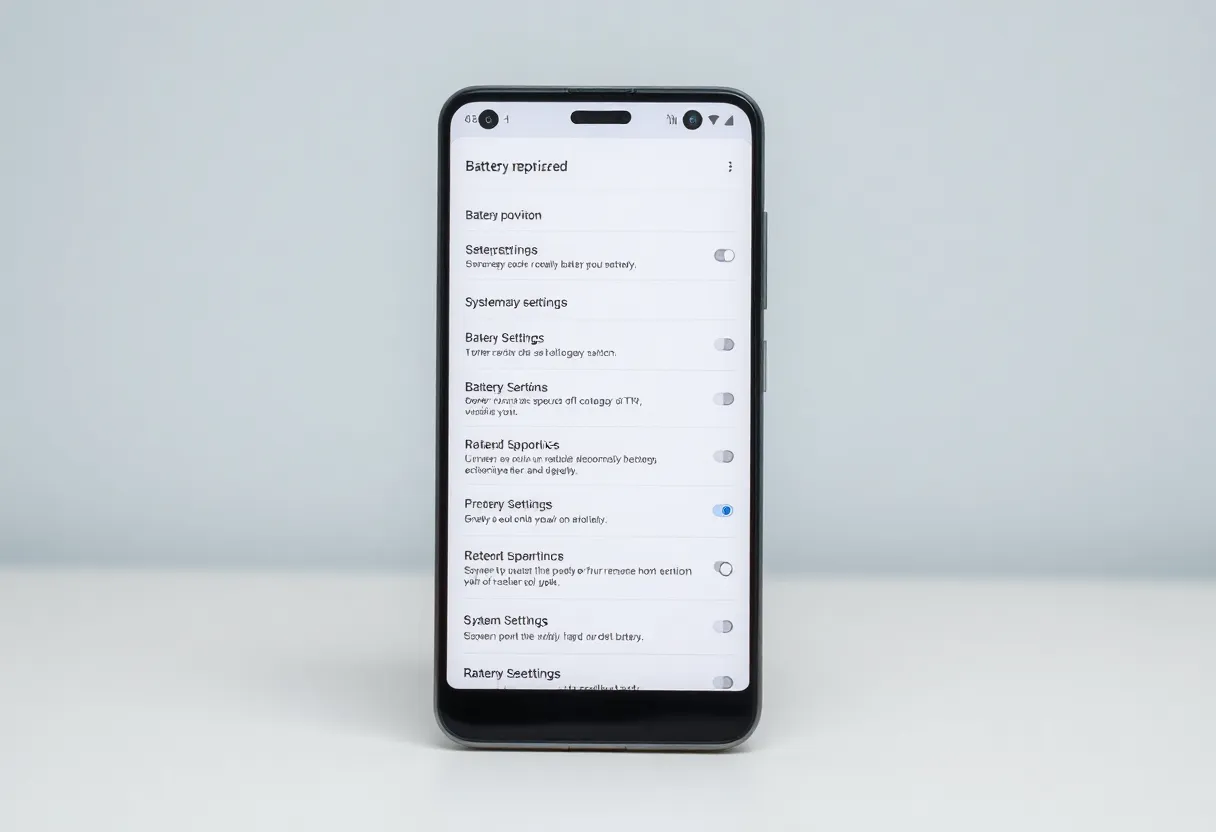
Most Android battery settings are blunt instruments, but a few targeted adjustments meaningfully improve reliability for critical apps without sacrificing battery performance for the rest.
On stock Android, the “Unrestricted” battery optimization setting for an individual app exempts it from App Standby and Doze restrictions while still allowing the system to manage power holistically. This is different from “Battery optimization off” in older Android versions — it’s a permission level that allows the app to behave reliably without allowing truly unlimited background execution. For apps where reliable notification delivery matters (alarms, messaging, smart home control, health monitoring), setting them to Unrestricted is the right call and has a minimal battery impact because well-behaved apps don’t abuse this permission.
On Samsung OneUI, the per-app “Battery usage” settings include a “No restrictions” option that overrides OneUI’s aggressive background management. Apps that show up in Samsung’s “Auto-sleeping apps” list are good candidates for checking whether you actually want them sleeping. The auto-sleep feature is appropriate for apps you never use; for apps you use regularly but not daily, it’s likely hurting your experience more than it’s helping your battery.
The broader principle: Android’s background execution restrictions are well-designed for the apps they’re designed for, and break things when applied too aggressively to apps with legitimate background needs. Understanding which category each app falls into — and adjusting accordingly — is more effective than either leaving everything at defaults or disabling all battery optimization, which genuinely does hurt battery life on the apps that don’t need the exception.