HDR on a Coding Monitor: When It Makes a Dark Theme Worse

Nate Osborn
September 21, 2026
HDR stickers sell televisions and gaming monitors. They also wander onto panels marketed at creators and, increasingly, at anyone buying a “productivity” screen. Turn HDR on while you live in a dark IDE theme and the result is often worse than SDR: crushed UI chrome, glowing white window borders, washed-out gray text, and a brightness curve that fights the palette you chose so your eyes could rest. HDR is not automatically better for code. Sometimes it is the feature that makes your dark theme look broken.
This is about whether HDR belongs on a coding desk—not whether HDR can look great on a movie night.
What HDR is trying to do
High dynamic range widens the gap between the darkest darks and the brightest highlights the display will attempt. On a good TV with good content, specular highlights pop without lifting the whole image into gray fog. On a desktop, Windows or macOS may reinterpret window surfaces, wallpapers, and videos under an HDR tone map. Apps that are not HDR-aware still get remapped. That remapping is where dark themes suffer.
Coding UIs are mostly mid-gray text on near-black panels, with occasional bright accents. They were authored assuming SDR. When the OS treats the desktop as an HDR canvas, those carefully chosen grays can shift, contrast can collapse, and “black” backgrounds can lift. You did not change your theme. The pipeline around it changed.
The dark-theme failure mode
Typical symptoms after enabling HDR:
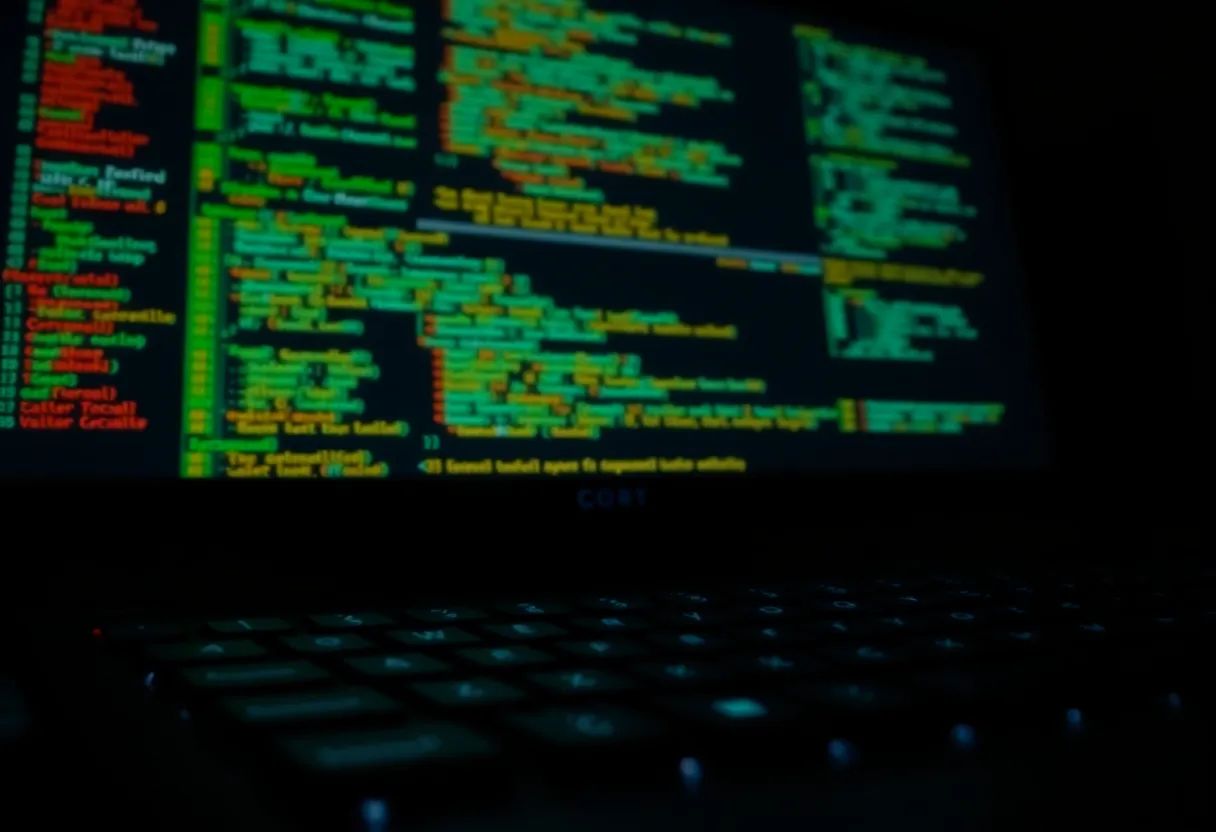
- Editor background looks milky instead of deep.
- Syntax colors feel neon or oddly dim in the same view.
- Browser windows and IDE panels disagree on white levels.
- You keep raising or lowering monitor brightness and never find a stable point.
- SDR videos in a sidebar look fine while the editor looks wrong—or the reverse.
People blame the theme pack. The theme pack was fine yesterday. HDR’s tone mapping and the monitor’s HDR peak luminance behavior are the new variables. Some panels also run different backlight behavior in HDR mode—local dimming zones that make large dark UI regions pump or cloud.
If your work is 90% text, you are not using the highlights HDR protects. You are exposing yourself to the part of the stack that is least mature: desktop UI in HDR.
When HDR on a coding monitor still makes sense
Leave HDR available—or even on—when you regularly grade footage, review HDR stills, or play games on the same panel and you understand how to switch modes. Some monitors make SDR/HDR switching easy via a hotkey or OSD. That is the honest product: HDR as a mode, not as a permanent desktop religion.
HDR can also help if you sit in a bright room and need punch for reference images while keeping an editor on an SDR secondary. Dual-screen workflows where only the color panel runs HDR keep the IDE sane.
If you bought the monitor for coding first, treat HDR as an optional evening feature. The morning default can stay SDR with a calibrated brightness you like for gray-on-gray text.
Windows, macOS, and the auto-HDR trap
Windows will happily suggest Auto HDR and HDR for desktop. Auto HDR is aimed at games. It is not a gift to VS Code. If you enabled everything in the HDR panel because the monitor said it was supported, walk those toggles back and test SDR for a full workday.
macOS HDR handling differs by panel and by whether the app opts in. The same advice applies: verify your IDE and terminal under the configuration you will actually use, not under a HDR demo reel.
GPU drivers and monitor firmware updates sometimes change tone mapping. A setup that was “fine” in March can feel wrong after an update. When the dark theme suddenly looks off, check HDR toggles before you reinstall your theme pack for the third time.
Practical setup for people who want both
- Default the desktop to SDR for work hours.
- Bind an OSD or OS hotkey to HDR for media.
- Keep night-light / warm filters consistent; stacking HDR remaps with aggressive night shift can look especially muddy.
- Calibrate brightness for text first; do not chase peak nits meant for specular highlights.
- If a single app must be HDR, prefer a dedicated window on a secondary or a timed mode switch—not an always-on desktop HDR.
Also check the monitor’s “HDR emulation” or low-zone local dimming modes. Some budget HDR modes look worse than honest SDR. Turning HDR off can make the panel look better immediately. That is not failure; that is the panel telling you which mode was designed carefully.
Buying advice shaped by coding, not marketing
When shopping, weight SDR text quality, ergonomics, and scaling behavior above HDR badges. Ask whether the SDR mode is excellent. Many HDR-capable panels are only average in SDR—the mode you will live in. A great SDR 1440p coding panel beats a mediocre HDR 4K panel that looks wrong the moment you open a dark theme.
If the listing leads with HDR peak brightness and buries contrast in SDR, assume the product is aimed at games and movies. You can still buy it if the SDR reviews praise text. You should not buy it because the HDR number is big.
Contrast, pulse, and why “brighter” is not clearer
HDR marketing trains buyers to chase brightness. Coding clarity cares more about stable contrast at the luminance you actually sit in. A panel that peaks at dazzling highlights but lifts black levels in HDR mode will make gray text harder to parse, especially late at night. SDR at a fixed, moderate brightness often wins because it stops moving the floor under your theme.
If you feel eye strain after enabling HDR, do not immediately buy blue-light glasses. Dial HDR off, set a manual brightness, and give it two days. Strain that appeared the same afternoon you toggled HDR is a clue, not a coincidence.
PWM and backlight behavior can also change between modes on some monitors. If you are sensitive to flicker, test both modes deliberately. An HDR mode that looks “prettier” in a showroom can be the mode that bothers you after ninety minutes of diffs.
Decision rule
Ask: does enabling HDR make my actual IDE theme clearer for an hour of reading code?
If the answer is no—if blacks lift and chrome glows—leave HDR off for work. Use it when the content is HDR. Dark themes are an intentional low-dynamic-range aesthetic. Forcing a high-dynamic-range pipeline onto them is how a feature sticker makes the desk worse.
HDR is a tool for highlights. Code is mostly midtones. Match the tool to the job, and your dark theme will stop looking like it needs another downloadable fix.
If you already live with HDR on and have adapted, fine—but know what you adapted to. Many developers “fix” dark themes for months when a single OS checkbox was the real regression. Test SDR for one week with the same theme. If the week feels calmer, you have your answer. If HDR truly helped your eyes in a bright room, keep it—and document the toggles so a driver update cannot silently reverse your careful setup.
The goal is readable code, not a demo of what the panel can peak at. Peak nits do not review pull requests. Contrast you can trust does.
If coworkers swear HDR “just works” on their desks, compare stacks before you copy them. Different panels, different OS builds, different IDEs, different ambient light. HDR success is local. Your dark theme’s failure after a toggle is also local—and local evidence beats a forum consensus.
Keep a short note in your desk README: SDR for work, HDR for movies, hotkey path, brightness values that felt right. Future you after a reinstall will not remember which combination finally stopped the milky editor background. Write it down the week you solve it.
None of this means HDR is fake. It means desktop text is the wrong demo content for the feature. Use HDR where specular highlights and graded footage exist. Use SDR where your job is reading thousands of similar glyphs without the OS reinventing black. That split is how a “HDR monitor” becomes a good coding monitor instead of a confusing one.