A Homelab Monitoring Starter Stack: What to Watch on Day One With Free Tools

Diana Vos
October 20, 2026
Monitoring is the part of a homelab most people add after the first disaster: the backup that silently stopped weeks ago, the disk that filled up overnight, the media server that was down for a day before anyone mentioned it. It does not need to be complicated to prevent those. A small set of free tools, set up in an afternoon, covers the failures that actually happen in home setups.
This guide builds that starter stack step by step: what to watch on day one, which tools to use, where to send alerts, and what to leave for later. It assumes a few Docker hosts or a NAS and a mini PC, the typical homelab of a household or a solo builder.
What actually breaks in a homelab
Monitoring should be designed around real failures, not around beautiful graphs. In home setups, the common ones are:
- A service is down after an update, a crash or a reboot that did not bring it back.
- A scheduled job did not run: backups, certificate renewals, database dumps, sync jobs.
- A disk fills up, often from logs, downloads or a runaway container.
- A disk starts failing, with SMART warnings or file system errors.
- The whole host disappears: power cut, kernel panic, network problem.
- A certificate expires and apps become unreachable from phones.
A good starter stack catches all six, and tells you on your phone, not on a dashboard you have to remember to open.
The stack at a glance
| Layer | Tool | Catches |
|---|---|---|
| Service checks | Uptime Kuma (or Gatus) | Apps down, certificates expiring |
| Scheduled jobs | Healthchecks.io (hosted free tier or self-hosted) | Backups and cron jobs that did not run |
| Host resources | Beszel | Disks filling, memory pressure, container hogs |
| Disk health | smartd or Scrutiny, plus scrubs | Failing drives |
| Alerts | ntfy, Pushover or Telegram | Getting the message to your phone |
| Watching the watcher | An external check outside the house | The whole homelab or the monitoring itself going down |
All of these are free for home use and light enough to run on the smallest machine you own.
Step 1: check every service
Uptime Kuma is the most popular starting point: a web interface where you add a check for each service, such as an HTTP check for a web app, a TCP check for a database port, a ping for a device, or a DNS check for your resolver. It checks every minute or so, shows history, and sends notifications through dozens of services. It also warns when TLS certificates are about to expire.
If you prefer configuration files, Gatus does the same job from a YAML file and can check response content, not just status codes. The two are compared in Gatus vs Uptime Kuma.
Check what users actually use. An HTTP check on the photo app’s login page is better than a ping to the host, because the host can be up while the app is broken.
Step 2: watch the jobs that run on a schedule
Uptime checks cannot tell you that last night’s backup did not run. For that, use heartbeat monitoring: each job pings a unique URL when it finishes successfully, and the monitoring service alerts you if the ping does not arrive on time. Healthchecks.io offers a generous free tier and can also be self-hosted; Uptime Kuma has a similar “push” monitor type.
Add a ping to the end of every important job: backups, database dumps, certificate renewals, photo imports and off-site syncs. Ping only on success, so that a job that runs but fails also triggers an alert. Grace periods and alert routing for this are compared in Healthchecks.io vs Cronitor.
Step 3: watch resources and disks
Beszel provides a central dashboard with tiny agents on each host, tracking CPU, memory, disk use, network, temperatures and per-container resource use, with simple threshold alerts. Set alerts for disk use above about 85% and for a host going offline. If you want deeper diagnostics later, the trade-offs with Netdata are in Beszel vs Netdata.
For disk health, enable SMART monitoring with scheduled self-tests and alerts. Most NAS systems have this built in; on Linux servers, smartd does it, and Scrutiny adds a dashboard with history. If you use ZFS or Btrfs, schedule monthly scrubs and alert on any errors.
Step 4: send alerts somewhere you will see them
Every tool above can send notifications. Pick one path to your phone and use it for everything urgent:
- ntfy, self-hosted or the public server, for free push notifications with priorities.
- Pushover for a paid, very reliable push service with emergency alerts that repeat until acknowledged.
- Telegram or another chat app for informational messages that you read later.
Separate urgent alerts from information. A daily “backup completed” message in a chat channel is reassuring; a push notification for it is noise that teaches you to ignore alerts. The options are compared in Apprise vs ntfy.
Step 5: watch the watcher
The most common gap in homelab monitoring is that the monitoring runs on the same hardware it watches. When the power fails or the main server crashes, Uptime Kuma and the notification server go down with it, and you hear nothing.
Fix it with one check from outside: a free external uptime service that checks something on your network, or a Healthchecks.io check that your monitoring server pings every few minutes. If the pings stop, an external service alerts you. Alternatively, run the monitoring on a separate low-power device on its own power supply, or on a cheap VPS. The trap of keeping the alert path on the same box is described in ntfy on the same box as Kuma.
Where to run the monitoring itself
Placement matters as much as tool choice. Three common options, from cheapest to most robust:
- On the main server. Simple and free, and fine for catching individual app failures. Pair it with the external check from step 5, because it cannot report its own death.
- On a separate small device. A Raspberry Pi or an old mini PC on its own UPS outlet, running Uptime Kuma and ntfy. It survives crashes of the main server and catches them.
- On a small VPS. A few dollars a month, outside your house entirely, so it also catches internet outages and power cuts. Reach your homelab from it through a VPN for internal checks.
Many homelabs end up with a mix: detailed checks running inside, and a handful of checks from a VPS or a hosted service that only answer one question, “is the house reachable at all?”
What a good alert night looks like
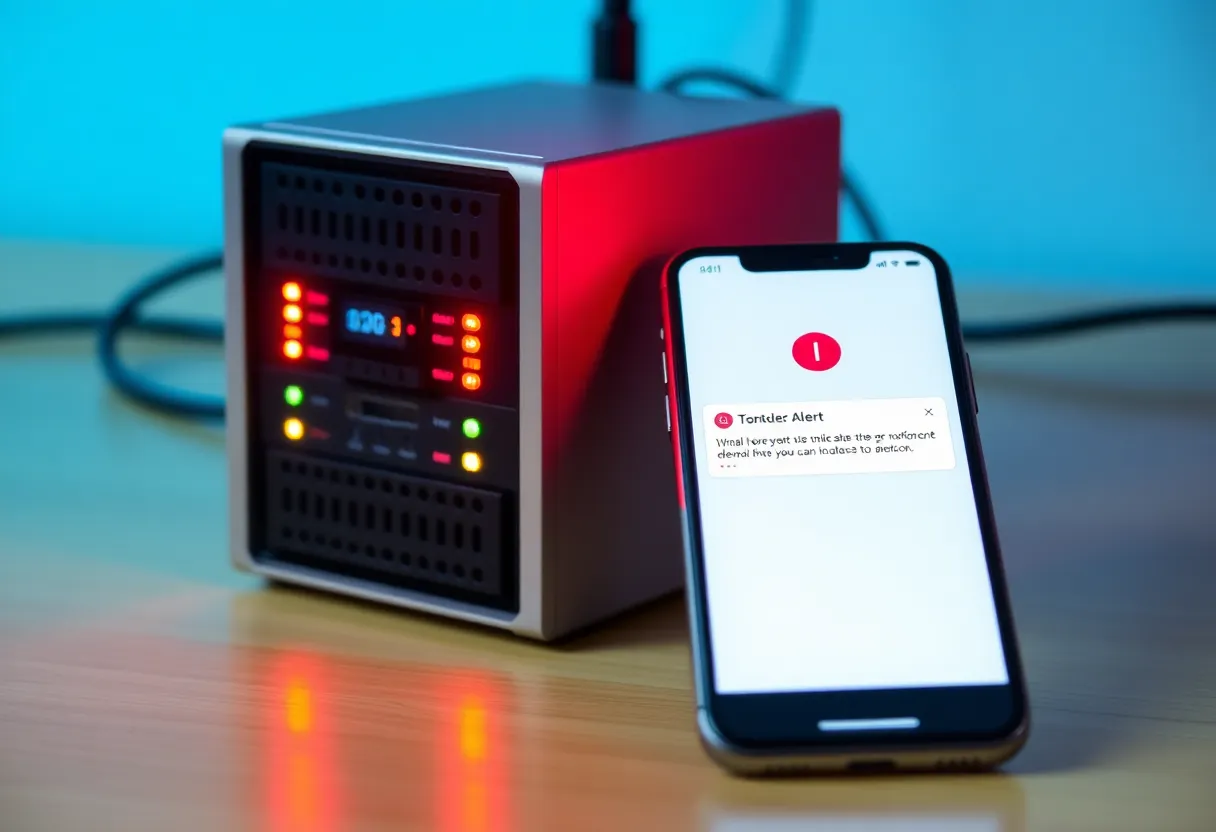
To see how the layers work together, imagine the backup disk fills up at 2 a.m. The backup job fails, so it does not ping its heartbeat check. Beszel has already sent a warning the previous evening that the disk passed 85%. At the job’s expected time plus its grace period, Healthchecks.io sends a push notification saying the backup has not completed. You see both messages in the morning, delete old snapshots or add space, rerun the backup, and the heartbeat turns green.
Without monitoring, that same failure is usually discovered weeks later, on the day a file needs restoring.
A day-one checklist
- Install Uptime Kuma and add an HTTP check for every app people use.
- Create a Healthchecks.io account and add a ping to the end of the backup job.
- Install Beszel with agents on each host; set disk and offline alerts.
- Enable SMART self-tests and alerts; schedule scrubs if you use ZFS or Btrfs.
- Connect every tool to one push notification path and send a test.
- Add one external check that alerts if the homelab disappears.
- Write down what each alert means and what to do first.
Tuning so alerts stay meaningful
The first week will be noisy. Adjust rather than ignore:
- Add retries. Alert only after two or three failed checks in a row, so a brief blip during an update does not wake you.
- Use maintenance windows during planned updates and reboots.
- Group dependencies. If the NAS is down, you do not need ten alerts for apps that depend on it.
- Delete alerts nobody acts on. An alert that never changes what you do is noise.
- Test monthly. Stop a service on purpose and confirm the alert arrives.
Writing down what each alert means
An alert at 7 a.m. is easier to handle with a two-line note next to it: what the alert means, and the first thing to check. “Backup heartbeat missed: check free space on the backup disk, then the job log.” “Photo app down: check the container, then the database container.” Keep these notes in the same repository as your Compose files, or in the description field that most monitoring tools provide. They turn alerts into short tasks instead of investigations, and they make it possible for someone else in the house to help if you are away.
What to add later
Once the basics have been quiet and trusted for a while, consider the next layer: Prometheus and Grafana for long-term metrics and custom dashboards, central logs with Loki or Graylog, network monitoring of switches and access points over SNMP, and UPS monitoring. Each is valuable, but none replaces the starter stack: a check per service, a heartbeat per job, disk and resource alerts, one reliable path to your phone, and one check from outside.