Seafile vs Nextcloud for Family File Sync: Fast Sync Only or the Whole Suite

Miriam Cho
October 17, 2026
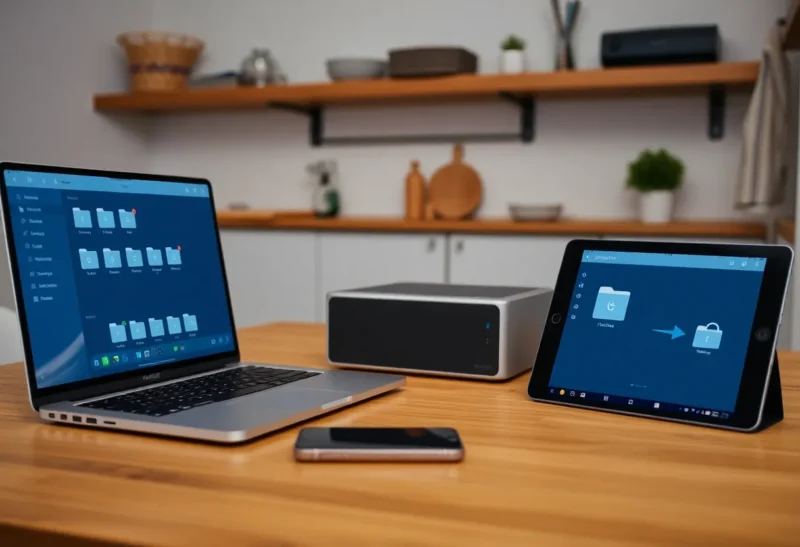
Getting a family off Dropbox, Google Drive or iCloud usually starts with one goal: a shared folder that everyone’s laptop and phone can see, stored on a box at home. The two self-hosted names that come up first are Nextcloud and Seafile. They both sync files between devices, both have phone apps and web access, and both keep old versions of your files. But they are built for different jobs, and the difference shows up in how fast files sync, how much the server needs, and how your data sits on disk.
I run a family file server and still use iCloud Drive where the school-gate iPhone needs it, and I have run both Nextcloud and Seafile for a household of four. Here is how they compare when the job is family file sync, not a full office suite.
A sync engine and a whole suite
Seafile is a file sync and share system focused on doing that one job very well. Its core is written in C, it syncs in blocks rather than whole files, so a small change to a large file transfers only the changed part, and it organises data into “libraries”, each of which can be shared, versioned and optionally encrypted on the client so the server cannot read it. It has desktop sync clients, a virtual drive client that shows files without downloading them, phone apps and a web interface. The community edition is free; the professional edition adds features and is free for a small number of users.
Nextcloud is a self-hosted collaboration platform. File sync and share is its foundation, but around it sit calendars, contacts, photos, video calls, notes, office document editing with Collabora or OnlyOffice, and hundreds of apps. It is written in PHP, stores files as ordinary files on disk, and has desktop clients with on-demand “virtual files” on Windows and macOS, phone apps with automatic photo upload, and a full web interface.
| Seafile | Nextcloud | |
|---|---|---|
| Focus | File sync and share | Files plus calendars, contacts, office, chat and apps |
| Sync method | Block-level, only changed parts | Whole files, with chunked uploads |
| Sync speed with many files | Very fast | Slower, especially with many small files |
| Files on server disk | Stored in Seafile’s own block format | Plain files and folders |
| Client-side encryption | Encrypted libraries | End-to-end encryption for selected folders, with limits |
| Server resources | Light | Heavier; benefits from tuning |
| Extras | Few, by design | Calendars, contacts, office, photos, Talk and more |
How sync feels day to day
This is where Seafile earns its reputation. Its sync engine is fast and dependable, especially with many small files or large files that change often. A folder of thousands of photos, a project with a deep tree of small files, or a large spreadsheet edited every day all sync quickly, because Seafile computes changes in blocks and only sends what changed. Conflicts are rare and clearly labelled when they happen.
Nextcloud’s sync has improved a lot over the years, and for typical family folders, such as documents, school work and shared PDFs, it works well. With very large numbers of small files, or large files that change frequently, it is noticeably slower, since each change uploads the whole file and each file involves database operations on the server. Tuning, such as Redis for caching and file locking, a proper database, and a fast PHP setup, helps a lot. The Nextcloud All-in-One Docker deployment sets most of this up for you.
For a family whose folders are mostly documents, both are fine. For a photographer, a developer, or anyone syncing big trees of files, Seafile’s speed is a real advantage. When the job is just two laptops staying in step with no server at all, Syncthing is a third option, compared in Syncthing vs Nextcloud for two laptops.
How your files sit on the server
This is the most important difference to understand before choosing. Nextcloud stores files as ordinary files and folders on disk. If the Nextcloud software breaks, you can still browse the data directory and copy your files out. Backups can be ordinary file backups plus a database dump.
Seafile stores files in its own format: data is split into blocks, deduplicated and organised by library, with metadata in a database. That is what makes its sync fast and its versioning efficient, but it means you cannot browse your files directly on the server’s disk. To get files out without Seafile running, you use its tools to export or mount libraries. Backups must include Seafile’s data directory and its databases together, taken consistently.
Neither is wrong, but it changes how you plan backups and recovery. With Seafile, test a full restore of the data and databases to a fresh server at least once. With Nextcloud, test restoring files and the database, since the database holds shares, versions and app data.
Phones and photos
Both have Android and iOS apps that browse files, open documents and upload photos automatically. Nextcloud’s app integrates with the iOS Files app and Android’s file picker, and its photo upload is widely used. Seafile’s apps are simpler but reliable, and also integrate with iOS Files.
For family photo libraries specifically, neither is the best tool. A dedicated photo app such as Immich offers face recognition, timelines and albums that file sync tools do not, compared in Immich vs PhotoPrism. Many households run Immich for photos and Seafile or Nextcloud for documents.
On iPhones, encryption features can interfere with Files app integration in both systems; the details for Nextcloud are in Nextcloud vs iCloud Drive for a family shared folder. Test encrypted folders on the actual phones your family uses before moving important files.
Encryption and privacy
Seafile’s encrypted libraries are encrypted on the client with a password the server never stores, so even someone with access to the server’s disk cannot read the files. You can choose encryption per library, for example for financial documents, and leave others unencrypted for convenience such as web previews. If you forget the library password, the data is gone.
Nextcloud offers server-side encryption, which mainly protects data stored on external storage, and end-to-end encryption for selected folders through its clients. End-to-end encryption in Nextcloud has historically had limitations with web access, sharing and some clients, so read the current documentation and test before relying on it.
For most families, the bigger privacy win is simply that data is on your own hardware, behind a VPN or a properly secured reverse proxy, rather than in a commercial cloud.
Running the server
Seafile is light. A small family server runs comfortably on a mini PC or a modest virtual machine, with a few hundred megabytes of memory for Seafile itself, plus a database. It is deployed with Docker Compose and upgrades are usually uneventful, though major versions sometimes need migration steps in the release notes.
Nextcloud needs more care: PHP workers, a database, Redis, background jobs on a schedule, and enough memory, typically a couple of gigabytes or more for a family instance with a few apps. The All-in-One image handles most of this, including backups and updates, and is the easiest way to run Nextcloud well at home. Apps can break after major upgrades, so update apps alongside the server and avoid installing dozens you do not use.
Calendars, contacts and the rest of the family
If your plan is to move more than files, such as shared family calendars, contacts, notes, recipes or a shared shopping list, Nextcloud is the only one of the two that does this. Its calendar and contacts sync with phones over CalDAV and CardDAV, and its office integration lets several people edit the same document in a browser.
Seafile has none of that by design. Pair it with other tools if you need them, such as a separate CalDAV server, or keep calendars with your existing provider. Some people find that freeing: each tool does one job, and file sync is never slowed by a calendar app update.
Moving a family over without chaos
Whichever you choose, the move matters more than the software. A plan that has worked for me:
- Start with one shared folder, such as household documents, and one person’s laptop. Use it for two weeks.
- Add phones next, with the app and, if you want, automatic photo upload to a separate folder.
- Move personal folders last, one person at a time, while the old cloud service is still running.
- Set up backups before deleting anything from the old service, and test a restore.
- Arrange remote access through a VPN or a carefully configured reverse proxy, so files work away from home.
Keep the old service for a month after everything has moved. Somebody will always find a folder that did not come across.
Picking for your household
Choose Seafile if file sync is the job: fast, efficient sync of many or large files, encrypted libraries for sensitive documents, and a light server. Accept that files live in Seafile’s format, and back up accordingly.
Choose Nextcloud if you want to replace more than file sync, including calendars, contacts, document editing and photos, and you are willing to give it more resources and occasional maintenance. Its plain-file storage also makes recovery easier to reason about.
Both are good. The best choice is the one that matches what your family actually needs to replace, not the longest feature list.