2.5 GbE vs 10 GbE: When Can You Actually Tell the Difference?

Lars Beckmann
September 27, 2026
You can tell the difference between 2.5 GbE and 10 GbE when three things are true at once: you’re moving large files, the storage on both ends can read and write faster than about 300 megabytes per second, and you do it often enough to care about the wait. If any of those is missing, and for most home networks at least one is, 10 GbE costs more, runs hotter, and feels exactly like 2.5.
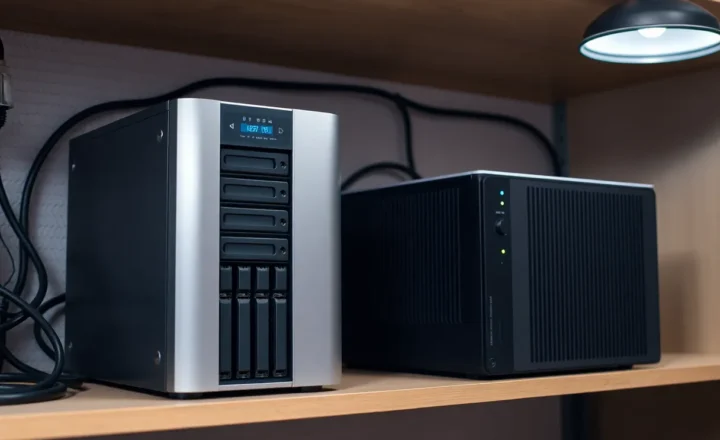
I learned that with a stopwatch. A few years ago I moved my NAS to 10 GbE, with new network cards, a small switch with two fast ports, and a weekend of cable work. Then I copied a 200 GB folder of video to it and timed the transfer. It took almost precisely as long as it had over 2.5 GbE. The network had got four times faster. The copy hadn’t. It took me an evening of measuring to understand why, and the answer changed how I’ve advised everyone who’s asked me since.
The numbers you’ll actually see
Network speeds are quoted in bits, file copies are shown in bytes, and every layer takes a small cut. Roughly, on a clean wired network, these are the file copy speeds you can expect when nothing else is holding things back:
- 1 GbE: about 110 MB/s.
- 2.5 GbE: about 280 MB/s.
- 5 GbE: about 550 MB/s.
- 10 GbE: about 1,100 MB/s, sometimes a little more.
Now put a clock on it. Copying 500 GB takes about 75 minutes at 1 GbE, about 30 minutes at 2.5 GbE, and about 8 minutes at 10 GbE, if the storage on both ends can keep up. That last condition is where my weekend project went wrong.
Why my 10 GbE copy was no faster
My NAS at the time was four spinning hard drives in a single redundant pool. A modern hard drive reads and writes large files at somewhere around 200 to 280 MB/s at best, and less toward the inner edge of the platters. A pool of four spreads the work, but with redundancy and real-world overhead my pool wrote big sequential files at roughly 250 to 350 MB/s.
That’s right on top of 2.5 GbE’s ceiling. Over 2.5 GbE, the network and the disks were roughly matched. Over 10 GbE, the network could carry more than three times what the disks could accept, and the extra capacity went unused. The desktop on the other end had a fast NVMe drive, so it wasn’t the problem. The disks in the NAS were.
The fix wasn’t more network. It was measuring each part separately, which I now do before touching anything:
- Test the network alone. A tool like
iperf3sends data between two machines from memory, with no disks involved. If it shows about 9.4 Gbit/s on 10 GbE, the network is doing its job. - Test the storage alone. Run a disk benchmark on the NAS itself, with large sequential writes and reads. That’s the most the pool can do regardless of the network.
- Take the smaller number. Your file copies will run at roughly the slower of the two, minus a bit for the file-sharing protocol.
My iperf3 result was fine. My disk benchmark topped out at around 330 MB/s. There was the answer: I’d bought a pipe for water the tank couldn’t supply.
When you really can tell the difference
10 GbE stops being an expensive placebo when the storage can outrun 2.5 GbE by a wide margin. In practice, that means:
- An SSD or NVMe pool on the NAS. Flash storage can easily read and write at 1 GB/s or more. With SSDs on both ends, 10 GbE turns a 30-minute copy into an 8-minute one, and you’ll feel it every time.
- Large files that are already cached. Some NAS systems keep recently used data in RAM. Reading a file that’s already cached can go at full 10 GbE speed even from a hard drive pool. That’s nice when it happens, but you can’t plan around it.
- Video editing straight off the NAS. Editing high-bitrate footage from network storage, especially several streams at once or scrubbing through a timeline, needs sustained throughput and fast response. This is the classic workload that makes 10 GbE worth it, and it goes hand in hand with a flash pool.
- Big backups and VM images between fast machines. Moving multi-terabyte backups, disk images, or virtual machine files between two servers with fast storage. If it happens nightly and finishes before morning either way, it doesn’t matter. If you’re sitting there waiting for a restore, it matters a lot.
- Several people hitting the NAS at once. Three people each pulling 250 MB/s is 750 MB/s combined. The NAS’s link is the shared bottleneck, and 10 GbE on that one link can help even if every desktop stays on 2.5.

When you can’t
The list of cases where 10 GbE makes no visible difference is longer, and it covers most homes:
- Your internet connection. Unless your broadband plan is faster than about 2 Gbps, 2.5 GbE already carries all of it. A 10 GbE port on a router connected to 1 Gbps fiber does nothing for downloads.
- Hard drive pools. As my weekend showed, a small pool of spinning disks often can’t fill 2.5 GbE by much, let alone 10.
- Lots of small files. Copying a folder of 50,000 photos or a code repository is limited by how quickly each file can be opened, created, and closed, not by bandwidth. It crawls on any network. Zip it first and the network speed starts to matter again.
- Streaming media. Even a high-bitrate 4K stream is a small fraction of 1 GbE. Plex, Jellyfin, and friends don’t care.
- Wi-Fi clients. A laptop on Wi-Fi rarely sustains more than 2.5 Gbps in real homes, so it won’t benefit from 10 GbE behind the access point.
- Everyday office work. Opening documents, saving spreadsheets, and syncing files are all small transfers that finish in a blink on 2.5 GbE.
The costs nobody mentions until you’ve bought the switch
Bandwidth isn’t the only difference between the two. 10 GbE brings practical costs that 2.5 GbE mostly avoids.
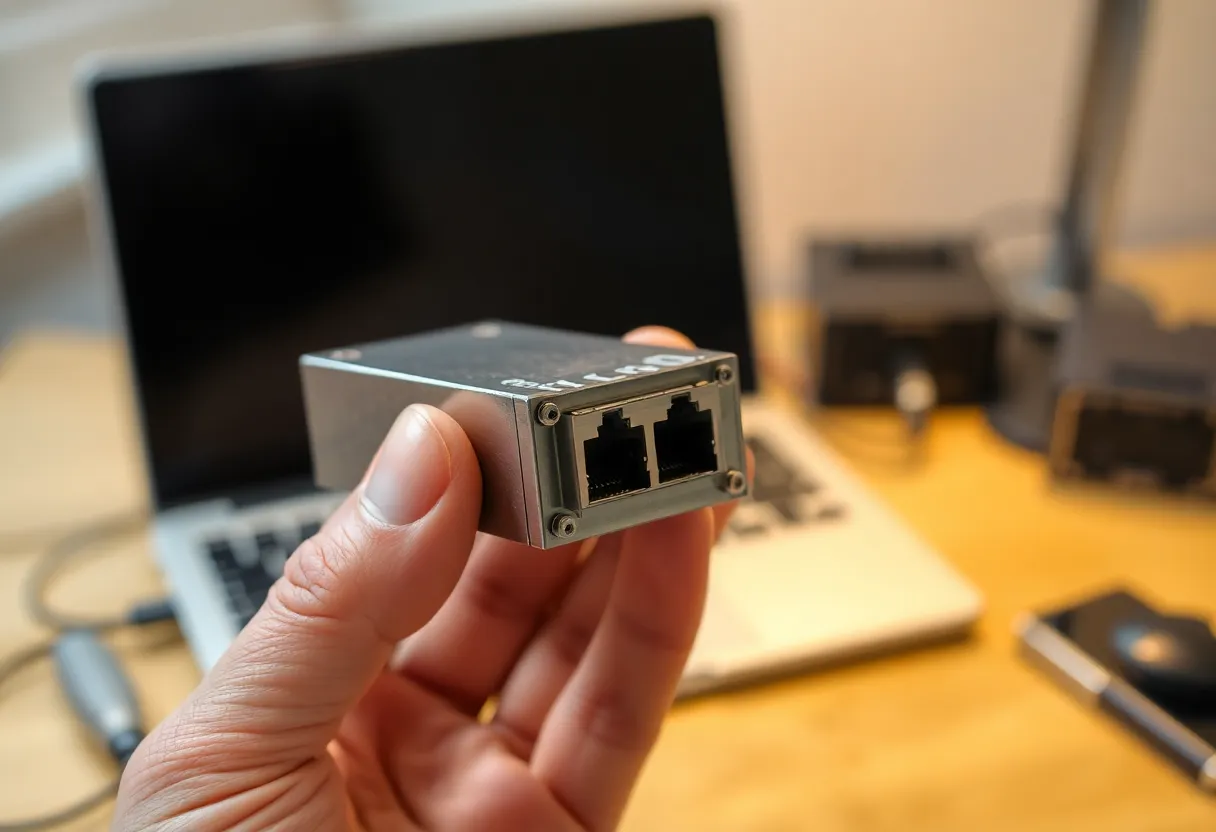
Heat. 10 GbE over normal copper Ethernet (called 10GBASE-T) runs hot. The copper SFP+ modules that let you plug an RJ45 cable into a fiber-style port are notorious for it; mine were too hot to hold after a long transfer. Network cards and switch ports run warm too. In a closet or a small cabinet, that heat has to go somewhere.
Power. Hot parts draw more power. A single port isn’t much, but a switch full of 10GBASE-T ports running around the clock shows up on the bill of a homelab that’s otherwise tuned to sip.
Cabling. 2.5 GbE was designed to run over the Cat5e cable already in many walls, and it does. 10GBASE-T officially needs Cat6 for shorter runs or Cat6a for the full 100 meters. Older cable might carry 10 GbE over a short distance, but that isn’t guaranteed. If the cable in your walls is old, 10 GbE might mean opening the walls.
Price and availability. 2.5 GbE is now built into lots of motherboards, mini PCs, NAS units, and routers, and small 2.5 GbE switches are cheap. 10 GbE usually means adding cards, buying a pricier switch, and finding PCIe slots for them. Laptops need Thunderbolt adapters, which are expensive and warm.
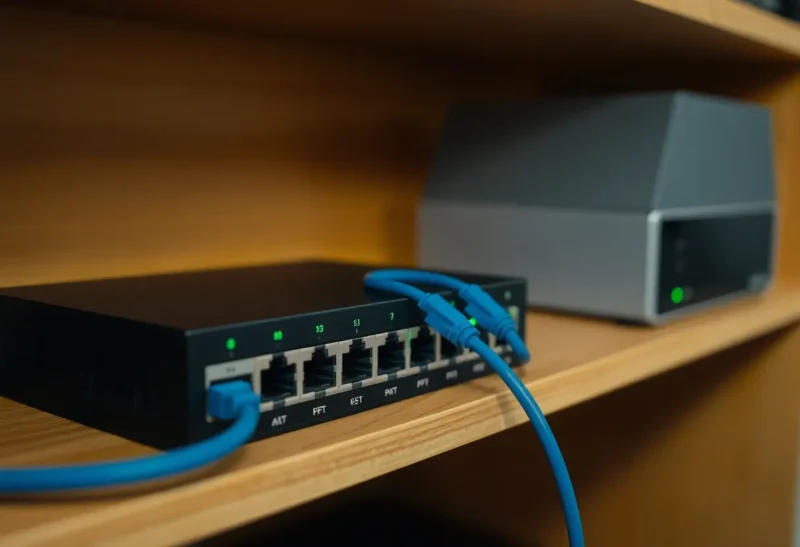
There’s a way around most of those costs if the machines are close together: SFP+ with direct-attach copper (DAC) cables. These are short, pre-terminated cables that plug straight into SFP+ ports on network cards and switches. They run cool, draw little power, and are cheap. For a NAS and a workstation in the same room, or a NAS and a switch on the same shelf, SFP+ with DACs is how I’d do 10 GbE today. Save 10GBASE-T copper for runs through walls, and only when you have to.
The middle option: 5 GbE and a mixed network
You don’t have to choose one speed for the whole house. Most homes that benefit from faster networking have one or two machines that need it and a dozen that don’t.
The setup I run now is mostly 2.5 GbE: desktops, the mini PC that runs my services, and the access points all sit on a cheap 2.5 GbE switch. The switch has two SFP+ ports. One goes to the NAS, which now has an SSD pool for active projects alongside its hard drives for bulk storage. The other goes to the one workstation that edits video. Two DAC cables, both short, both cool.
5 GbE is another in-between option, running over ordinary copper with less heat than 10GBASE-T, and some NAS units and USB adapters support it. It’s a reasonable pick if your storage lands between 300 and 600 MB/s, which describes a lot of larger hard drive pools.
How to decide
Here’s the order of questions I go through with anyone who asks:
- What does your storage actually do? Benchmark it. If it can’t sustain much more than 300 MB/s, 2.5 GbE is already the right match. Stop here.
- What do you move, and how often? If big transfers happen weekly and run while you sleep, the faster network saves time you never notice. If you wait on them daily, it saves time you’ll feel.
- How far apart are the machines? Same room or shelf: SFP+ with DAC cables is cheap and cool. Through walls: check your cable and budget for heat.
- Which link is actually shared? Often the only link worth upgrading is the one between the NAS and the switch.
If the answers point to 10 GbE, it’s a real, visible upgrade, and it turned my editing workstation from something I waited on into something I didn’t think about. If they don’t, 2.5 GbE is the sensible default for a home network in 2026: fast enough for any internet plan, matched to spinning disks, happy on old cable, and cheap enough to put everywhere.
Whatever you do, run iperf3 and a disk benchmark before you spend money. If I’d done that first, the 10 GbE cards would have waited until I had SSDs to go with them.