iOS Shortcuts: The Automation Layer Apple Doesn’t Advertise

Taylor Kim
February 24, 2026
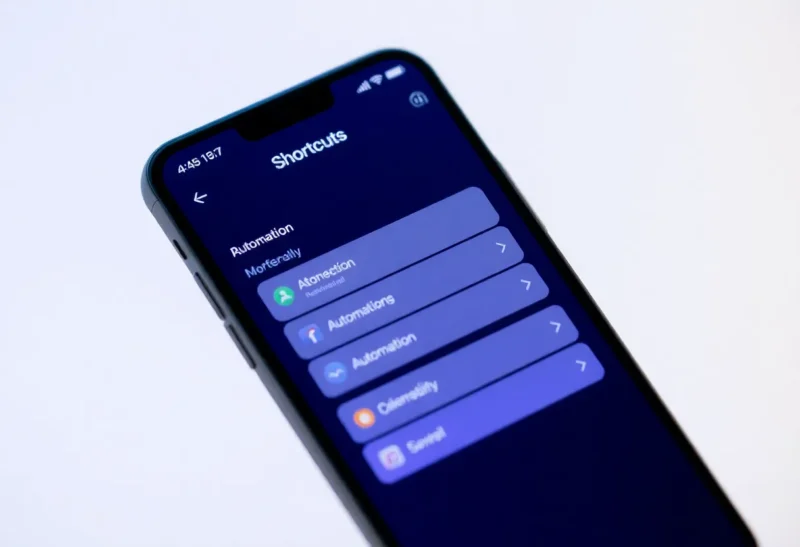
Apple doesn’t talk about Shortcuts much in keynotes. There’s no flashy demo, no “one more thing.” But for anyone willing to dig in, the Shortcuts app is one of the most powerful tools on the iPhone. It’s a visual automation layer that can tie together apps, system actions, and even other shortcuts. Here’s what it is, why it’s under the radar, and how to get started. For the 2026 edition of what is actually worth building, see practical Shortcuts that save time.
What Shortcuts Actually Is
Shortcuts (formerly Workflow, which Apple bought in 2017) is a visual automation builder. You add steps—actions—and chain them into a flow. “Get my next calendar event” → “Format it as text” → “Send to Messages” → “Show a notification.” No code required, though power users can add scripts. Shortcuts can run on tap, from the widget, from the share sheet, or on a trigger: time of day, arrival at a location, when an app is opened, or when you connect to a certain Wi‑Fi. That last bit is the automation side: things that run without you opening the app.
Because Shortcuts hooks into iOS and many first- and third-party apps, you can control things that would otherwise require multiple taps or separate apps. Log a thought to a note, start a focus mode, set a reminder from a clipboard, or run a custom morning routine that checks weather, calendar, and news in one go. The building blocks are “actions” exposed by the system and by apps that support the Shortcuts API.
Why Apple Doesn’t Advertise It
Shortcuts is powerful but not obvious. It rewards tinkerers, not casual users. Apple tends to showcase features that “just work” out of the box—Face ID, AirDrop, continuity. Shortcuts requires you to build or install workflows. That doesn’t fit the “it just works” narrative. So it sits in the app library, gets a brief mention in accessibility or productivity contexts, and is ignored in the main keynote. The people who need it find it. Everyone else might never open it.
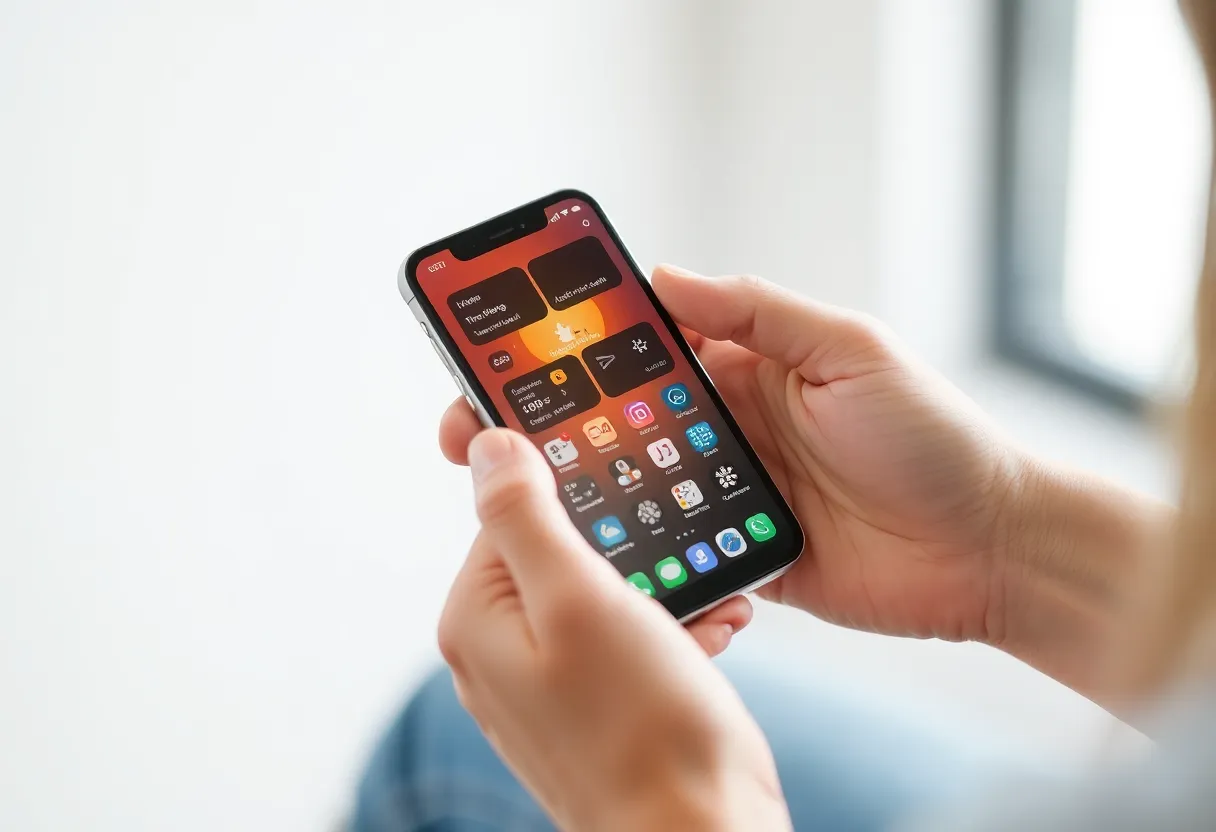
That’s a shame, because even simple shortcuts can save a lot of friction. You don’t have to build anything from scratch—the Shortcuts Gallery and community sites offer pre-made shortcuts you can add and tweak. Once you run one from the home screen or a widget, the value is obvious. Getting to that moment is the gap Apple doesn’t bridge with marketing.
Where to Start
Open the Shortcuts app (it’s preinstalled). Browse the Gallery for ideas: “Good Morning,” “Log Water,” “Share ETA,” “Run a focus mode.” Install one that sounds useful. Run it once. Then open it in the editor and look at the steps—you’ll see how it’s built. Duplicate it and change one thing. That’s the learning loop.
For automations, tap the Automation tab and add a personal automation. “When I arrive at Work” → “Set Focus to Work” is a classic. “When I open App X” → “Run Shortcut Y” is another. Not every app supports every trigger, but the system ones—time, location, app open, Wi‑Fi—are reliable. Start with one automation that solves a real annoyance. Add more as you see patterns.
The Limits
Shortcuts can’t do everything. Some apps don’t expose actions. Background execution is limited—automations that run without your phone unlocked are restricted for battery and privacy. So “when I leave home, start playing my podcast” might need a confirmation tap. That’s by design. Still, within those limits, you can automate a surprising amount of daily phone use. The ceiling is high; the floor is “a few taps to run a pre-made shortcut.”
The Bottom Line
iOS Shortcuts is the automation layer Apple doesn’t advertise. It’s visual, flexible, and capable of tying together your apps and your routine. You don’t have to be a power user to benefit—grab a shortcut from the Gallery, run it from a widget, and go from there. Once you see what’s possible, you’ll wonder why it’s not in the spotlight. For now, it’s one of the best hidden-in-plain-sight tools on the iPhone.