How USB-C Actually Works—And Why the Standard Is Still Confusing

David Shaw
July 7, 2026
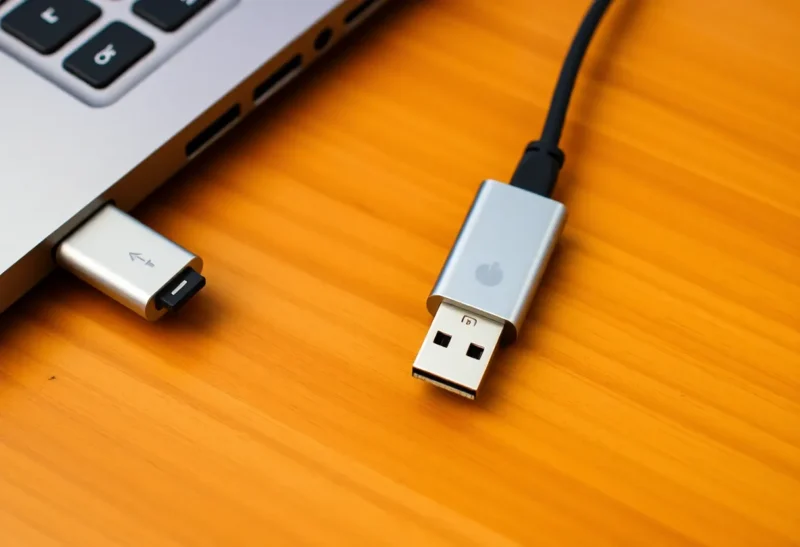
USB-C was supposed to be the universal connector—one cable for everything. A single reversible plug that handles charging, data transfer, video output, and audio, regardless of device. In 2026, the physical connector has largely won: USB-C is on nearly every laptop, modern Android phone, iPad, and increasingly common on peripherals and accessories. But the cable confusion remains acute, and people regularly discover that their USB-C cable won’t charge their laptop, or won’t output video to their monitor, or transfers data slowly when they expected it to be fast. Here’s why, and what the different specifications actually mean.
The Physical Connector vs the Protocol
The first thing to understand about USB-C confusion is that “USB-C” refers only to the physical connector shape—the plug and socket. It says nothing about what data or power protocols that connector supports. The same USB-C socket on different devices might support:
- USB 2.0 speeds (480 Mbps) — the minimum baseline
- USB 3.2 Gen 1 (5 Gbps)
- USB 3.2 Gen 2 (10 Gbps)
- USB4 Gen 2×2 (20 Gbps)
- USB4 Gen 3×2 / Thunderbolt 4 (40 Gbps)
- DisplayPort over USB-C (video output)
- Thunderbolt 3/4 (Intel’s protocol, uses USB-C physical form factor)
- USB Power Delivery at various wattage levels
Any combination of these might be supported or absent on a given device’s USB-C port. The physical port looks identical regardless of which protocols it supports. This is the source of most USB-C confusion: identical appearance, wildly different capability.
USB Versions: The Data Speed Hierarchy
The USB standard naming has been revised multiple times and remains confusing even to experts. In current nomenclature:
USB 2.0: 480 Mbps. Many USB-C ports on budget devices and some phone charging ports support only USB 2.0 data speeds despite the USB-C connector. Adequate for charging and audio, inadequate for fast storage.
USB 3.2 Gen 1 (formerly USB 3.0, USB 3.1 Gen 1): 5 Gbps. Common on mid-range devices. Allows transferring a 1 GB file in about 2 seconds at full speed.
USB 3.2 Gen 2 (formerly USB 3.1 Gen 2): 10 Gbps. Common on premium smartphones, modern MacBooks, high-end PCs.
USB4: 20 or 40 Gbps depending on generation. USB4 Gen 2×2 achieves 20 Gbps; USB4 Gen 3×2 achieves 40 Gbps. USB4 40 Gbps is compatible with Thunderbolt 4.
Thunderbolt: Intel’s Superset
Thunderbolt (currently Thunderbolt 4 and Thunderbolt 5 as of 2024) is Intel’s proprietary protocol that uses the USB-C physical connector and is a superset of USB4. A Thunderbolt 4 port guarantees: 40 Gbps data transfer, two 4K displays at 60Hz (or one 8K), 100W charging capability (at minimum), and daisy-chaining of up to six devices. Thunderbolt 5 (on newer Intel and some AMD systems) supports 120 Gbps bandwidth with Bandwidth Boost for video, and 240W charging.
Thunderbolt ports are identified by a lightning bolt icon next to the port. They’re backwards compatible with USB-C devices—you can plug a USB-C device into a Thunderbolt port and it works at USB-C speeds. A Thunderbolt cable in a non-Thunderbolt USB-C port also works, at the slower USB-C speeds supported by that port. But Thunderbolt features (high speed, video output to certain displays, daisy chaining) require both a Thunderbolt port and a Thunderbolt cable.
USB Power Delivery: Why Charging Is Complicated
USB Power Delivery (USB-PD) is the specification that allows USB-C to charge devices at higher power levels than the original 5V/0.5A (2.5W) USB standard. USB-PD negotiation happens digitally between the charger and the device: the charger announces what voltages and currents it supports; the device requests what it needs; they settle on the highest power level both support.
Current USB-PD supports up to 240W (EPR—Extended Power Range). Most laptop chargers use 45–100W. Most phone chargers use 18–45W. The key point: a USB-PD charger will negotiate the appropriate power level with any USB-PD device—a 65W laptop charger connected to a phone will supply the power level the phone requests (typically 15–25W), not blast 65W into it.
But not all USB-C charging is USB-PD. Some devices use proprietary fast charging protocols (Qualcomm Quick Charge, Xiaomi Hyper Charge, OnePlus Dash Charge/Warp Charge) over USB-C that aren’t USB-PD compliant. A Xiaomi phone that supports 120W charging will only achieve that speed with Xiaomi’s proprietary charger; a USB-PD charger will charge it at USB-PD speeds, which may be significantly slower.
Why Cable Quality Matters
A USB-C cable that supports only USB 2.0 speeds will limit any USB-C connection to 480 Mbps, regardless of what both connected devices support. USB 2.0 cables physically look identical to cables supporting much higher speeds. Cable labelling has improved somewhat—packaging increasingly states “USB 3.2” or “Thunderbolt 4” explicitly—but cheap unlabelled cables are often the lowest supported spec.

Cables rated for Thunderbolt 3/4 are the most capable and are manufactured to tighter tolerances, which is why they’re more expensive. For most users, a USB 3.2 Gen 2 (10 Gbps) cable from a reputable manufacturer is sufficient for everything except Thunderbolt daisy-chaining and the highest-bandwidth applications.
The EU’s USB-C legislation (implemented 2024) requiring USB-C as the standard charging port for consumer electronics has accelerated the standardisation of the physical connector. It does not mandate which protocols the ports must support, so the capability divergence will persist even as the connector shape universalises. The legislation at least removes the Apple Lightning / micro-USB / USB-C sorting problem—the physical connector will be consistent; the “which USB-C cable do I need” problem will take longer to resolve.
Practical Guidance
When buying a USB-C cable, look for explicit specification labelling: “USB 3.2 Gen 2 10Gbps” or “Thunderbolt 4 40Gbps” on the packaging. Cables without explicit spec labelling from no-name manufacturers are frequently USB 2.0. For a cable to charge a laptop at full speed, verify it supports the required wattage—a 20W cable won’t reliably carry 65W or 100W charging.
When checking what your device’s USB-C port supports, look at the manufacturer’s spec sheet rather than the port itself. The spec sheet will list the protocols—USB 3.2 Gen 2, Thunderbolt 4, USB4—for each port. Different ports on the same device may support different protocols (common on laptops where one port is Thunderbolt and the other is USB 3.x). The lightning bolt icon is the most reliable in-person indicator of Thunderbolt support.