iOS Shortcuts in 2026: Practical Automations That Actually Save You Time

Quinn Reed
July 7, 2026
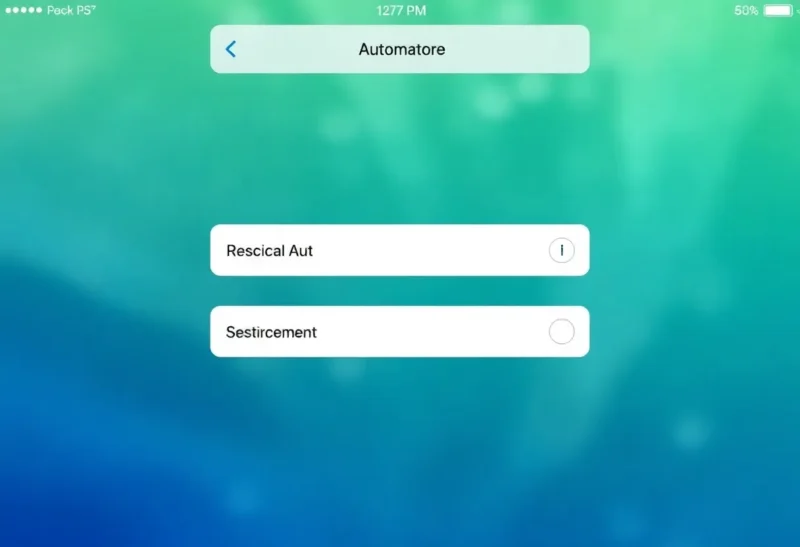
iOS Shortcuts has been part of the iOS ecosystem since Apple acquired Workflow in 2017, and it has grown substantially with each iOS release. Yet it remains an underused layer of the platform—visible to people who dig into settings and automation forums but largely invisible to the majority of iPhone users who don’t know it exists. In 2026, with Shortcuts’ deep integration with Apple Intelligence, Focus modes, the Lock Screen, and the Action Button on iPhone 15 Pro and newer, there are more entry points to useful automation than ever. Here are the automations that produce real, daily value—not impressive-on-paper workflows that get set up and forgotten.
What Shortcuts Can and Can’t Do
Before diving into specific automations, a realistic framing: Shortcuts is powerful within the Apple ecosystem and apps that expose Shortcuts actions, but it operates within sandboxing constraints that limit what it can do compared to automation tools on desktop platforms (like Alfred on Mac or AutoHotkey on Windows). It cannot freely access the filesystem outside specific app sandboxes, cannot interact with UI elements of arbitrary apps in the way desktop automation can, and has some friction with third-party apps that haven’t implemented Shortcuts support. Those background limits are why people still keep a cheap Android around: Tasker versus iOS Shortcuts is the ugly win on rules that must fire while the phone is in a pocket. Within these constraints, it’s capable of genuinely useful automation for personal workflows.
Morning Routine: One Tap to Start the Day
The most reliable category of useful Shortcuts automation is the “daily trigger that runs a bundle of tasks at once.” A morning routine Shortcut run from a Home Screen icon or the Action Button might: turn on Do Not Disturb for the first hour, open a specific podcast or morning playlist in Apple Music, toggle on a particular Focus mode, and open the first app you always use in the morning (Notes, calendar, news app). The Shortcut replaces six or seven individual taps with one.
The variation using a time-based automation (running automatically at a specific time) removes even the single tap: at 7:00 AM, your phone automatically adjusts its state to match your morning context. Shortcuts personal automations support time triggers, location triggers (when you arrive at or leave a location), and various other triggers (charger connected, NFC tag tapped, and more).
Focus Modes as an Automation Layer
Focus Modes (Work, Personal, Sleep, Driving, and custom modes) are underused as an automation trigger. Each Focus Mode can be configured to show a different Home Screen layout, a different Lock Screen, different notification filters, and to trigger Shortcuts automations when it activates or deactivates. This creates a powerful context-switching system.
Example: a Work Focus that, when activated, shows only work-relevant apps on the Home Screen, silences social media notifications, turns off personal email badges, and activates a Shortcut that opens your task manager and calendar. When Work Focus ends (at 6 PM or when you leave the office via location trigger), a deactivation Shortcut turns personal notifications back on and, optionally, logs your working hours to a Notes or Notion entry.
Focus Modes can be triggered manually, by time, by location, or by app (opening a specific app activates a Focus). The location-based triggering is particularly useful: arriving at the gym triggers a Fitness Focus that opens your workout log; arriving home triggers Personal Focus that adjusts notifications appropriately.
Text Manipulation and Quick Sharing
Shortcuts can manipulate text in ways that are genuinely time-saving for repetitive text tasks. A Shortcut that takes text from the clipboard, formats it in a specific way, and sends it to a specific contact or app can save several steps on tasks done repeatedly. Examples:
A “Format Meeting Notes” Shortcut that takes messy clipboard text and runs it through a text transformation (adding bullet formatting, trimming whitespace) before opening Notes with the formatted result. A “Send ETA” Shortcut triggered from the share sheet while in Maps that generates a formatted ETA message (“I’ll be there at [time], current ETA [Maps estimate]”) and pre-populates a message to a frequently used contact. A “Translate to Clipboard” Shortcut that translates whatever text is on the clipboard to a specified language—particularly useful for multilingual workflows.
NFC Tags for Physical Location Automation
NFC tags—small stickers you can program to trigger Shortcuts—are an underrated automation input. Placing an NFC tag on your desk triggers a Work automation when you tap your phone to it. An NFC tag on your nightstand triggers a Sleep routine when tapped. An NFC tag in your car triggers a Driving Focus and opens Apple Maps or your preferred podcast app.
NFC tags cost a few cents each in bulk and can be programmed through the Shortcuts app’s NFC trigger configuration. The physical tap action is faster and more reliable than finding and launching a Shortcut by other means, and the location-specificity (the tag is in a specific physical place) makes the automation contextually appropriate without requiring location services permission.
Apple Intelligence Integration in 2026
With Apple Intelligence (available on iPhone 15 Pro and later, iPad with M-series chips, and Macs), Shortcuts gains a new capability: AI-powered action invocation through natural language. Siri in 2026 can invoke Shortcuts by name and, with App Intents, trigger actions in third-party apps that have implemented App Intents support without requiring an explicit Shortcuts setup.
The practical improvement is that Shortcuts are now more discoverable through natural language: saying “Hey Siri, run my commute routine” or “Hey Siri, start my workout” can invoke the appropriate Shortcut without opening the Shortcuts app or remembering the exact Shortcut name. Combined with better app action discovery—Siri suggesting relevant installed app actions based on context—the friction of finding and using automations is lower than in previous iOS versions.
The Action Button
The Action Button on iPhone 15 Pro and iPhone 16 models (and now available on a wider range of models) is a programmable hardware button that can run a Shortcut with a single press. This is a more reliable and faster trigger than any software mechanism.
The Action Button is single-function—you assign one Shortcut or one action—but it can be context-sensitive if you route through a Shortcut that checks Focus Mode or time of day and branches accordingly. Pressing the Action Button in the morning might run a different action than pressing it in the evening, based on which Focus is active. Configuring this branching Shortcut takes setup time but produces an input that adapts to your context without you having to think about which mode you’re in.
What to Set Up First
The high-value, low-complexity Shortcuts worth setting up first: a morning or bedtime routine triggered by time or NFC tap; a Focus Mode with an associated Shortcut; an Action Button assignment for the action you perform most often; and a commute-triggered automation (when leaving a location, navigate to destination, open podcast or music). These cover the most common “I could have automated this” moments without requiring complex Shortcuts logic.
The Shortcuts Gallery (within the Shortcuts app) and communities like r/shortcuts provide ready-to-import automations for common use cases—there’s rarely a need to build from scratch for standard workflows. Installing and adapting existing Shortcuts is faster than building them and is a good way to learn how they work.