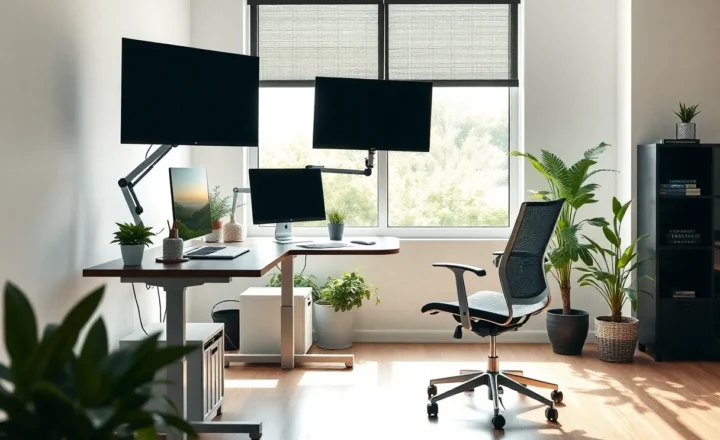
One Desk, Multiple Computers
If you use more than one computer at your desk—work laptop, personal PC, a second machine for side projects—you’ve felt the pain: two keyboards, two mice, or constant unplugging and replugging. A KVM switch (keyboard, video, mouse) lets one set of peripherals and often one or two monitors drive multiple computers. You flip a button or hotkey and the same desk serves every machine. For anyone with a multi-computer setup, a KVM is one of the best upgrades you can make.
What a KVM Actually Does
A KVM switch sits between your keyboard, mouse, and display(s) and two or more computers. When you switch, it changes which machine gets the video signal and the USB devices. You don’t need separate peripherals per machine, and you don’s need to physically swap cables. Modern KVMs often support 4K, multiple monitors, USB hubs, and hotkey or button switching. Some are USB-only (keyboard and mouse); others handle video as well. Choose based on how many machines you have, what resolution and refresh rate you need, and whether you want to switch monitors or just input.
Who It’s For
KVMs make the most sense when you regularly use two or more computers at the same desk. That could be work laptop plus personal desktop, a gaming PC and a work machine, or a Mac and a Windows box. If you only occasionally use a second machine, a KVM might be overkill—you could get by with remote desktop or just swapping a single cable. But if you switch multiple times a day, a KVM removes friction and clutter and keeps one set of good peripherals in control.
What to Look For
Match the KVM to your gear. Check supported resolution and refresh rate (especially for gaming or high-DPI work). See how many USB ports it has if you want to share a webcam, DAC, or other USB devices. Some KVMs support EDID emulation so that each computer sees a consistent display and doesn’t rescale or rearrange when you switch. If you have two monitors, look for a dual-monitor KVM or confirm that your single-monitor KVM can work with your setup. Price scales with features and build quality; a solid 2‑port KVM for 1080p or 1440p is often under $100; 4K and multi-monitor cost more.
Alternatives and Compromises
Software solutions like Mouse Without Borders or Synergy let you move the mouse across screens that belong to different computers—one keyboard and mouse, multiple machines, no hardware. They’re cheaper and flexible but depend on software and network; they don’t switch the actual video. For strict separation (e.g. work vs personal) or when you want one physical display to show one machine at a time, a hardware KVM is still the right tool. Hybrid setups—KVM for video and switching, plus a shared USB hub—also work.
Cabling and Placement
KVMs need cables to each computer—video (HDMI, DisplayPort, or USB-C) and usually USB for keyboard and mouse. That can mean a lot of cable length; use good-quality cables that support your resolution and refresh rate. Place the KVM where you can reach the switch or use the hotkey without stretching. Some units sit under the monitor; others go on the desk or in a rack. Keep cable runs tidy so you can add or remove a machine later without a rat’s nest.
When a KVM Isn’t Worth It
If you only have one computer, you don’t need a KVM. If you use one machine 95% of the time and the other rarely, remote desktop or a single cable swap might be enough. If your work and personal machines must be strictly isolated (e.g. compliance), a KVM that fully switches video and USB can help keep them separate while sharing the desk. Weigh the cost and complexity against how often you actually switch; for daily multi-machine use, a KVM usually pays off.
Bottom Line
If your desk has more than one computer and one set of peripherals, a KVM switch can turn chaos into a single, switchable setup. Pick one that matches your resolution, monitor count, and number of machines; then enjoy one keyboard, one mouse, and one or two monitors that serve everything.