Why Your Next Webcam Should Be External—And What Specs Matter in 2026

Priya Sharma
March 7, 2026
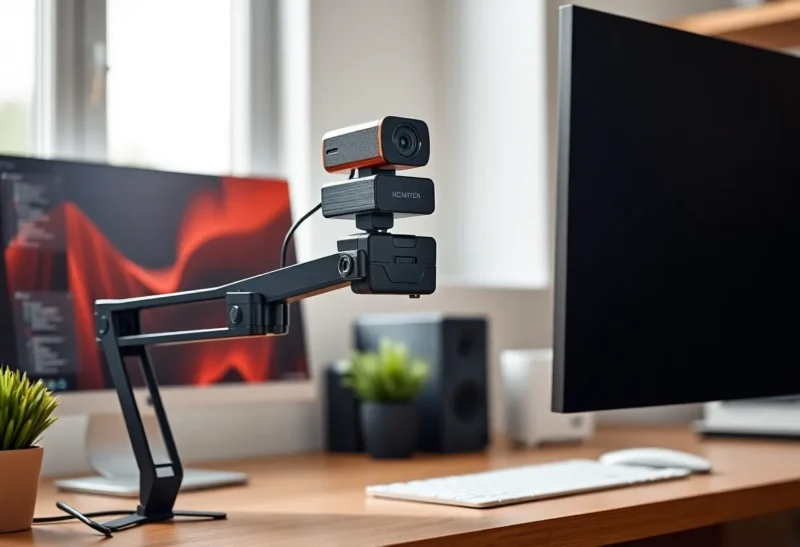
Laptop and all-in-one webcams have gotten better, but they’re still stuck in a fixed position with a tiny sensor and limited optics. For anyone who spends real time on video calls—or who cares how they look and sound—an external webcam is one of the highest-impact upgrades you can make. Here’s why it’s worth it in 2026 and what actually matters when you shop.
Why Built-In Webcams Fall Short
Laptop webcams are designed to be thin, cheap, and good enough for a quick check-in. The sensor is small, the lens is fixed, and the mic is often right next to the keyboard. That means mediocre low-light performance, a narrow field of view that can’t be adjusted, and audio that picks up every keystroke. All-in-one desktops often share the same constraints. If you’re on camera for hours every week, those compromises add up: you look washed out or grainy, and your voice competes with room noise. An external webcam fixes the camera part; pair it with a decent mic or headset and the whole experience improves.
Positioning matters as much as quality. A built-in camera looks up your nose or straight at your forehead unless you prop the laptop on a stack of books. An external webcam can sit at eye level on a monitor, a stand, or a tripod. That single change—camera at eye level, facing you straight on—makes you look more professional and engaged without spending a fortune.
What Specs Actually Matter in 2026
Resolution: 1080p at 30 fps is the baseline for looking sharp on modern displays and stream software. Many good external webcams now do 1080p at 60 fps or 4K at 30 fps. For most people, 1080p60 is the sweet spot—smooth motion without the file size and bandwidth of 4K. 4K is useful if you crop or reframe in software (e.g. center stage) or if you record for content; otherwise it’s optional.
Sensor and low light: Bigger sensors and wider apertures collect more light, so you look clearer in a dim room. Look for specs or reviews that mention low-light performance; “autofocus” and “HDR” are common, but how the camera handles a poorly lit room is what you’ll notice every day. Some models use software to brighten the image—it can help but can also look artificial. Prefer a camera that performs well in natural or soft lighting so you don’t depend on algorithms.
Field of view (FOV): 78° to 90° is typical. Narrower (e.g. 78°) keeps you framed without showing too much of the room; wider (90° or more) is better for group calls or showing a whiteboard. Some webcams let you switch FOV in software. Consider your usual setup—solo at a desk vs. multiple people—and choose accordingly.
Autofocus and framing: Reliable autofocus keeps you sharp if you move. Some cameras offer “follow” or “framing” features that crop to keep you centered; useful if you move around, but check that the crop doesn’t make you tiny or laggy. For a fixed desk setup, good fixed focus or fast autofocus is often enough.
Microphone and Audio
Many external webcams include a built-in mic. It’s usually better than a laptop mic because it’s farther from the keyboard and can have some noise reduction, but it’s still a compromise. For serious calls or recording, plan on a dedicated microphone—USB desk mic or a headset. If you only need “better than laptop,” the webcam mic may suffice. Check reviews for how well the mic rejects keyboard and room noise.
Connectivity and Compatibility
USB is the standard. USB 2.0 can handle 1080p30; for 1080p60 or 4K you typically need USB 3.0 or later. Plug into a port on the host machine when possible; hubs can work but sometimes introduce dropouts or power issues. Compatibility with Windows, macOS, and common meeting apps (Zoom, Teams, Meet) is usually a given; if you use Linux or niche software, double-check driver and support.
Privacy and Physical Shutters
More external webcams now include a physical shutter or lens cover. When you’re not on a call, you can block the lens completely—no relying on software or LED indicators. If privacy is a concern (shared spaces, sensitive work, or just peace of mind), a built-in shutter or a separate slide-on cover is worth looking for. Some models have a flip-down cover integrated; others assume you’ll use a third-party stick-on. Either way, it’s a small detail that can matter a lot.
When to Stick With Built-In
If you’re rarely on video or only need a quick check-in, the built-in camera is fine. If you’re buying a new laptop and video isn’t a priority, don’t feel obligated to add a webcam at checkout—you can always add an external one later. The case for external is strongest for remote workers, streamers, and anyone who wants to look and sound better without upgrading the whole machine. In 2026, a solid 1080p60 external webcam is still one of the best cost-to-impact upgrades you can make for your setup.