Why Your Next Purchase Should Be a Dedicated Drawing Tablet

Maya Lin
March 15, 2026

Your phone can take a note. Your laptop trackpad can sketch a rough wireframe. But if you’ve ever tried to draw, illustrate, or design with any real intention using only a mouse or a finger, you know the ceiling is low. Dedicated drawing tablets—whether screenless pen tablets or full display tablets—exist because the right tool changes what’s possible. For creatives, students, and anyone who thinks in visuals, the next upgrade that actually moves the needle might not be a faster CPU or a bigger monitor. It might be a dedicated drawing tablet.
Why a Mouse or Trackpad Isn’t Enough
Drawing and painting are about nuance: pressure, angle, and the kind of fine motor control that a mouse was never designed for. A mouse gives you a single point of contact and no pressure sensitivity. You can approximate curves with enough patience, but you’re fighting the tool. Trackpads add multi-touch and gestures, which help for navigation, but they’re still not built for putting a line exactly where you want it with the weight you want. The result is that many people who could benefit from visual thinking—diagramming, sketching ideas, annotating, or learning to draw—never get past the friction. They assume they “can’t draw” or that digital art is only for people with expensive setups.
A dedicated drawing tablet changes that. Even an entry-level pen tablet (no built-in screen) gives you pressure sensitivity, tilt support on the stylus, and a one-to-one mapping between the pen and the cursor. Your brain adapts quickly: within a few hours, drawing on the tablet while watching the screen feels natural. You’re no longer fighting the input device. You’re making marks the way you would on paper, and the software responds. That shift is why illustrators, concept artists, and designers have relied on Wacom and similar hardware for decades—and why more affordable brands have made the same capability accessible to everyone else.
Screenless vs Display Tablets: What Actually Matters
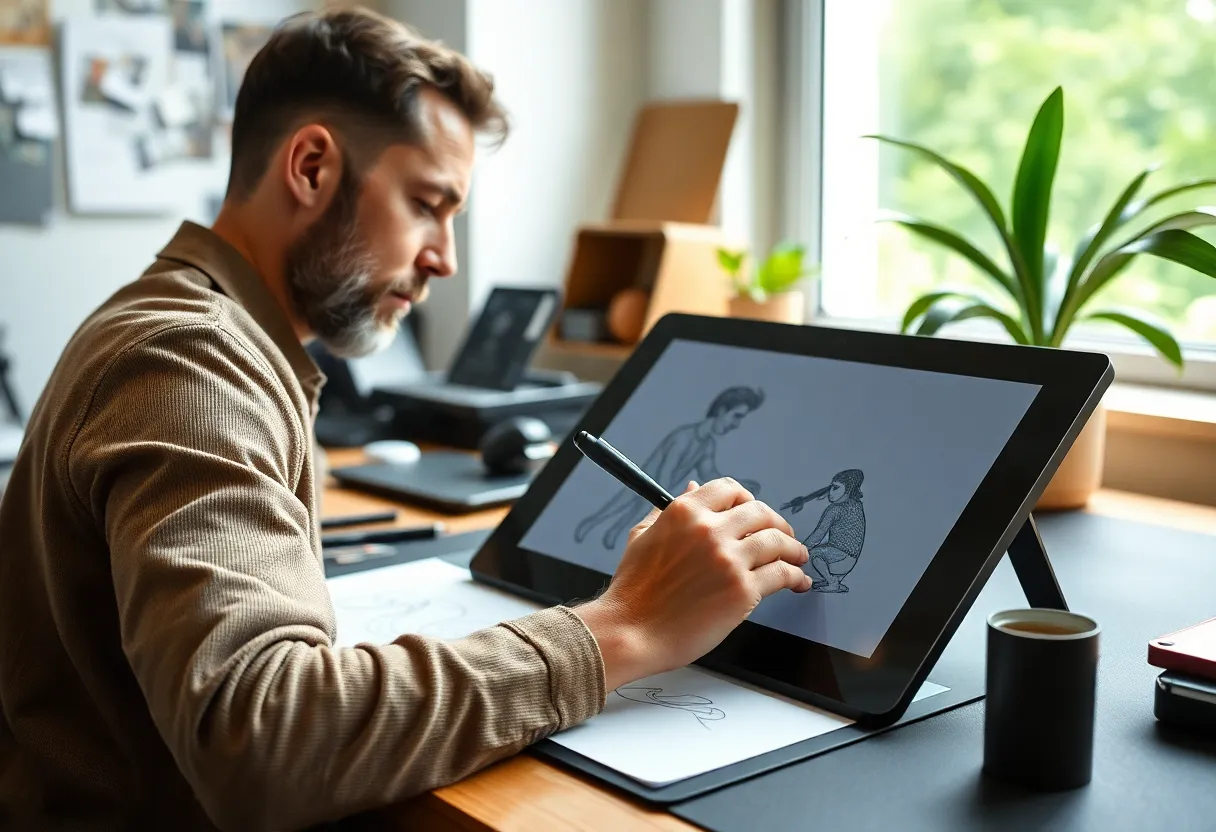
Drawing tablets come in two main flavors: screenless (pen tablets) and display tablets. Screenless tablets are a pad you draw on while looking at your computer monitor. Display tablets have a built-in screen you draw directly on, like a Cintiq or an iPad used with a pencil. Both are “dedicated” in the sense that they’re built for drawing first. The choice between them often comes down to budget, posture, and how you work.
Screenless tablets are cheaper and durable. A good one can last a decade. You get pressure levels, tilt, and sometimes programmable buttons and a touch ring for zoom and brush size. The learning curve is the hand-eye disconnect: you look at the monitor, not your hand. Most people adapt within a few days. Display tablets feel more intuitive—you draw where you see—but they cost more and add another screen to manage. For many hobbyists and students, a solid screenless tablet from Huion, XP-Pen, or Wacom’s entry line is the sweet spot. You can always upgrade to a display later if you outgrow it.
Who a Drawing Tablet Is For (It’s More Than Artists)
Illustrators and concept artists are the obvious users, but they’re not the only ones. Educators and students benefit hugely: explaining ideas with quick sketches, annotating PDFs, and taking visual notes. Technical writers and developers can diagram systems and UI flows without wrestling with mouse-drawn shapes. If you do any amount of photo retouching, a pen is far more precise than a mouse for masking and brushing. And if you’ve ever wanted to learn to draw—whether for fun or for your job—a tablet is the most direct path. You’re not held back by the input; you’re only limited by practice.
What to Look For When You Buy
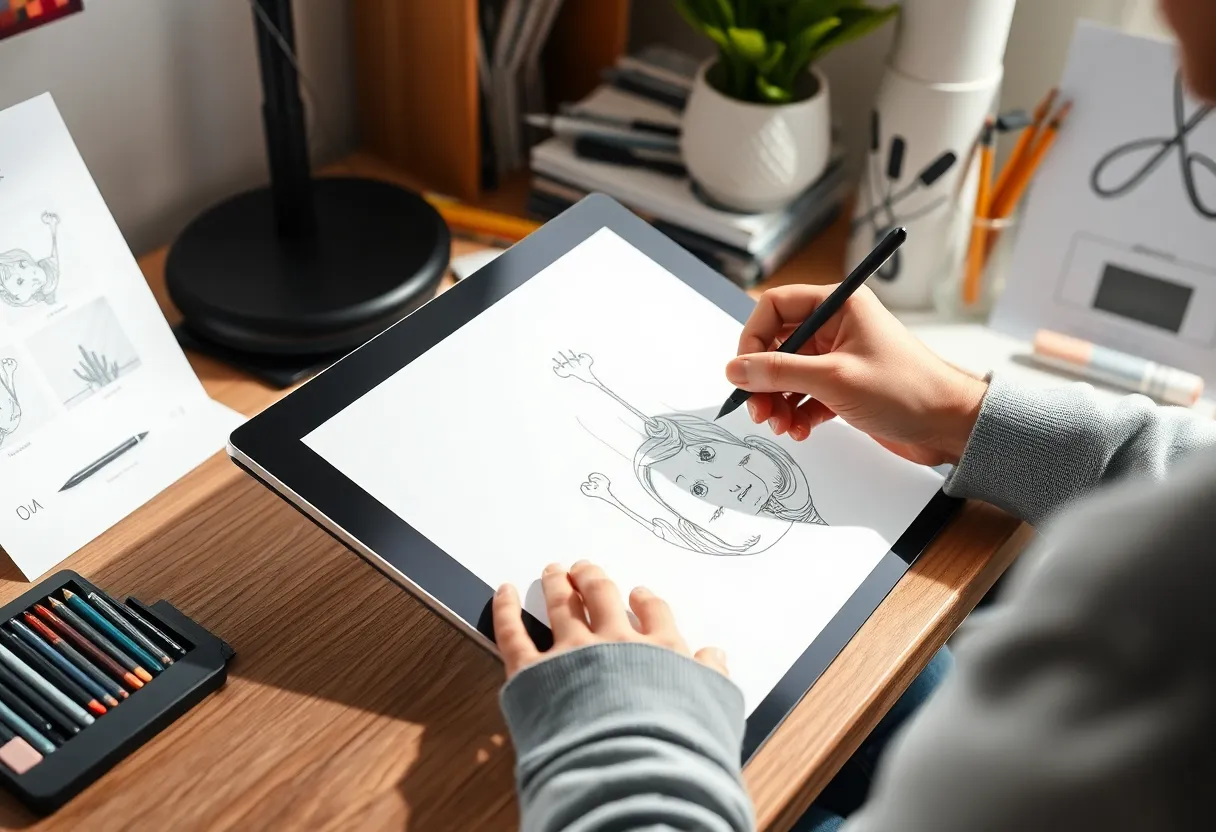
Pressure levels matter, but beyond a certain point they’re marketing. Most modern tablets offer 4,096 or 8,192 levels; for almost everyone, 4,096 is enough. Tilt sensitivity is more important for natural brush behavior in painting apps. Active area size is the real differentiator: small (around 6×4 inches) is fine for diagrams and light use; medium (around 10×6) is the sweet spot for serious drawing and comfort over long sessions. Driver support matters: check that the tablet works well on your OS and with the apps you use. Windows and macOS are generally well covered; Linux support varies by brand.
Driver quality also affects latency and jitter. A cheap tablet with bad drivers will feel laggy or wobbly; a well-supported one will feel responsive. Read recent reviews and, if you can, try before you buy. Some brands offer trial periods or are available in stores where you can test the pen feel. The pen itself should feel comfortable for at least an hour of use—ergonomics matter when you’re learning or working long sessions.
The Bottom Line
A dedicated drawing tablet isn’t a luxury if you think in visuals. It’s the tool that matches the task. Whether you’re learning to draw, teaching with sketches, diagramming for work, or retouching photos, a good pen tablet removes the friction that a mouse or trackpad imposes. You don’t need to spend a fortune: entry-level and mid-tier options from several brands deliver pressure, tilt, and reliability that would have been unthinkable a decade ago. If your next purchase is about making better use of your time and your ideas, a drawing tablet might be the one that actually changes how you work.