Why Your Next Monitor Might Be Ultrawide—And When It Shouldn’t

Rita Chen
March 15, 2026
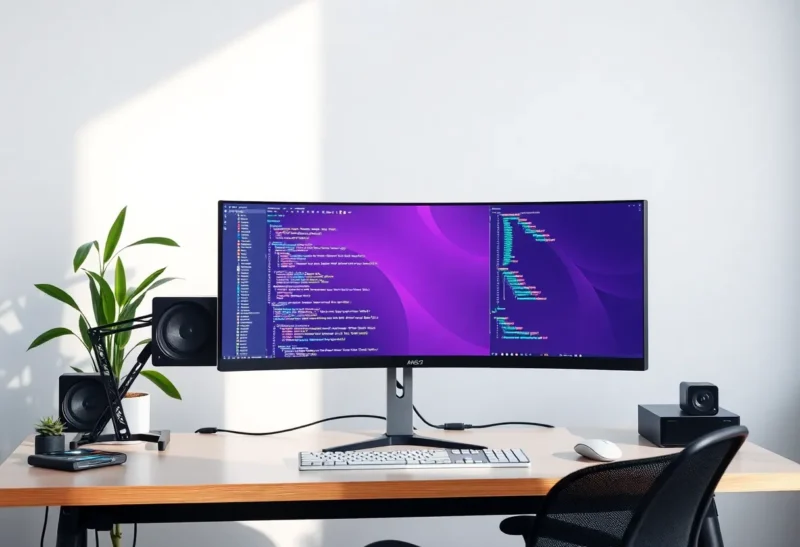
Ultrawide monitors have gone from niche to mainstream: one wide panel instead of two or three, no bezels in the middle, and a single curved canvas for code, spreadsheets, or timelines. They’re not for everyone, though. Here’s when an ultrawide makes sense—and when it doesn’t.
What Ultrawide Actually Gives You
An ultrawide (typically 21:9 or wider) gives you horizontal space without the seam of a dual-monitor setup. One window can span the full width; you can put three or four panels side by side without stacking. For developers, that often means IDE + terminal + browser + docs in one view. For video editors, a long timeline. For anyone doing comparison or reference work, two full-height windows without a bezel down the middle. The curve on many models helps keep the edges at a comfortable viewing distance and can reduce head-turning.
You also get a single cable (often USB-C with power and data), one calibration, and one display to manage. No aligning two panels or dealing with different colour or brightness between them. For many people, that simplicity alone is worth it.
When Ultrawide Shines
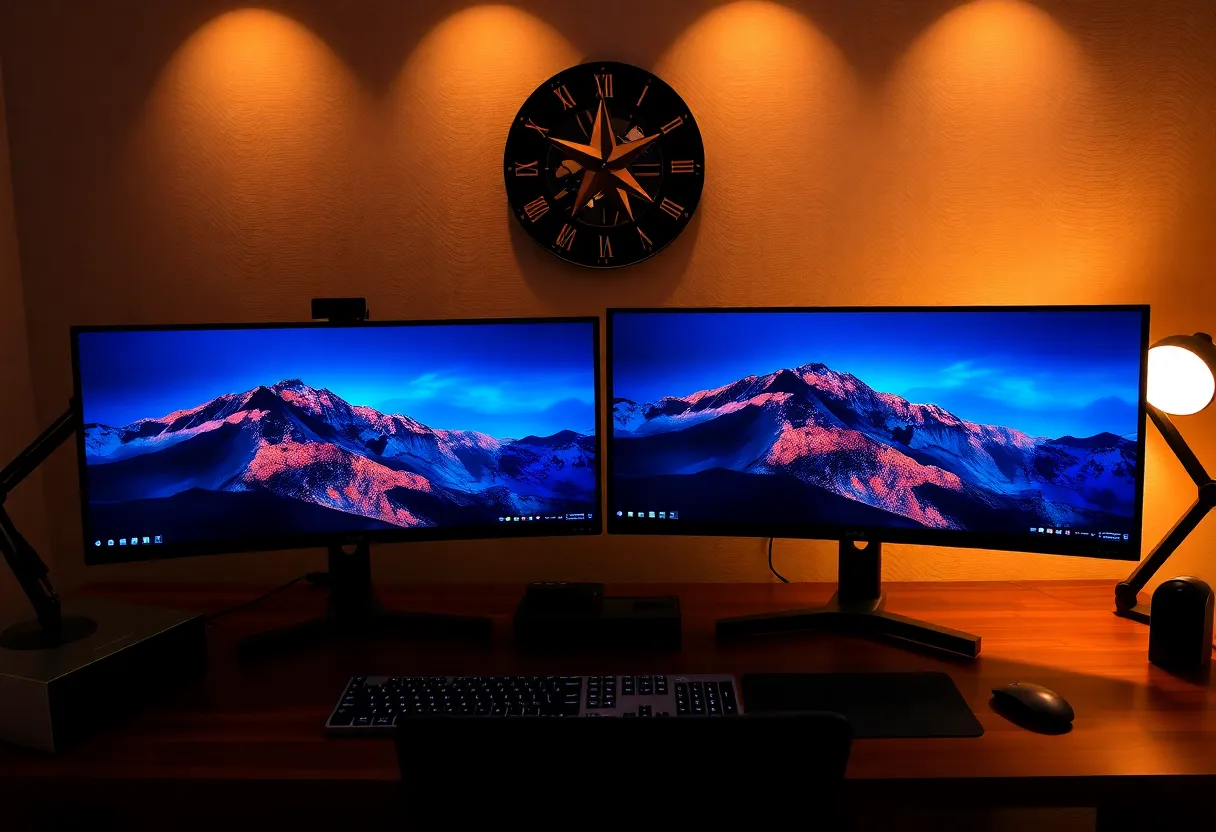
Ultrawide works best when your workflow is horizontal: multiple windows side by side, wide timelines, or a single app that benefits from width (code, spreadsheets, design). If you already run two or three monitors and spend your day arranging windows across them, a single ultrawide can simplify things and remove bezel gaps. It’s also a good fit if you want one display for work and don’t want to mix resolutions or orientations—everything stays consistent.
Gaming is a mixed bag. Many games support 21:9 well; some don’t, and you’ll get black bars or a stretched view. If gaming is secondary to productivity, an ultrawide can still be a good choice. If gaming is primary, check support for your favourite titles before committing.
When It Doesn’t Make Sense
Ultrawide is a poor fit if you need vertical space more than horizontal. Writing long documents, reading lots of PDFs, or working with vertical layouts (e.g. mobile app design, social feeds) often benefits more from a tall monitor or a 16:9 in portrait. An ultrawide doesn’t add height—it adds width. If your workflow is “stack things vertically,” a single 27″ or 32″ 16:9, or a dual setup with one in portrait, may serve you better.
Another case to skip: if you frequently share your screen or present. Ultrawide in a video call often means either letterboxing for everyone else or cropping so much that the aspect ratio looks odd. For collaboration-heavy work, a standard 16:9 can be easier for everyone.

Resolution and Size Choices
Common ultrawide resolutions include 2560×1080 (entry), 3440×1440 (sweet spot for many), and 5120×1440 or similar for “super ultrawide.” Go for at least 3440×1440 if you care about sharp text and detail; 1080p on a long panel can feel soft. Size-wise, 34″ is the most common; larger panels exist but need a deep desk and can overwhelm. Consider your viewing distance and whether you want to turn your head often or keep everything in a tighter arc.
Cost and Alternatives
An ultrawide often costs more than two mid-range 24″ or 27″ monitors. The trade-off is fewer cables, one calibration, and no bezel in the middle. If budget is tight, two 16:9 panels can still give you a lot of real estate—you just manage two displays. If you value a single continuous canvas and are willing to pay for it, ultrawide delivers. In 2026, good 34″ 3440×1440 panels are available at reasonable prices; super ultrawides remain premium.
The Bottom Line
An ultrawide is worth it if your workflow is horizontal, you want one seamless canvas, and you don’t need maximum vertical space or easy screen-sharing. It’s worth skipping if you need height more than width, present often, or prefer the flexibility of multiple smaller panels. Choose by how you actually work—not by the spec sheet.