Why Your Home Network Should Run Its Own DNS (And How to Do It)

Sam Chen
March 1, 2026

Every time your device asks for a website, it sends a DNS query. That query goes somewhere—usually your ISP or a public resolver like Google’s 8.8.8.8 or Cloudflare’s 1.1.1.1. Whoever handles it sees every domain you look up. They can log it, sell it, or block it. Running your own DNS at home gives you control: ad blocking, privacy, speed, and a say over what gets resolved. It’s one of the highest-impact, lowest-effort upgrades you can make to your home network. Here’s why—and how.
Why DNS Matters
DNS—Domain Name System—translates human-readable names like example.com into IP addresses. Without it, you’d have to memorize numbers for every site. Every app, every browser tab, every smart device on your network sends DNS queries. That makes DNS a central point of control. Whoever resolves your queries can see where you’re going and block or redirect requests. Your ISP does this by default. So do public resolvers—though some, like Cloudflare and Quad9, have strong privacy policies.
Running your own DNS puts you in charge. You choose the upstream resolver—or run a recursive resolver that talks directly to the root servers. You decide what gets blocked: ads, trackers, malware, or nothing. You can add local hostnames for devices on your LAN—printer.local, server.local—without touching each device. You can cache aggressively and often get faster lookups than your ISP’s resolver. And you’re not sharing your query history with a third party.
The privacy angle is often overlooked. DNS queries are usually unencrypted. Even when you use DoH (DNS over HTTPS) or DoT (DNS over TLS), your upstream resolver—Google, Cloudflare, whoever—still sees every domain you look up. They may promise not to log or sell that data, but you’re trusting them. Running your own resolver means your query history stays on your network. For most people, that’s a meaningful upgrade.
The Pi-hole Approach
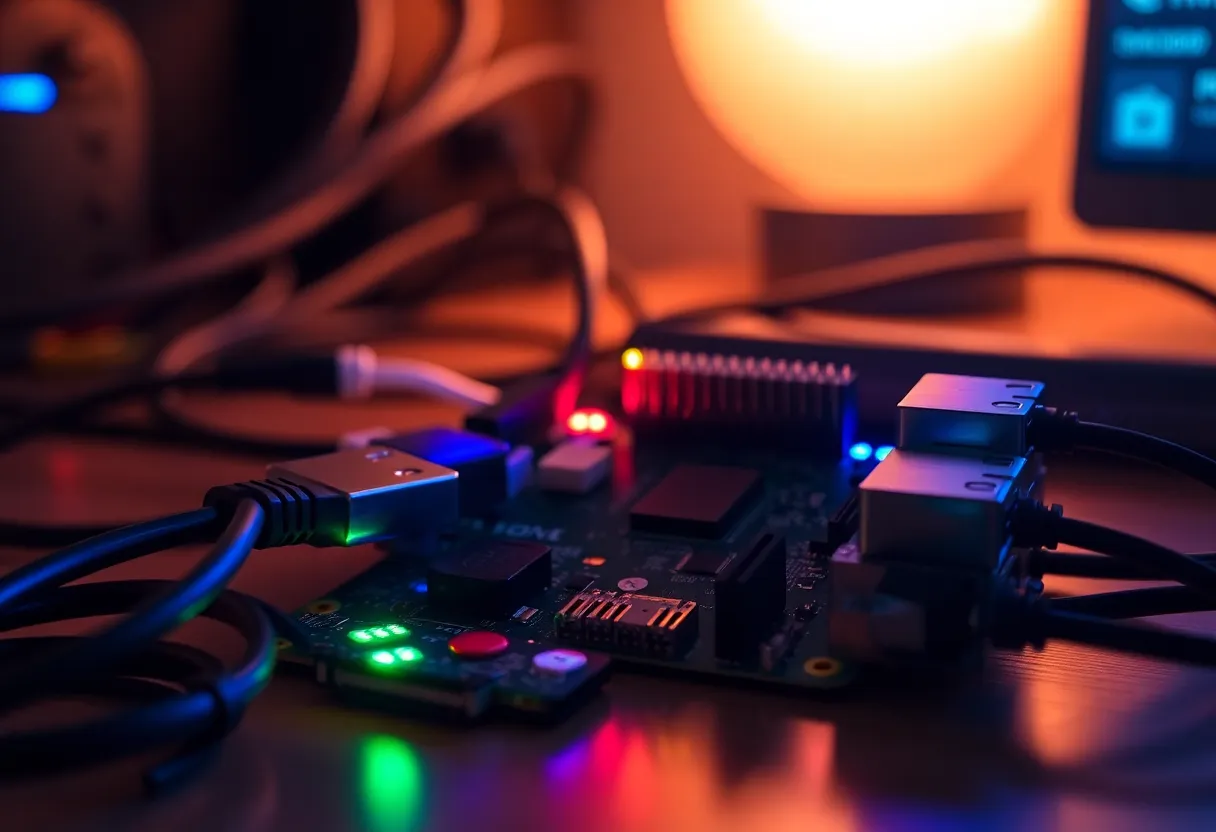
Pi-hole is the easiest way to get started. It’s a DNS sinkhole: it receives DNS queries from your network, blocks ads and trackers via blocklists, and forwards the rest to an upstream resolver. You run it on a Raspberry Pi—or any Linux box—and point your router’s DHCP to use it as the DNS server. Every device on your network automatically gets ad-blocking DNS. No browser extensions, no per-device setup. It just works.
Pi-hole also gives you a dashboard. You can see which devices are querying what, how many requests are being blocked, and tweak blocklists. It’s lightweight—a Pi 4 runs it effortlessly—and the setup takes under an hour. The only trick: your router has to let you change the DNS server it hands out via DHCP. Most do. Some ISP-provided routers lock it down; in that case, you might need a different router or manual DNS configuration on each device.

Beyond Pi-hole: Recursive Resolvers
Pi-hole forwards to an upstream resolver—Cloudflare, Google, Quad9, or your ISP. If you want to cut out the middleman entirely, you can run a recursive resolver like Unbound or Knot Resolver. These query the root servers directly and cache results. No upstream means no one else sees your queries. You’re as private as DNS gets. The trade-off: initial lookups can be slower (a few milliseconds), and you’re responsible for keeping the resolver updated and configured.
Many people combine both: Pi-hole for ad blocking and local hostnames, Unbound as Pi-hole’s upstream for recursive resolution. You get the best of both—blocking and privacy. It’s a bit more setup, but it’s still manageable in an afternoon.
How to Do It
If you’re starting from scratch: grab a Raspberry Pi 4 (or 5), install Raspberry Pi OS Lite, and run the Pi-hole install script. Point your router’s DHCP to the Pi’s IP as the DNS server. Reboot your devices or renew DHCP leases. You’re done. Add blocklists if you want more aggressive blocking. Configure local hostnames in Pi-hole’s config. If you’re ready to go recursive, install Unbound, point Pi-hole at 127.0.0.1 as upstream, and you’re fully self-hosted.
Document your setup. Write down the Pi’s IP, how to update Pi-hole and blocklists, and what to do if DNS breaks. When something doesn’t resolve, you’ll want to know how to bypass or debug. Keep a backup of your config. If you ever need to troubleshoot, you can temporarily point your router back to a public resolver—8.8.8.8 or 1.1.1.1—to rule out DNS as the cause. Once you’re comfortable, you’ll wonder how you lived without it.
DNS is critical—when it’s down, nothing works. But when it’s running, you’ve taken back a slice of control over your home network. Ad blocking without extensions. Privacy without trusting a third party. Local hostnames for your homelab. It’s one of the highest-impact, lowest-effort upgrades you can make. In 2026, that’s worth an afternoon.