USB-C and Power Delivery Labels: Why Your Laptop Charger Story Is Harder Than It Sounds

Priya Sharma
April 8, 2026

USB-C was supposed to simplify our lives. One reversible connector, one cable type, fewer fights with orientation. Then you bought a second charger for your laptop, plugged it in, and noticed the battery still draining under load—or charging so slowly that “overnight” became literal. The port looks identical; the cable looks identical; the little wattage print on the brick is anything but intuitive. Friends blame “the laptop,” forums blame “Apple,” and the truth is usually quieter: a mismatch between what the charger can negotiate, what the cable can carry, and what the machine is allowed to draw while the fans are screaming. This article unpacks why USB-C Power Delivery labels confuse even careful buyers, what the numbers actually imply, and how to shop without building a spreadsheet every time you replace a charger.
None of this is a knock on the USB-C project—it solved a genuine mechanical nightmare. It simply moved complexity from the outside of the plug to negotiation tables you never see unless you read spec sheets for fun. Consumer packaging rarely rewards that curiosity, so we will translate the essentials into plain language you can use in a store aisle or an online cart.
USB-C is a shape; Power Delivery is a contract
The USB-C connector carries multiple possible data and power modes. Power Delivery (PD) is a negotiated protocol: charger and device agree on voltage and current within profiles both sides support. That negotiation is why your phone might fast-charge on one adapter and crawl on another, even though both say “USB-C” in large friendly letters.
When marketing collapses “USB-C charger” into a single mental category, people assume interchangeability that the spec never promised. A 30W phone brick can be perfect hardware that simply cannot satisfy a 90W laptop under sustained load.

What the wattage number on the box actually means
Manufacturers usually print a maximum wattage—the top of the negotiated range—not a guarantee for every device you own. A 100W charger might deliver 100W to a laptop that requests 20V at 5A, while a phone on the same brick might settle at 18W because of its own battery management and cable limits.
Peak numbers also hide thermal behavior. Some compact “GaN” chargers sustain high output; others throttle after minutes when internal heat rises. For travel, that matters less for topping up a phone than for running a pro laptop through a render while plugged into a hotel power strip from the 1990s.
Cables are the silent variable
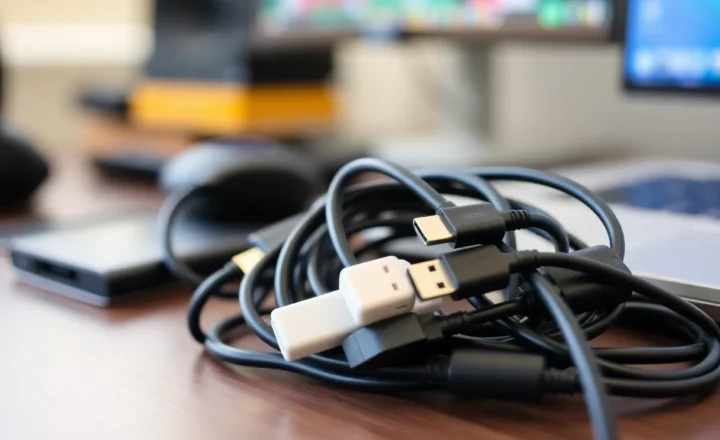
Not every USB-C cable carries full current safely. Some are USB 2.0 charge-only affairs; others support USB 3.x speeds and higher wattage. A cable that works for syncing photos may still limit charging if its e-marker chip or wire gauge caps the current. If your laptop came with a beefy cable and you swapped in a thin spare from a drawer, you can end up with a confusing half-speed charge that “should” work.
Labeling on cables improved over time, but retail packaging still loves phrases like “fast charge” without stating PD profiles. When in doubt, buy from vendors who publish wattage and USB-IF details explicitly—or keep the cable that shipped with the laptop for high-power use.

Voltage steps and why your laptop is picky
USB PD uses discrete voltage rails—commonly 5V, 9V, 15V, and 20V—with current caps at each step. Some laptops prefer 20V for efficiency; smaller devices may never request it. A multi-port charger must balance those rails when several devices plug in at once, which is why the printed “100W” on the housing might split into 65W on one port and shared leftovers on others. Reading the fine print on the bottom label—not the front marketing panel—reveals how power budgets divide under load.
Apple, Dell, and the dongle ecosystem
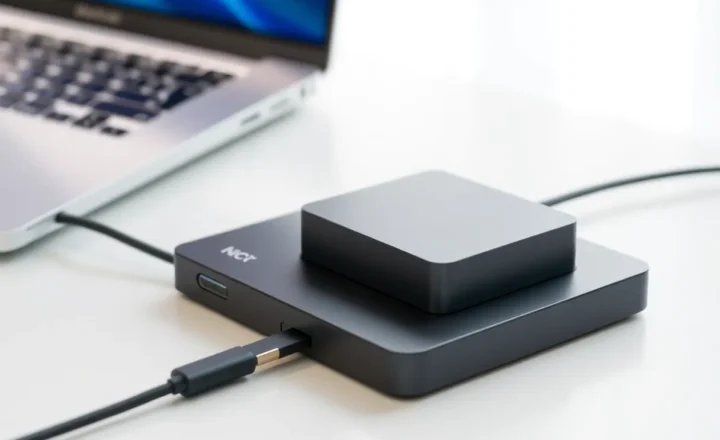
Notebook vendors sometimes ship chargers with odd tips historically; USB-C reduced that chaos but not vendor-specific quirks. Certain docks negotiate alt modes for video; bus-powered hubs can steal power from downstream ports. If your chain is laptop → dock → peripherals, the weakest negotiation link sets the ceiling. Symptoms look like “charging, but not really” when the dock tries to power too many SSDs and displays through one cable.
Airports, cafes, and shared adapters
Public USB ports are a lottery: some are charge-only, some negotiate PD, many are underpowered data ports meant for keyboards. Carrying a compact 45–65W PD brick you trust beats hoping for a friendly socket. If you must use unknown ports, prefer your own cable so you at least know its limits.
Why “it charges my phone fine” is the wrong test
Phones and small tablets often peak below 30W. A marginal charger looks heroic there while failing a laptop that wants sustained 20V delivery. Conversely, a powerful laptop brick might charge a phone slower than a mid-tier phone adapter if the phone’s profile favors PPS micro-steps the laptop charger does not advertise. Cross-testing matters: always validate with the hungriest device you own, not the least demanding one.
How to buy without regret
- Start from your worst-case load. Identify peak draw for your laptop under stress, not idle browsing.
- Match or exceed that wattage at the right voltage. Headroom helps when batteries age and thermals throttle.
- Budget watts for the cable. Pair high-watt bricks with cables rated for the current you need.
- Count ports honestly. On multi-port chargers, read how output splits when everything is busy.
- Keep one “known good” chain. When something misbehaves, swap one variable at a time—brick, then cable, then outlet.
PPS, programmable supplies, and the Android angle
Beyond classic PD fixed rails, Programmable Power Supply (PPS) lets devices fine-tune voltage in small steps—useful for phone batteries that prefer gentle ramps. Laptops may ignore PPS entirely while phones thrive on it. That is why a charger marketed primarily to mobile buyers might show excellent phone metrics and still frustrate a laptop buyer who never sees 20V negotiated. Cross-shopping without reading the profile list is how two “65W” bricks feel worlds apart.
Hubs, monitors, and the single-cable dream
DisplayPort over USB-C and Thunderbolt docks complicate power budgets further. A monitor offering 65W downstream might be plenty for an ultraportable but inadequate when the laptop wakes discrete graphics. Some machines document minimum wattage for single-cable operation; ignore it and you get mysterious battery drain during video calls—not because PD failed, but because the workload outran the negotiated slice.
Travel and plug shapes
Universal chargers still face wall-socket reality: international adapters add resistance; cheap strips sag voltage. A charger that hits rated watts on a bench supply may sag slightly in a worn airport outlet. Carry a short, thick extension cord occasionally solves “this outlet is suspicious” without buying a new brick.
Label literacy: what to photograph before you recycle the box
Serious buyers snap a photo of the tiny chart on the charger’s underside: for each output port, list voltages and maximum amperes. That chart survives long after marketing copy goes to recycling. If a manufacturer hides it, treat that as a signal to choose a more transparent alternative—especially for gear you rely on daily.
When to stop blaming USB-C
Sometimes the charger is fine and the laptop’s power management is doing its job: limiting charge speed when hot, balancing battery health, or prioritizing GPU power during games. Software updates occasionally change curves too. If charging feels worse after an OS update, check release notes before you toss hardware.
Safety, certification, and the counterfeits
USB PD includes safeguards, but only when both ends implement them honestly. Ultra-cheap no-name bricks sometimes skip proper over-current protection or lie about capabilities. Stick to vendors who publish certification IDs and avoid chargers that get mysteriously hot at idle. If a deal looks too good for the claimed wattage, assume corners were cut somewhere—often in thermal design or cable compensation.
Battery longevity and “slow is bad” myths
Not every slow charge is failure. Many devices deliberately taper current above 80% or when temperature rises. A 45W adapter that appears “weak” might actually be cooperating with battery management while a 100W brick would have been throttled anyway. Learn your OS battery tools: Windows, macOS, and Linux all expose enough signal to distinguish protocol limits from hardware faults.
Environmental angle: fewer bricks, smarter ones
The best charger is the one you do not duplicate—but buying one solid brick beats a drawer of almost-right ones that become e-waste. If you standardize on a high-quality multi-port PD supply at home and a compact travel brick, you reduce packaging churn and confusion. Label your cables with a dot of nail polish or heat-shrink color codes so family members stop mixing the 60W cord with the 12W phone spare.
A practical troubleshooting sequence
- Confirm the laptop requests PD at all—some ARM tablets prefer barrel adapters for historical reasons.
- Swap to the OEM cable at full wattage to eliminate the cable variable.
- Try a different port on a multi-port brick; verify whether shared power limits apply.
- Reset SMC/EC firmware behaviors where applicable after weird power events—consult vendor guidance rather than forum folklore.
- Measure temperature: chronic overheating at the plug suggests resistance or a damaged receptacle.
Closing thought
USB-C did unify the plug; it did not unify the power story. Treat PD labels like nutrition facts: the big number on the front is never the whole meal. Read the side panel, respect the cable, and remember negotiation beats aesthetics. Your future self—stuck in a departure lounge—will thank you.