Screenshots and Browser Tools vs Pasting the DOM: How an Agent Checks the UI

Dmitri Voronov
September 30, 2026
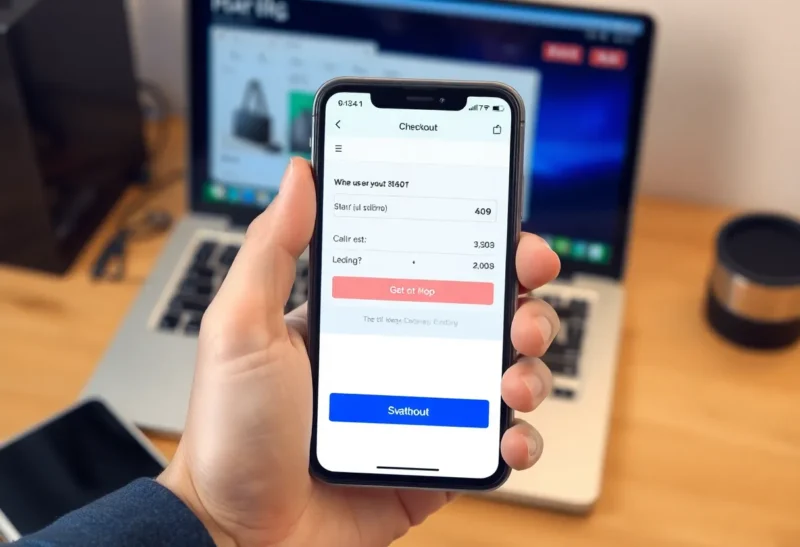
A client who sells handmade ceramics online emailed me a photo of her phone. It showed her checkout page with the “Pay now” button half-hidden behind a cookie consent banner. On her iPhone, at the bottom of a long order summary, you could see the top four pixels of the button and nothing else. Two customers had told her they could not find how to pay.
I opened the project, copied the checkout page’s rendered HTML from the browser’s dev tools, pasted it into my coding agent, and asked why the pay button might be hidden on mobile. The agent read the markup carefully and told me, with some confidence, that the button was present, not hidden, had no display: none or visibility: hidden, and was inside a container with normal flow. It suggested the problem might be a caching issue on the customer’s device.
Everything it said about the DOM was true. The button was in the markup and not hidden. It was just underneath something else. The cookie banner was position: fixed at the bottom of the viewport with a high z-index, and on narrow screens the checkout form’s bottom padding was not enough to scroll the button clear of it. That is a layout fact. It does not exist in the HTML. It only exists when a browser at a particular width actually paints the page.
That was the day I started using browser tools with my agent properly, and also the day I learned that screenshots are not simply better than markup. Each one shows the agent something the other cannot.
What pasting the DOM shows, and what it cannot
Rendered HTML is precise about structure. It tells the agent which elements exist, how they nest, what classes and attributes they have, what text they contain, and which ARIA attributes are present or missing. For many UI tasks, that is exactly what you need.
If the question is “why does the screen reader announce this button as ‘button’ with no label,” the DOM answers it instantly: no aria-label, no text content, just an SVG. If the question is “which component renders this form,” class names and data attributes usually lead straight to it. If the question is “why is this list item not clickable,” the DOM might show that the click handler is on a sibling element.
What the DOM cannot tell the agent is where anything ends up on screen. Layout depends on CSS from several files, the viewport size, font loading, images, and the interaction of fixed, sticky and absolute positioning. You can paste the stylesheets too, but then you are asking the model to simulate a layout engine in its head across hundreds of rules. It will do a plausible job on simple cases and get stacking contexts, flex shrinking and viewport units wrong on hard ones. The cookie banner bug was a hard one.

What a screenshot shows, and where it misleads
My agent has access to a browser tool that can open a URL, set the viewport size, take a screenshot, and interact with the page. I asked it to open the local checkout at 390 pixels wide, fill in a test cart, scroll to the bottom and take a screenshot. It looked at the image and said, almost immediately, that the pay button appeared to be covered by the cookie banner fixed to the bottom of the viewport.
That is the strength of a screenshot. It shows the result of layout, not its inputs. Overlaps, cut-off text, elements pushed off screen, wrong colours, misaligned columns: things that are obvious to a human looking at the page are, more often than not, obvious to a model looking at a picture of it.
But screenshots have their own blind spots, and I hit most of them in the following weeks.
They show one state. A screenshot captures one viewport, one scroll position, one moment. Hover styles, focus rings, dropdowns, animations, and anything below the fold are invisible unless you specifically set up that state first.
Models misread fine detail. On a different project, the agent looked at a screenshot and reported that two columns were aligned. They were four pixels off, which the designer noticed immediately. Small misalignments, subtle colour differences and exact spacing are things vision models get wrong fairly often. A screenshot tells you roughly what the page looks like, not its exact measurements.
They do not say why. The screenshot told the agent the button was covered. It did not say which element was covering it, or which CSS rule caused the overlap. For that, you need to go back to structure.
They are expensive in context. Images take up a lot of room in a conversation. A session that takes a screenshot after every small CSS change fills up quickly and gets slower and less focused as it goes.
I learned that last one on a product grid redesign, where I let the agent screenshot after each tweak to card spacing. Twenty screenshots in, it started comparing the current image with one from much earlier in the session rather than the previous one, and confidently reported a regression that did not exist. Now I ask for a screenshot at the start, to see the problem, and at the end, to verify the fix. In between, measurements and code are usually enough, and they are far lighter.
The combination that actually works
The workflow I settled on uses both, for different questions, plus a third thing I had not thought of at first: asking the browser for measured facts.
Screenshot to find the problem. At the specific viewport where the bug appears, a screenshot is the fastest way for the agent to see what is wrong. I always specify the width and the scroll position, because “take a screenshot” at a default desktop width would have shown a perfectly fine checkout.
Measurements to confirm it. Browser tools that can run JavaScript in the page are a middle ground between markup and pixels. For the checkout, I asked the agent to run document.elementFromPoint() at the centre of the pay button’s bounding box. It returned the cookie banner’s container. That single call turned “appears to be covered” into a fact, and named the culprit. getBoundingClientRect() for the button and the banner showed exactly how much they overlapped, and getComputedStyle() showed the banner’s position and z-index.
DOM and source to fix it. Once the agent knew which element was covering which, it went back to the component source, found the banner’s styles and the checkout layout, and proposed a fix: add bottom padding to the page body equal to the banner’s height while the banner is visible, using a CSS custom property the banner sets when it mounts.
Screenshot again to verify. After the fix, a new screenshot at the same width and scroll position showed the button fully visible above the banner. I asked for two more widths, 320 and 768, to make sure the fix did not create a gap on larger screens.

Browser tools can also do things
One thing I underestimated: a browser tool that can click and type is not just an observer. It can submit forms, trigger payments, delete records, and send emails, with whatever session is logged in.
For the ceramics shop, I only ever pointed the agent at my local development server, running with Stripe in test mode and a local database. That was deliberate. If I had pointed it at the live site to “check what customers see,” it would have been logged in as nobody, which is fine for viewing, but the moment I asked it to walk through checkout, it would have created real orders against real inventory. On an admin page, a confused click could delete a product.
My rules for browser tools now:
- Local or staging environments only, with test-mode payment keys and disposable data.
- Test accounts, never my own logged-in session on a live admin.
- When I ask the agent to interact, I say what it may click. “Fill the cart and scroll; do not click pay.”
- Confirmations on for navigation to any domain other than localhost.
Which to reach for
After a few months, my rough guide looks like this.
Paste or read the DOM for accessibility questions, finding which component renders something, missing attributes, wrong text, event handler placement, and anything where the answer is “what elements exist and how are they labelled.”
Take a screenshot for anything visual that depends on layout: overlaps, overflow, wrapping, responsive breakpoints, “this looks wrong but I cannot say why.” Always at a stated viewport and scroll position.
Run measurements when a screenshot shows a problem and you need to know exactly what is causing it: elementFromPoint for “what is on top here,” bounding rectangles for sizes and overlaps, computed styles for “which rule actually won.”
Screenshot again to verify any visual fix, at more than one width.
The mistake I made at the start was assuming the agent could reason from markup to pixels the way a browser does. It cannot, reliably, and neither can I without opening dev tools. The mistake I nearly made next was assuming a screenshot was the whole truth. It is a photograph of one moment, taken by a model that sometimes misjudges four pixels.
The ceramics shop’s checkout has been fine since. The fix was six lines of CSS. My client’s next email was a photo of her phone showing the whole pay button, with the note “customers can pay again, thank you.” I wish I had asked the agent to look at the page instead of reading about it an hour sooner.