Mesh Wi-Fi vs One Strong Router: When Extra Nodes Are Just Expensive Décor

Helena Voss
April 8, 2026
If you have walked through a big-box store’s networking aisle lately, you have seen the pitch: whole-home mesh systems with three glossy nodes, each promising to “blanket” your house in Wi-Fi as if bandwidth were a warm comforter. Next to them sit standalone routers—some of them powerful, some of them forgettable—and the honest shopper is left wondering whether they are buying peace of mind or paying for plastic sculptures that repeat the same mediocre signal.
The answer is not ideological. Mesh is not always waste, and a single router is not always enough. What matters is your floor plan, where your internet enters the building, what your walls are made of, and whether you are trying to fix the right problem. This article walks through how Wi-Fi actually propagates in homes, when mesh earns its price tag, and when a well-placed high-quality router (sometimes with one cheap wired access point) is the smarter move.
What mesh systems actually do
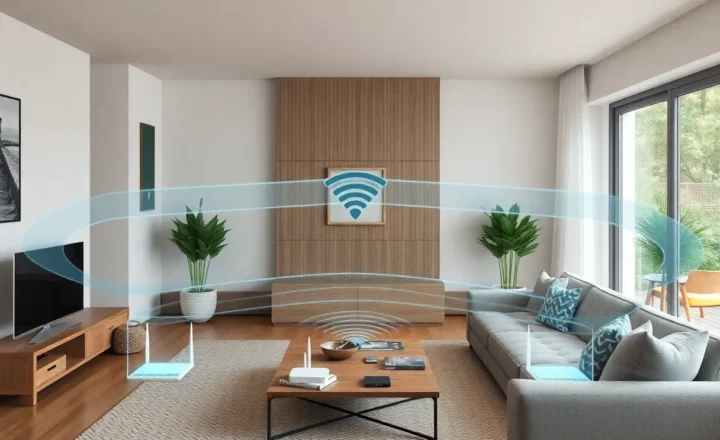
A mesh Wi-Fi kit is a coordinated set of access points that share one network name (SSID) and hand your devices off as you move around. Unlike old-school range extenders—which often halved throughput because they repeated traffic on the same radio—decent mesh products use dedicated backhaul (a second 5 GHz or 6 GHz link, or wired Ethernet between nodes) so the satellite units are not choking the airwaves just to talk to each other.
That distinction matters. If backhaul is weak—say, you stuck a satellite node where it barely hears the primary—your mesh behaves like a prettier range extender. Speed tests near that satellite look fine on marketing slides but fall apart under real load: video calls, large downloads, or multiple family members streaming at once.
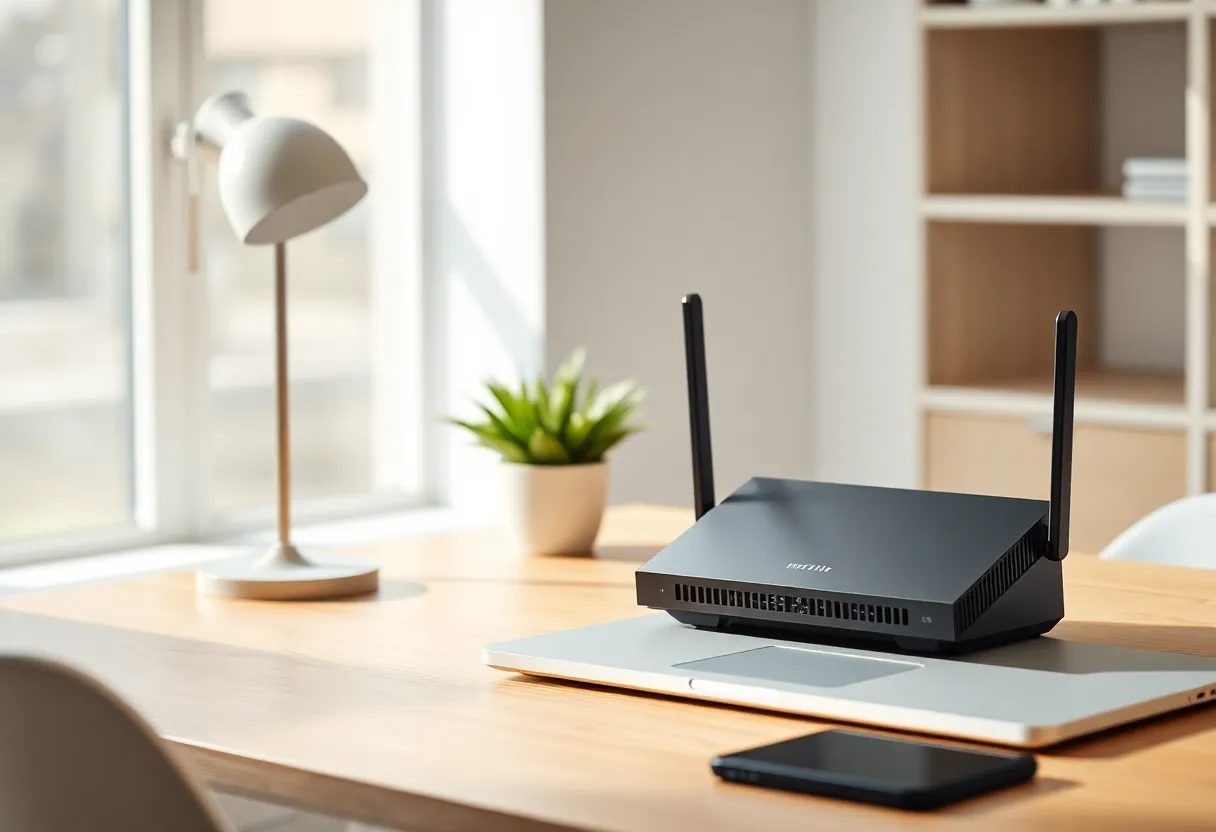
Manufacturers love showing floor plans with cheerful green circles. Reality is messier: drywall, insulation, mirrors, fish tanks, metal studs, and especially concrete or brick cores all attenuate signal differently on 2.4 GHz versus 5 GHz versus 6 GHz. Your “one bar” in the upstairs bedroom might be a physics problem, not a brand problem.
When one strong router is enough
If you live in a modest single-story home or an apartment under about 1,500 square feet, and your fiber or cable drop lands roughly in the center of the space, a single well-engineered router can often cover the whole footprint—especially if you can elevate it on a shelf instead of hiding it behind a TV.
Look for models with good antenna design and modern standards (Wi-Fi 6 or 6E, depending on your clients). The spec sheet’s “AX6000” style numbers are not destiny, but they usually correlate with better RF front ends and more stable performance at distance. Pair that with a sanity check: run a speed test from the farthest corner you care about. If you are getting a stable fraction of your ISP plan there, you do not need to triplicate hardware.
Also consider wired backhaul for a single add-on. One Ethernet run from the router to a distant room with a humble access point—sometimes called an AP mode on a spare router—can outperform three mesh nodes guessing through three walls. People underestimate how often “bad Wi-Fi” is really “I never ran a cable to the office over the garage.”
When mesh is the right tool
Mesh shines in multi-story homes where the modem lands in a basement corner, long rectangular floor plans, or places with dense interior walls. It also helps when you cannot run Ethernet and you need multiple well-placed radios to keep 5 GHz usable in far rooms.
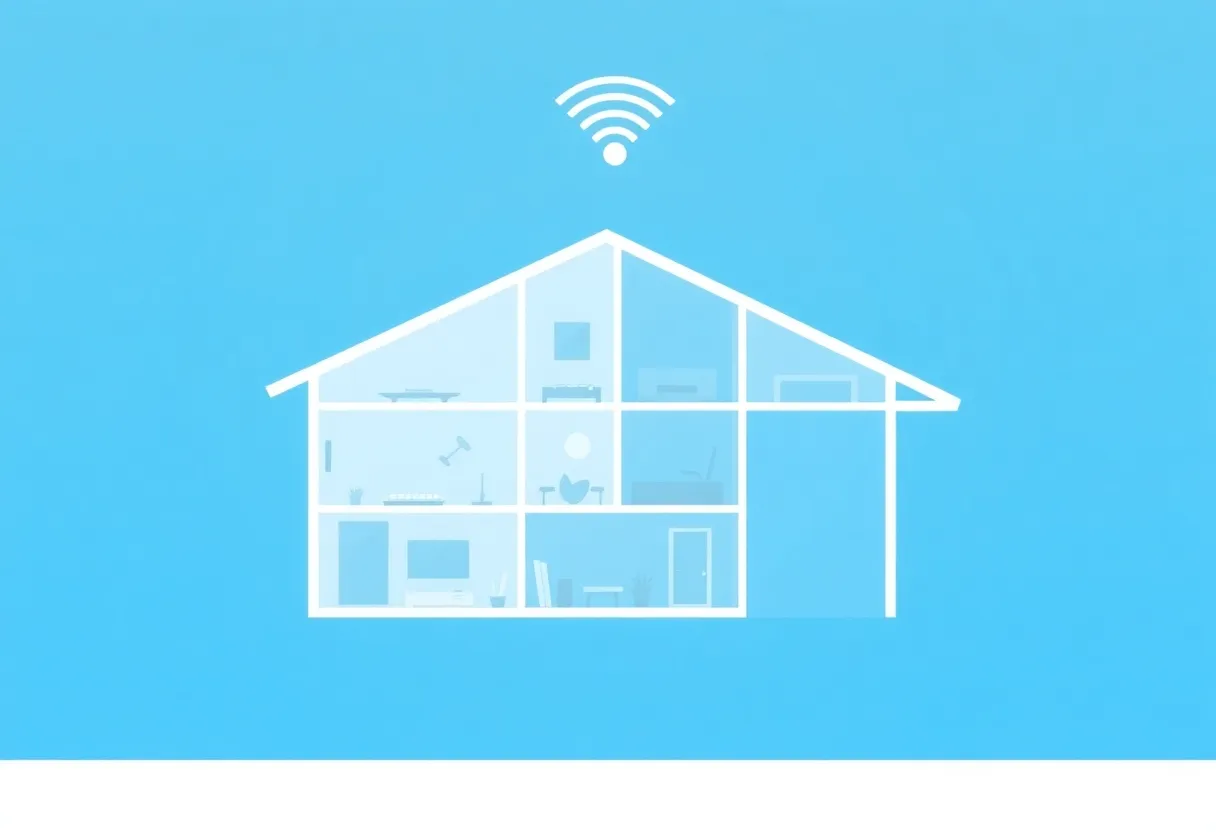
In those scenarios, satellites are not décor—they are compensating for geometry. The goal is to ensure each node has a strong backhaul path, ideally wired. Many enthusiasts run Ethernet to at least one satellite; if you cannot, pay attention to placement: satellites belong where they can hear the router or another satellite loudly, not where the packaging looks tidy.
Tri-band mesh systems (two 5 GHz radios or 5 + 6 GHz) often handle wireless backhaul more gracefully than dual-band kits that must steal airtime from your devices. If your household pushes lots of traffic, that extra radio is not luxury—it is headroom.
The expensive-décor failure mode
Here is the pattern that wastes money: someone buys a three-pack, plugs the router next to the modem, then spaces the other two nodes like tabletop sculptures—too close together or too far from the router—so they interfere more than they help. Another common miss is upgrading to mesh while the real bottleneck is a 15-year-old DOCSIS modem, a 100 Mbps plan, or DNS settings that nobody needed to “optimize.”
If your problem is intermittent drops, also look beyond Wi-Fi. Bufferbloat on the router, flaky ISP drops, or a single bad client driver can masquerade as “mesh will fix it.” Sometimes the fix is firmware updates, a better modem, or simply moving the primary router out of a metal entertainment center.
How to decide without drowning in specs
Start with a floor-plan mindset, not a product mindset. Mark where internet enters, where you need reliable speed, and what sits between—especially the kitchen wall with its wiring and pipes. Then measure: walk with a laptop or phone and note RSSI or speed at the worst spots. If one corner is the only sore point, a single AP with a wire may beat three mesh nodes.
If multiple distant zones need love and wiring is impractical, shortlist mesh systems with strong backhaul options and honest reviews under load—not just peak speeds beside the router. Read about thermal behavior too; routers that throttle when hot show up as “mysterious evening slowdowns.”
Understanding the radios: 2.4, 5, and 6 GHz
Most home routers broadcast on multiple bands simultaneously. The 2.4 GHz band travels farther and penetrates walls better, but it is crowded: neighbors’ networks, Bluetooth, baby monitors, and microwave ovens all share that spectrum. The 5 GHz band offers wider channels and less interference, which is why your fastest speeds usually show up there—until distance and obstacles force your phone to fall back to 2.4 GHz anyway.
Wi-Fi 6E adds 6 GHz in regions where regulators allow it, opening fresh airspace for compatible laptops and phones. That can reduce contention in dense apartments, but it does not repeal physics: 6 GHz is more easily blocked than 5 GHz, so placement still dominates. A mesh node that advertises “6E” only helps if your clients support it and if the satellite is close enough that the signal survives the trip.
When you compare one router against mesh, you are really comparing how many independent radios you need to keep 5 GHz (or 6 GHz) usable where people actually sit. A single AP blasting at maximum power is not always wise—regulatory limits cap output, and turning everything to “max” can increase interference for everyone in the house without fixing dead zones caused by geometry.
Channel width and the “speed test at the router” trap
Retail packaging loves peak PHY rates: multi-gigabit numbers that require wide channels, ideal conditions, and often a single client standing three feet away. In real homes, 80 MHz or 160 MHz channels on 5 GHz can be glorious—or they can overlap neighbors so badly that your router spends more time waiting for airtime than moving data.
Mesh systems sometimes default to aggressive auto-channel and auto-width settings that look great in the first hour and degrade after the neighbors come home from work. If you are troubleshooting, try narrowing channel width temporarily or fixing a channel plan during a quiet time of day, then re-test the far corners of the house. The goal is stable throughput where you work, not a trophy screenshot beside the router.
Renting vs owning your troubleshooting data
Before you rip and replace hardware, collect a few data points over several days. Note whether slowdowns correlate with time (evening streaming hours), weather (wet leaves on outdoor links matter for some rural wireless ISPs), or specific devices (one laptop with an old driver can poison the mood for everyone if it chatters on the air).
Free tools vary by platform, but the pattern is consistent: compare signal strength and negotiated link speed in your problem rooms against a “good” room. If link speed collapses in one zone while signal looks middling, you might be dealing with interference rather than raw distance—another hint that throwing more mesh nodes at the same channel will not help.
Mesh ecosystems: integration vs lock-in
Buying into a mesh brand often means accepting a whole management stack: firmware cadence, how VLANs work, whether you can mix wired APs from other vendors, and whether advanced features require subscriptions. Some ecosystems are pleasantly cohesive; others nudge you toward recurring fees for security features you could approximate with DNS filtering and sensible network hygiene.
Standalone routers from vendors with long track records in enthusiast circles sometimes expose more knobs: static DHCP, per-port forwarding, SQM (smart queue management) for bufferbloat, and detailed Wi-Fi settings. If you are a tinkerer, that flexibility can beat a slick mesh app—especially if you are willing to add one wired AP later.
When to call Ethernet non-negotiable
Wireless backhaul will always be a compromise compared to a cable. If you can pull Cat6—or even use MoCA adapters over coax where Ethernet is impossible—you often get a bigger win than any third mesh node. Many “mesh” buyers are actually trying to solve “I need internet in this room” without drilling holes; powerline networking can work in a pinch but varies wildly with electrical topology.
Think in terms of backhaul quality first, node count second. Two well-placed nodes with Ethernet backhaul routinely beat four nodes guessing over the air through a central brick wall.
Family and device mix: why “good enough” shifts
A couple that mostly browses and streams 4K from a TV near the router faces a different problem than a household with kids on video calls, a NAS in a closet, and a dozen smart plugs crowding 2.4 GHz. Mesh can help when concurrent sessions need stable airtime in multiple rooms; Wi-Fi 6 and 6E introduce features like OFDMA that divide channel time more fairly, but only when both AP and clients support them.
Do not assume your IoT hub, security cameras, and voice assistants will magically prefer the “right” band. Many cheap IoT devices are 2.4-only and poorly behaved during roaming. Sometimes the fix is segregating them onto an IoT SSID or VLAN, not buying another mesh node to shout over them.
Security and management reality
Whether you choose mesh or a standalone router, turn off WPS if you do not use it, use WPA3 or WPA2/WPA3 transition mode where available, and segment IoT devices if your firmware offers VLANs or a guest network with client isolation. Mesh ecosystems sometimes push cloud accounts for management; understand what that means for your threat model. A pretty app that requires remote logins is not automatically safer than a boring router UI on your LAN.
Keep firmware current, but read release notes: some updates prioritize new features over stability. If your network carries work traffic, consider a conservative update policy—wait a week and scan forums for “bricked” or “slow Wi-Fi” threads after a major release.
Bottom line
Mesh Wi-Fi is not a scam, but it is not a universal upgrade. A single capable router in the right place—possibly plus one wired access point—can outperform a poorly placed mesh kit that looks impressive on the shelf. Buy for your layout and backhaul constraints, not for the number of nodes in the box. When extra nodes genuinely extend clean 5 GHz coverage to the places you live and work, they are tools. When they only duplicate congestion in the same crowded hallway, they are expensive décor—and your ping times will tell the truth.