M.2 SSD Form Factors Explained: What Actually Matters for Your Build

Marcus Feldmann
March 1, 2026
If you’ve built a PC in the last five years, you’ve probably navigated the alphabet soup of M.2 storage: NVMe, SATA, PCIe, Gen 3, Gen 4, Gen 5, 2280, 2242. The marketing around it has gotten progressively louder while the actual decision you need to make has stayed pretty simple. This guide cuts through the noise and focuses on what actually determines whether an M.2 drive is right for your build — and which specs you genuinely need to care about.
What M.2 Actually Is
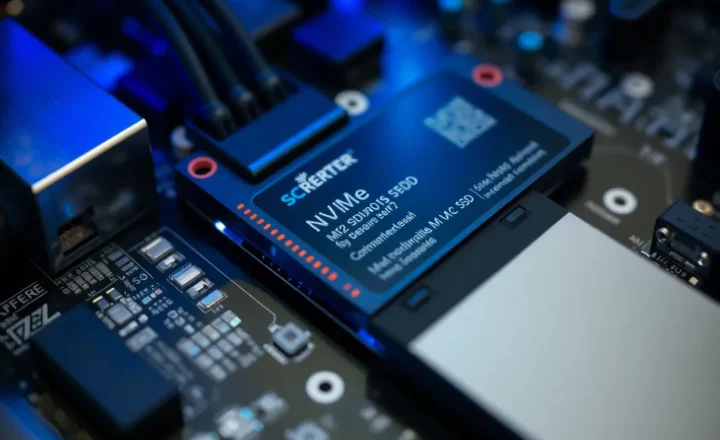
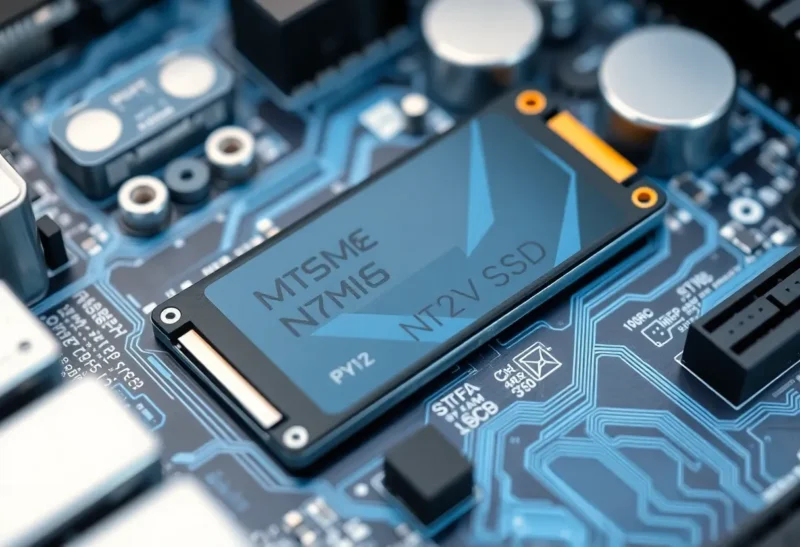
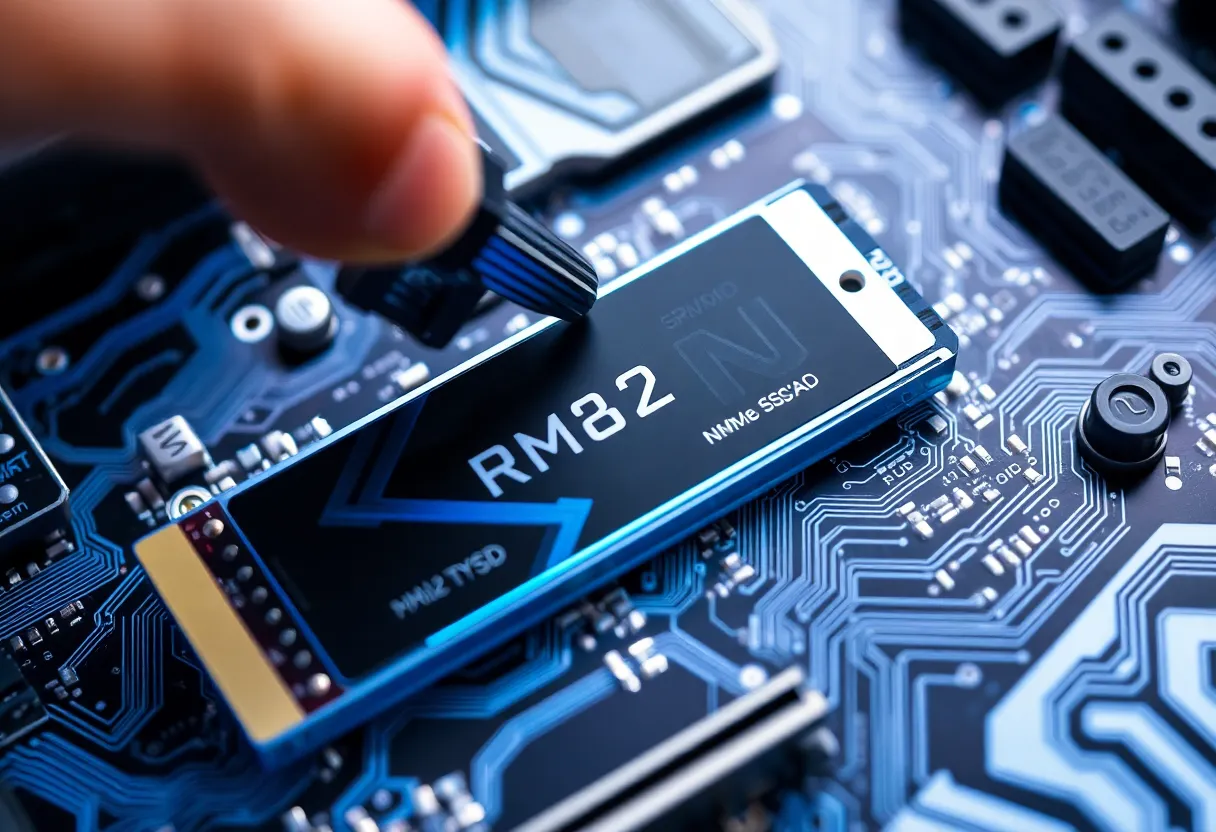
M.2 is a physical form factor — a specification for a small circuit board that plugs into a slot on your motherboard. That’s it. The name tells you nothing about speed or interface. An M.2 slot can house very fast NVMe drives or much slower SATA drives. The interface fight is NVMe versus SATA, and the confusion starts here because they look identical.
The two interfaces you’ll encounter:
- M.2 SATA: Uses the SATA interface, maxing out at around 550 MB/s sequential read. Roughly the same speed as a 2.5″ SATA SSD, just in a smaller form factor. Fine for light workloads; not relevant for new builds where NVMe is available at comparable prices.
- M.2 NVMe: Uses PCIe lanes and is substantially faster. This is what most people mean when they say “NVMe SSD.” Speed depends on the PCIe generation.
Quick way to tell them apart: M.2 drives use a keying system. SATA drives use an “B+M key” (two notches), while NVMe drives typically use an “M key” (one notch at the right end). In practice, many motherboards accept both through the same slot, and some drives are physically keyed to work in both — but the interface they use is determined by both the drive and the slot’s support. Check your motherboard’s manual before buying.
The Size Numbers: 2280, 2242, 2230
The four-digit codes describe physical dimensions in millimetres. The first two digits are the width (always 22mm for standard M.2), and the last two are the length.
- 2280: 22mm × 80mm. The standard size for desktop builds. Almost every desktop motherboard supports this, and the majority of consumer NVMe drives are 2280.
- 2242: 22mm × 42mm. Shorter, used in some laptops and smaller form factor boards. Less common in the enthusiast market.
- 2230: 22mm × 30mm. Very compact, found in ultrabooks and the Steam Deck’s storage slot. If you’re upgrading a handheld or slim laptop, check whether you need this size specifically.
- 22110: 22mm × 110mm. Rare; used in some enterprise server boards. You won’t encounter this in consumer builds.
For most desktop builds, you want 2280. For laptop or small form factor builds, check your device’s documentation — getting the wrong length means it won’t physically fit or won’t be supported by a retention screw.
PCIe Generations: Gen 3, Gen 4, Gen 5
This is where the marketing really escalates, so let’s be direct about what matters.
PCIe Gen 3 NVMe: Sequential reads of around 3,000–3,500 MB/s. Still excellent for gaming, everyday desktop use, and most productivity workloads. The performance ceiling is well above what most applications can actually saturate in real-world use.
PCIe Gen 4 NVMe: Sequential reads of around 5,000–7,000 MB/s. Supported on AMD Ryzen 3000 series and above, and Intel 11th gen and above. The speed jump is real when benchmarked, but the practical impact on gaming load times or everyday application launches is modest — usually seconds, not minutes.
PCIe Gen 5 NVMe: Sequential reads exceeding 10,000–14,000 MB/s. Supported on AMD Ryzen 7000 series and Intel 12th/13th/14th gen with the right platform. Prices remain significantly higher than Gen 4 equivalents, and the drives run notably hot — many require active cooling or large heatsinks. For most workloads, the advantage over Gen 4 in real-world use is minimal. That is why NVMe Gen 5 still does not matter for most builds.
The honest answer is: for gaming, Gen 3 is fine and Gen 4 is a small upgrade. For video editing with large files, Gen 4 provides meaningful throughput improvements. Gen 5 currently benefits workloads that are continuously saturating the drive — things like server databases or 8K RAW video ingestion. If that’s not your use case, you’re paying for benchmark numbers rather than perceptible performance.
How Many Lanes: NVMe x4 vs x2
Most NVMe drives use four PCIe lanes (x4). Some budget drives use two lanes (x2), which halves the available bandwidth. This is worth checking on budget options — a PCIe Gen 4 x2 drive is no faster than a PCIe Gen 3 x4 drive, and sometimes slower.
In practice, x4 is the standard for any drive you’d consider for a primary boot drive or game storage. x2 drives tend to appear in the sub-£50 segment and are worth avoiding unless the price difference is compelling and the use case doesn’t demand speed.
What Your Motherboard Actually Supports
This is the piece most people get wrong. A Gen 5 NVMe drive in a motherboard that only supports Gen 4 will run at Gen 4 speeds. Your motherboard’s M.2 slot determines the maximum generation supported, and many boards have multiple slots running at different specs.
On most mainstream platforms, the primary M.2 slot (M.2_1 or similar) runs at the platform’s native maximum — Gen 4 on recent Intel and AMD mid-range boards, Gen 5 on high-end recent platforms. Secondary M.2 slots often run at Gen 3, or share bandwidth with SATA ports.
Read your motherboard manual. Seriously. It’s the one document that will tell you exactly what speed each slot runs at, whether the slots share lanes, and whether certain slots become unavailable when you populate them with other hardware (some SATA ports disable when an M.2 slot is in use).
Heat and Heatsinks
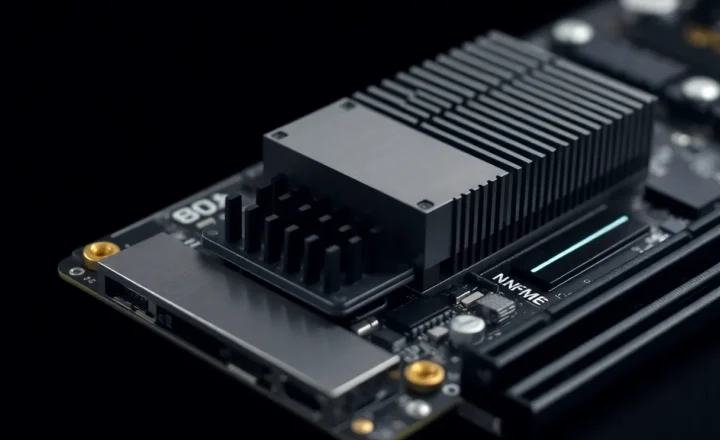
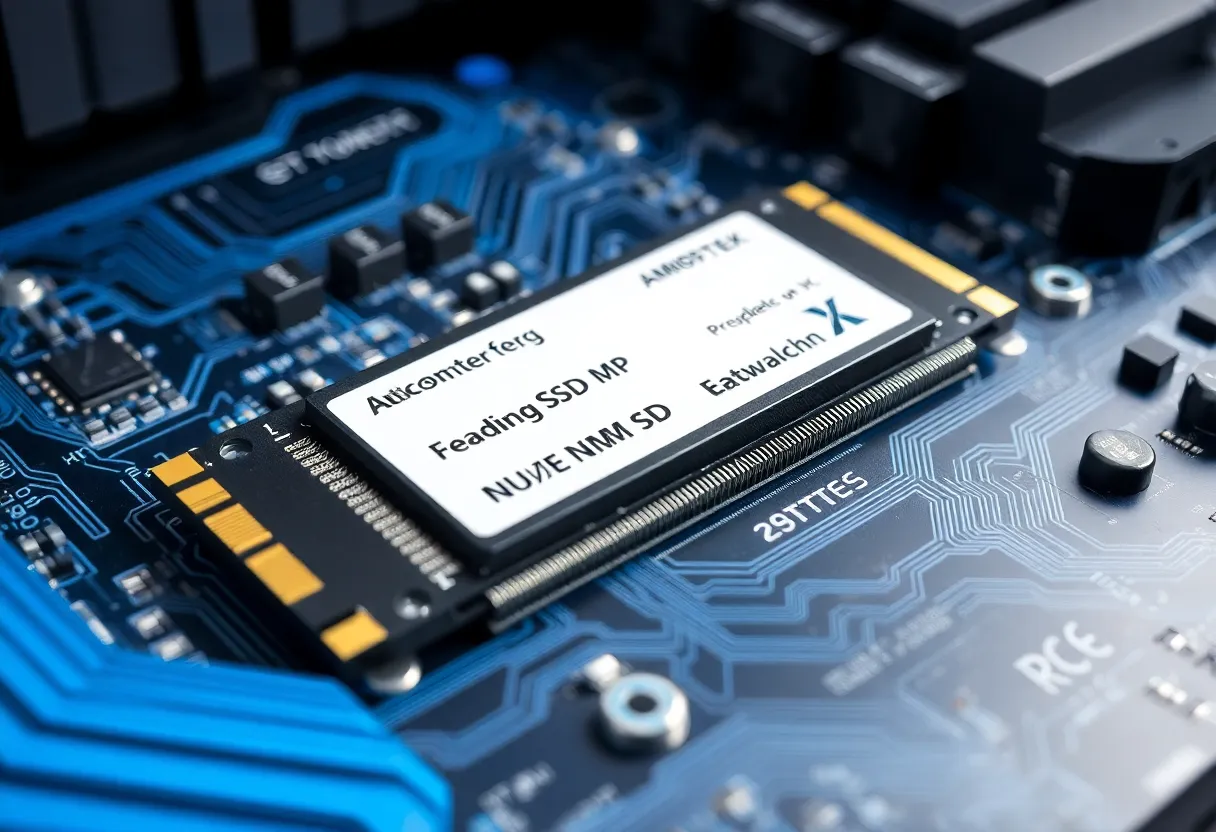
M.2 NVMe drives get hot under sustained load — particularly during large sequential writes. Most modern motherboards include M.2 heatsinks, and they’re worth using. Thermal throttling on an NVMe drive is real and will noticeably drop performance during sustained transfers.
Gen 5 drives run particularly hot. Several of the first-generation Gen 5 drives hit 80°C+ during extended benchmarks without active cooling. If you’re buying a Gen 5 drive, factor in cooling — either the motherboard’s included heatsink or a third-party cooler.
For Gen 3 and Gen 4 drives in a case with reasonable airflow, the stock motherboard heatsink is usually sufficient. What to avoid is an M.2 drive with no heatsink at all, particularly in a small form factor case where airflow is limited.
DRAM Cache: Does It Matter?
Many mid-range NVMe drives include a small DRAM cache — dedicated memory that stores frequently accessed data and acts as a write buffer. Budget drives often skip this to cut costs, using a technique called HMB (Host Memory Buffer) that borrows a few hundred megabytes of your system RAM instead.
For a desktop system being used as a workstation or gaming PC, DRAM-less drives with HMB perform well in most workloads. The degradation tends to show up during sustained sequential writes that exceed the SLC cache size — large file copies, video export — where DRAM-less drives can slow significantly. If you regularly move large files or do media work, a drive with DRAM cache is worth the modest price premium.
Capacity vs Speed: The Better Trade-off
Here’s a practical heuristic that doesn’t get said enough: at the same price point, more storage capacity usually delivers better real-world benefit than higher PCIe generation.
A 2TB Gen 4 NVMe for the same price as a 1TB Gen 5 NVMe is the better purchase for most people. The extra capacity means fewer management decisions about what to keep where, fewer external drives, and no risk of filling the drive to the point where write performance degrades (which happens on all NAND-based drives as they fill up).
The floor for a modern desktop or gaming PC boot drive is 1TB. 2TB is the sweet spot. 4TB NVMe options exist at reasonable prices now and are worth considering if you do creative work.
What to Actually Buy
Specific recommendations shift with pricing, but the decision framework stays stable:
- Budget desktop or older platform (Gen 3): Any reputable Gen 3 x4 drive from Samsung, WD, Crucial, or Seagate. 1TB minimum, 2TB if you can stretch.
- Modern mid-range desktop (Gen 4 platform): A Gen 4 drive from the mainstream tier — Samsung 980 Pro, WD Black SN850X, Crucial P3 Plus, or equivalents. 2TB is the sweet spot.
- Laptop or SFF build: Check your form factor first (2230 or 2242 might be required), then buy the highest PCIe generation your platform supports. Thermal constraints matter more here — check reviews for drive temperature.
- Gen 5: Only if you’re building on a platform that fully supports it and have a specific workload that will benefit. For most people, the price premium isn’t justified in 2026.
The Simple Version
M.2 is a form factor, not a performance spec. NVMe is what you want, not SATA. PCIe Gen 4 is the practical sweet spot for most builds right now. Gen 5 is fast and expensive and hot. Check your motherboard’s manual before buying. Get 2TB if you can.
The storage market moves fast and prices drop quickly, so verify current pricing before buying — but the framework above will stay relevant for several more years. The specs that matter most are the ones your build can actually use, not the highest numbers in the spec sheet.