KOReader Progress Sync With Your Own Server: Setting Up a Sync Server for Several E-Readers

Mira Chen
November 16, 2026
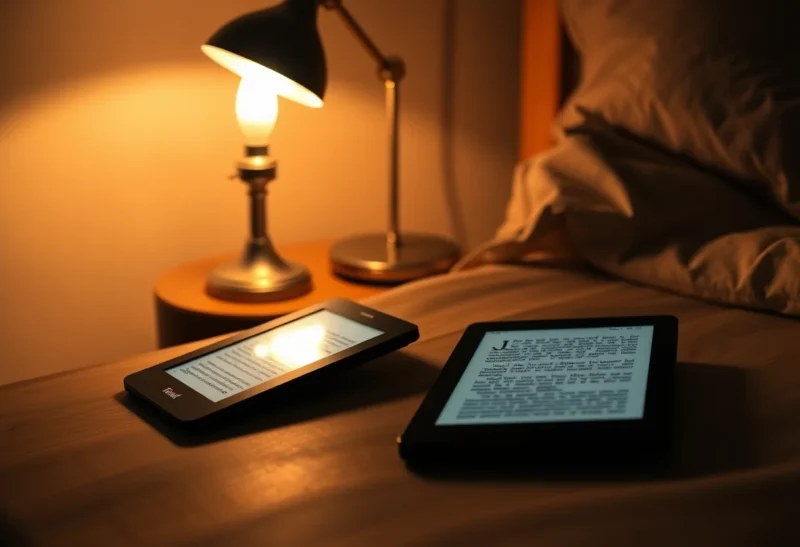
You read the same book on a Kobo at night, a Boox on the train and maybe KOReader on an Android phone in a queue, and every time you switch devices you have to hunt for your page. KOReader’s Progress sync plugin fixes that, and by default it uses a free public server run for the project. If you would rather keep that data at home, want sync that does not depend on someone else’s uptime, or simply run everything else yourself already, you can point every device at your own sync server in under an hour.
This guide walks through it in order: what the plugin actually syncs, running the official server in Docker, putting it behind HTTPS, registering one account across several e-readers, choosing the right document matching method, and fixing the problems that come up most often.
What Progress sync carries between devices, and what it leaves behind
The plugin syncs your position in a document and nothing else. For each book it sends a document identifier, your progress (a page number for PDFs and similar formats, or an internal position for reflowable EPUBs), the percentage read, a device name and a device ID. Newer servers also keep a timestamp so the client can tell whether incoming progress is ahead of or behind where you are.
It does not sync:
- The book files. Every device needs its own copy of the book.
- Highlights, notes and bookmarks. KOReader stores those in sidecar files next to each book, and the official sync server only handles progress. Community plugins exist to merge annotations over WebDAV or Dropbox, but they are separate projects and generally labeled beta.
- Reading statistics or settings. Statistics have their own cloud sync option inside the statistics plugin, separate from progress sync.
By default the plugin does not send file names or file contents, only a checksum, though a newer “Send document metadata” option can add the filename, title and author if you turn it on. That privacy model is why a self-hosted server is mostly about control and reliability rather than secrecy: the public server never sees your book titles unless you opt in.
Step 1: Decide between the public server and your own
Out of the box, KOReader talks to https://sync.koreader.rocks. It is free, needs no setup beyond creating an account, and works for a lot of people. The reasons to run your own are practical: the public server has had periods of downtime over the years, you may want sync to keep working on your home network when the internet is down, and you may prefer not to have an account on a server you do not control.
The official server is the koreader-sync-server project, published as the Docker image koreader/kosync. It is built on OpenResty (Nginx with Lua) and stores data in Redis inside the same container. Several community reimplementations speak the same protocol in other languages, including Python, .NET and Rust versions with SQLite or embedded storage. They can be lighter, but this guide sticks with the official image because its behavior defines the protocol.
Step 2: Run koreader/kosync with Docker Compose
The image exposes two ports, and picking the right one matters:
- 7200 serves HTTPS with a self-signed certificate. Use it only for a quick test or if devices will connect directly without a proxy.
- 17200 serves plain HTTP and is meant for running behind a reverse proxy that handles TLS.
Create folders for logs and Redis data so your accounts and progress survive container updates, then use a Compose file like this:
mkdir -p kosync/logs/app kosync/logs/redis kosync/data/redis
cd kosync
services:
kosync:
image: koreader/kosync:latest
container_name: kosync
restart: unless-stopped
ports:
- "127.0.0.1:17200:17200"
volumes:
- ./logs/app:/app/koreader-sync-server/logs
- ./logs/redis:/var/log/redis
- ./data/redis:/var/lib/redisBinding port 17200 to 127.0.0.1 keeps the unencrypted port off your network, so the only way in is through the proxy on the same host. If your proxy runs in its own container on a shared Docker network, drop the ports section entirely and let the proxy reach kosync:17200 by name.
Start it with docker compose up -d. To check the service, the project documents a health check endpoint; against the self-signed port it looks like this:
curl -k -H "Accept: application/vnd.koreader.v1+json" https://localhost:7200/healthcheckA healthy server answers {"state":"OK"}. The same request without -k against your public hostname is a good test once the proxy is in place. Back up data/redis along with your other Compose volumes; it is the only state the server has.
Step 3: Put it behind HTTPS with a reverse proxy
A real certificate from Let’s Encrypt avoids almost every connection problem on e-readers, which is why the proxy route is worth the extra step. With Caddy, which obtains and renews certificates automatically, the whole configuration is a few lines:
kosync.example.com {
    reverse_proxy 127.0.0.1:17200
}
Nginx Proxy Manager, Traefik and plain Nginx all work the same way: forward the hostname to port 17200 and terminate TLS at the proxy. The project’s README includes a Traefik example if you already use labels. If you are deciding which proxy to run, our comparison of Caddy vs Nginx Proxy Manager covers the trade-offs.
You also need to decide whether the server is reachable from outside your home. If you only sync on your own Wi-Fi, a local DNS name with a certificate obtained through a DNS challenge is enough. If you want sync on the road, either expose the hostname publicly or put the devices on a private network. Tailscale apps exist for Android-based readers like Boox, but not for a Kobo or Kindle running KOReader, so for those a public hostname is usually the practical choice. Our explainer on reverse proxies, Cloudflare Tunnel and Tailscale walks through the options.
Closing registration after your accounts exist
The official server lets anyone who can reach it create an account through the POST /users/create endpoint, and it does not document a setting to turn that off. If the hostname is public, register your own accounts first, then block that path at the proxy:
kosync.example.com {
    @register path /users/create
    respond @register 403
    reverse_proxy 127.0.0.1:17200
}
Remove the block temporarily when you need to add a new household member.
Step 4: Register one account and log in on every e-reader
The Progress sync menu only appears while a document is open, so open any book first. Then, on the first device:
- Open the top menu and go to the tools tab, then Progress sync.
- Choose Custom sync server and enter the full URL with the scheme, for example
https://kosync.example.com. Include a port only if you are not using 443. - Choose Register / Login, enter a username and password, and pick register. KOReader sends an MD5 hash of the password as the account key rather than the password itself.
- Optionally set Device hostname to something recognizable like “kobo-clara” or “boox-note”. If left empty, KOReader uses the device model, which is confusing when you own two of the same.
On every other device, set the same custom server, then use Register / Login with the same username and password and choose login. One account per reader (person), not per device, is the whole point: progress is stored per account and per document, and each device pushes and pulls from that shared record.
If you set up KOReader on a Boox for the first time, our guide to KOReader on a Boox tablet covers the rest of the configuration around this step.
Step 5: Choose a document matching method that fits your library
This setting decides whether two devices recognize a book as the same book, and it causes more “sync does nothing” reports than anything else. Under Progress sync, Document matching method has two choices:
- Binary (the default): KOReader computes a partial MD5 checksum of the file’s contents. Only byte-identical files share progress.
- Filename: KOReader hashes the file name instead. Files with exactly the same name share progress even if their contents differ.
Binary is the safer choice when every device gets its copy from the same source, such as a Syncthing folder or the same download from your book server. It breaks when something rewrites the file on the way to one device. Calibre embedding updated metadata when it sends a book, a converter producing a fresh EPUB, or a store and a sideloaded copy of the same title all produce different checksums.
Filename matching tolerates those differences but needs disciplined naming, and it can make two different editions with the same name share a position that does not line up. Pick one method and set it the same way on every device, because a device on Binary and another on Filename will never match.
Step 6: Set when and how progress moves
Three settings control the day-to-day feel:
- Automatically keep documents in sync: off by default. When on, KOReader pushes progress when you close a document and pulls it when you open one. This is what most people want, and it needs Wi-Fi to be on or allowed to turn on at those moments.
- Periodically sync every # pages: pushes progress during a long session so another device is up to date even if you never close the book. Zero disables it. A modest value keeps network wake-ups, and battery cost, low.
- Sync behavior: separate choices for syncing to a newer position and to an older one, each with Silently, Prompt or Never. The defaults are Prompt for newer and Never for older, which protects you from jumping backward because a stale device synced late.
You can always use Push progress from this device now and Pull progress from other devices now manually, which is the quickest way to test a new setup.
Fixing the sync problems that come up most
Progress never appears on the second device
Almost always a document mismatch. Check that both devices use the same matching method, then compare files: if one copy came through Calibre’s send-to-device and the other from a direct download, the checksums differ. Copy the exact same file to both, or switch everyone to Filename matching and give the files identical names.
Login or registration fails with a connection error
Test the URL from a computer with the health check above, without -k. If that fails, the proxy or DNS is the problem, not KOReader. If it works on the computer but not the e-reader, check that you typed the scheme, that the device is on a network that can resolve the hostname, and that you are not pointing at port 17200 over HTTPS.
Certificate errors on older readers
Pointing devices at port 7200 means a self-signed certificate, which clients may reject. Use a proxy with a publicly trusted certificate instead. KOReader carries its own set of trusted root certificates, so on an older device that has not been updated in a long time, updating KOReader itself is the first thing to try when a valid certificate is still refused.
Progress jumps backward or prompts constantly
Make sure the device clocks are right; a Kobo or Kindle that has been off Wi-Fi for a while can drift, and timestamps help decide what counts as newer. Keep “sync to an older state” on Never unless you have a specific reason to change it, and give each device a distinct hostname so prompts tell you which device the position came from.
Kobo users switching from Kobo’s own sync
KOReader progress sync only covers books opened in KOReader. Books bought from Kobo and read in the stock reader use Kobo’s own cloud sync, and the two never share positions. For how purchased books behave alongside KOReader, see which Kobo still syncs a purchased book after you install KOReader.
Once the server is up and every device is logged in with the same matching method, there is little left to maintain: update the container occasionally, keep the Redis folder in your backups, and the page you stopped on will be waiting on whichever reader you pick up next.