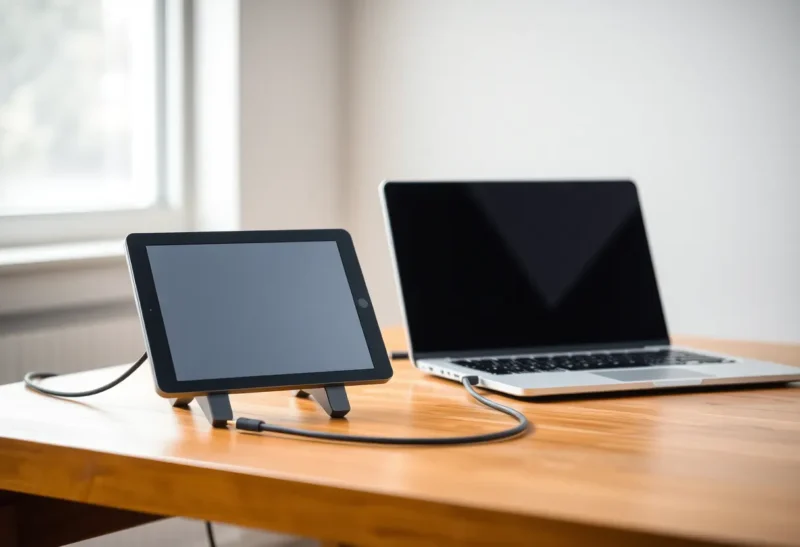
Yes, with an asterisk the size of the tablet. An Android-based e-ink tablet can show a second desktop through a vendor monitor feature or a screen-extension app, and I have used one that way for real work. A closed notebook like a reMarkable, a Supernote, or a Kindle Scribe can’t, because there’s nothing on it that will receive a video stream from your laptop. The more useful question is what you’d put on that second screen, because the answer decides whether monitor mode feels clever or just slow.
I found that out on a train. I had a week of drafting to do between two cities, a 13-inch laptop, and a 10.3-inch Boox that I mostly used for PDFs. The plan was simple: laptop for the draft, tablet propped beside it for research tabs and Slack, a paper-like second screen that wouldn’t glow at me for six hours. By the second morning the tablet was showing one PDF, full screen, with nothing else on it. By the fourth I had stopped mirroring altogether and was just copying files across. What follows is how I got from the first setup to the last, and when I’d still turn monitor mode back on.
What “monitor mode” actually is on an e-ink tablet
An e-ink tablet in monitor mode is not a monitor in the way a USB-C portable display is. A portable LCD takes a DisplayPort signal and paints it. The tablet runs an app. Your computer renders a virtual display, compresses it into a video stream, and sends it over Wi-Fi or a USB cable. The app on the tablet decodes the frames and asks the e-ink controller to draw them.
That last step is where everything interesting happens. The e-ink controller was built to redraw a page of text when you turn it, not to repaint regions of the screen dozens of times a second. When the stream says “the cursor moved” or “this text scrolled three lines,” the panel has to decide how to redraw. Fast modes (Boox calls them things like A2, X, or Faster; other vendors have their own names) sacrifice gray levels and leave ghosting behind. High-quality modes look like print and take long enough that you can watch them happen.
There are roughly three ways to get a stream onto the tablet:
- A vendor feature. Some Boox models ship with a built-in way to act as a display for a computer. When it exists, it’s usually the least fussy option, because the vendor can tune refresh behavior for its own panel.
- A screen-extension app. Apps like spacedesk (Windows host), Duet, or Splashtop’s wired display tools have Android clients that install on an open e-ink tablet like on any other Android device. They were designed for LCD tablets and don’t know anything about e-ink, which shows.
- A browser-based viewer. Tools like Deskreen serve your extra display as a web page. Anything with a decent browser can open it. It’s the easiest to try and the hardest to make feel responsive.
If your tablet doesn’t allow third-party apps and has no vendor feature, you can stop here. No setting will turn a reMarkable into a display. Its screen sharing goes the other way: the tablet’s page shows up on your computer so you can present it on a call. That’s handy for meetings, but it’s not what this question is asking.
What went wrong on the train
My first setup was exactly the one I’d pictured. I dragged a browser window onto the Boox with three research tabs, parked Slack underneath, and started typing on the laptop. Within ten minutes I’d hit every problem this kind of setup has.
The cursor was the worst of it. Moving the mouse across the edge of the laptop screen onto the tablet meant watching a gray smear follow a pointer that was a quarter-second behind my hand. On an LCD you don’t think about the cursor at all. On a streamed e-ink display, every hover state, every tooltip, every link that changed color under the pointer triggered a partial refresh. I started aiming at things and then waiting.
Scrolling turned research into a slideshow. A web page that scrolls smoothly on a laptop arrives at the tablet as a stream of frames the panel can’t keep up with. In the fast refresh mode, text came through legible but dirty, with the previous lines still visible behind it. In the cleaner mode, each scroll ended with a flash while the panel wiped itself. Neither is how you want to skim a long article.
Color turned into mud. Slack’s sidebar, unread badges, link colors, and syntax highlighting all depend on hue, and on grayscale they become several nearly identical shades of middle gray. I couldn’t tell which channel had a new message without leaning in. The whole point of a glance screen is that you don’t have to lean in.
The battery went fast. A 10-inch e-ink tablet reading PDFs can go days between charges. Monitor mode keeps Wi-Fi on, decodes video continuously, and asks the panel to refresh far more often than a page turn does. My tablet dropped faster in one afternoon of mirroring than it normally would in two or three days of reading. On a train with one outlet shared between two seats, that mattered.
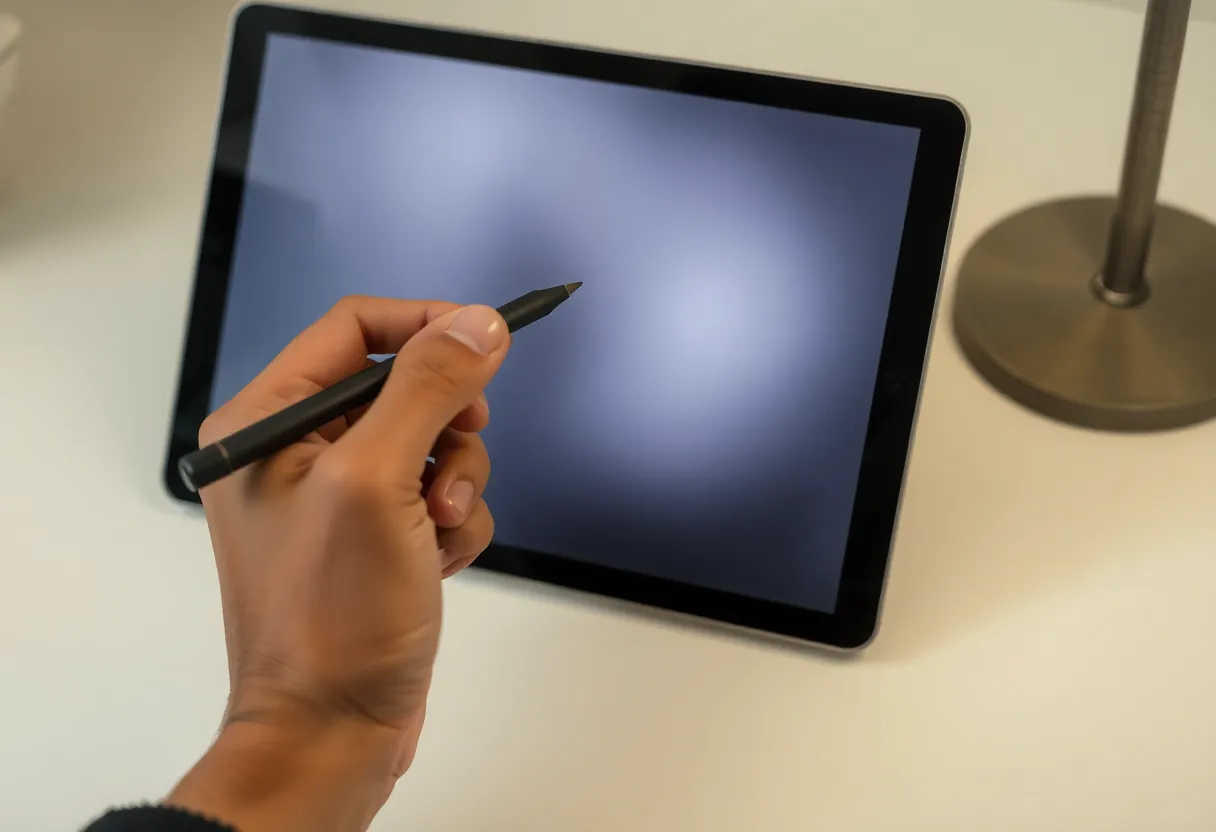
None of this was a bug. It was the tablet doing exactly what it was built for, in a job it wasn’t built for. By the end of the first day I understood that the problem was what I’d put on it, not the app I was using.
What monitor mode is actually good at
The second morning I cut the tablet down to a single job: one reference document, full screen, zoomed so the text was large, with nothing on the tablet that would change unless I changed it. The difference was immediate. With a static page, the stream sends almost nothing, the panel rarely refreshes, and the tablet stops feeling like a sluggish monitor. It feels like a sheet of paper that happens to be connected to your laptop.
That points to the kind of content that works:
- Reference you read, not operate. An outline, a style guide, an interview transcript, a spec, a script you’re checking a draft against. You look over, read a paragraph, look back. Nothing moves.
- A document that changes slowly while you watch. A shared doc a colleague is editing, a build status page that updates every few minutes, a long-running job’s summary. Monitor mode beats copying a file across when the source keeps changing.
- Full-screen prose, if you’re patient. Some people write straight onto the e-ink screen, with a distraction-free editor full screen on the tablet and the keyboard on the laptop. It works better than you’d expect if the editor keeps the cursor line in a fixed position (typewriter mode) so the page doesn’t scroll every few lines. It’s still slower than the LCD.
And the kind that doesn’t: anything you’d use a mouse on, anything that animates, anything where color carries meaning, and anything you want to glance at quickly. Chat, email, dashboards, video calls, IDEs, and web browsing all belong on the laptop screen.
Settings that made the tablet usable
Once I’d narrowed the job, a handful of settings turned “tolerable” into “fine.” These apply across most apps and vendors, though the menu names differ.
- Use a cable if you can. A wired USB connection cut the lag noticeably compared with the train’s crowded Wi-Fi, and it kept the tablet charging at the same time. If the app supports a wired mode, use it.
- Pick one refresh mode and leave it. For a static reference page, the higher-quality mode is fine, because it refreshes so rarely. For anything that scrolls, switch to the fast mode and accept the ghosting, then do a manual full refresh when it builds up. Auto modes that switch back and forth caused more flashing than either on its own.
- Turn off animations on the computer. Reduce motion on macOS, turn off animation effects on Windows. Every fade and slide on the host becomes a burst of partial refreshes on the tablet.
- Make everything bigger and higher contrast. Scale the virtual display so text is large, use black text on white, and switch off anything that relies on light gray text. E-ink shows fewer gray levels in fast mode than you’d expect, and thin gray type is the first thing to go.
- Put the tablet where the cursor won’t go. I set the virtual display above the laptop screen instead of beside it, so the mouse didn’t wander onto it every time I reached for the edge of a window. Small thing, big difference.
- Lower the stream’s frame rate if the app allows it. An e-ink panel can’t show 60 frames a second anyway. Sending fewer frames cuts the decoding load and gives the controller fewer half-finished frames to draw.
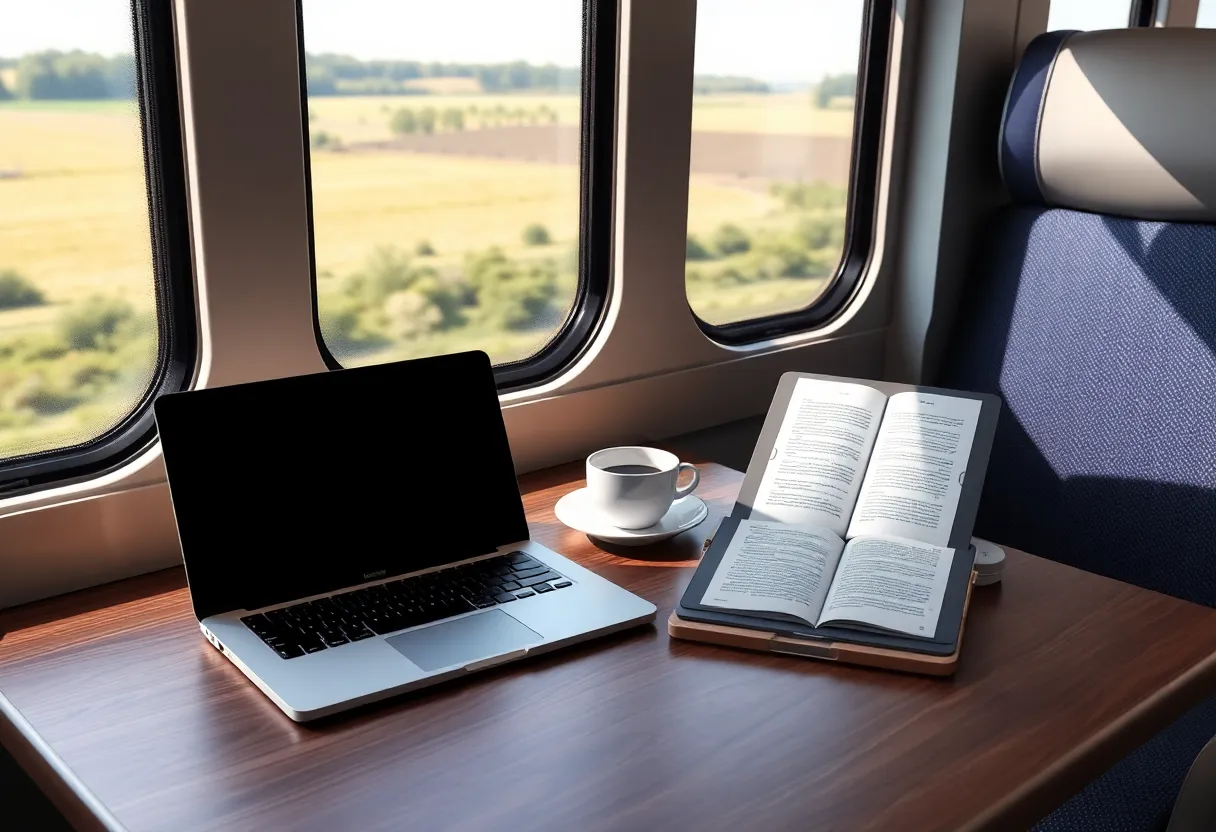
Why I stopped mirroring by day four
With the reference-document setup, monitor mode worked. It still wasn’t the best tool for the job, and it took me a couple of days to admit it.
Everything I was showing on the tablet was a file. The interview notes were a PDF. The outline was a text file. The style guide was a PDF too. Mirroring meant keeping both devices awake, keeping the connection up, keeping the cable plugged in, and keeping the laptop’s window arrangement from collapsing when the tablet dropped off. Sending the file meant copying it once and opening it in the tablet’s own reader, which knows how to render text on its own panel far better than a video stream does. Pages turned instantly. I could annotate with the stylus. The battery went back to lasting days. When the tablet slept, I lost nothing.
That’s the uncomfortable conclusion for anyone who bought an e-ink tablet hoping for a free second monitor: most things you’d want on a paper-like second screen are better on that screen as files than as a live mirror. Monitor mode earns its keep only when the thing you need to see is changing and exists only on the computer: a live shared doc, a status page, a remote session you’re watching, not driving.
If what you really want is a permanent paper-like screen on your desk for writing, the trade looks different from a tablet balanced on a stand, and it comes down to whether a dedicated e-ink monitor beats a cheap second LCD for writing. A tablet in monitor mode is the thing you do on a train, in a café, or for an afternoon. It isn’t a desk setup.
Which tablets can do it, roughly
Rather than a model list that will be out of date by the next firmware update, here’s the test I’d apply before buying or trying:
- Can it install Android apps from outside the vendor store? If yes, a screen-extension client will probably run. Boox, and the other open-Android e-ink tablets, generally pass. Whether it runs well depends on the panel and the processor.
- Does the vendor have its own monitor feature? If so, try it first. It usually handles refresh better than a generic LCD app.
- Does it have a real browser? A browser-based viewer is the lowest-effort experiment, and it tells you within five minutes whether the latency is something you can live with.
- Is it a closed notebook? reMarkable, Supernote, and Kindle Scribe are built around their own writing and reading apps. None of them will act as a display for your computer, and there’s no official way to make them.
Processor and panel generation matter more than screen size here. An older or budget tablet will decode the stream slowly, and a slow decoder adds lag on top of the panel’s own refresh time. A newer panel with a faster fast mode makes cursor movement and scrolling more tolerable, though not good.
My answer, after the train
You can use an e-ink tablet as a second monitor if it runs Android and you pick the job carefully. Give it one static document, a cable, large black text, and no animations, and it’s a calm, glare-free second screen that’s easy to read for hours. Give it a browser, a chat app, and a mouse cursor and it’s a slow, gray LCD that drains its own battery.
Before you set any of it up, ask whether the thing you want to see is a file. If it is, copy it across and read it in the tablet’s own app. Save monitor mode for the one live window you can’t copy. On my train week that was a shared outline my editor kept changing, and for that job the setup earned its place on the table.