Android’s open app ecosystem has one feature that still sets it apart from the walled garden: sideloading. You can install apps from outside the Play Store—APKs from developers, beta builds, or tools that never made it onto Google’s marketplace. That freedom is real, but it comes with trade-offs. Here’s when sideloading is worth it, and when it’s a risk you shouldn’t take.
What Sideloading Actually Is
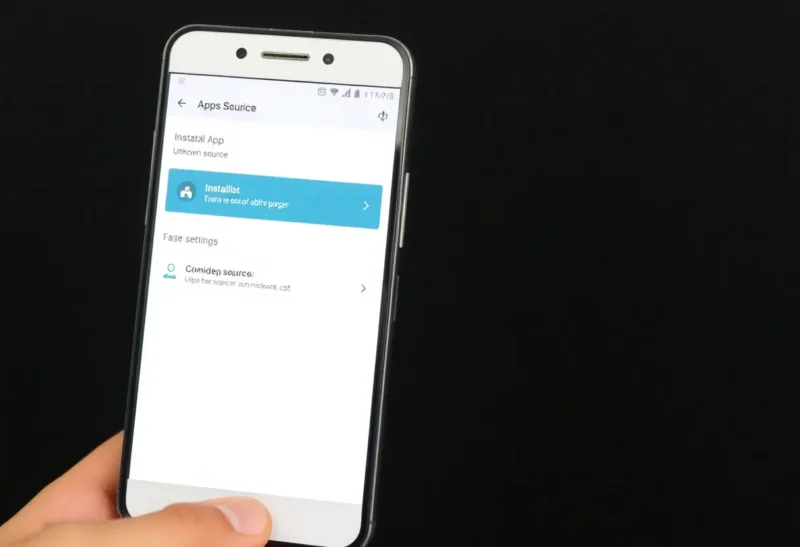
Sideloading means installing an app from a file (usually an APK) instead of through the Play Store. On Android, you enable it in Settings under “Install unknown apps” or “Unknown sources,” depending on your version. Once enabled, that app or browser can install packages you download. Google has tightened the flow over the years—you now grant permission per app (e.g. Chrome or Files)—but the capability is still there.
Apple’s iOS doesn’t allow sideloading in the same way for typical users; you’re bound to the App Store unless you’re in a developer or enterprise program. On Android, it’s a first-class option. That difference is a big part of why power users and tinkerers choose Android.
When Sideloading Makes Sense
Official apps not on the Play Store. Some developers distribute directly: F-Droid for open-source apps, Signal’s APK for the latest build, or a game that’s only on the manufacturer’s store in your region. If the real fight is how you keep those APKs updated, that is Obtainium versus F-Droid versus Aurora. If the source is the developer’s own site or a known project, sideloading is the intended way to get the app.
Beta and early-access builds. Many teams offer APKs for testers. You get the newest features (and the newest bugs) before the Play Store rollout. As long as you’re downloading from the project’s official channel, you’re in the same trust model as any beta program.
Abandoned or niche apps. Occasionally a useful app is pulled from the Play Store—policy changes, developer exit, or regional restrictions—but the last working APK is still around. Sideloading lets you reinstall it. The risk here is that you’re running unmaintained software; use it only for non-sensitive tasks and understand there are no security updates.
Alternative app stores you trust. Stores like F-Droid or the Samsung Galaxy Store are another form of “not the Play Store.” Installing from them still counts as sideloading from the system’s perspective. If you trust the store’s curation and signing, the same logic applies: known source, clear intent.
When to Avoid It
Random APKs from the web. If you found a “free” or “cracked” app on a random site, don’t install it. That’s the main vector for malware. Sideloading is not an excuse to skip the store’s security; it’s for when the store isn’t the right source.
Anything that asks for excessive permissions. A calculator or notepad app asking for contacts, location, or SMS is a red flag. Sideloaded apps don’t get the same automatic review as Play Store listings, so you’re the reviewer. If it doesn’t need a permission for its stated purpose, reject it.
Financial or high-security use. Banking apps, authentication apps, and anything that holds keys to your identity or money should come from the Play Store (or your bank’s official channel). The supply chain is clearer, and updates are delivered through a controlled path. Sideloading adds another link in the chain that doesn’t need to be there.
When you’re not sure where the file came from. If you can’t trace the APK back to a developer site, a known repo, or a trusted store, treat it as untrusted. “Someone shared it” or “I found it on a forum” is not a source.
Practical Tips
Keep “Install unknown apps” disabled for most apps. Enable it only for the browser or file manager you use when you intentionally sideload, and only when you’re about to install something. Afterward, you can revoke the permission if you want to lock it down again.
Prefer direct links from the developer. If you’re installing a beta, go to the project’s official site or their GitHub releases. If you’re using F-Droid, add only official repos. The fewer hops between the author and your device, the better.
Check the app’s requested permissions before and after install. Android shows you the permission list at install time. If something looks off for what the app claims to do, cancel. If an update later asks for new, unrelated permissions, treat that as a warning.
The Bottom Line
Sideloading on Android is a feature, not a hack. Use it when the source is known and the reason is clear—official apps, betas, or trusted alternative stores. Avoid it for random downloads, anything that wants too many permissions, or anything touching money or identity. With that discipline, you get the flexibility that makes Android useful without giving up the security that matters.