Which iOS Shortcut steps fail only when the phone is on cellular, not on Wi-Fi?

Greta Holm
October 7, 2026
The steps that talk to your house. Get Contents of URL, SSH, and any file action aimed at a 192.168 address, a 10. address, or a name that ends in .local work on home Wi-Fi and fail on cellular, because the phone is no longer on that network. The second group is anything Low Data Mode is allowed to postpone: a background fetch of a large file, a photo upload, an iCloud download you did not pin. Local steps, Focus, messages, and a URL on the public internet that is not locked to your home IP keep working on LTE the same way they work on Wi-Fi.
This is not the Shortcut being broken. Run it on the kitchen Wi-Fi and every step is green. Step outside, watch it use cellular, and the same Shortcut stops on the first action that assumed the house was attached to the phone. The editor will not show that. The editor runs where you are standing, which is usually the house.
Which addresses die the moment Wi-Fi drops?
Anything you would not type into a phone on a bus.
- 192.168.x.x, 10.x.x.x, and 172.16 through 172.31. Those are the home LAN. Cellular does not route them. Get Contents of URL to http://192.168.1.20:8123 is a Home Assistant button that only exists at home. On LTE it hangs or errors. The Shortcut did not lose permission. The address is not on this network.
- Names that end in .local. homeassistant.local, the NAS, the printer. Those are mDNS. They are shouted across the Wi-Fi segment. The cell tower does not hear them. A Shortcut that “worked yesterday” and fails on the commute is almost always one of these names.
- A home IP you punched through the router only if you used the private address in the Shortcut. If you used a real public name and a VPN or a tunnel that is up, it can work. If the Shortcut contains the private address, it will not, tunnel or not, unless the tunnel is what makes that address reachable and the tunnel is actually connected. Check the address in the action, not your feelings about Tailscale.
- SMB, WebDAV, and “get file” from a share that you added while on Wi-Fi. The share is a LAN path. Cellular cannot open it. iCloud Drive is a different path and is not this failure.
Replace the private URL with a name that resolves on the public internet, and only if you meant the service to be reachable away from home. Do not “fix” a LAN Shortcut by exposing the NAS to the world so a commute button works. The commute button should call a service you already decided was safe to call from a sidewalk, or it should not run on cellular. Split the Shortcut. One version for the house. One version that does not pretend the house is in your pocket.
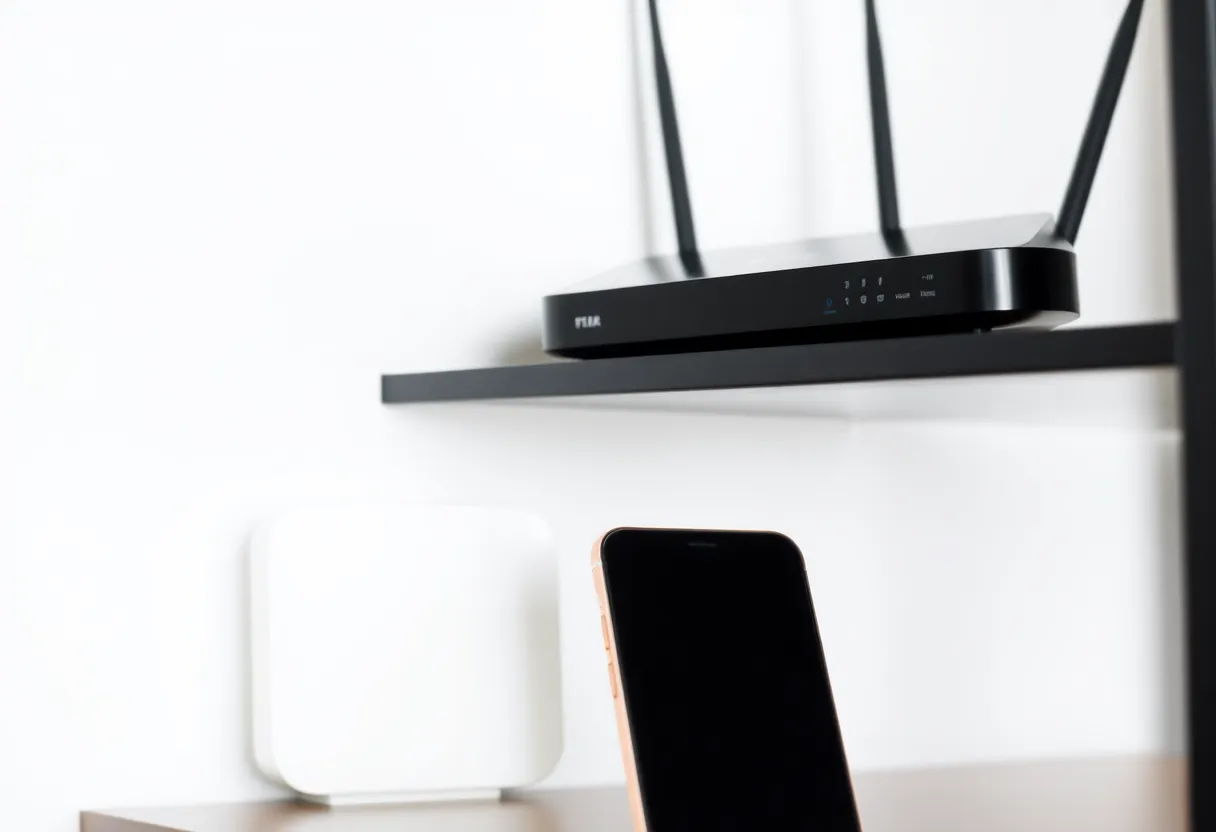
What does Low Data Mode stop that Wi-Fi allows?
Low Data Mode is usually on for cellular and off for Wi-Fi. That single difference produces a Shortcut that is flawless at the desk and stingy on the street. Background URL fetches get deferred. A large Get Contents of URL may not run until you are on Wi-Fi or until you open the Shortcuts app and run it in the foreground. Photo actions that upload, and iCloud files that were not downloaded to the phone, wait. The step is not red in the way a bad password is red. It waits. On Wi-Fi it does not wait, so you never learn the step is conditional.
Turn Low Data Mode off for one test on cellular if you need to know whether the step is impossible or merely polite. If it then succeeds, the fix is either to allow the data or to stop running that step in the background. If it still fails, you are back to the address problem, not the data saver.
A fetch that has to happen on the sidewalk, in the background, is a bad job for the phone even after you allow the data. A fetch that must run while you are not nursing it belongs on a machine that is not choosing between your battery and your Shortcut. Cellular makes that wall show up sooner. It does not invent it.
Which steps keep working on cellular?
Set Focus, toggle a setting, show a menu, send a message through the Messages action when you confirm it, run a Home scene if the home hub is what actually does the work and the phone can reach Apple’s home service. That last one surprises people. The phone on LTE can still tell the hub, via the internet, to run a scene. It cannot open http://192.168.1.50 itself. If your Shortcut talks to Apple’s Home and the hub is online at the house, cellular is fine. If your Shortcut talks to the hub’s private IP, cellular is the outage.
Public URLs work: a weather API, a normal website, your own server under a real DNS name that is not locked to a home IP allow-list. If the server only allows your house IP, cellular fails and Wi-Fi works, and the Shortcut text is innocent. The firewall is the step that failed. Fix the allow-list or stop calling that host from the street.
Dictation, the calculator actions, and anything that never leaves the phone do not care which radio is up. If those fail only on cellular, something else changed, usually Low Power Mode or a Focus, and you are misreading the test. Put the phone on cellular with Wi-Fi off, Low Power Mode off, and no Focus, and run the Shortcut in the foreground with the screen on. That isolates the radio. Anything that still passes is not a cellular failure.
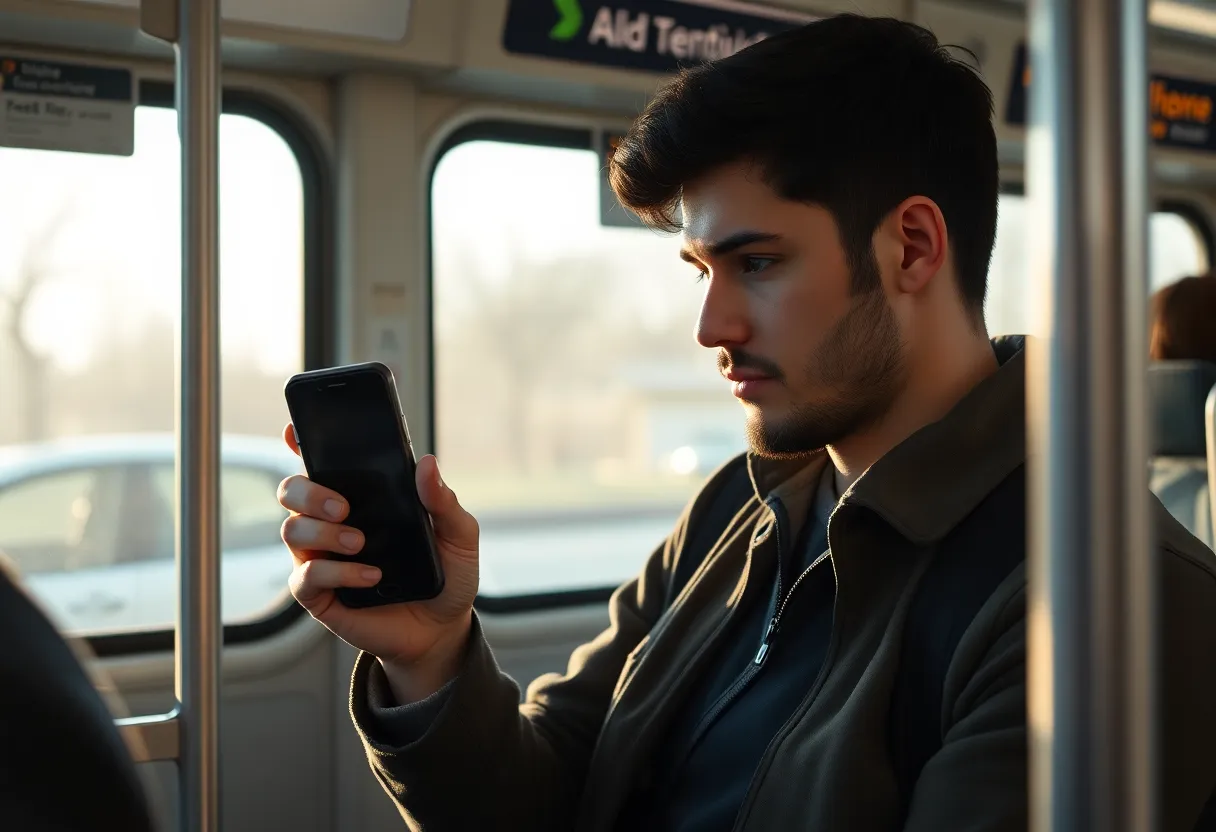
How do automations make this worse?
A personal automation does not show you the red step. It fails in your pocket. “When I leave home” is the trigger that guarantees you are on cellular, and it is the trigger people attach to a Shortcut full of LAN URLs. The leave-home Shortcut then does the one thing it cannot do from the sidewalk: poke the house by its inside address. Build that automation out of actions that are legal off the LAN. A Focus. A Home scene through the Home app. A notification. Not a private URL.
There is also an automation condition for Wi-Fi and for leaving a network. Use it on purpose. If the Shortcut is the house Shortcut, set it to run only when that Wi-Fi is joined, so it does not fire on cellular and look broken. If the Shortcut is the commute Shortcut, do not reuse the house actions inside it. Two Shortcuts. The cellular one is shorter.
Ask Before Running on a cellular automation means a banner you will miss while driving. That looks like a cellular failure and it is a banner failure. Run Immediately for the safe steps. Do not debug the radio for a prompt you did not answer.
What about tethering, VPNs, and the office Wi-Fi?
A phone on a VPN split-tunnel can reach the house and still fail a .local name, because mDNS often does not cross the tunnel. The IP might work and the pretty name might not. Test the exact string in the Get Contents of URL field. People change Wi-Fi to LTE, see a failure, and blame the carrier when the string was nas.local the whole time.
Office Wi-Fi that blocks outbound ports will fail steps that home Wi-Fi allows, which is the reverse of this question. If it fails on the office network and works on cellular, that is a firewall, and this article is not your bug. If it works on every Wi-Fi and fails only on cellular, it is the private address or Low Data Mode until proven otherwise.
Personal Hotspot does not make the phone a member of the house LAN. A laptop tethered to the phone is on the phone’s cellular path. Shortcuts on the phone still cannot see 192.168.1.20 at home. Hotspot is not a bridge to the kitchen.
The test that stops the argument
- Control Center, turn Wi-Fi off, confirm the status says LTE or 5G, not a Wi-Fi name.
- Turn Low Data Mode off for the test. Turn Low Power Mode off. Turn Focus off.
- Run the Shortcut from the editor, in the foreground, and watch which step stops.
- Read the URL or path in that step. If it is private or .local, you have the answer. Do not rewrite the rest of the Shortcut.
- Turn Low Data Mode back on and run again. If a public URL now waits, that step is the data-saver casualty, and it should not be in a background automation.
Then put Wi-Fi back and run it once more so you remember the green path was the house. The steps that fail only on cellular are the ones aimed at the house, and the heavy fetches Low Data Mode is allowed to delay. Everything else that fails is a different bug you are about to mislabel as the carrier.