Does the OpenClaw phone app run the model on the phone, or control a computer somewhere else?

Imani Cole
October 7, 2026
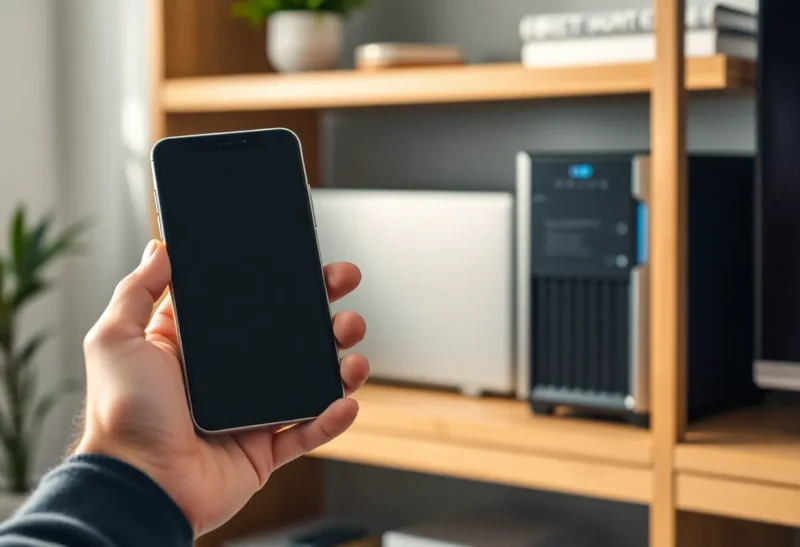
The OpenClaw phone app controls a computer somewhere else. It does not run the model. The Android docs say the app is a companion node, that Android does not host the Gateway, and that a Gateway on macOS, Linux, or Windows via WSL2 is required. The iPhone app connects to a Gateway over a WebSocket on your LAN or tailnet and exposes node capabilities such as the camera, the screen, and location. The agent turn, the model call, and the channel logins stay on that Gateway. The only on-device speech the iPhone docs describe is a fallback voice for reading a reply aloud when Gateway audio will not play. That is text-to-speech, not the model.
OpenClaw is the self-hosted gateway from the OpenClaw Foundation. One Gateway process is the master. Phones, the macOS app, the browser, and the command line are clients. The remote-access page says nodes do not run the Gateway service, and it walks a normal message in that order: a chat arrives at the Gateway, the Gateway runs the agent, and only then might the agent call node.invoke so the phone can do something physical. The phone returns a result. The Gateway writes the reply. If you never paired a Gateway, the phone has no model to fall back to.
What is the phone actually for?
It is a remote control with a few sensors, plus a chat window onto sessions that live on the Gateway.
On iPhone, Chat is the text and voice surface. You can dictate a draft, record a voice note, or use Talk for a realtime voice session. You can attach photos, files, and camera shots. You can show or hide reasoning and tool activity. Completed turns can show which model produced them, when the Gateway recorded that. Changing the model afterward does not rewrite older replies, which is what you would expect if the phone were displaying a record rather than re-running a local model. Sources cards open excerpts the Gateway already stored from web search or web fetch. Diagrams render from Mermaid the reply already contained, including offline, because that is a local drawing of text you already have. None of that is inference.
The Files view is read-only. You can browse the selected agent’s workspace, preview text and images, and export through the share sheet. The docs say there are no write operations from that surface, and previews are size-capped by the Gateway. A phone that could run the agent would not need the Gateway’s permission to look at a file the agent already has. This one does.
Android is the same role, stated in fewer words. Settings, then Providers and Models, shows credential status that the Gateway publishes. The page updates when the Gateway publishes model, credential, or config changes, and Refresh rechecks availability. You are looking at the host’s provider setup. You are not downloading a model onto the phone. System control, the launchd or systemd service, is documented as living on the Gateway host. Snoozing a thread on Android syncs through the Gateway and, in the docs’ words, never stops runs, messages, or automations. Hiding a chat on the phone does not pause the computer.
Where does the model run, then?
Wherever the Gateway is configured to call it. That can be a cloud provider the host has a key for, or a local server such as Ollama that the host can reach. The phone does not appear in that config as a runtime. Android can show you that the Gateway’s provider credentials look healthy. The iPhone can label a finished reply with the originating model. Both are displays.
The command flow makes the split obvious. Your typed message goes to the Gateway. The Gateway’s agent decides whether a tool is required. A node tool is a request back to the phone: take a screen snapshot, capture the camera, report location, participate in Talk. The node answers. The model, still on the Gateway’s side of the connection, writes the next step. If the model were on the phone, the Gateway would not be the thing invoking the phone. The phone would be invoking itself.
Talk and Voice Wake can make this feel local, because the microphone is in your hand and the audio is immediate. The Gateway’s Talk configuration owns provider, voice, and speech language. Listen, on a finished iPhone message, plays a Gateway tts.speak clip when it can, and falls back to on-device speech when that audio is missing or will not play. Playback stops if you switch sessions or background the app. Stopping speech does not cancel the Gateway chat run, and it does not remove a message that is still queued. The voice you hear can be the phone’s speaker. The work you asked for is still the computer’s.
What still works when the phone is offline or asleep?
The cache and the outbox. Not the agent.
The iPhone keeps a small read-only cache of recent sessions and transcripts per paired Gateway. A cold open paints the last known transcript, then refreshes when the Gateway responds. You can browse recent chats while disconnected. Reset or forget purges that cache. Assistant-generated images are not stored as bytes in the transcript cache. They render from short-lived Gateway artifact URLs and can be fetched again after reconnect. If the Gateway is down, you are rereading. You are not continuing the job.
Text you send while disconnected goes into a durable outbox, up to 50 messages per Gateway. Queued bubbles show in the transcript. They flush in order on reconnect, with idempotent retries, and they stay queued until the canonical history confirms the send. They expire instead of sending after 48 hours offline. That queue is a mailbox on the phone. Nothing in the docs says those queued texts are answered by an on-device model while you wait. They wait for the Gateway.
Backgrounding is a second limit. The iOS docs say the system may suspend foreground connections after the app enters the background. Only the focused Gateway receives the iPhone’s capability-bearing node session, so camera, screen, location, and other device commands have one owner. Android draws the same line: the focused Gateway alone owns the node session and the device capabilities, so two Gateways cannot both open the camera. A phone in your pocket is a poor always-on worker. The computer you paired is the worker, and only if that computer is awake. If the Gateway is a laptop you close, the phone app will not quietly become the host. The agent stops with the machine that runs the Gateway.
How does the phone get permission to control that computer?
You pair it. The phone does not discover a model and start. In the Control UI, with an operator session that has operator.admin, you open Settings, then Devices, choose Pair device, keep Full access or pick Limited access, and create a setup code. On the phone you open Settings, then Gateway, and scan or paste. Official iOS and Android apps are approved automatically when that setup-code metadata matches. A pending request that does not match, including a non-official client, stays pending until you look at its role and scopes.
The setup code is a payload with the Gateway WebSocket URL, any LAN or tailnet routes the app can try, and a single-use bootstrap token the Gateway expires after 10 minutes. Treat it like a password while it is valid. A secure wss:// setup, or same-host loopback, can default to node plus full native-mobile operator access. Plaintext LAN ws:// is forced down to the limited profile, which omits operator.admin. Tailnet addresses, .ts.net names, and public hosts are not issued as plaintext setup codes. They need Serve, Funnel, or another wss:// URL. That is network policy for the connection. It is not a local model download.
Full access on a phone means the operator scopes the docs list, including admin, approvals, read, talk secrets, and write, plus the node role. Limited access drops admin. Node commands still run on the phone as a peripheral: the Gateway asks, the phone acts, within what you approved. An already paired phone that reconnects asking for more scopes does not get them silently. OpenClaw keeps the old approval and opens a new pending upgrade. Read openclaw devices list before you accept that. The phone app showing an Approvals inbox is you answering the Gateway’s questions. It is not the phone authorizing itself to become the runtime.
What should you leave on the computer?
Leave the Gateway service, the model provider, the channel tokens, and the secrets on the host. The Android settings assistant can redact secret replies locally and uses a masked field for secret prompts, and it clears unsent drafts when you leave the page or background the app. That is a courtesy so a passphrase does not sit in a chat bubble. It is not a second store you should start using as the copy of record. If the phone is lost, unpair the device. Do not assume the model weights were only there, because they were not.
Leave device actions that need the glass in your hand as node tools: a photo you mean to take, a screen you mean to share, a location you mean to send. Leave everything that must happen while the phone is in a bag on the Gateway. Cron, channel bots, and routines the host runs do not need the app in the foreground. The phone can show them later, including a cached transcript, and Android can snooze the thread without stopping them.
Leave one focused Gateway as the owner of the camera and the screen. Pairing several Gateways is supported. Switching focus does not have to disconnect the others’ operator sessions. It does mean only one of them may drive the device. If two computers both need a phone sensor, they do not get it at the same time. That is a hardware fact the apps are written around, and it only makes sense if the phone is a peripheral.
So which sentence do you tell someone who asks?
The OpenClaw app on iPhone or Android controls a Gateway on a computer. Android’s own support snapshot says the phone does not host that Gateway. The iPhone app is a WebSocket client and a node, with a transcript cache and an outbox, not a model runtime. On-device speech is a fallback for playback. The model is the one the Gateway calls, on the host or through a provider the host can reach, and the phone is how you talk to that host and how that host sometimes uses the device in your hand.