Android gets a bad rap for privacy—often from people who haven’t touched the settings in years. The reality is that modern Android (especially from Android 10 onward) packs a lot of privacy controls that never make the keynote. They’re buried in Settings, and most users never find them. If you’re on Android and care about who sees your data, here are the features worth turning on.
App Permissions and One-Time Access
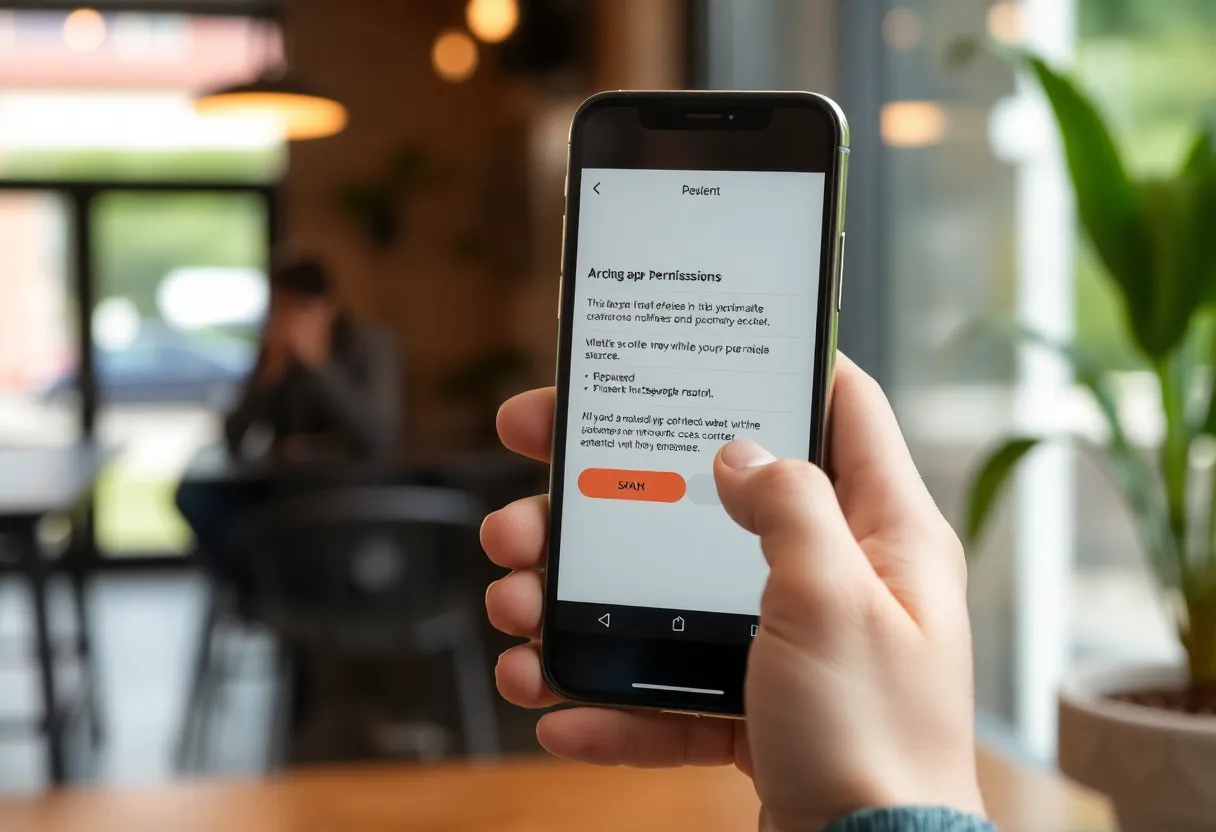
Android lets you grant permissions per app: location, camera, microphone, contacts, and so on. The easy win is turning off anything an app doesn’t really need. But the feature that flies under the radar is one-time permission. When an app asks for location or the camera, you can choose “Only this time” instead of “While using the app” or “Allow.” The app gets access for that session only; the next time it opens, it has to ask again. That limits creep from apps that only need a single use—like a map app for one trip or a camera for one photo.
You can also review and revoke permissions anytime under Settings → Apps → [App] → Permissions. Many people set and forget; a quick audit often turns up apps that still have microphone or location from an old install and don’t need it.
Privacy Dashboard and Sensor Access
On Android 12 and later, the Privacy dashboard (Settings → Privacy) shows which apps have used sensitive permissions in the last 24 hours: location, camera, microphone, and body sensors. You can tap a time slot and see exactly which app was active. No more guessing. If something looks wrong—a game using your mic at 2 a.m.—you can revoke the permission or uninstall.
There’s also a camera and microphone indicators in the status bar when an app is using them. No app can turn those off. So if you’re on a call and the indicator appears for an app you didn’t open, you know to check it.
Advertising ID and App Tracking
Android has an advertising ID that apps use for personalized ads. You can reset it anytime (Settings → Privacy → Ads → Reset advertising ID), which breaks the link between your past behavior and new ad targeting. You can also opt out of ad personalization in the same place; you’ll still see ads, but they won’t be built from your profile.
On Android 12+, you also get a App tracking control: a single toggle that asks installed apps not to track you for advertising across apps and websites. It’s not as strict as iOS’s App Tracking Transparency in some ways, but it signals to developers that you don’t want to be followed, and many will respect it.

Lockdown Mode and Secure Folder
On supported devices (including many Samsungs and Pixels), you can enable Lockdown mode (or the equivalent): when you lock the phone, it disables biometrics and Smart Lock. Only your PIN, pattern, or password will unlock. Useful if you’re in a situation where someone might force you to use your face or fingerprint. One tap before you lock, and the phone is in maximum lock-down.
Samsung users get Secure Folder: a separate, encrypted space with its own apps and files, protected by a second lock. Good for work stuff, sensitive documents, or apps you don’t want visible on the main screen. Other OEMs sometimes offer similar “private space” features—worth checking your device’s security settings.
Google Account Controls
Your Google account is the backbone of Android. In your Google account settings (account.google.com or Settings → Google → Manage your Google Account), you get Activity controls (what Google saves: location history, web and app activity, YouTube history). Turning off or auto-deleting what you don’t need reduces the data Google uses for ads and recommendations. You can also see and delete past activity and set data to auto-delete after 3, 18, or 36 months.
The Bottom Line
Android’s best privacy features are the ones most people never open: one-time permissions, the Privacy dashboard, ad ID reset, lockdown mode, and Google account activity controls. They won’t make you invisible, but they’ll put you in charge of who gets your location, mic, and camera—and how much of your behavior is tied to your identity. Spend 20 minutes in Settings and Privacy; you’ll use your phone with a lot more clarity.