Why Tiling Window Managers Have a Devoted Following Among Power Users

Nico Jørgensen
July 7, 2026
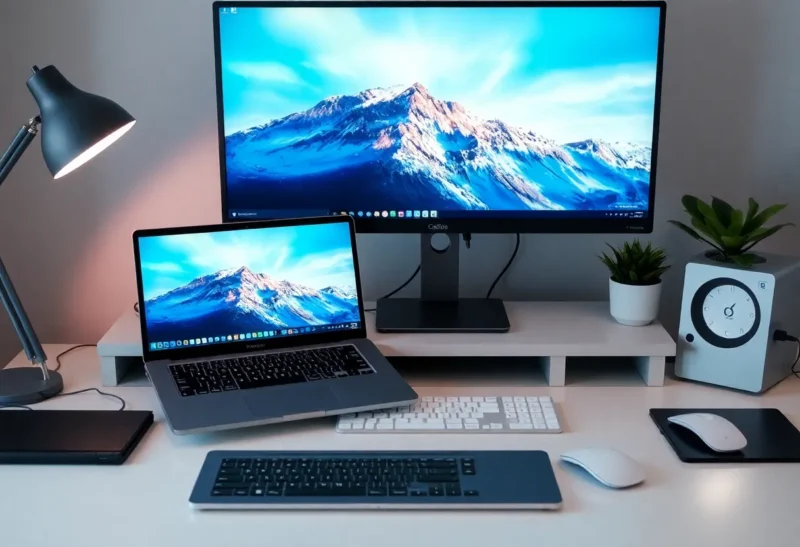
The vast majority of computer users interact with floating window managers—the default in every major desktop operating system. Windows, macOS, and the major Linux desktop environments all use floating WMs: windows open at some default size, can be resized by dragging edges, can overlap each other, and can be moved anywhere on screen. This is so familiar that most people have never considered whether it’s optimal.
A significant community of power users—weighted toward developers, system administrators, and keyboard-centric workflows—uses something different: tiling window managers, which automatically arrange windows to fill the screen without overlap, typically controlled entirely by keyboard. i3, Sway, bspwm, dwm, Hyprland, and their descendants have communities that often border on the evangelical, with users who have switched from floating WMs and find going back essentially unthinkable.
The devotion is often dismissed as Unix enthusiast aesthetics or keyboard elitism. There’s real substance behind it. Understanding what tiling window managers actually provide—and what they require—makes the community’s preference comprehensible rather than mysterious.
What Tiling Window Managers Actually Do
A tiling window manager’s core behaviour is automatic window placement without overlap. When you open a new terminal window, a browser, and a text editor, a tiling WM arranges them in a grid that fills the screen: each application gets a portion of the screen, and windows don’t overlap.
The specific tiling algorithm varies. i3 (and its Wayland successor Sway) uses a manual tiling model: you control how each new window splits the available space. Open two windows and the screen is split in half. Open a third in the left half and that half splits again. The layout tree is built explicitly by the user. bspwm and other binary space partitioning WMs work similarly.
Hyprland, a newer Wayland compositor that has become popular, adds smooth animations and a more polished visual experience while maintaining keyboard-driven tiling. XMonad uses Haskell-defined layouts and is essentially infinitely configurable for users willing to write Haskell.
Most tiling WMs support workspaces—multiple virtual desktops—and allow rapid keyboard navigation between them. i3’s typical setup has ten numbered workspaces, each containing a different set of applications, all navigated with Super+1 through Super+0. The combination of tiling within workspaces and keyboard navigation between workspaces is the core of how power users organise their workflow.
Why It’s Faster for Keyboard-Centric Users
The speed argument for tiling WMs is not about theoretical throughput—it’s about removing specific friction points from the workflow.
In a floating WM, common window management operations require the mouse: resizing a window requires finding and dragging an edge; bringing a hidden window to the front requires clicking in the taskbar or alt-tabbing; positioning two windows side by side for comparison requires careful dragging of both. These operations are individually fast with an experienced mouse user, but they’re continuous low-level overhead throughout a working day.
In a well-configured tiling WM, equivalent operations are keyboard shortcuts: split the current window (Super+Enter for a new terminal in i3 defaults); move focus to the next window (Super+j/k or arrow keys); move between workspaces (Super+number); toggle a window to fullscreen (Super+f). These operations take the same time regardless of where the windows currently are on screen, and they don’t require taking a hand off the keyboard to reach the mouse.
For users who are already fast keyboard users and who spend most of their time in text-centric applications (terminals, code editors, text interfaces), the proportion of time spent on window management overhead in a floating WM can be significant. A tiling WM converts most of this overhead into muscle memory keystrokes.

The Cognitive Organisation Benefit
Beyond raw speed, tiling WM users frequently cite a cognitive benefit that’s harder to quantify: the workspace organisation creates a clear mental model of where things are.
In a floating WM, window state is somewhat chaotic: windows can be anywhere, overlap in unpredictable patterns, and require searching to find the one you want. Application switching through a taskbar or alt-tab is a linear scan through whatever is currently open.
A tiling WM with workspaces organises this spatially and semantically. Workspace 1 is always the main editor. Workspace 2 is always the browser. Workspace 3 is always the terminal. Workspace 4 is communication (email, messaging). Each workspace has a predictable layout. Navigation to a specific tool is not a search—it’s a known keystroke. Super+2 takes you to the browser; you know exactly what you’ll find there.
This organisation externalises some working memory. Rather than tracking mentally “where did I put that terminal window,” the workspace organisation guarantees it’s in the same place it always is. Users who’ve developed this discipline report that it reduces the low-level cognitive overhead of working with multiple applications.
The Learning Curve and Configuration Burden
Tiling WMs have a reputation for being difficult to set up and use, which is partly deserved and partly overstated.
The initial configuration is more involved than installing a desktop environment. Most tiling WMs don’t come with a status bar, a system tray, a display manager, or automatic handling of screen hotplug—these are separate components that must be configured. i3 users typically also configure i3bar or Polybar (status bars), Dunst (notifications), Picom (a compositor for transparency and effects), and various other components. This configuration is done in text files, not graphical settings panels.
The time investment is real: a usable i3 setup takes several hours of reading documentation and configuring. But the configuration is also highly durable: the config file you spend time writing works for years without needing adjustment, and moving to a new machine is copying one text file. Users who’ve made this investment often describe it as paying a one-time cost for a significantly improved working environment that they control completely.
The learning curve for daily use is steeper than a floating WM—muscle memory for the keyboard shortcuts takes a week or two to develop, and using a floating WM after a period with a tiling WM often feels backward. But the ceiling for productivity with a well-configured tiling WM is higher for keyboard-centric workflows.
Modern Tiling on Traditional Desktops
The tiling WM approach has influenced mainstream desktop environments. macOS users have access to Rectangle, Moom, and similar window management tools that bring keyboard-driven tiling to macOS without replacing the entire window manager. Windows has PowerToys FancyZones, which provides snap zones. KDE Plasma has Bismuth and KWin scripts for tiling. GNOME has extension-based tiling with extensions like Pop Shell (from System76, which ships in Pop!_OS).
These hybrid approaches provide most of the keyboard-driven window management benefit without the full configuration overhead of a standalone tiling WM. For users who want tiling workflow improvements on a platform they’re otherwise invested in, these tools deliver a substantial portion of the benefit with much lower setup cost.

Who It’s Actually For
Tiling window managers are not for everyone. They deliver their benefits primarily for users who:
- Spend most of their working time in keyboard-centric applications (terminals, code editors, text tools)
- Are willing to invest time in initial configuration and learning curve
- Work primarily with multiple windows simultaneously rather than single-application fullscreen use
- Prefer control and configurability over immediate ease of use
For users who primarily work in a browser and a single application, or who use keyboard shortcuts rarely, a tiling WM provides less benefit while requiring more setup effort. The enthusiasm of tiling WM users can give the false impression that this is the objective best workflow—it’s the best workflow for a specific usage pattern, not universally.
The devotion that tiling WM users develop is best understood as the result of a significant initial investment (configuration time, learning curve) producing a working environment that is genuinely better for their specific workflow. Having invested that time, the comparison to going back to floating WMs is unflattering in the direction of the floating WM. The community tends to be emphatic about the benefits because, for the workloads they do most, the benefits are real and substantial.