Zigbee Router Tables: Reading Network Maps Without Losing Your Mind

Drew Morrison
April 7, 2026
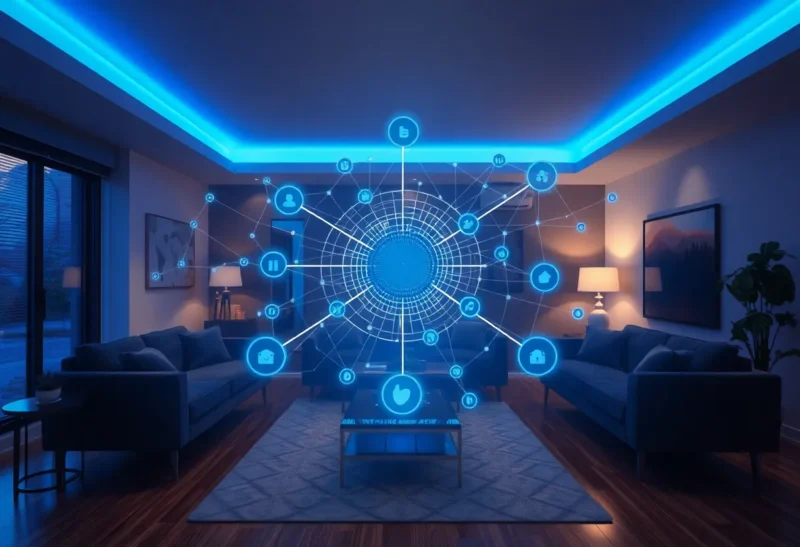
Your lights work until they do not. Then you open the mesh map and stare at a constellation of nodes, lines, and numbers that look like astronomy homework. Router tables — the data Zigbee devices keep about who their neighbors are and how packets should hop — are the missing Rosetta Stone. You do not need a radio engineering degree to use them; you need a mental model of what “good” looks like, what changes after a reboot, and when a pretty graph is lying to you.
This guide translates router-table concepts into home-scale troubleshooting: what the fields mean, how coordinators and routers differ, why link quality jumps around, and how to turn a map into an action list instead of anxiety.
Zigbee is a mesh, not a star
Unlike a simple “phone-to-router” Wi-Fi story, many Zigbee devices participate in forwarding traffic. End devices (most battery-powered sensors) sleep and talk through parents. Routers (mains-powered plugs, bulbs, dedicated repeaters) stay awake and maintain neighbor relationships. Your coordinator is the trust anchor that joins new devices and, in practice, often becomes the hub of heavy management traffic even when user data could theoretically route around it.
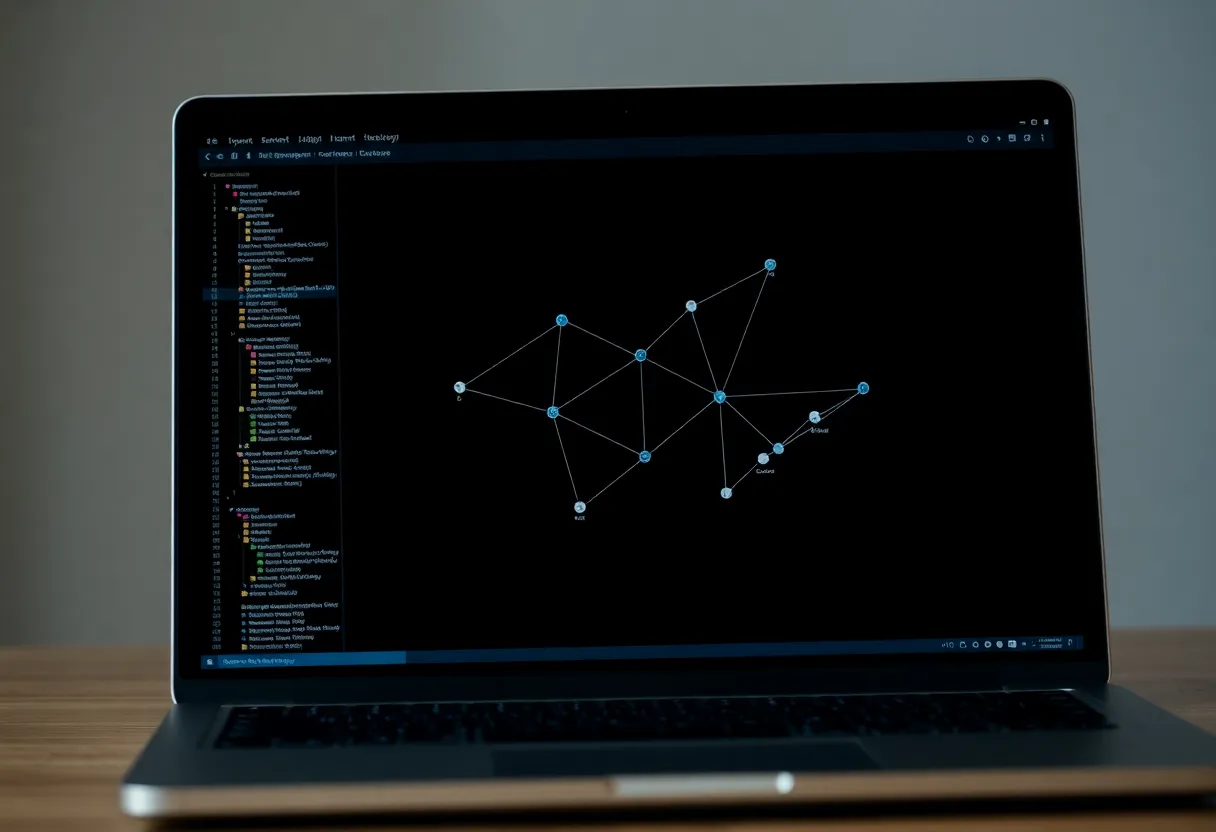
A router table (often exposed in software as a neighbor table, link table, or topology export) is each router’s local view: “I can hear these nodes, with roughly this quality, and I will prefer these paths under these rules.” No single device sees the entire house perfectly. Maps you render in Home Assistant or Zigbee2MQTT are stitched snapshots, not divine truth.
What you are actually looking at in a map
Visualization tools differ, but most expose variations of the same primitives:
- Node identifiers — IEEE (EUI-64) addresses are stable; short network addresses can change after rejoins. When troubleshooting, anchor on IEEE.
- Parent/child relationships — Especially important for end devices. If a sensor’s parent is a marginal router on the edge of the house, flaky behavior often tracks that parent, not the sensor firmware.
- Link quality indicators (LQI) — Higher is generally better, but vendors and stacks normalize differently. Treat LQI as directional signal: compare A→B over time and across alternative parents, not against a universal threshold you read in a forum post from 2019.
- Routing depth / hop count — More hops mean more chances for delay or loss. Mesh networks tolerate hops, but they do not magically erase physics.
When a map shows “255” or a maxed-out bar, do not assume perfection. Some stacks saturate readings quickly; others reserve special values. Cross-check with behavior: commands acknowledged promptly, no ghost availability toggles, no morning-after “device became unavailable” patterns.
Why router tables drift (and why that is normal)
Zigbee networks self-heal, which sounds comforting until you realize healing implies change. Routers periodically update neighbors, evaluate paths, and respond to interference. A table you screenshot on Tuesday is not invalid on Wednesday — but it may not be identical. That is not instability; it is maintenance.
What is a red flag is persistent asymmetry: A hears B well, but B rarely lists A, combined with real-world failures like bulbs dropping off simultaneously. That pattern often points to power-loss events, Wi-Fi channel overlap, USB noise on a coordinator, or a router that is overloaded with too many children.
Coordinator stick vs embedded hub: reading tables with context
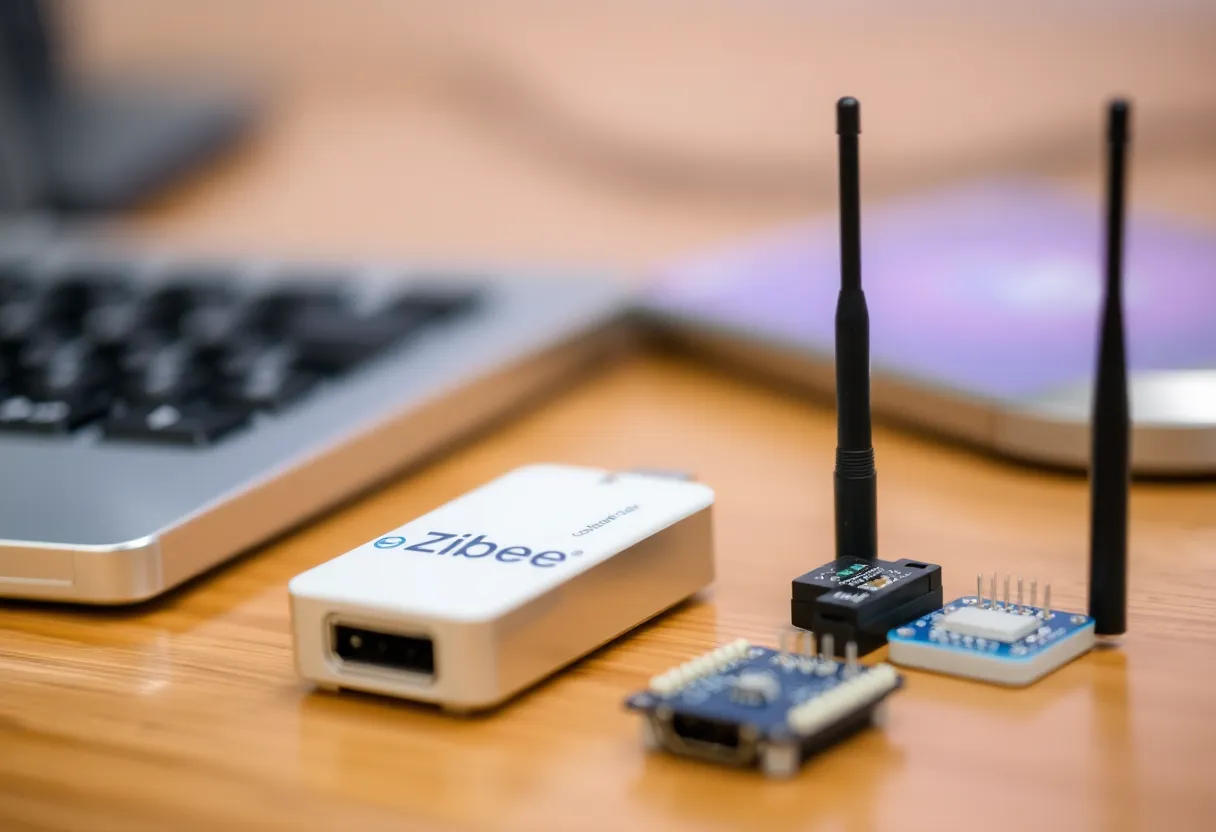
If you run a USB coordinator on a noisy machine, the map can look mediocre even when the house is fine — because the radio front-end is drowning. If you use a manufacturer hub, you may get pretty graphs with less raw data exposed. Neither is wrong; they optimize for different audiences. When comparing screenshots across setups, disclose the hardware: chipset, antenna, extension cable, and whether Wi-Fi access points sit nearby.
What Home Assistant (ZHA) and Zigbee2MQTT tend to show
Both ecosystems can visualize topology, but they source data differently depending on coordinator firmware and quirks of the underlying stack. You might see an LQI on an edge where another tool shows none — not because the link is imaginary, but because that particular diagnostic was not exported in that build. When someone says “my map is empty,” the first questions are firmware version, integration mode, and whether the device is a sleepy end device that only appears intermittently.
Use the map as a compass, not a scoreboard. If Z2M’s graph disagrees slightly with ZHA’s card, assume both are approximations unless you also see correlated failures. The actionable question is whether unstable nodes share a parent or a corridor of the house — patterns survive imperfect tooling.
Concrete reading habits for LQI and “depth”
Instead of hunting a magic number, track delta. Snapshot LQI after you plug in a new mains router: did the marginal bulbs improve toward that router? If yes, placement mattered. If no, you may have added RF noise (some cheap USB chargers spew wideband junk) or created a routing loop preference that does not match your mental floor plan.
Depth (hop count) deserves the same relativism. Two hops through solid routers often beats one hop through a lousy repeater stuck behind a metal enclosure. When maps let you see multiple viable paths, favor stable mains-powered routers with clean power over “clever” layouts that look minimal on paper.
Extension cables are not superstition for coordinators. Moving the stick away from USB3 hash and metal cases often changes neighbor tables more than tweaking software settings.
Turning a map into a fix list
Use this sequence before you randomize channel changes or rip devices out:
- Identify orphans and stragglers. Nodes that frequently rejoin or flip between parents need more router density nearby, not more rules.
- Check parent choices for battery devices. If a critical sensor hangs off a distant plug, add a known-good router halfway or relocate the plug.
- Correlate with power blips. Whole-house router table churn after storms or breaker trips suggests devices rebooting and rebuilding tables under stress.
- Scan for Wi-Fi overlap. 2.4 GHz congestion shows up as volatile LQI, especially near TVs, soundbars, and mesh pucks.
- Validate firmware and stack settings. Router quirks exist; sometimes a single repeater misbehaves and poisons local neighborhoods until excluded.
Bindings, groups, and why routing still matters
Direct bindings can shortcut some traffic, but management frames and many automations still ride the general mesh. A switch bound to a bulb may appear “local,” yet OTA updates, reconfiguration, and health polling still stress routers. Do not assume bindings absolve you of topology planning.
Advanced signals (optional, not mandatory)
If your stack exposes per-neighbor frame counters, retry rates, or route records, they are useful for confirming suspicion after you see symptoms. They are not a hobby requirement. Most home users solve Zigbee with placement, dedicated routers, clean power to repeaters, and sane channel plans — not with spreadsheet deep dives every weekend.
Myths that waste weekends
- “More routers always stabilize the mesh.” Too many marginal routers can increase chatter and routing churn. Prefer a smaller set of known-good repeaters in the right places.
- “If the map looks pretty, automations are safe.” Maps lag reality. Judge by latency, missed commands, and battery drain — not wallpaper aesthetics.
- “Channel changes fix mystery bugs.” Sometimes yes — especially with Wi-Fi overlap — but channel hopping without placement fixes is roulette. Log before/after tables if you change channels so you can roll back intelligently.
When to stop staring at tables and start swapping hardware
If one device model repeatedly appears as a bad parent or correlates with neighborhood collapse, test exclusion: remove it temporarily and see if tables stabilize. Some firmware revisions misbehave as routers while working fine as end devices (rare, but memorable). Likewise, a single “universal” smart plug repeater on a noisy leg of your wiring can poison an entire room; moving it to another outlet is a valid scientific experiment.
Document the experiment. Screenshots with timestamps beat vibes when you are three forum threads deep at midnight.
Documentation habits that save hours
When you change topology — new plug, relocated lamp, channel shift — capture a map and a one-line note in a personal log. Future-you will compare against “when the kitchen started lagging” without relying on memory. This is especially valuable in multi-story homes where seasonal interference (humidity, foliage outside windows, holiday decor) changes the RF landscape.
Bottom line
Router tables are not mystic runes; they are each device’s imperfect notebook about the neighbors it trusts today. Learn the vocabulary once, treat maps as directional evidence, and anchor fixes in physical reality: power, distance, interference, and the quality of your coordinator’s RF environment. Do that, and the mesh map stops being a stress toy and becomes a practical dashboard — one that actually points to the plug you should move two meters to the left.
Keep one rule of thumb visible on the fridge if you need it: fix placement and power before you fix firmware. Router tables are excellent at revealing when your mesh is arguing with physics. Listen to that argument early, and you will spend less time blaming the wrong app, the wrong automation, or the wrong brand — and more time enjoying lights that actually stay lit.