Zigbee and Wi-Fi Coexistence: Fixing Channel Bleed Without Replacing Your Router

Drew Morrison
April 7, 2026
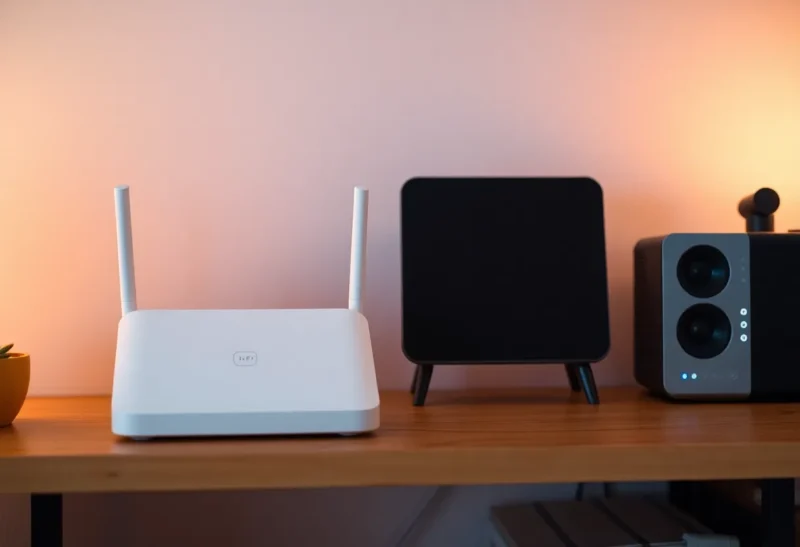
If your smart lights stutter, your sensors report “unavailable” at random, and your Wi-Fi still shows full bars, you might be dealing with a classic 2.4 GHz traffic jam. The mesh-shaped version of that story is why a Zigbee mesh fails. Zigbee and Wi-Fi are not enemies—they are neighbors forced to share a crowded band. The good news: you can usually calm the interference without throwing money at a whole new router.
This guide explains how the overlap happens, how to map it without pretending you are a spectrum engineer, and a practical order of operations for fixes that respect apartment life, rental routers, and mesh setups.
You will not need a spectrum analyzer that costs more than your sofa. You will need patience, a notebook, and willingness to treat wireless as shared infrastructure rather than a magic pipe labeled “Internet.”
Same spectrum, different jobs
Most consumer Zigbee runs in the 2.4 GHz ISM band—the same neighborhood where Wi-Fi 2.4 GHz lives. Bluetooth and a menagerie of cheap wireless gadgets camp there too. Zigbee uses low-power, low-duty-cycle packets to stitch together a mesh of bulbs, sensors, and buttons. Wi-Fi blasts wider channels for throughput. When Wi-Fi claims a fat 40 MHz channel, Zigbee channels underneath can look like a quiet library next to a concert.
That does not mean Zigbee is fragile by nature. It means coexistence is a configuration problem: pick sensible channels, reduce unnecessary overlap, and stop assuming “auto” on the router always chooses wisely.
Most “mystery” smart home flakiness traces back to those assumptions, not to a single defective bulb.

Symptoms that point to interference rather than “bad mesh”
- Issues spike when someone starts a video call or a nanny cam ramps up upload.
- Problems cluster near the entertainment center where five HDMI dongles and a soundbar share power strips.
- Motion automations fail intermittently, but power-cycling the hub buys you a day—classic sign of cumulative RF stress rather than a dead repeater.
- Everything stabilizes late at night when neighbors’ Wi-Fi quiets down.
If those patterns sound familiar, channel planning beats buying another hub.
Zigbee channels and Wi-Fi channels: a workable mental model
Wi-Fi channels 1, 6, and 11 are the common non-overlapping anchors in 2.4 GHz when using 20 MHz width. Zigbee maps its channels across the same band with a finer comb. The practical takeaway: if your Wi-Fi sits on channel 6 with a wide mode, you may be stepping on multiple Zigbee channels at once.
You do not need perfect math on dinner napkins. You need enough separation that your coordinator and repeaters maintain link budgets. Often that means:
- Lock Wi-Fi to 20 MHz on 2.4 GHz in dense environments.
- Pick Wi-Fi channel 1 or 11 deliberately—not “auto” that hops weekly.
- Align Zigbee coordinator channel (if your ecosystem allows) away from your locked Wi-Fi center frequency.
Vendor apps vary: some expose Zigbee channel migration; others require a painful hub reset. Read the release notes before you click “change channel” during a dinner party.
Fixes that do not require new hardware
Separate SSIDs mentally, not just physically. Push bandwidth hogs to 5 GHz or 6 GHz where possible. Security cameras, TVs, and laptops should not camp on 2.4 GHz unless they must. Every device you evict from the crowded band helps Zigbee breathe.
Tame Wi-Fi auto-channel. If your mesh insists on wide channels, dive into advanced settings. Many systems let you prefer 20 MHz or bias a particular channel. Stability beats peak Mbps for coexistence.
Relocate the hub. Coordinators jammed behind TVs or inside metal AV cabinets hear a noisy world. A short USB extension to move the stick or hub away from the router and HDMI cables is a free-ish upgrade with outsized payoff.
Audit USB 3.0 noise. Cheap cables and ports can spew broadband noise that whacks 2.4 GHz receivers. If your Zigbee stick sits against a USB 3 hub, separation matters.
When a router upgrade actually helps
Replace hardware when your current box cannot disable 40 MHz on 2.4 GHz, cannot steer clients to 5 GHz, or places antennas in ways you cannot reposition. A modern tri-band mesh with sane defaults often reduces coexistence pain—but it is not magic if you leave every IoT device clinging to 2.4 GHz by default.
Measuring without a lab
Free Wi-Fi analyzer apps on laptops and phones show channel use and approximate widths. They do not paint Zigbee directly, but they reveal the Wi-Fi side of the brawl. Pair that with your hub’s map of link quality (LQI/RSSI analogs depending on platform) before and after a change. Science for mortals is A/B testing with notes.
Neighbor networks, apartments, and the ethics of power
In townhomes and apartments, you do not control the airwaves. Your pristine channel plan can collapse when a neighbor’s operator-installed router lands on the same frequency with 40 MHz width and maximum TX power. You still have ethical levers: prefer 20 MHz so you contribute less bleed yourself, place your AP away from shared walls when possible, and avoid “turbo” modes that buy you marginal speed at the cost of everyone’s stability.
If your building is an RF soup, add more wired repeaters for Zigbee (mains-powered bulbs and plugs) so individual sensors do not need heroic links through concrete. Mesh strength is not only coordinator quality; it is the density of friendly routers that speak Zigbee.
Microwave ovens, USB chargers, and other impostors
Not every dropout is Wi-Fi. Leaky microwave ovens can clobber 2.4 GHz while reheating soup. Cheap switching power supplies whine in ways that show up as elevated noise floors. If your kitchen lights fail only during popcorn hour, suspect the appliance before you reflash firmware.
Enterprise habits worth stealing at home
Corporate WLAN teams document channel plans per floor. You can keep a one-page “RF diary”: date, change, devices affected. That sounds fussy until you undo a bad tweak three months later and cannot remember what worked. Screenshots of analyzer plots belong in the same folder as hub backups.
When to call “good enough”
Perfect spectrum hygiene does not exist in residential life. Aim for no missed critical automations—garage doors, leak sensors, locks—rather than perfect millisecond response on decorative LED scenes. If your home passes that bar after channel discipline, you are done optimizing until the next gadget arrives.
Thread and Matter do not erase 2.4 GHz politics
As Thread spreads, many devices still backhaul through 2.4 GHz radios in practice, and Wi-Fi remains the elephant. Treat coexistence as an ongoing habit: when you add a new always-on gadget, revisit channel choices.
Coordinator firmware and the silent changelog
Sometimes interference looks like a routing bug until a point release improves radio calibration or neighbor scanning. Before you chase ghosts in the spectrum, confirm coordinator firmware, stick firmware (if separate), and mesh libraries are current. Read changelogs for phrases like “improved coexistence” or “channel assessment”—they signal that vendors know the band is a fight club.
Rollback plans matter: if a firmware bump destabilizes sleepy end devices, keep the previous image handy. Document versions next to your RF diary so you correlate regressions with releases.
Repeaters: quantity versus quality
Throwing more Zigbee routers at a problem can help—or create routing churn. A repeater behind the same noisy TV as your coordinator inherits the same deafness. Prefer repeaters on clean power, away from switching supplies, with line of sight to multiple siblings. Think geometry, not count.
Some bulbs make mediocre routers; some plugs are excellent. Community wisdom helps, but your floor plan is the final judge. Watch whether adding a repeater improves the worst nodes or merely shifts bottlenecks.
Children’s rooms, baby monitors, and legacy 2.4 GHz video
Analog and digital video senders love 2.4 GHz. A baby monitor can occupy spectrum like a rogue Wi-Fi network without showing up on consumer Wi-Fi scanners the same way. If instability tracks with a camera monitor pair, test with the monitor powered down before you blame your mesh.
A sane troubleshooting sequence
Work top-down: reduce load, reduce width, relocate radios, then touch Zigbee parameters. Skipping straight to “factory reset everything” erases useful diagnostics and often lands you on the same channel plan that caused pain in the first place.
- Move heavy Wi-Fi clients off 2.4 GHz.
- Lock Wi-Fi width and channel; wait 24 hours.
- Relocate coordinator or USB extension; wait 24 hours.
- Adjust Zigbee channel if tooling allows; repair the mesh.
- Only then spend money on new routers or additional repeaters.
Closing thought
Zigbee reliability is as much about spectrum manners as it is about brand loyalty. You can fix a surprising amount of “ghosty” smart home behavior by stopping Wi-Fi from stepping on Zigbee’s toes—no router replacement required. When you do upgrade hardware, do it because your settings hit a wall, not because the marketing box promises a mesh “optimized for IoT.” The optimization is mostly channel discipline in a crowded room.
Start small: one channel lock, one band-steering tweak, one USB extension. Log what changes. The 2.4 GHz band rewards patient homeowners who treat radios like roommates—clear boundaries, less shouting, and fewer mystery disappearances when the microwave beeps.