Zigbee Channel Planning: The Quiet Reason Your Smart Lights Still Lag

Drew Morrison
April 7, 2026
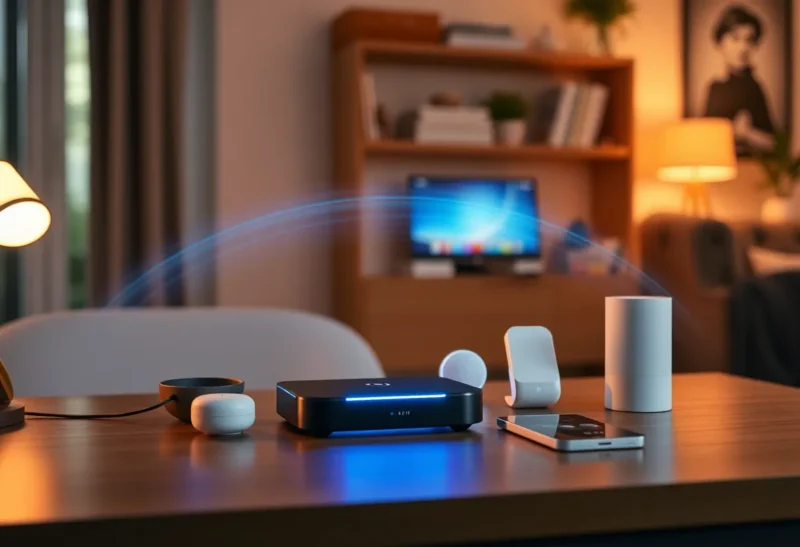
You bought reliable bulbs, added a decent hub, and maybe even placed a repeater in the hallway. Yet your lights still hesitate—just a beat, just often enough to annoy you. The usual suspects are mesh quality, weak repeaters, or flaky automations. Those matter. But there is another layer people skip because it sounds like enterprise Wi-Fi trivia: Zigbee channel selection in a home already crowded with 2.4 GHz noise.
Zigbee does not ride on your Wi-Fi SSID, but it often shares the same crowded airspace. When channels overlap badly, you do not always get “offline” failures. You get latency: retries, backoff, and routes that look healthy on paper while the experience feels mushy. This article explains what is going on in plain language, how to pick a sane channel, and how to verify you actually fixed the right problem.
A quick refresher: Zigbee is low-power mesh, not magic
Zigbee devices form a mesh. Some nodes route traffic; end devices mostly sleep and wake to chat with parents. Your coordinator (often inside a hub or stick) sets the network parameters, including the RF channel. If that channel is fighting a loud neighbor—your own Wi-Fi, a baby monitor, a microwave-adjacent noise floor, or a neighbor’s access point—mesh traffic still flows, but packets take more attempts.
That is the quiet reason lag shows up “sometimes.” Interference is bursty. Your phone speed test looks fine because Wi-Fi has different tolerance and retries than a sleepy bulb reporting state.
Why Wi-Fi and Zigbee collide even when you “separated” them
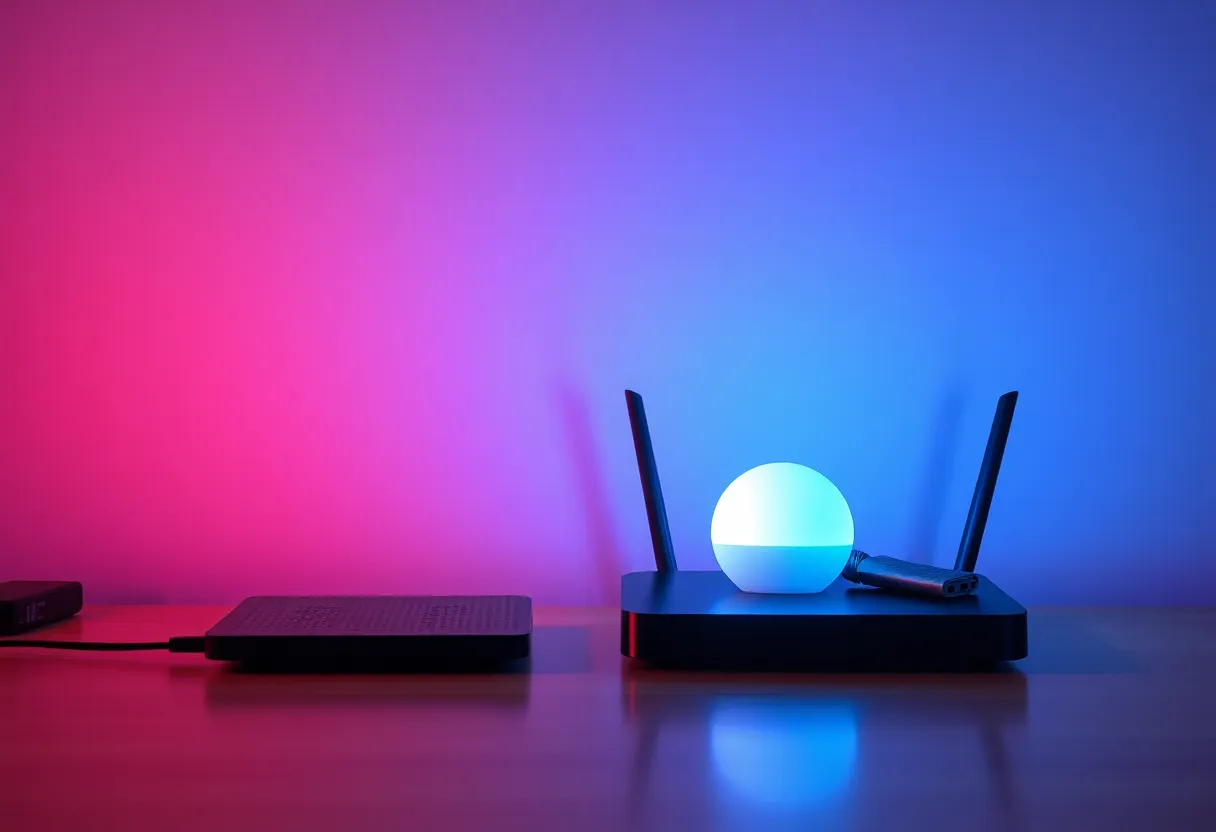
Many guides say “put Zigbee on 15 and Wi-Fi on 1” as if life were that tidy. Real homes have multiple access points, guest networks, ISP gear you cannot fully control, and neighbors whose signals punch through walls. Wi-Fi channel width matters too: 40 MHz widths eat more spectrum, which makes overlap more likely even if the “number” sounds far away.
Zigbee channels do not map one-to-one to Wi-Fi channel numbers in a friendly way for humans. The practical approach is not memorizing tables; it is measuring where the noise lives and moving Zigbee to a quieter pocket, then retesting automations under real load—not just pinging a router.
Symptoms that point to RF contention instead of a “bad bulb”
- Latency spikes when someone starts a video call or a camera uploads.
- Issues cluster at night when more devices are active—TV streaming, kids on tablets, security cams recording.
- Scenes work instantly near the hub but drag at the edges of the house even though you added repeaters.
- Battery-powered sensors miss occasional reports while mains-powered routers look “fine.”
None of this proves RF interference, but it is enough to justify spending thirty minutes on channel planning before you rip out hardware.
Why “just change the Wi-Fi channel” is both right and incomplete
Moving Wi-Fi can help Zigbee, but it is not always the best first move. Sometimes the Zigbee coordinator is on a factory default that happens to sit under your neighbor’s strongest 2.4 GHz signal. Sometimes your own mesh Wi-Fi system auto-channels aggressively at night. Treat RF like a shared apartment hallway: you can rearrange your furniture, but you cannot control everyone else’s deliveries. The goal is to reduce simultaneous high-power transmissions on overlapping spectrum, not to win a theoretical diagram.
Step 1: Map your Wi-Fi (honestly)
Use a scanner—many Wi-Fi analyzer apps show channel use and signal strength. Note your primary access points and whether you are using 20 MHz or 40 MHz on 2.4 GHz. If you can widen only on 5 GHz and keep 2.4 “narrow,” you often buy Zigbee breathing room without hurting most home workloads. Not every router exposes that control, but when it does, it is one of the highest leverage toggles.
While scanning, look for “hidden” transmitters: some security cameras, smart displays, and older IoT hubs still lean on 2.4 GHz radios even if you rarely configure them. You are building a mental heatmap, not writing a dissertation. Two minutes on each side of the house beats guessing from the couch.
Step 2: Pick a Zigbee channel with intent, not defaults
Many hubs ship on a default channel because it is convenient for manufacturing—not because it is optimal for your apartment. If your ecosystem allows channel changes, choose a channel with less overlap relative to your measured Wi-Fi landscape. Expect to reboot or heal the mesh afterward; routes will rebuild. Do changes during a low-traffic window so you are not debugging two variables at once.
If your platform does not expose channel settings easily, your lever may be moving Wi-Fi instead: shifting AP channels, reducing width, or relocating an access point that sits inches from your Zigbee coordinator.
Step 3: Physical placement still beats clever software
USB coordinators stuffed behind a metal PC case, dense AV cabinets, or directly adjacent to Wi-Fi routers are a classic mistake. Separation matters: even a foot of distance and a little lateral offset can reduce desensitization and overload on receivers. If you use a USB stick, a short extension cable is not a hack; it is RF hygiene.
Step 4: Verify with behavior, not vibes
After changes, test the boring stuff: trigger your worst-case scenes ten times, walk the perimeter of the house toggling lights, and watch motion automations during a streaming test. If latency improves consistently, you found a real contributor. If nothing changes, return the channel and look at repeaters, firmware, or overloaded coordinators.
When it is not the channel
Some lag is application-level: cloud bridges, slow vendor APIs, Home Assistant overload, or automations that chain too many sequential calls. RF fixes will not cure those. If every device lags equally at all times, suspect platform health before spectrum. If lag correlates with network traffic, RF and bufferbloat climb the suspect list.
Thread, Matter, and the future (but 2.4 GHz is not gone)
Thread and Matter change onboarding and interoperability; they do not repeal physics. Many Thread devices still operate in the same crowded bands depending on implementation and backhaul. Good channel discipline and placement remain relevant even as stacks evolve—especially in mixed homes running Zigbee gear alongside newer protocols.
A practical checklist you can run today
- Scan 2.4 GHz Wi-Fi channel usage and widths in your home.
- Move the Zigbee coordinator off defaults if your ecosystem allows it—or move Wi-Fi channels instead.
- Separate the coordinator from the Wi-Fi AP physically; use a USB extension if needed.
- Ensure you have enough mains-powered routers; end devices alone rarely fix mesh latency.
- Retest scenes under real network load; confirm improvement before buying new gear.
Conclusion
Zigbee channel planning is unglamorous, but it is often the difference between a mesh that “works” and one that feels instant. If your smart lights still lag after repeaters and hub upgrades, measure the airspace, reduce overlap, and reposition coordinators with the same care you would give a Wi-Fi access point. Give the mesh time to heal after changes—impatience is how good fixes get rolled back prematurely. Your future self will notice—in milliseconds.