Why Your Backup Strategy Is Probably Broken (And How to Fix It)

Maria Torres
March 1, 2026
You think you have backups. You’ve got Time Machine running, or OneDrive syncing, or Google Photos uploading. You’ve got a USB drive somewhere. You’re covered. Right?
Probably not. Most backup strategies fail silently until the moment you need them. Here’s what usually goes wrong—and how to fix it before it’s too late.
The 3-2-1 Rule: Why It Matters
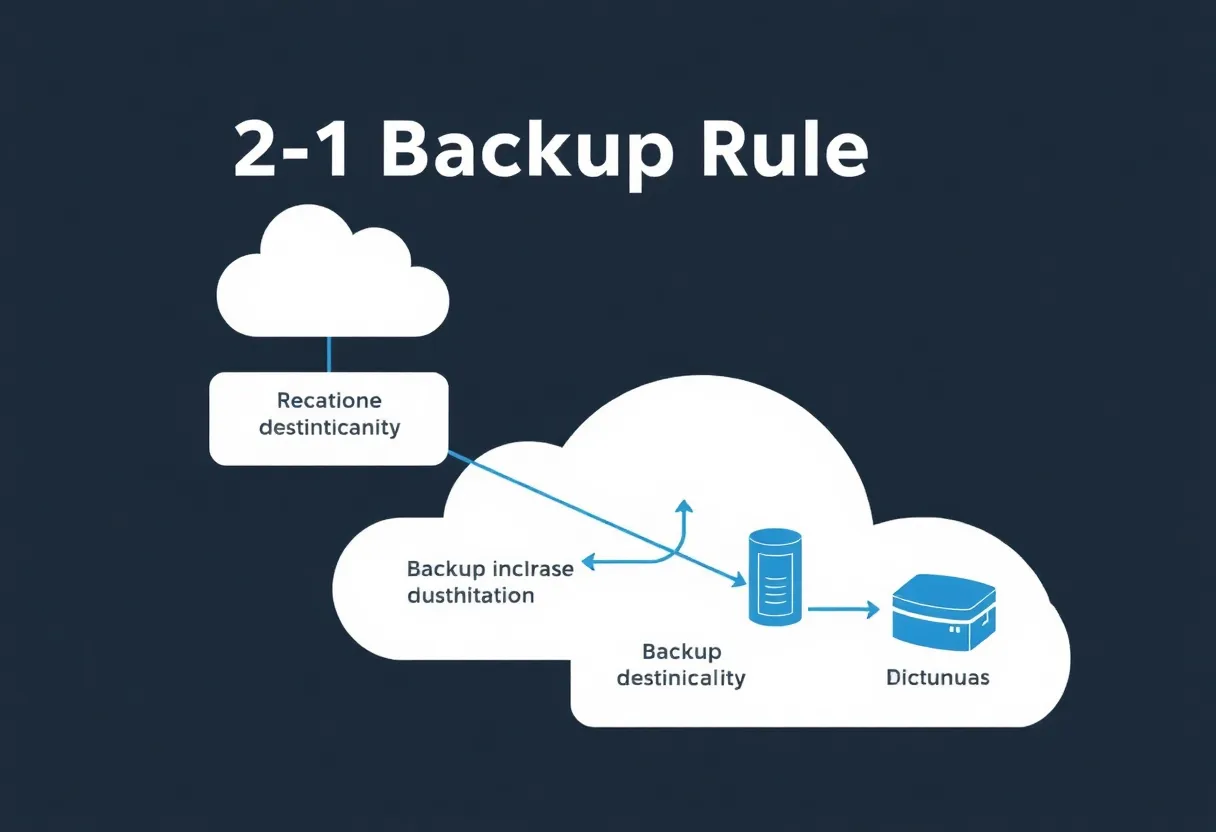
The gold standard for backups is the 3-2-1 rule: three copies of your data, on two different media types, with one copy off-site. Sounds simple. Almost nobody does it correctly.
Three copies means the original plus two backups—not two copies total. One copy lives with you (your main machine or a local drive). Another can be local too—a NAS or USB drive in the same building. The third must be off-site: cloud storage, a drive at a friend’s house, or a safe deposit box. If your house floods, burns, or gets burgled, your off-site copy is your lifeline.
Two different media types means don’t put everything on spinning drives, or everything in the cloud. Mix it up: local SSD or HDD, plus cloud. Or local drive plus a second drive stored elsewhere. If one media type fails—say, a batch of drives turns out to have a manufacturing defect, or a cloud provider has a prolonged outage—the other might survive. Diversity is resilience.
One copy off-site is non-negotiable. A fire, flood, or theft could wipe out everything in your home. If your only backup is a drive sitting next to your computer, you’re one disaster away from total loss. Cloud backup counts as off-site. So does a drive in a safe deposit box or at a family member’s house. Just make sure it’s somewhere else.

Sync Is Not Backup
Dropbox, Google Drive, OneDrive, and iCloud are sync services. They copy files between devices and keep them in sync. If you delete a file on your laptop, it gets deleted in the cloud. If ransomware encrypts your files, the encrypted version syncs to the cloud. Sync is useful. Sync is not backup.
A real backup is a point-in-time snapshot. You can restore to a moment before the ransomware hit, or before you accidentally deleted that folder. Time Machine does this. Backblaze, Arq, and similar tools do this. Sync services do not—unless they have version history, and even then, retention is often limited.
If you rely on sync alone, you’re one bad click away from losing everything. Add a proper backup layer: something that takes snapshots and retains them for weeks or months.
The Single Point of Failure
Lots of people have a USB drive plugged in, running Time Machine or Windows Backup. That’s better than nothing. But if that drive is always connected to your machine, it’s vulnerable. Ransomware will encrypt it. Power surges can fry it. Theft takes both your laptop and the drive.
Rotate drives. Keep one at home and one at the office or a friend’s house. Swap them weekly. Or use a NAS with a second backup to the cloud. Or use a cloud backup service that runs automatically. The goal: no single failure should wipe out all your copies.
Same goes for cloud. If all your backups are in one provider—iCloud, Google, or Backblaze—you’re trusting that provider with everything. Diversify. Local backup plus a different cloud provider gives you options if one fails, changes its terms, or hikes its prices. Redundancy isn’t paranoia; it’s insurance.
Ransomware is a growing threat. It encrypts your files and demands payment to unlock them. If your backup drive is always connected, ransomware can encrypt it too. Use a backup solution that supports versioning and keeps snapshots offline or immutable. Some cloud providers offer ransomware recovery. Local drives that are disconnected after backup are safe—ransomware can’t touch what’s unplugged.
Test Your Restores
The only backup that matters is the one you can restore from. Plenty of people discover too late that their backups were corrupt, incomplete, or misconfigured. Test restores at least once a year.
Pick a few files—or a folder—and restore them to a temporary location. Verify the content is correct. If you use Time Machine, do a full restore test to an external drive. If you use cloud backup, download a sample and confirm it works. Boring? Yes. Essential? Absolutely.
What to Back Up
Focus on what you can’t replace. Documents, photos, projects, financial records. System files and apps can be reinstalled. Your ten years of family photos cannot.
Exclude large, reproducible data: Steam games, video files you can re-download, caches. They bloat your backup and slow restores. Include config files for important apps—SSH keys, dotfiles, database dumps—so you can rebuild your environment quickly.
Encrypt Your Backups
Backups contain everything. If someone steals your backup drive or gains access to your cloud backup, they have your data. Encrypt backups at rest. Time Machine can encrypt volumes. Cloud backup tools typically support encryption. Turn it on.
Keep It Simple
The best backup strategy is one you’ll actually maintain. If it’s too complex, you’ll skip it. Automate as much as possible: scheduled backups, automatic cloud sync. Set it and forget it—but verify it periodically.
Fix your backup strategy before you need it. The cost of a good setup is time and maybe a few hundred dollars for drives and cloud storage. The cost of losing everything—photos, documents, years of work—is incalculable. Most people only realise how broken their backup was when it’s too late. Don’t be one of them. Run through the checklist: three copies, two media types, one off-site. Verify your restores. Encrypt your backups. Then sleep a little easier.